
Transcribe Mp4 File to Text With Google Docs
[vc_row type=”in_container” full_screen_row_position=”middle” column_margin=”default” column_direction=”default” column_direction_tablet=”default” column_direction_phone=”default” scene_position=”center” text_color=”dark” text_align=”left” row_border_radius=”none” row_border_radius_applies=”bg” overflow=”visible” overlay_strength=”0.3″ gradient_direction=”left_to_right” shape_divider_position=”bottom” bg_image_animation=”none”][vc_column column_padding=”no-extra-padding” column_padding_tablet=”inherit” column_padding_phone=”inherit” column_padding_position=”all” column_element_direction_desktop=”default” column_element_spacing=”default” desktop_text_alignment=”default” tablet_text_alignment=”default” phone_text_alignment=”default” background_color_opacity=”1″ background_hover_color_opacity=”1″ column_backdrop_filter=”none” column_shadow=”none” column_border_radius=”none” column_link_target=”_self” column_position=”default” gradient_direction=”left_to_right” overlay_strength=”0.3″ width=”1/1″ tablet_width_inherit=”default” animation_type=”default” bg_image_animation=”none” border_type=”simple” column_border_width=”none” column_border_style=”solid”][vc_column_text]MP4 Transcription is a transformative tool for businesses seeking to enhance their workflows through accurate text conversion of audiovisual content. Whether you’re documenting interviews, lectures, or meetings, having a transcript can improve accessibility, aid in content organization, and enhance analysis. MP4 files, which are commonly used for video recordings, present a challenge when it comes to transcription. Many users assume that Google Docs, a free and widely available tool, can directly transcribe MP4 files to text. While Google Docs does not have a built-in MP4 transcription feature, it can still be combined with other tools to achieve accurate results. This article discusses Google Docs’ capabilities in transcribing MP4 files and quickly turning spoken words into written text. This functionality allows teams to analyze transcripts for valuable insights that inform decision-making processes swiftly. Understand how you can harness this feature to identify customer pain points, desires, and behaviors, ultimately enriching your business understanding of client needs and improving your service offerings. In this guide, you’ll learn how to transcribe MP4 files into text using Google Docs and supporting tools. We’ll cover: The step-by-step process of converting MP4 files to text Common mistakes to avoid The best tools to enhance your transcription workflow By the end of this article, you’ll be able to efficiently transcribe MP4 files, leveraging Google Docs and other free tools to create accurate text records. Understanding the Basics of MP4 Transcription Before diving into the transcription process, it’s essential to understand how MP4 transcription works and the role Google Docs plays. What is MP4 Transcription? MP4 transcription is converting spoken words from a video file into written text. This process allows users to: Create subtitles or captions for videos Generate written documentation for research or content creation Improve accessibility for audiences with hearing impairments Can Google Docs Transcribe MP4 Files? Google Docs cannot directly transcribe MP4 files. However, it provides a Voice Typing feature that can convert spoken audio into text in real-time. When combined with other tools, this feature can effectively transcribe MP4 content. Alternative Methods for MP4 Transcription Since Google Docs alone cannot transcribe MP4 files, users typically rely on additional tools, such as: Google Docs Voice Typing (for real-time playback and dictation) Google Drive + Otter.ai (for AI-powered transcription) Audacity + Google Docs (for extracting and transcribing audio manually) Step-by-Step Guide to MP4 Transcription with Google Docs Embarking on MP4 transcription using Google Docs can streamline your workflow, whether for business insights or academic research. The process is simple, and with a few steps, your audio content becomes searchable text. Firstly, ensure you have the MP4 file you wish to transcribe. Google Docs uses its Voice Typing tool to convert spoken words into text, but it isn’t natively compatible with MP4 format. Therefore, you’ll need to play your MP4 file aloud to use the transcription feature. Before embarking on MP4 transcription, ensure all essential tools are readily available. Begin by acquiring the audio or video MP4 files for transcription. Checking file clarity is crucial, as clear audio leads to more accurate transcription results. Google Docs is capable of handling the transcription process, but it does not natively support MP4 files. You’ll need to convert them to a compatible format, such as audio-only files like MP3. Next, consider using a robust transcription service like Insight7 to tackle the initial conversion from MP4 to text. The accuracy and speed of such tools can significantly streamline your workflow. Once you have your text, you can refine and analyze it within Google Docs. Remember, shorter recordings may not yield deep insights, so aim for comprehensive material. Finally, organize your transcripts by creating a project folder in Google Docs, which helps collate related documents for efficient analysis and insight gathering. 1. Converting MP4 to an Acceptable Audio Format Before diving into MP4 transcription, converting your MP4 files into an audio format that Google Docs can handle is essential. An efficient way to do this involves using readily available online conversion tools. Here is a simple guide to help you with the process: Online Audio Converter: This user-friendly tool allows you to upload your MP4 file and convert it to MP3, which is compatible with Google Docs voice typing feature. Zamzar: Renowned for its versatility, Zamzar supports conversion from MP4 to various audio formats, such as MP3, WAV, or AAC. CloudConvert: Trusted for its data security measures, it offers a conversion service from MP4 to audio formats accepted by Google Docs. Audacity with an FFmpeg plugin: For those preferring offline solutions, Audacity is a free software that, once paired with the FFmpeg library, can convert your MP4 file to a suitable audio format. Once converted, these audio files can serve as a base for transcription in Google Docs. Remember that high-quality audio conversion is pivotal for effective MP4 transcription, as clearer audio leads to more accurate transcriptions. Ensure you have a reliable internet connection during the conversion and transcription process to avoid potential setbacks. And for those looking for professional transcription services, platforms like Insight7 offer an alternative route with their dedicated MP4 transcription solutions. 2. Uploading the Audio File to Google Drive Before you begin the MP4 transcription process using Google Docs, your audio file must be accessible in the cloud. The first step is to get your MP4 file onto Google Drive. Doing so is straightforward but critical to your workflow, ensuring your files are ready for transcription and any subsequent reporting or sharing of insights. To upload the MP4 file, follow these simple steps: Open Google Drive (drive.google.com) on your browser. Click the + New button on the left side of the screen. Select File Upload from the dropdown menu. Locate and select the MP4 file from your computer downloads and click Open. Once your upload
Transcribe Audio File to Text With Microsoft Word
[vc_row type=”in_container” full_screen_row_position=”middle” column_margin=”default” column_direction=”default” column_direction_tablet=”default” column_direction_phone=”default” scene_position=”center” text_color=”dark” text_align=”left” row_border_radius=”none” row_border_radius_applies=”bg” overflow=”visible” overlay_strength=”0.3″ gradient_direction=”left_to_right” shape_divider_position=”bottom” bg_image_animation=”none”][vc_column column_padding=”no-extra-padding” column_padding_tablet=”inherit” column_padding_phone=”inherit” column_padding_position=”all” column_element_direction_desktop=”default” column_element_spacing=”default” desktop_text_alignment=”default” tablet_text_alignment=”default” phone_text_alignment=”default” background_color_opacity=”1″ background_hover_color_opacity=”1″ column_backdrop_filter=”none” column_shadow=”none” column_border_radius=”none” column_link_target=”_self” column_position=”default” gradient_direction=”left_to_right” overlay_strength=”0.3″ width=”1/1″ tablet_width_inherit=”default” animation_type=”default” bg_image_animation=”none” border_type=”simple” column_border_width=”none” column_border_style=”solid”][vc_column_text]Transcribing audio to text is crucial for researchers, students, journalists, and business professionals. Whether you’re converting meeting recordings, lectures, interviews, or personal notes, accurate transcription saves time and improves productivity. Traditionally, transcription required manual effort, but today, Microsoft Word offers a built-in AI-powered transcription tool that simplifies the process. If you’ve ever wondered, “Can Microsoft Word transcribe audio to text?” the answer is yes! With the Transcribe feature in Word, you can convert audio files to text automatically and even edit the output directly within the document. This technology empowers professionals to focus on strategic tasks by automating the meticulous transcription and insight extraction work. Whether for customer research or internal evaluations, audio transcription with Word streamlines workflows and unlocks the potential of spoken data. What You’ll Learn in This Guide How to use Microsoft Word’s Transcribe feature to convert audio to text. Step-by-step instructions on extracting text from an audio file. Common mistakes to avoid and expert tips for high transcription accuracy. Alternative AI-powered transcription tools include Insight7 for qualitative research and bulk transcription needs. How Does Microsoft Word’s Transcribe Feature Work? The Microsoft Word Transcribe tool is an AI-powered feature that allows users to convert recorded audio to text directly within Word. It supports both pre-recorded audio uploads and real-time dictation, making it a versatile tool for transcription. Key Features of Microsoft Word’s Audio Transcription Microsoft Word audio transcription offers streamlined efficiency for businesses aiming to convert spoken dialogue into written text. With its cutting-edge features, the process is simplified and rendered highly accurate. The transcription tool is adept at handling various audio file formats, ensuring seamless integration into the workflow. The key features include: Speaker Identification: The software can detect different speakers within the audio and attribute text to the correct individuals, which is crucial for clarity in multi-person interviews or meetings. Insight Analysis: Beyond mere transcription, the service analyzes the text to identify and categorize key insights such as pain points, desires, and behaviors. This is invaluable for businesses seeking actionable data from transcribed interactions. Summary and Highlights: Microsoft Word summarizes the transcribed text, allowing users to quickly grasp the main points of an audio file without perusing the entire document. Data Structuring: By organizing the information, users can easily navigate and locate specific parts of the transcribed content, enhancing productivity and efficiently referencing important sections. Integrating these features into regular practice can significantly augment a business’s capacity to store, search, and analyze critical voice data. From documenting important discussions to generating insights from customer feedback, audio transcription in Microsoft Word is vital for modern business communication and data analysis. Ease of Access to Audio Transcription in Word Microsoft Word integration of audio transcription has vastly simplified the process of converting spoken language into written text, presenting a boon for those looking to streamline their work. Audio transcription in Word demonstrates user-friendliness, with functionalities designed to cater to various business and work requirements. Whether youre conducting interviews, analyzing customer calls for insights, or seeking to document and synthesize conversations, the tools within Word make transcription accessible to professionals of all skill levels. The transcription service within Word operates seamlessly, allowing users to upload audio files directly into the platform. As transcripts are generated, Words sophisticated but approachable technology assists in identifying different speakers and extracting key insights such as pain points, desires, and behaviors—crucial elements for analyzing customer interactions. Customizing and extracting additional data points, such as compliments, is also available. This supports a detailed understanding of interviews or meetings by providing a clear, contextual view of the conversation articulated in the transcript, which is particularly valuable when assessing feedback or gathering evidence to back up insights. With these features, Microsoft Word is a tool for documentation and an assistant in qualitative analysis, making audio transcription highly accessible and valuable for project work. Accuracy and Limitations of Word’s Transcription The accuracy achieved using Microsoft Word for audio transcription can be impressive, especially when working with clear and well-recorded audio files. The AI-driven transcription service is adept at converting speech to text with relatively high accuracy, providing users with a verbatim text version of recorded conversations. This feature is particularly useful for professionals who require precise documentation of meetings, interviews, or conferences. However, the effectiveness of Word’s transcription can encounter several limitations. Background noise, accents, and speech nuances often pose challenges, resulting in potential errors or omissions in the transcribed text. Additionally, technical jargon or industry-specific terminology may not be consistently recognized, potentially requiring manual review and correction. As with any automated process, users must be aware of these limitations and verify the final transcription for accuracy, ensuring the insights gleaned reflect the original speech. Step-by-Step Guide to Transcribe Audio File to Text using Microsoft Word In this guide, you’ll discover how to streamline your business’s audio transcription process within Microsoft Word. Our transcription service simplifies the conversion of audio files into text documents, allowing for seamless analysis and insight extraction. Step 1: Open Microsoft Word and Access the Transcription Feature First, ensure you’re using Word for the web (Microsoft 365 version), as the Transcribe feature is unavailable in the desktop version. How to Access the Transcribe Tool in Word Open Microsoft Word in your browser and sign in to your Microsoft 365 account. Create a New Document by clicking Blank Document. Go to the ‘Home’ Tab and select Dictate > Transcribe. Note: If you don’t see the Transcribe option, ensure that your subscription includes Microsoft 365 with web-based Word. Step 2: Upload Your Audio File Microsoft Word allows you to transcribe pre-recorded audio files in multiple formats, including MP3, WAV, M4A, and MP4. How to Upload an Audio File for Transcription Click Transcribe in the Dictate dropdown. Select Upload Audio and choose your file.
Transcribe mp3 file to text with Google Drive
[vc_row type=”in_container” full_screen_row_position=”middle” column_margin=”default” column_direction=”default” column_direction_tablet=”default” column_direction_phone=”default” scene_position=”center” text_color=”dark” text_align=”left” row_border_radius=”none” row_border_radius_applies=”bg” overflow=”visible” overlay_strength=”0.3″ gradient_direction=”left_to_right” shape_divider_position=”bottom” bg_image_animation=”none”][vc_column column_padding=”no-extra-padding” column_padding_tablet=”inherit” column_padding_phone=”inherit” column_padding_position=”all” column_element_direction_desktop=”default” column_element_spacing=”default” desktop_text_alignment=”default” tablet_text_alignment=”default” phone_text_alignment=”default” background_color_opacity=”1″ background_hover_color_opacity=”1″ column_backdrop_filter=”none” column_shadow=”none” column_border_radius=”none” column_link_target=”_self” column_position=”default” gradient_direction=”left_to_right” overlay_strength=”0.3″ width=”1/1″ tablet_width_inherit=”default” animation_type=”default” bg_image_animation=”none” border_type=”simple” column_border_width=”none” column_border_style=”solid”][vc_column_text] Audio transcription tools have become invaluable for professionals looking to convert spoken words into written text. Whether you’re conducting interviews, analyzing customer calls, or collecting qualitative data, transcription transforms raw audio recordings into actionable insights. Some wonder “Can you use Google to transcribe audio files to text?” Yes you can. Although Google Drive does not have a built-in audio transcription feature, it offers several workarounds through integrations with tools like Insight7, Google Docs, Marketplace add-ons, etc. These solutions enable you to transcribe MP3 files into text, providing accessibility, analysis, and strategic decision-making opportunities. Understanding how to leverage these tools can be a game-changer for professionals aiming to refine their content strategies, derive insights from their transcripts or enhance market research efforts. Tools to Transcribe Audio (mp3) File to Text with Google Google provides several methods to transcribe audio content, often requiring creativity and the use of additional tools: Insight7: This is an AI-driven platform that integrates effortlessly with Google Drive. Insight7 offers not only transcription capabilities but also advanced analysis, making it a go-to tool for businesses that need to extract actionable insights from their video and audio content. Google Docs Voice Typing: This provides a practical workaround for those looking for a simple transcription method. By playing the audio file aloud, Google Docs’ Voice Typing converts the speech into text in real-time. This method is ideal for straightforward use cases with clear audio, though it may require manual editing to improve accuracy. Google Marketplace Add-Ons: Add-ons such as Transcripto and TranscribeKit can be integrated with Google Drive for smooth transcription processes. They’re particularly useful for teams that frequently handle audio files and need a reliable transcription tool directly in Google Docs. Google Cloud Speech-to-Text API: For more technically inclined users, Google’s API can be employed alongside a Python script to deliver precise audio transcription. Although it requires some coding knowledge, the results can be highly customizable and scalable. By utilizing these tools, you can ensure that the essential details from customer interactions, meetings, or interviews are not lost but preserved and easily accessible for future analysis. Steps for Transcribing MP3 Files Using Google Tools Here’s how to use Google tools and integrations effectively for MP3 transcription: 1. Prepare Your MP3 File for Transcription Before diving into transcription, ensure your MP3 file is in optimal condition. The quality of the audio file directly influences the accuracy of the transcription. Steps to Enhance Audio Quality: Minimize Background Noise: Record in a quiet setting or use noise-reduction software such as Audacity or Adobe Audition. Adjust Microphone Levels: Perform a sound check to avoid distortion and ensure clarity. Amplify Audio: Use tools like Audacity to enhance voice clarity. Test Transcription: Conduct a brief test transcription to gauge audio quality. By following these steps, you can improve transcription accuracy, ensuring the text reflects the audio content accurately. 2. Upload Your MP3 File to Google Drive Uploading your MP3 file to Google Drive is a necessary step before using Google tools for transcription. This centralization makes integration with add-ons and APIs seamless. Steps to Upload Audio: Navigate to Google Drive and click the New button in the top left corner. Select File upload or Folder upload if you’re managing multiple files. Choose the MP3 file from your local drive, and it will start uploading to your Drive. Organize your audio files within My Drive or specific folders and share them with your team if needed. 3. Transcribe mp3 to text: Which Tools Should I Use? Here are the tools to use to transcribe Google audio files to text: a) Use AI Tools like Insight7 While Google tools provide a basic starting point, platforms like Insight7 offer advanced transcription and analysis capabilities. Key Benefits of Insight7: Seamless Integration: Insight7 effortlessly integrates with Google Drive and other major platforms, allowing you to streamline your workflow without any disruptions. Advanced Analytics: Unlock deeper insights into customer interactions and market trends, going beyond basic transcription to uncover actionable data that drives better decisions. User-Friendly Interface: With an intuitive design, Insight7 makes transcription and analysis processes simple and efficient, even for users with minimal technical expertise. Free to Start: Begin exploring Insight7’s powerful features without any upfront cost, offering a low-risk way to enhance your transcription and analysis capabilities. High-Level Accuracy and Multi-Language Support: Insight7 provides precise transcriptions in over 100 languages, making it ideal for global teams working with diverse video content. Automatic Speaker Recognition and Timestamps: Insight7 automatically identifies speakers and adds timestamps, making it easy to follow conversations and highlight key moments. Comprehensive File Format Support: Compatible with MP3, WAV, MP4, and MOV, Insight7 simplifies transcription across various media formats. Custom Export Options: Effortlessly export transcriptions for team sharing, perfect for content creation and collaboration. Beyond transcription, Insight7 offers a comprehensive suite for analyzing video content. From highlighting key themes and extracting actionable insights to categorizing feedback and trends, it’s more than just a transcription tool – it’s a complete solution for decision-making and strategy building b) Google Docs Voice Typing You can use Google Docs to convert voice to text with Google Docs’ Voice Typing. It serves as a practical workaround for simple transcriptions. How to Use Google Docs Voice Typing: Open Google Docs and create a new document. Click on Tools > Voice Typing. A microphone icon will appear. Play your audio file aloud in a quiet environment. Click the microphone icon on Google Docs to start transcribing. The spoken words will be converted into text in real-time. This method is best for audio files with clear sound and minimal background noise. It offers a quick way to convert audio to text but may require manual editing for accuracy. c) Explore Google Marketplace Add-Ons For those seeking a more automated approach, Google Marketplace offers
Transcribe Audio File to Text with Microsoft Teams
[vc_row type=”in_container” full_screen_row_position=”middle” column_margin=”default” column_direction=”default” column_direction_tablet=”default” column_direction_phone=”default” scene_position=”center” text_color=”dark” text_align=”left” row_border_radius=”none” row_border_radius_applies=”bg” overflow=”visible” overlay_strength=”0.3″ gradient_direction=”left_to_right” shape_divider_position=”bottom” bg_image_animation=”none”][vc_column column_padding=”no-extra-padding” column_padding_tablet=”inherit” column_padding_phone=”inherit” column_padding_position=”all” column_element_direction_desktop=”default” column_element_spacing=”default” desktop_text_alignment=”default” tablet_text_alignment=”default” phone_text_alignment=”default” background_color_opacity=”1″ background_hover_color_opacity=”1″ column_backdrop_filter=”none” column_shadow=”none” column_border_radius=”none” column_link_target=”_self” column_position=”default” gradient_direction=”left_to_right” overlay_strength=”0.3″ width=”1/1″ tablet_width_inherit=”default” animation_type=”default” bg_image_animation=”none” border_type=”simple” column_border_width=”none” column_border_style=”solid”][vc_column_text] In a world increasingly reliant on virtual communication, the ability to transcribe audio files to text has become a game-changer. Whether for meetings, lectures, interviews, or team collaborations, transcription allows for accurate record-keeping and simplifies analyzing spoken content. Teams Transcription offers a robust solution for converting your Microsoft Teams audio files into written text, enabling easy analysis for actionable insights. Ideal for businesses seeking to understand customer needs and behaviors, this service automatically identifies speakers and extracts key points, such as pain points, desires, and behaviors from conversations. With the added ability to customize data extraction, your team can gain a comprehensive understanding of client interactions quickly and accurately. Teams Transcription is an indispensable tool for anyone who needs to streamline their workflow and enhance their data analysis capabilities. This guide will walk you through how to transcribe audio files to text using Microsoft Teams, highlighting its transcription capabilities, common challenges, and best practices. By the end of this article, you’ll be equipped to make the most of Teams’ AI-powered tools to boost your productivity and enhance team collaboration. Can Microsoft Teams Transcribe Audio? Yes, Microsoft Teams has transcription features designed to convert meeting audio into text automatically. This capability is part of its AI-powered toolkit, making transcription quick and accurate. However, these features are primarily available for live meetings and recordings. How Does Transcription Work in Teams? Microsoft Teams uses AI to process audio data and generate text transcriptions. Once enabled during a meeting, the platform captures audio in real time and automatically creates a text transcript. These transcripts can be accessed and shared after the meeting, making reviewing discussions or sharing summaries easier. How to Use Teams Transcription to Convert Audio Files to Text To effectively utilize Teams Transcription, first ensure that your audio files are uploaded into the app’s library section. This is where all your data—including videos and documents—is stored after upload. Once in the library, the transcription service converts your audio content into written text. This function is particularly seamless with Teams calls, enabling effortless identification of speakers and the subsequent transcription of their dialogue. After transcription, you can extract meaningful insights from the text. The default settings allow you to identify key points such as pain points, desires, and behaviors from customer interactions, which are essential for gaining customer insights. However, the system also offers customization options, allowing you to highlight additional data points such as compliments or other customer requests. Teams Transcription enables you to pull direct quotes from the transcript for each insight, providing valuable context to the identified points. Furthermore, all services are cloud-based, ensuring accessibility and secure data storage. Steps to Transcribe an Audio File in Microsoft Teams For businesses and professionals looking to optimize their workflow, transcribing audio files into text is a game-changer. Microsoft Teams offers a transcription feature that simplifies this process. Here are the necessary steps: Step 1: Enable Transcription for Your Microsoft Teams Account Before transcribing audio files, ensure transcription is enabled in your Teams settings. Key Actions: Check Admin Settings: Only administrators can enable transcription for the entire organization. Ask your IT admin to turn on the “Allow Transcription” setting in the Teams admin center. Enable Live Captions: Navigate to the meeting options in Teams and ensure live captions are turned on. Transcription relies on this feature. Verify Recording Permissions: Confirm that your account has permission to record meetings, as transcription is linked to recordings. Common Mistake to Avoid: Not checking admin permissions in advance, which can delay transcription availability. Step 2: Record the Audio in a Teams Meeting Transcription in Teams is most effective when paired with recorded meetings. Key Actions: Start the Meeting: Begin a meeting in Teams as usual. Start Recording: Click the three-dot menu (…) and select “Start Recording.” This activates both the recording and transcription features. Enable Live Transcription: Click the three-dot menu again and select “Start Transcription.” Pro Tip: Inform participants that the meeting is being recorded and transcribed for transparency and compliance. Step 3: Access the Transcription After the Meeting Once the meeting ends, Teams automatically saves the transcript alongside the recording. Key Actions: Locate the Transcript: Go to Teams’s meeting chat or recording link. The transcript is saved under the “Recordings & Transcripts” tab. Download the Transcript: Click on the transcript and select “Download” to save it as a text file or Word document. Edit for Accuracy: Review the downloaded transcript for any inaccuracies or formatting issues, especially if multiple speakers were involved. Pro Tip: Use the time-stamped transcript to locate specific sections of the recording quickly. Step 4: Transcribe Pre-Recorded Audio Files If you need to transcribe an audio file outside of a Teams meeting, use a workaround since Teams doesn’t directly support file uploads for transcription. Key Actions: Play the Audio File During a Meeting: Start a Teams meeting and share your system audio while playing the file. Enable Recording and Transcription: Follow the steps in Step 2 to record and transcribe the audio. Common Mistake to Avoid: Forgetting to optimize audio quality, which can lead to inaccurate transcriptions. Step 5: Share and Utilize the Transcript Once your transcript is ready, share it with your team or use it for further analysis. Key Actions: Share via Teams: Upload the transcript to the meeting chat or a shared channel for easy access. Analyze with Insight7: Use Insight7 to extract key themes and actionable insights from the transcript. Incorporate Findings: Summarize the transcript’s key points in presentations, reports, or meeting follow-ups. With these steps, leveraging Teams Transcription goes beyond mere text conversion; it enables users to extract key points that may help make data-driven decisions. Remember to regularly save your work and review the transcription for accuracy, ensuring the final text serves its
Transcribe video file to text with Google Docs
[vc_row type=”in_container” full_screen_row_position=”middle” column_margin=”default” column_direction=”default” column_direction_tablet=”default” column_direction_phone=”default” scene_position=”center” text_color=”dark” text_align=”left” row_border_radius=”none” row_border_radius_applies=”bg” overflow=”visible” overlay_strength=”0.3″ gradient_direction=”left_to_right” shape_divider_position=”bottom” bg_image_animation=”none”][vc_column column_padding=”no-extra-padding” column_padding_tablet=”inherit” column_padding_phone=”inherit” column_padding_position=”all” column_element_direction_desktop=”default” column_element_spacing=”default” desktop_text_alignment=”default” tablet_text_alignment=”default” phone_text_alignment=”default” background_color_opacity=”1″ background_hover_color_opacity=”1″ column_backdrop_filter=”none” column_shadow=”none” column_border_radius=”none” column_link_target=”_self” column_position=”default” gradient_direction=”left_to_right” overlay_strength=”0.3″ width=”1/1″ tablet_width_inherit=”default” animation_type=”default” bg_image_animation=”none” border_type=”simple” column_border_width=”none” column_border_style=”solid”][vc_column_text]In the age of digital transformation, videos are a dominant medium for communication, learning, and research. Video Transcription with Google Docs is a pivotal tool for professionals seeking efficient ways to convert video content into textual form. From interviews to webinars, video files often contain valuable information that needs to be converted into text for easier analysis, sharing, and documentation. It serves as a bridge, enabling users to upload video files directly from their computers or Google Drive and swiftly transcribe them into text. Whether for capturing crucial points discussed in a meeting, analyzing interview data, or enhancing content marketing strategies, the transcription feature within Docs streamlines the process. It saves time and allows easy integration of transcripts into project folders for subsequent analysis. By unlocking the potential of Video Transcription in Docs, businesses, and individuals can easily accelerate their workflow and derive actionable insights from their video files. In this guide, we’ll explain how to use Google Docs to transcribe video files to text, explain the benefits and limitations of this method, and discuss how advanced tools like Insight7 can enhance your transcription and qualitative analysis processes. By the end of this guide, you will: Understand how Google Docs Voice Typing works for video transcription. Learn step-by-step how to transcribe a video file to text. Discover how Insight7 can complement transcription workflows by turning raw transcripts into actionable insights. Understanding Video Transcription with Google Docs What Is Video Transcription? Video transcription involves converting spoken words from a video file into a written format. It’s widely used for creating subtitles, extracting insights from interviews, and documenting video content for reference or analysis. Why Use Google Docs for Video Transcription? Google Docs offers a built-in Voice Typing feature that uses speech recognition technology to capture spoken words and convert them into text. Although not specifically designed for transcription, this feature can transcribe audio from a video file played through your device’s speakers. How Does It Work? The Voice Typing tool listens to audio through your device’s microphone and transcribes it in real time. By playing the video near the microphone, the tool converts the spoken content into text within Google Docs. Limitations of Google Docs for Transcription While Google Docs Voice Typing is free and easy to use, it does have limitations: Audio Quality Dependency: Clear audio is essential for accurate transcription. Limited Features: Unlike professional transcription tools, it lacks advanced capabilities such as speaker identification or automated punctuation. Manual Editing Required: You’ll need to review and correct the text for accuracy. Read: Transcribe mp3 file to text with Microsoft word Steps to Transcribe Video Files to Text with Google Docs A streamlined process ensures efficiency and accuracy when transcribing video files to text using Google Docs. Begin by uploading your video into a transcription tool such as Insight7.io, which can automatically convert speech into a written transcript. After the transcription is complete, you can import this text directly into Google Docs for further editing and refinement. Google Docs’ Voice Typing feature offers an accessible way to transcribe video files into text. Follow these steps to complete the process effectively: Step 1: Set Up Your Workspace Before you start, create an ideal environment for transcription. Quiet Environment: Ensure there is minimal background noise to avoid interference with the transcription. Functional Microphone: Test your microphone to ensure it captures audio clearly. Tools You’ll Need: A computer or laptop. A video file you want to transcribe. Import your video file into a transcription service from your computer or Google Drive. Access to Google Docs via a browser (preferably Chrome for optimal performance). Step 2: Enable Voice Typing in Google Docs Open Google Docs and create a new blank document. Navigate to the Tools menu at the top of the screen and select Voice Typing from the dropdown. A microphone icon will appear on the left-hand side of your screen. Pro Tip: Ensure you have a stable internet connection, as Google Docs relies on cloud processing for voice recognition. Step 3: Play Your Video File Now, it’s time to prepare your video file for transcription. Open the video file on your computer using your preferred video player. Position your device’s microphone close to the speakers to capture audio effectively. Set the video volume to a moderate level to ensure clarity. Step 4: Start Transcribing Click the microphone icon in Google Docs to activate Voice Typing. Press play on your video file and allow the audio to play naturally. Watch as Google Docs begins transcribing the audio into text in real time. Common Tip: Pause the video periodically to make corrections or ensure the transcription is capturing the content accurately. Step 5: Edit and Save Your Transcript Once the video is fully transcribed: Pause the transcription by clicking the microphone icon again. Carefully review the document to fix any errors, punctuation issues, or formatting inconsistencies. Save your transcript to Google Drive or download it in your preferred format (e.g., Word or PDF). Optional Step: Route Audio Internally for Higher Accuracy If you want to improve transcription accuracy and bypass ambient noise: Use tools like VB-Audio Cable or Soundflower to route audio directly from your video player to Google Docs. These tools eliminate background noise by feeding the audio directly to the transcription software. Through this technique, you can harness AI-based transcription services to streamline the conversion of video content into text, optimizing for both time and effort. Whether for content marketing or data analysis, this transcription process allows for more accessible data extraction and deeper insights into customer behaviors, desires, and pain points. By integrating these steps, businesses can enhance their content strategy and capitalize on the rich information embedded in their video files. Read: Transcribe audio file to text with Google Docs
Transcribe audio file to text with Google Drive
[vc_row type=”in_container” full_screen_row_position=”middle” column_margin=”default” column_direction=”default” column_direction_tablet=”default” column_direction_phone=”default” scene_position=”center” text_color=”dark” text_align=”left” row_border_radius=”none” row_border_radius_applies=”bg” overflow=”visible” overlay_strength=”0.3″ gradient_direction=”left_to_right” shape_divider_position=”bottom” bg_image_animation=”none”][vc_column column_padding=”no-extra-padding” column_padding_tablet=”inherit” column_padding_phone=”inherit” column_padding_position=”all” column_element_direction_desktop=”default” column_element_spacing=”default” desktop_text_alignment=”default” tablet_text_alignment=”default” phone_text_alignment=”default” background_color_opacity=”1″ background_hover_color_opacity=”1″ column_backdrop_filter=”none” column_shadow=”none” column_border_radius=”none” column_link_target=”_self” column_position=”default” gradient_direction=”left_to_right” overlay_strength=”0.3″ width=”1/1″ tablet_width_inherit=”default” animation_type=”default” bg_image_animation=”none” border_type=”simple” column_border_width=”none” column_border_style=”solid”][vc_column_text] Audio Transcription is a vital tool for professionals aiming to harness the power of spoken word analysis, offering a seamless path from voice to text. With the right tools, such as those provided through Google Drive, users can easily convert interviews, calls, and meetings into editable text that can be sifted for insights. This process not only streamlines the documentation of discussions but also allows for the extraction of customer pain points, desires, and behaviors, thus providing invaluable data for business strategists and team leaders. Understanding how to transcribe audio files effectively with Google Drive can be a game-changer for anyone looking to enhance their workflow and derive meaningful conclusions from their interactions. Google Drive, coupled with Google Docs’ voice typing feature, offers a cost-effective way to transcribe audio files to text. This guide will walk you through the process of using Google Drive to transcribe audio, highlighting practical steps, common pitfalls, and advanced strategies to ensure accuracy and efficiency. Additionally, you’ll learn how Insight7 can complement this workflow, enhancing your transcription and analysis process with its advanced features. By the end of this guide, you’ll have a clear understanding of how to leverage Google Drive for transcription and how Insight7 can take your qualitative research to the next level. How Does Google Drive Help with Transcription? Transcription is the process of converting spoken language from an audio file into written text. It is particularly valuable for qualitative researchers who need to analyze recorded interviews, meetings, or lectures. Accurate transcriptions form the basis for extracting actionable insights. Google Drive itself doesn’t directly transcribe audio files. Instead, it acts as a storage and access platform for audio files that can be processed using Google Docs’ voice typing tool. This feature allows you to play an audio file and dictate the text in real-time, producing a transcription. Why Use Google Drive for Transcription? Accessibility: Google Drive integrates seamlessly with Google Docs, allowing you to store, share, and access files from anywhere. Cost-Effective Solution: Both Google Drive and Google Docs are free, making them an excellent choice for individuals and small teams. Ease of Use: Google’s intuitive interface simplifies the transcription process, even for beginners. Step-by-Step Guide to Transcribe Audio Files to Text When it comes to converting your audio files into accurate text documents, an audio transcription feature within Google Drive can streamline the process for your business workflow. Follow these steps to ensure smooth transcription: Step 1: Upload the Audio File to Google Drive Before diving into audio transcription, its crucial to get your audio files onto Google Drive. The first step is to store your audio file securely in Google Drive. Uploading is straightforward and here’s how to do it: Navigate to your Google Drive homepage and log in using your Google account credentials. Once there, look for the New button on the top left and select File upload from the dropdown menu. Locate the audio files on your computer and start the upload process. Wait for the file to upload. Larger files may take a few minutes depending on your internet speed. Place the audio file in a specific folder to keep your Drive organized. Rename the file for easy identification, especially if you’re transcribing multiple files. Remember, the audio files need to be in a format supported by the transcription tools you intend to use. Use supported audio formats such as MP3 or WAV to avoid compatibility issues with third-party transcription tools. After your audio files are uploaded, they will appear in My Drive, ready to be integrated into your projects. If you’re collaborating with a team, you can move the files into shared folders to ensure all team members have access. For bulk uploads, while the current process may require uploading files one by one, it still streamlines the workflow significantly. Once in place, these files can be transcribed into text, paving the way for easier data analysis, content creation, or record-keeping for your business or work. Step 2: Opeen Google Docs and Enable Voice Typing Then, access Google Docs and select “Voice typing” from the Tools menu. Click the microphone icon, and play your audio file clearly into the system. Choose your desired language from the dropdown menu. Google Docs supports multiple languages, but it works best with widely spoken ones like English, Spanish, and French. Use an external audio player, such as VLC Media Player, to play the file. Adjust the playback speed for better synchronization with the voice typing tool. Step 3: Transcribe the Audio Using Voice Typing Now that you’ve set up voice typing, the next step is to create the transcription. Play the audio file from your external audio player. Adjust the volume so the microphone captures the audio clearly. Click the microphone icon in Google Docs to start voice typing. Google’s powerful voice recognition technology will transcribe the spoken words into text in real-time. You can pause the audio playback to allow the voice typing tool to catch up, and also resume playback once the transcription is in sync. Step 4: Edit and Format the Transcription After completing the voice typing process, your transcription will appear in the Google Docs document. The next step is to refine and format it for clarity and accuracy. It’s imperative to review the transcribed text for accuracy, since nuances in speech, such as accents or jargon can result in minor errors. Voice typing tools can misinterpret words, especially if the audio quality is poor or there are multiple speakers. Edit the document as necessary to ensure the transcription reflects the original audio with complete accuracy. Correct any misheard phrases or unclear text. Bold or italicize critical statements or action points for easy reference. Save the Google Docs file and export it as
Transcribe Video File to Text With Google Drive
Transcribing video content manually can be a tedious and time-consuming process. Whether you’re a student, content creator, or business professional, manually typing out what’s spoken in a video file can feel overwhelming. Yet, transcribing videos is critical for accessibility, creating accurate records, and repurposing content into articles, reports, or presentations. Whether it’s for accessibility, enhanced searchability, or extracting deeper insights, having a video-to-text transcription saves time and increases productivity. While Google Drive itself doesn’t directly transcribe video files, there are effective workarounds and integrations with tools like Google Docs, add-ons, Cloud speech-to-text and AI-powered platforms like Insight7. These solutions convert audible content into text, nurturing the potential for deeper analysis and insight extraction. This capability ensures that insights from customer interactions, such as interviews or meetings, are not lost in translation but preserved and made searchable, enabling a more efficient workflow for professionals and other stakeholders. Understanding these tools and methods can be a game-changer for those looking to refine their content strategies or enhance market research efforts. Understanding the Basics: Google Transcribe Video to Text Video transcription refers to converting spoken words in a video into written text. This is particularly important in fields such as education, content creation, and business, where accurate records of discussions, interviews, or presentations are necessary. For videos stored in Google Drive, transcription enhances accessibility by providing text formats that are easy to search and analyze. With tools like Insight7, video transcription becomes an effortless process, especially if you want Google Drive video to text transcription that integrates seamlessly and provides accurate, detailed transcriptions. It is designed for cloud-based video transcription, making it an ideal solution for Google Drive video transcription. Google-related Tools for Video Transcription Google offers several ways to transcribe video content, though it may require some creativity and additional tools: Google Docs Voice Typing Insight7 Google Marketplace Add-Ons Google Cloud-Speech-to-Text API Google Docs Voice Typing: Google Docs comes with a built-in voice typing feature, which can be used to transcribe video files by playing the audio into the microphone. Use Google Docs’ Voice Typing feature as a workaround to transcribe video content. Play the video aloud while the tool converts speech to text in real-time or consider using Free AI transcription platforms like Insight7 that integrate with Google Drive to offer a comprehensive transcription and analysis solution. Insight7 helps simplify Google Drive video transcription, allowing you to extract insights and use video content more effectively. Google Marketplace Add-Ons: Add-ons like Transcripto or TranscribeKit can be integrated with Google Drive to facilitate transcription. Google Cloud Speech-to-Text API: For more technical users, Google Cloud’s API can be used with a Python script to achieve accurate video transcription. Steps for Transcribing Video Files Using Google Tools Here’s how you can leverage Google tools and integrations to transcribe video files effectively: 1. Enhance Audio Quality Before Transcription Before transcribing your videos, it’s vital to ensure the audio quality is at its best. Clear audio translates to higher accuracy in video transcription, which is paramount for professional settings where precise documentation is essential. Steps to Enhance Audio Quality: Eliminate Background Noise: Record in a quiet environment or utilize noise-cancellation software like Audacity or Adobe Audition. Adjust Microphone Levels: Avoid distortion by performing a sound check prior to recording. Amplify Audio: Use tools like Audacity to ensure voices are audible and distinct. Test Transcription: Conduct a test transcription of a short segment to gauge audio quality. By following these guidelines, you can optimize the transcription process, saving time and ensuring the text reflects the video content accurately. 2. Upload Your Video to Google Drive The first step in the process is to upload your video file to Google Drive. Google Drive supports various video file formats, including MP4, AVI, and MOV, making it compatible with most video types. Log in to Google Drive: Start by logging into your Google Drive account. If you don’t have an account, you can easily create one for free. Upload your video file: Click the “New” button on the left-hand side, then select “File Upload.” Locate the video file on your computer that you want to transcribe and upload it to Google Drive. Wait for the upload to finish: Depending on your file size and internet speed, the upload might take a few minutes. Google Drive offers up to 15GB of free storage, so ensure your video file fits within that limit. For larger files, consider upgrading to a Google One plan. Organize your video files within My Drive or specific folders, and share them with your team if needed. Ensure that your video formats are supported by Google Drive for seamless uploading and subsequent transcription processes. 3. Transcribe: What tools should I use? a) Using Google Docs Voice Typing While Google Drive doesn’t directly transcribe videos, Google Docs’ Voice Typing feature can serve as a practical workaround for simple transcriptions. Steps to Use Voice Typing: Open Google Docs and create a new document. Click on Tools > Voice Typing. A microphone icon will appear. Play your video aloud in a quiet environment. Click the microphone icon to start transcribing. The spoken words from the video will be converted into text in real-time. This method works best for videos with clear audio and minimal background noise. It’s a quick way to convert audio into text but may require some manual editing for accuracy. b) Use AI Tools like Insight7 While Google tools provide a starting point for video transcription, platforms like Insight7 offer advanced solutions that provides quality transcription and analysis capabilities. With Insight7, you can connect your Google Drive directly, eliminating the need to download and re-upload video files. This integration makes the entire transcription process more efficient, especially for projects requiring large or multiple files. Going beyond simple transcription, Insight7 enables you to unlock deeper insights from your video content through features like theme extraction, sentiment analysis, and data visualization. This is perfect for users looking to analyze interviews, focus group discussions, or other qualitative content. Key Benefits of
How to Transcribe a Video and Analyze Transcripts With AI
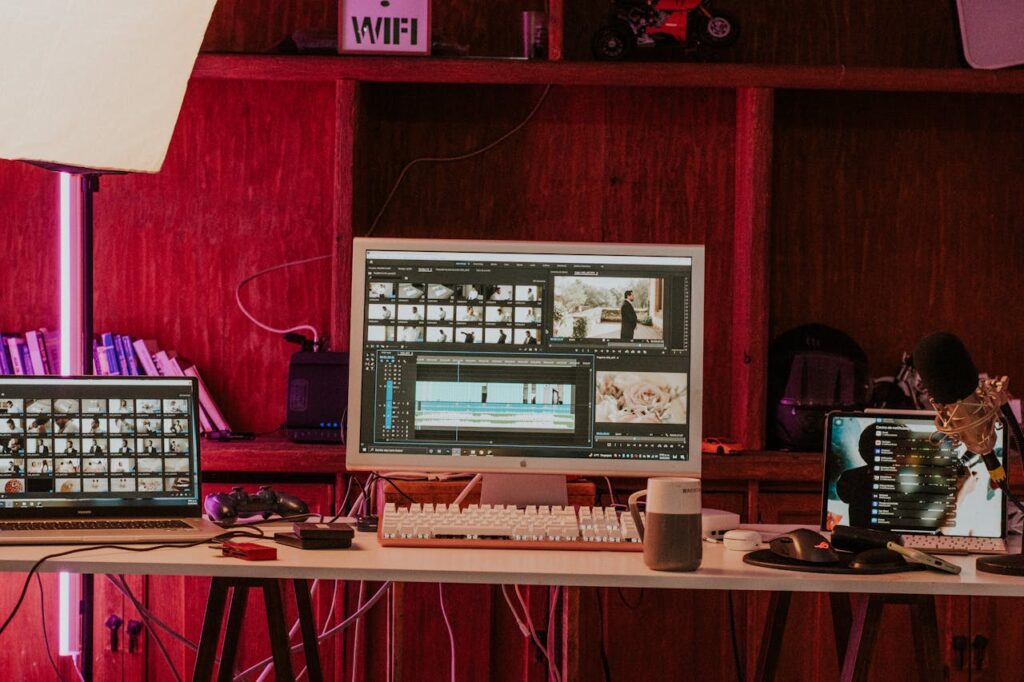
[vc_row type=”in_container” full_screen_row_position=”middle” column_margin=”default” column_direction=”default” column_direction_tablet=”default” column_direction_phone=”default” scene_position=”center” text_color=”dark” text_align=”left” row_border_radius=”none” row_border_radius_applies=”bg” overflow=”visible” overlay_strength=”0.3″ gradient_direction=”left_to_right” shape_divider_position=”bottom” bg_image_animation=”none”][vc_column column_padding=”no-extra-padding” column_padding_tablet=”inherit” column_padding_phone=”inherit” column_padding_position=”all” column_element_direction_desktop=”default” column_element_spacing=”default” desktop_text_alignment=”default” tablet_text_alignment=”default” phone_text_alignment=”default” background_color_opacity=”1″ background_hover_color_opacity=”1″ column_backdrop_filter=”none” column_shadow=”none” column_border_radius=”none” column_link_target=”_self” column_position=”default” gradient_direction=”left_to_right” overlay_strength=”0.3″ width=”1/1″ tablet_width_inherit=”default” animation_type=”default” bg_image_animation=”none” border_type=”simple” column_border_width=”none” column_border_style=”solid”][vc_column_text] Video content is increasingly central to education, content creation, and enhancing accessibility for diverse audiences. But making these videos accessible and useful for further analysis often requires transcription—a process that involves converting spoken words into text. Whether you’re a researcher extracting insights from interviews or a content creator seeking to repurpose material, transcribing video content is essential for effective documentation and sharing. However, manual transcription can be time-consuming and prone to human error. This is where AI-driven transcription tools come into play. These tools use advanced technologies like speech recognition and natural language processing to automate the transcription process, saving time and boosting accuracy. AI also adds a layer of analysis by turning raw transcripts into meaningful data, helping users uncover hidden patterns, sentiments, and themes. But with so many AI tools available, how do you choose the right one? In this guide, we’ll walk you through the steps of transcribing a video and analyzing the resulting transcripts using AI. By the end, you’ll understand how AI-powered tools like Insight7 can streamline these processes, enabling you to produce better content, improve accessibility, and make data-driven decisions. Understanding the Basics Before diving into the step-by-step process, it’s essential to understand what transcription entails and how AI plays a role. At its core, transcription is the process of converting speech into text, which has traditionally been done manually. However, with advancements in AI, particularly in speech recognition and natural language processing (NLP), this process has become more efficient and accurate. AI transcription tools like Insight7 have revolutionized the way we handle video transcripts by automating the entire process. These tools use speech-to-text algorithms to identify spoken words in a video, converting them into text much faster than manual efforts. Furthermore, NLP enables AI to recognize context, accents, and different languages, making it more reliable in handling complex content. One of the key benefits of using AI for transcription is time-saving. For instance, a manual transcription of a one-hour interview might take 3-5 hours, whereas AI tools can produce a rough draft in minutes. Additionally, AI analysis allows you to extract actionable insights from these transcripts, such as keyword identification, sentiment analysis, and trend recognition. Therefore, incorporating AI into your transcription process doesn’t just make it faster—it enhances the overall quality of the analysis. Step-by-Step Guide Step 1: Choose Your Tools The first step in transcribing any video is selecting the right AI tool for the job. When choosing, consider factors such as accuracy, ease of use, cost, and additional features. Tools like Insight7 stand out for their ability to handle bulk transcription, offer qualitative data analysis, and ensure enterprise-grade data security. Its project-based research repository and collaboration features make it an excellent choice for businesses that need comprehensive reporting and secure sharing options. Step 2: Prepare Your Video Before transcribing your video, make sure it’s ready for processing. The quality of your video’s audio is crucial for accurate transcription. Poor audio—whether due to background noise, low volume, or inconsistent speech—can result in errors, even with the best AI tools. Here are some tips to ensure your video is well-prepared for transcription: Check Audio Quality: Ensure the audio is clear and background noise-free. Use Supported File Formats: Ensure your video is in a format supported by the transcription tool (e.g., MP4, MOV, etc.). Segment Long Videos: If your video is lengthy, consider splitting it into smaller, more manageable sections for easier transcription. Step 3: Transcribe the Video Once your video is ready, you can begin the transcription process. With a tool like Insight7, upload your video file, select the appropriate language and transcription settings, and let the AI do the work. The system will automatically convert spoken words into text, providing you with an initial transcript draft. AI transcription tools are designed to handle different accents, dialects, and speech speeds, offering more flexibility than manual methods. If needed, you can also add timecodes to the transcription, which is particularly useful for media professionals or those working with longer video content. For instance, one common question is: “Can AI make a video transcript?” The answer is yes—AI tools like Insight7 can transcribe any video format as long as the audio is clear and the file is compatible with the system. Another question is “Is there a free AI to transcribe video to text?” Yes, you can transcribe up to 3 video files free per month with Insight7. However, you would need to pay a premium to access more transcriptions. View our pricing plans. Step 4: Edit the Transcript While AI transcription tools are highly accurate, they aren’t perfect. This is where manual review comes into play. Once the transcription is complete, reviewing and editing the text for any discrepancies or errors is essential. Common issues to look out for include: Misheard Words: AI may misinterpret certain words, especially if there are accents or unclear speech. Punctuation Errors: Ensure proper punctuation, as AI might not always recognize the correct breaks in speech. Technical Jargon: If your video contains specialized terminology, double-check that these terms are transcribed accurately. Taking the time to correct these errors manually will ensure that your transcript is as accurate as possible, which is especially important if the transcript will be used for further analysis or publication. Step 5: Analyze the Transcript Once you’ve edited the transcript for accuracy, you can proceed to the analysis phase. AI tools like Insight7 provide several features that make transcript analysis more efficient and insightful. By leveraging Natural Language Processing (NLP) and machine learning, these tools can automatically identify patterns, sentiments, and themes within the transcript. Here’s how you can analyze your transcript with AI: Extract Keywords: AI can automatically highlight the most frequently used terms in the transcript, helping you quickly identify key
AI Get Transcript from Video: Easy Method
Video Transcription Automation is revolutionizing how businesses manage and utilize video content. Imagine a world where transcribing hours of meetings or webinars is no longer a daunting task, but a seamless experience. This technology allows users to easily transform spoken words into written text, enabling better organization and accessibility of valuable information. By embracing video transcription automation, companies unlock a treasure trove of insights. Everyone within the organization can use the tools without needing specialized training. This accessibility empowers teams to quickly generate reports, analyze customer experiences, and identify friction points effortlessly, enhancing overall productivity and collaboration in the process. Simplifying the Process of AI-Powered Transcription AI-powered transcription has dramatically simplified the process of converting spoken content from videos into written text. With Video Transcription Automation, anyone—from business analysts to team members—can effortlessly transcribe videos without needing specialized training. This ease of use is not only about accessibility; it's about empowering users to extract valuable insights quickly. In fact, the platform allows users to initiate transcription directly from the homepage. Users can select small calls or video segments to transcribe and transform them into organized reports. This feature fosters a collaborative environment as everyone can access and contribute to the shared knowledge base without the usual barriers. Consequently, the simplified method increases efficiency and encourages data-driven decision-making in a variety of business contexts. Embracing AI-driven solutions not only streamlines tasks but also enhances overall productivity. Understanding the Basics of Video Transcription Automation Video transcription automation transforms how businesses convert spoken content into written text. By utilizing advanced algorithms and artificial intelligence, this technology allows users to effortlessly transcribe video recordings, meetings, and interviews without needing specialized training or expertise. This opens up opportunities for anyone in a company to engage with transcriptions, improving accessibility and fostering collaboration. Understanding the key components of video transcription automation is crucial. First, the platform’s user-friendly interface allows for easy navigation and swift task execution. Next, automated transcription processes ensure high accuracy while saving valuable time. Lastly, generated transcripts can be analyzed for insights, identifying trends or areas needing improvement in customer experience. Automating video transcription, therefore, empowers organizations to streamline their workflows, enhance communication, and ultimately drive better decision-making. How AI Revolutionizes Video Transcription for Efficiency AI-powered tools are transforming the process of video transcription automation, enhancing efficiency like never before. Traditional methods of transcribing videos often required significant time and effort, but AI streamlines this process significantly. By employing advanced algorithms, these tools can swiftly convert spoken content into written text without the need for extensive training or technical expertise. The benefits of AI-driven video transcription include unmatched speed, accuracy, and user accessibility. Users can effortlessly transcribe project meetings or interviews directly from their devices, making it easier to extract critical insights. Additionally, AI tools can adapt to different accents and speech patterns, ensuring a higher level of precision. As businesses capitalize on this technology, they can expect increased productivity and improved information retrieval, ultimately leading to more informed decision-making and better communication within teams. With AI at the helm, the future of video transcription looks bright and more efficient. Tools for Video Transcription Automation Video transcription automation greatly simplifies the process of converting spoken content into written text, saving valuable time and effort. Various tools now utilize advanced AI technology to provide accurate and efficient transcription services. By automating this task, users can focus on analyzing the content rather than spending hours manually typing out transcripts. Several noteworthy tools can assist with video transcription automation. Firstly, software like Otter.ai offers real-time transcription, allowing users to capture discussions as they happen. Secondly, Descript not only transcribes but also provides an intuitive interface for editing audio and video files. Lastly, tools like Rev.com enable users to access professional transcription services, ensuring high levels of accuracy by human editors. These tools collectively improve accessibility and streamline video content analysis. Popular AI Tools for Seamless Transcription In the realm of video transcription automation, several popular AI tools stand out for their seamless capabilities. These tools are designed to simplify the transcription process, allowing users to convert spoken content into text effectively. Users can quickly upload their videos and receive accurate transcripts in minutes, saving time and effort compared to manual transcription methods. Among the notable tools are those that integrate robust voice recognition technology which not only enhances accuracy but also works across various accents and languages. Additionally, many platforms offer user-friendly interfaces, enabling anyone, without prior technical experience, to initiate and complete transcription tasks. By employing these tools, businesses can efficiently turn meetings, interviews, and presentations into written records, enhancing productivity and accessibility. Embracing these innovations can truly transform how organizations handle their communication and reporting needs. Comparing Manual and Automated Transcription Methods When evaluating video transcription automation, it is crucial to compare manual and automated methods. Manual transcription often requires a human transcriber to listen carefully and type everything verbatim. This method can yield high accuracy and ensure that context, tone, and nuances are captured effectively. However, it can be time-consuming and costly, especially for lengthy videos. In contrast, automated transcription methods utilize advanced algorithms and AI to generate text from audio. While this process is typically much faster and more cost-effective, the accuracy can vary depending on factors like audio quality and speaker accents. Many users find that combining both methods yields the best results. By integrating automated tools with human oversight, you can achieve an efficient and reliable transcription solution that covers all bases, ensuring that critical information is captured accurately. Conclusion: The Future of Video Transcription Automation and Its Impact The future of video transcription automation holds promise for diverse industries reliant on accurate content creation. As technology continues to simplify this process, organizations will benefit from increased efficiency and accessibility, allowing users without specialized skills to generate transcripts effortlessly. This democratization of transcription capabilities will empower more professionals to extract insights from videos, fostering deeper analysis and a stronger understanding of customer experiences. As these tools evolve, their impact
AI Make Transcript from Video: Complete Guide
In today's digital age, the ability to swiftly convert video content into accurate transcripts has never been more essential. With a wealth of information often buried in hours of recorded discussions, meetings, and presentations, accessing those insights can revolutionize how organizations function. AI-powered solutions offer user-friendly, efficient methods for video transcription, allowing anyone within a business to generate useful reports effortlessly. This Video Transcription Guide aims to demystify the process of using AI for transcription. It will explore how these advanced tools simplify workflows, making it unnecessary for users to have specialized training. Whether you need to document meetings or analyze customer feedback, these AI solutions are designed to boost productivity and enhance your company's decision-making capabilities. Embracing these technologies will empower organizations to harness relevant insights from their video content effectively. Understanding the Need for Video Transcription in the Digital Age In the digital age, video content has exploded, becoming a vital way for businesses to communicate and engage with their audiences. As this trend grows, there's a significant need for video transcription to make content accessible. Video transcription turns spoken words into written text, enhancing the understanding of videos for diverse audiences, including those who are deaf or hard of hearing. Transcribing videos also boosts search engine visibility, allowing audio content to be indexed and discovered through search engines. Furthermore, it enables better organization of information, making it easier for teams to reference key points during discussions. The insights drawn from video transcripts can fuel data-driven decisions, improving customer interactions and overall business strategies. To comprehend the full benefits of video transcription in today’s interconnected world, one must consider its role in accessibility, SEO, and effective content management. Why Accurate Transcriptions Matter Accurate transcriptions play a crucial role in ensuring the clarity and accessibility of information. When transcribing video content, every detail matters. In the absence of accurate transcriptions, important nuances can be lost, leading to misunderstandings or miscommunications. This can be particularly detrimental when the information pertains to key business insights or client feedback. Moreover, accurate transcriptions enhance search engine optimization (SEO) efforts. Videos with well-crafted transcriptions provide additional text for search engines to index, making it easier for users to find relevant content. Additionally, accurate transcription aids in creating subtitles or captions, making your video accessible to a broader audience, including individuals with hearing impairments. Ultimately, the significance of accurate transcriptions cannot be overstated; they are essential for maintaining the integrity of information in your Video Transcription Guide, ensuring that your content resonates with and is comprehensible to your audience. Increasing Demand for AI Tools in Transcription The surge in demand for AI tools in transcription reflects a growing need for efficiency in processing video content. As businesses and individuals increasingly turn to video for communication and marketing, the necessity for accurate transcription has never been clearer. Traditional transcription methods can be time-consuming and labor-intensive, prompting users to seek automated solutions that deliver higher accuracy and speed. This shift towards AI-driven transcription tools is revolutionizing how we convert audio into text, making it more accessible for various industries. Several factors contribute to this rising demand. First, the increase in content production means that more video materials require transcription for accessibility and searchability. Second, the advancement of AI technology has led to improved speech recognition capabilities, reducing errors and enhancing usability. Third, there is a growing recognition of the importance of inclusivity, with many organizations now prioritizing subtitles and transcripts for diverse audiences. As this trend continues, understanding the intricacies of AI tools will be essential for anyone looking to streamline their transcription processes. AI Video Transcription Guide: How Technology Transforms Transcription AI video transcription technology revolutionizes how we convert spoken language into written text. By utilizing advanced algorithms, this technology swiftly analyzes audio from videos, generating transcripts with impressive accuracy. This transformation streamlines workflows, allowing users to focus on content creation rather than manual transcription tasks. This guide delves into the pivotal ways that AI enhances video transcription. First, it automates the transcription process, significantly reducing the time needed to produce documents. Next, the technology supports multiple languages, catering to global audiences effectively. Finally, machine learning capabilities continuously improve transcription accuracy over time, adapting to different speakers and contexts. By embracing these advancements, users can achieve efficient communication, enhance accessibility, and foster a more inclusive environment for diverse audiences. This Video Transcription Guide will serve as your roadmap to navigating the intersection of AI and transcription, illustrating how modern tools make the entire process seamless and efficient. Key Features of AI Transcription Tools AI transcription tools have several key features that greatly enhance their functionality, making them essential for anyone seeking effective video transcription solutions. The first notable feature is high accuracy, where advanced algorithms enable precise recognition of varied speakers, tones, and dialects. This ensures that the transcriptions reflect the intended message without significant errors. Another important feature is the speed of transcription, which allows users to quickly convert video content into text. This is particularly beneficial for professionals needing timely access to information. User-friendly interfaces further enhance the experience, allowing individuals with little tech-savvy to navigate and utilize the tools effortlessly. Additionally, many tools offer integration capabilities with other software, streamlining workflows and improving productivity. Together, these features provide a comprehensive Video Transcription Guide, equipping users with the necessary tools for efficient and accurate transcription processes. Benefits of Using AI for Video Transcription AI technology has transformed the way we approach video transcription. One significant benefit is efficiency; AI tools can process large amounts of audio and video data swiftly, reducing the time required to create transcripts drastically. This is particularly useful for businesses that rely on timely reporting and documentation. Another advantage is the accuracy of these AI-driven solutions. Modern algorithms continuously improve, leading to high-quality transcriptions that minimize human error. Furthermore, utilizing AI for video transcription allows for accessibility. By converting spoken words into text, all stakeholders, including those with hearing impairments, can engage with the content. This aspect is crucial