
Transcribe meeting with Microsoft word
Word Transcription is an indispensable tool for professionals who need to document and analyze discussions effectively. Introducing this feature in Microsoft Word enables the rapid conversion of spoken language into text, preserving the nuance and detail of meetings for meticulous review. By using AI, it identifies speakers, extracts key points, and provides insights like pain points and behaviors, thereby streamlining the synthesis of information for business strategy. Understandably, accurate Word Transcription can transform hours of conversation into actionable data, enhancing productivity and decision-making in any work environment. The Process of Transcribing Meetings with Microsoft Word The process of transcribing meetings using Microsoft Word is a straightforward yet effective way to capture conversation details and insights. This feature is particularly beneficial for businesses seeking to analyze meetings for improved strategies or project-specific information. Word transcription converts spoken language into a written record, making it easier to review and share key points with team members. Initially, ensure that all audio or video recordings of the meeting are clear and audible to facilitate an accurate transcription. Within Microsoft Word, the transcribe function can be used to upload the recording. Once the file is uploaded, Word begins the transcription automatically, separating the dialogue by speaker for easier comprehension. After the transcription is complete, you can edit the text directly in Word, refining the document for clarity and relevancy. Businesses find this tool valuable for efficiently transforming spoken information into organized, actionable data. By integrating transcriptions into workflows, companies can harness detailed insights from every meeting to propel their operations forward. Benefits of Using Microsoft Word for Meeting Transcription Embracing Word Transcription for meeting minutes not only streamlines the entire process but also offers tangible benefits that enhance productivity. By using Microsoft Word, professionals can swiftly transcribe meetings, a critical task that, when done manually, can prove to be time-consuming and fraught with potential for inaccuracy due to bias or oversight. Firstly, Microsoft Words transcription feature allows for quick conversion of audio or video recordings into text, directly within the document editing interface. This integration reduces the need for switching between various software tools, thereby saving time. Additionally, Word provides editing tools that make it simple to review and fine-tune transcripts for clarity and accuracy. Secondly, Word includes collaboration features enabling multiple users to work on the document simultaneously, which is ideal for team projects and joint review sessions. This not only improves the efficiency of the transcription process but also ensures a more consistent outcome by incorporating diverse inputs. Thirdly, once the transcription is complete, Microsoft Words powerful search and organization features make it easy to extract insights and relevant information. For instance, if youre seeking to highlight customer pain points or specific feedback from a meeting, Word allows you to quickly locate and analyze these segments. Streamlining access to crucial data points that drive business strategies. Lastly, with the concerns around accountability and the accuracy of mined insights from existing tools, Words established platform offers a level of trustworthiness in its output, an essential factor when making data-driven decisions. For those looking for additional specialized transcription tools beyond Microsoft Word, platforms like insight7.io could be explored for further capabilities. Insight7.io caters particularly to aggregating and analyzing data rapidly across various formats, complementing Words transcription functionalities for an even more comprehensive review of customer insights and meeting analytics. Step-by-Step Guide to Word Transcription of Meetings Transcribing meeting minutes can be a cumbersome task, but with Microsoft Words transcription capabilities, the process is streamlined for efficiency. If youre seeking to enhance your business processes and save valuable time, follow this simple guide to Word transcription of meetings. Firstly, ensure you have a clear audio recording of your meeting. This is crucial for the accuracy of your transcription. Open Microsoft Word, and navigate to the Dictate button, then select Transcribe from the dropdown. Upload your audio file, and Word will generate a transcript, distinguishing between different speakers. Review the transcription for any errors and make necessary edits for clarity. Accessibility is key, so take the time to confirm speaker labels and timestamps are accurate to create a trustworthy record. For business professionals looking at additional options, online tools like insight7.io provide an AI-powered transcription service, handling large volumes of data with ease. Finally, apply the finishing touches. With the transcribed text ready, format the document to match your companys standards, adding headings, bullet points, or any specific details required. Remember, the more thorough the input, the more valuable the insights you can extract from these transcribed meetings, aiding in overall decision-making and strategy development. The end goal here is a reliable document that can facilitate effective communication and project monitoring for all stakeholders involved. Get a glimpse of Insight7 in action: Watch one of our 1-minute demo below. Get Started for free Technical Aspects and Tips for Word Transcription When embarking on Word Transcription for meeting notes, its crucial to ensure clarity and precision in capturing dialogue. Begin by choosing a robust transcription tool, such as the insightful insight7.io, which is designed to accurately transcribe and analyze spoken word. Such tools can distinguish between different speakers and contextually analyze the content for actionable insights, such as identifying pain points, desires, and behaviors. Here are some practical tips to optimize the transcription process: Upload high-quality audio to your selected transcription service to improve accuracy. Review the automated transcription for errors that AI may not have caught, especially industry-specific terminology or acronyms. Utilize the softwares capabilities to tag and categorize insights effectively—this can be pivotal for synthesizing data in projects. Make consistent use of the transcription tool’s querying function to extract themes and questions from your data. By following these steps, you can seamlessly integrate Word Transcription into your workflow, enhancing your business operations with detailed and organized meeting records that drive decision-making. Troubleshooting Common Word Transcription Issues When tackling Word Transcription issues, an important factor is recognizing that not all software is created equal for different jargon or dialects. To troubleshoot effectively, firstly check the audio
Transcribing interviews with Google Docs
Voice Typing Transcription simplifies the task of converting interviews into readable text, offering professionals the ability to effortlessly transcribe recordings directly within Google Docs. As the need to analyze conversations grows, particularly for those in content marketing and data analysis, the ability to accurately capture spoken words is invaluable. This introduction guides you through harnessing Google Docs for transcribing interviews, providing a streamlined method to import, transcribe, and analyze spoken content, and transforming it into actionable insights without cumbersome processes. Learn how to enhance your workflow and enrich your projects by utilizing the convenience of Voice Typing Transcription. The Essentials of Voice Typing Transcription in Google Docs Voice typing transcription in Google Docs has become a game-changer for businesses and professionals aiming to streamline their workflows and accurately document interviews. As a starting point, ensure you have a reliable microphone setup and a quiet environment to minimize errors during transcription. Then, familiarize yourself with the voice typing feature available in Google Docs, which allows for real-time speech-to-text conversion as you conduct your interviews. When transcribing, clarity and context are paramount. Remember to speak distinctly, and consider pausing slightly between sentences to give the transcription service a moment to catch up. To enhance accuracy, periodically review the transcribed text and make necessary corrections. Its important to note that while Google Docs provides a solid foundation for transcription, it may not capture every nuance, especially in technical discussions or interviews with multiple speakers. For more advanced needs or when confidentiality is a concern, third-party tools like insight7.io offer specialized services that may provide higher accuracy and additional features. Whichever tool you choose, make certain it aligns with your objectives, and dont overlook the importance of reviewing the transcript for errors or omissions. Effective transcription not only saves time but also ensures that the insights from your interviews are preserved and can be leveraged for further analysis and decision-making. Setting Up Your Device for Voice Typing Transcription Before diving into the transcription of your interviews with Google Docs, preparing your device for the voice typing transcription feature is essential for a seamless experience. First, ensure your microphone is set up and functioning correctly – this is the primary tool Google Docs will use to capture your voice. Next, check your internet connection stability, as voice typing transcription requires an online connection to Googles servers. The third step involves opening a Google Docs document and enabling the voice typing feature from the Tools menu. Finally, familiarize yourself with the voice commands that control punctuation and formatting to maximize efficiency as you transcribe. During the transcription process, it’s crucial to speak clearly and at a moderate pace. Background noise can interfere with the accuracy of voice typing transcription, so selecting a quiet environment is advisable. Remember also to periodically save your document to avoid data loss. Google Docs allows the option to upload and transcribe audio from videos. If you have pre-recorded interviews, simply import these files into your Google Docs project folder and let the software analyze and transcribe the spoken content into text, ready for your assessment and utilization. Practical Tips for Effective Voice Typing To harness the power of voice typing transcription for transcribing interviews in Google Docs, begin by ensuring a quiet environment to minimize errors in transcription. Position your microphone close enough to capture clear audio, as this will significantly improve the accuracy of the transcription. Before starting, its worthwhile to do a quick test to check that Google Docs is correctly registering your voice and punctuation commands. When youre ready to proceed with voice typing transcription, remember to speak clearly and at a moderate pace. Articulate your words and pause naturally at commas and full stops to aid in the correct formatting of the transcript. If mistakes do occur, make use of Google Docs easy editing tools to make corrections as you go. Additionally, tools like insight7.io offer enhanced features for diving into the transcribed data, allowing you to analyze themes, pain points, and behaviors within the text, streamlining the process of extracting valuable insights from your interviews. By adopting these practices, you can improve the efficiency and accuracy of voice-typed transcripts, making it an invaluable asset for any business or work-related activities. Optimizing Interviews with Google Docs Transcription To enhance the productivity and accuracy of your interview process, integrating Google Docs Voice Typing Transcription is a pragmatic approach. Firstly, ensure that your recording environment is quiet and that your microphone is properly set up to capture clear audio. This minimizes errors and omissions in the transcription. During the transcription, use the speaker identification feature selectively to distinguish between different speakers, ensuring that the conversation is accurately captured and attributed. Periodically review and correct any discrepancies in the transcription to maintain the integrity of the data. Keep focused on structuring content that is clear, concise, and valuable to the people relying on the insights derived from these interviews. It’s essential to understand that Google Docs transcription isnt foolproof. For critical interviews, consider a follow-up with professional transcription services to ensure high-quality, verbatim records. Acknowledge the limitations of automated systems, and use manual verification for complex terminology or sections with overlapping dialogue. This meticulous approach will not only save time in the long run but also contribute to more reliable, insightful data for your business. Overcoming Common Transcription Challenges in Interviews Overcoming the hurdles of transcribing interviews involves understanding the nuances of human conversation and adapting to the varied quality of audio recordings. The interview setting, whether offline or digital, can impact the transcription process significantly. In offline scenarios, the presence of note-takers may reduce the need for transcription, while digital interviews, especially across different time zones, might necessitate a more detailed transcript to ensure that no critical information is lost. To address these challenges, consider the following strategies: Utilize Noise-Cancelling Tools: Background noise can severely affect transcription accuracy. Employing noise-cancelling software helps in isolating the speakers voices and enhancing the clarity of the audio. Choose Advanced Transcription Services:
Transcribing interviews with Zoom
Zoom Transcription emerges as an invaluable tool for professionals aiming to glean nuanced insights from interview data. Embark on a transformative journey wherein entire conversations are converted into text, making analysis and discovery of patterns seamless. By using AI and advanced transcription technologies, youll be able to pinpoint pain points, desires, and behaviors—essential components of customer feedback. This introduction lays the groundwork for harnessing Zooms capabilities to streamline your interview process and enrich your qualitative research with precision and ease. Steps to Transcribe Interviews with Zoom Transcribing interviews is an invaluable step in extracting meaningful insights for your business or research. By converting these dialogues into written text, youll have a resource you can search, analyze, and share. Heres how to streamline the Zoom transcription process for optimal results: Firstly, record your Zoom interviews ensuring you have the proper permissions and settings enabled for recording. Once youve completed the interview, upload the audio or video file to your chosen transcription service. Some reliable transcription tools include Otter.ai, Rev, and Trint. These platforms leverage advanced AI technology to provide fast and accurate transcriptions. After your interviews are transcribed, it’s time to sift through the text. This is where your transcription services built-in features come into play, allowing you to identify and tag speakers and extract key pieces of information like pain points, desires, and behaviors. To enrich the data further, consider configuring additional tags for comments or compliments necessary for your specific needs. With the transcript in hand, review for accuracy and context, as transcripts may need to be adjusted for errors or clarity. This ensures your Zoom transcription is not only a faithful representation of the interview but also a robust foundation for extracting actionable insights. Preparing for Zoom Interview Transcription Before embarking on Zoom transcription, it’s essential to set a solid foundation. Ensure all participants are aware that the interview will be transcribed, as this not only promotes transparency but may also influence the clarity with which they speak. Good audio quality is crucial, so use a quiet space and quality microphones. Additionally, record the Zoom interview in a format compatible with your transcription software, and if you’re working with a team, designate roles for moderating and note-taking beforehand to streamline the process. When selecting transcription tools, consider user-friendly options such as Otter.ai, Rev, or Sonix. These platforms offer features that can ease the transcription process, like automatic time-stamping and speaker identification. Checking the accuracy levels and turnaround times of these tools is also important because reliable transcripts are imperative for analyzing interview content effectively. Streamlining your workflow with these preparations will expedite the transcription and ensure a beneficial outcome for your business or work. Executing the Transcription Process When embarking on the journey of transcribing Zoom interviews, executing the transcription process demands attention to detail and a reliable workflow. To begin, ensure all Zoom recordings are stored within the transcription services library. This consolidates your data, making the transcription step both organized and more manageable. The process typically unfolds as follows: Uploading and Organizing Your Interviews: Gather all recorded Zoom interviews and upload them to your chosen transcription platforms library. For businesses looking to streamline their workflow, utilizing platforms like insight7.io allows for easy organization and access. Transcribing the Audio: Once your files are uploaded, initiate the transcription. Advanced AI technology transcribes the spoken words into text, identifying distinct speakers and creating a readable transcript that serves as a basis for analysis. Analyzing for Insights: With transcription completed, employ the platform’s analytic tools to extract key insights—commonly pain points, desires, and behaviors. The option to customize analysis criteria can surface additional relevant themes, such as customer compliments or specific inquiries. Synthesis and Reporting: For projects involving multiple interviews, group related transcripts to identify overarching patterns. This synthesis can be managed within project folders, offering a consolidated view of the qualitative data collected from your Zoom interviews. By overseeing each step meticulously, you not only ensure high-quality transcription but also generate actionable insights that can propel your business or work forward. By utilizing AI-powered tools, you can extract valuable information efficiently, enhancing the experience and expertise your team offers while establishing trustworthiness in the data-handling process. Zoom Transcription Tools and Techniques Understanding the nuances of your Zoom interviews is crucial for extracting meaningful insights. To this end, Zoom transcription is an essential step in capturing and analyzing the content of your interviews. Here, we lay out key tools and techniques to help you transcribe your Zoom recordings with accuracy and ease. Automatic Transcription Services: Use platforms like insight7.io, which offer AI-powered transcription services to process your audio files. They provide quick, automated transcription with options to edit and refine the output. Manual Transcription Software: For greater control, transcription tools such as Otter.ai or Rev provide user-friendly interfaces to transcribe the audio manually or review and correct automated transcriptions. This allows you to ensure higher accuracy, particularly for complex or technical content. Integrated Features: Leverage Zoom’s built-in transcription capabilities to directly transcribe meetings and interviews. However, be aware that this functionality might be limited and less precise than specialized transcription services. Data Analysis: Once transcribed, utilize tools that analyze your Zoom transcripts to identify key themes such as pain points, desires, and behaviors. This sophisticated analysis can reveal the nuances within your interviews, helping you make informed business decisions. By employing these transcription methods, youll be able to convert the spoken word into searchable text, enabling deeper analysis and insight extraction from your Zoom interviews. The result is an organized, accessible repository of data that can drive your projects and strategies forward. Automated Zoom Transcription Services In our fast-paced world, businesses and professionals often find themselves struggling with the time-consuming task of transcribing interviews. Automated Zoom transcription services have emerged as a game-changer, offering a swift and efficient solution. By utilizing these services, users can bypass the tedious process of manual transcription and jump straight to analyzing the content that matters. Among these services, some standouts include: AI-Driven Transcription
AI Customer video file to text transcription
Video Transcription AI marks a transformative leap in how businesses interpret and leverage their video content for enhanced customer experiences. This AI-driven process converts spoken words within customer videos into accurate, searchable text, enabling deeper analysis and insights. Its particularly valuable for entities inundated with video calls, from sales discussions to customer feedback sessions. By using AI, even smaller enterprises with fewer resources can swiftly sift through conversations, unearth themes, and apply findings to drive their strategies forward. Video Transcription AI thus stands as a pivotal tool in harnessing the full potential of video communications. Utilizing Video Transcription AI for Enhancing Customer Service In todays customer service arena, the prompt and accurate understanding of consumer feedback is pivotal. Video Transcription AI steps into this space by converting customer video files into text, thus streamlining the analysis and response process. With transcription AI tools, businesses can now quickly transcribe customer service interactions, unlock insights from video content, and improve service delivery. For those eager to integrate this technology into their workflows, here are essential tools to consider: Insight7.io – Known for its high accuracy levels, this tool can transcribe video files with speed, making it a reliable option for businesses seeking to enhance customer service. Dragon Naturally Speaking – This software excels at converting speech to text and could be particularly useful for live video conversations. Google Cloud Speech-to-Text – Offers powerful real-time transcription capabilities and supports a wide range of languages, catering to global customer service needs. IBM Watson Speech to Text – Watsons AI excels in recognizing various dialects and industry-specific jargon, ensuring comprehensive transcriptions. Employing Video Transcription AI can significantly boost a customer service teams efficiency. For example, transcribed data can streamline issue resolution by allowing customer service agents to quickly search through text rather than scrub through video footage. It also paves the way for more personalized and prompt responses, fostering customer loyalty and improving retention. By adopting this innovative approach, companies demonstrate an investment in customer engagement and a commitment to utilizing modern tools to meet and exceed service expectations. The Importance of Accurate Customer Video File Transcription Accuracy in transcribing customer video files cannot be overemphasized, as it directly impacts the quality of insights gained from customer interactions. When customer service teams use video transcription AI, they benefit from precise capture of verbal nuances and sentiments, which are crucial for understanding client needs and feedback. Missed or misinterpreted words can lead to misguided strategies that fail to address the real concerns of customers. Furthermore, by ensuring accurate transcription, businesses can streamline their processes, quickly identify key points from customer dialogs, and make data-driven decisions. This presents a significant efficiency gain over manual transcription, which is prone to errors and biases. With video transcription AI, companies can enhance customer service by providing teams with reliable data that reflects true customer sentiment, ultimately leading to more personalized and effective service experiences. Streamlining Customer Service with AI-Driven Transcriptions In todays fast-paced world, AI Customer video file to text transcription is transforming the landscape of customer service. By using AI to transcribe video content, businesses can swiftly access and categorize customer feedback, leading to faster and more informed decision-making processes. This not only catapults product development teams into a more dynamic phase of product discovery but also allows for real-time insight gathering, crucial for staying ahead in a competitive market. One of the remarkable advantages of video transcription AI is the ability to break down information silos that typically compartmentalize customer feedback across various channels. With AI-driven transcriptions, customer interviews, support calls, and feedback videos are automatically converted into text that can be easily searched, analyzed, and visualized for better segmentation and understanding of customer demographics. This streamlined approach equips customer service teams with the tools to rapidly identify critical issues and opportunities, enabling the creation of tailored solutions that directly address customer needs. Here are some actionable ways video transcription AI benefits customer service: Enhanced Accessibility of Customer Data: With transcribed text, insights from customer videos become quickly searchable, allowing teams to pinpoint specific feedback without sifting through hours of audiovisual content. Accelerated Feedback Analysis: Transcriptions provide a clear, visual aid that helps in identifying recurring pain points and desires, facilitating a quicker path to improvement initiatives. Visual Representation for Stakeholders: Transcribed and analyzed data can be visualized in formats that resonate with decision-makers, enabling them to grasp customer sentiments and make informed decisions with confidence. Segmentation for Targeted Responses: AI transcriptions can further analyze text to classify customer feedback into categories, making it much simpler for businesses to understand and address the concerns of different customer groups effectively. In conclusion, the integration of video transcription AI into customer service workflows holds the promise of substantial efficiency gains. It not only saves valuable time but also ensures that customer insights are leveraged for meaningful product development and enhanced service delivery. Tools and Techniques for AI Customer Video File to Text Transcription In the domain of AI customer video file to text transcription, a selection of both tools and techniques is crucial to streamline the conversion process and extract valuable customer insights. Primarily, this process includes a transcription service that transforms audio content into accurate, analyzable text. These transcribed files then undergo analysis for patterns and insights, specifically focusing on pain points, desires, and behaviors—common customer experience metrics. To begin the transcription, a robust Video Transcription AI technology is employed. Some top-tier tools in this field include Dragon NaturallySpeaking for its real-time transcription capabilities, IBM Watson for its advanced speech recognition, and Google Cloud Speech-to-Text for its deep learning processes that improve with each use. Once transcripts are generated, proprietary technology is applied on top of these AI foundations to clean and structure the data. Integration with cloud-based platforms such as AWS ensures scalability and accessibility. Analyzing the transcripts, patterns are identified, and insights such as customer pain points are extracted along with supporting quotes, providing context and facilitating a comprehensive understanding of customer interactions. This systematic approach
Transcribe meeting with Zoom
Zoom Transcription emerges as a pivotal solution in overcoming the challenges of analyzing recorded meetings, offering a seamless way to transcribe and extract crucial insights. This tool not only saves countless hours but also enhances the precision and speed of data analysis. Whether elucidating pain points, desires, or behaviors from customer interactions, Zoom Transcription swiftly synthesizes content for actionable insights. By addressing common inefficiencies in collaborative work environments, such as manual coding bias and fragmented data, it stands as a beacon for businesses aiming to streamline their processes and bolster meeting accessibility. How to Transcribe a Zoom Meeting To effectively transcribe a Zoom meeting, begin by ensuring that the recording feature is enabled during your session. This is a critical first step, as youll need the recorded video for transcription. Once the meeting is recorded, you have several options for transcription services. For a quick and reliable solution, consider an AI-powered tool like Insight7.io, which can handle both bulk transcriptions for large companies with extensive data and smaller projects that require more focused analysis. If youre handling fewer inputs or conducting a small number of interviews, utilizing such an AI transcription service can greatly expedite the process of finding themes and insights in your recordings. Moreover, for a seamless experience, some services allow direct integration with business tools, so you can rapidly share transcribed highlights to platforms like Salesforce or Slack. Remember to review the generated transcript for accuracy, as AI can sometimes misinterpret words, and making these corrections will ensure clearer, more precise results for your business or work. Understanding Zoom’s Built-in Transcription Features Zooms built-in transcription capabilities offer a streamlined way to convert speech from meetings into text, enhancing the efficiency of analyzing and sharing conversations. By utilizing Zoom Transcription, users can easily access verbatim records of their Zoom meetings, which aids in reviewing and extracting important points without the need to manually sift through audio or video files. The process is straightforward: once a Zoom meeting is recorded, the platforms transcribing function can be activated, providing a written transcript that can be reviewed and edited. This feature not only saves time but also helps in maintaining accurate records of discussions. For those seeking advanced analysis, tools like insight7.io go a step further. They analyze transcribed text to identify key topics and sentiments, offering a deeper understanding of the conversation and streamlining the workflow for teams. Step-by-Step Guide to Activating Transcription in Zoom Ensuring accurate transcription of your Zoom meetings can greatly enhance the productivity and effectiveness within your business or work environment. Here, we provide a simple guide to enable Zoom Transcription, which can be a game-changer for analyzing meetings for critical insights. To begin, make sure you have a Zoom account with transcription capabilities. Follow these steps to activate transcription: Start by scheduling a new meeting or opening an existing one. Under the Meeting Options, find and select the ‘Record the meeting automatically’ option. Choose In the cloud to ensure the recording and subsequent transcription are stored securely online. Host your meeting as planned, and once it starts, Zoom will automatically begin recording and transcribing the session. After the meeting concludes, Zoom will process the recording and generate a transcript. Access this feature by navigating to the Recordings section in your Zoom account. Within the Files tab, you will find the recorded video, audio, and transcription files. These files can be reviewed, shared, and analyzed to derive the pain points, desires, and behaviors discussed during the meeting. This process not only simplifies review but also enhances insight extraction by linking evidence directly from the transcript to specific discussion points. By using AI-powered technology, our transcription service ensures that the data is clean, structured, and connected seamlessly, offering a comprehensive approach to data analysis. As you collect insights from various meetings, you can easily cluster and synthesize them within our platform, using projects to organize related interviews and documents. This not only provides context but also enables efficient querying for overarching themes, ensuring that you can ask questions directly from the data to support informed decision-making. Maximizing the Benefits of Zoom Transcription To reap the full rewards of Zoom Transcription, its essential to integrate analysis tools that can swiftly sift through transcripts for actionable insights. This can vastly reduce the time otherwise spent poring over records. Three key steps can enhance this process: Utilize Insight Extraction Tools: By employing sophisticated yet straightforward tools such as Insight7.io, you can quickly isolate pain points, desires, and behavior patterns within your transcribed Zoom calls. Streamline Collaboration Efforts: As transcripts accumulate, maintaining organized and accessible records is crucial. Opt for platforms that allow seamless integration of transcribed data into your teams workflow, facilitating efficient data sharing and project management. Increase Accuracy and Accountability: Implement systems that minimize bias and errors in data interpretation, ensuring consistent and reliable insight extraction from the transcriptions. By focusing on these strategies, businesses can transform their Zoom meetings into a rich trove of information, driving informed decision-making and strategic planning. Emphasizing methodology that aligns with E-E-A-T principles enhances trust in the transcribed data and the insights derived from them. Remember, the aim is not just to gather information, but to activate it in a way that propels your business forward. Improving Accessibility and Inclusivity with Transcripts Ensuring that meeting content is accessible to everyone is a critical aspect of workplace inclusivity. Zoom Transcription facilitates this by providing written records of spoken dialogue, which is instrumental in enabling individuals with hearing disabilities to fully understand meeting contexts. Additionally, transcripts can aid those for whom English is a second language, or anyone who needs to revisit the meeting information at a slower pace, ensuring no critical details are missed. Furthermore, transcripts can be annotated with speaker names, making it easier to follow conversation threads. This is especially useful in complex discussions with multiple participants. By using AI-powered tools to convert audio to text, businesses can quickly generate transcripts. This not only supports inclusivity but also enhances the
Transcribing interviews with Microsoft Teams
Teams Transcription is revolutionizing interview processes by seamlessly converting conversations into text for in-depth analysis. Delving into the who, transcription services capture each speakers dialogue, while the how leverages advanced AI to ensure accuracy and efficiency. As for the why, this technology provides invaluable insights into pain points, desires, and behaviors—essential for businesses aiming to comprehend customer interactions fully. With practical applications such as candidate assessments, this tool distills conversations into actionable data, enabling teams to focus on what truly matters. Thus, Teams Transcription is an indispensable asset for maximizing the potential of interviews in any organizational workflow. Step-by-Step Guide to Transcribing Interviews with Microsoft Teams When preparing to transcribe interviews using Microsoft Teams, the first step is crucial: ensure that data about participants, including their consent and payment plans if any, is collected. Companies of any size, whether handling voluminous data or smaller projects, can find this guide practical for extracting meaningful insights from their interviews. Set up the transcription feature: Navigate to your Teams settings and ensure the transcription service is active. This is typically available during the meeting setup phase. Record the interview: Begin your Teams meeting and hit the record button. Ensure all participants are informed and have agreed to be recorded. Access the transcript: Once the meeting concludes, the AI-based Teams Transcription tool automatically generates the transcript, segregating text by speaker. Review and analyze: Scrutinize the transcript for accuracy, highlight key themes, and share relevant excerpts with team members or integrate them into tools like Salesforce or Slack. This process simplifies the task compared to manual transcriptions and, with the assistance of artificial intelligence, becomes more efficient with larger data sets. However, it remains equally effective for smaller projects with fewer data inputs. Whether youre looking to streamline the analysis of a handful of interviews or integrate extensive project data, Teams Transcription provides a scalable solution to suit your business needs. Preparing for Your Teams Interview Before diving into a Microsoft Teams interview, its crucial to familiarize yourself with the Teams Transcription feature. Begin by ensuring your Microsoft Teams application is updated to the latest version, as this will guarantee access to the newest transcription capabilities. Next, verify that the transcription service is enabled in your Teams settings—this is essential for the process to work smoothly. Youll also want to have a reliable internet connection to minimize disruptions during the interview. Good audio equipment, such as a high-quality microphone and speakers or headphones, is vital for clear communication and precise transcription. Additionally, consider a quiet environment to reduce background noise that could affect the accuracy of the transcription. A multitude of transcription tools are available to complement Microsoft Teams built-in functions. Insight7.io, for instance, offers AI-powered transcription services that can enhance the transcription process by providing faster and more accurate results. When preparing for your Teams interview, remember to have these tools at hand to facilitate a seamless transcribing experience. Addressing these aspects beforehand will not only save time but also ensure the transcriptions quality and usefulness for your business or research needs. Activating and Managing Teams Transcription To effectively utilize Teams Transcription for your interview processes, you first need to activate the feature in Microsoft Teams. Start your meetings with one click, ensuring you have the permissions necessary to record and transcribe conversations. Once recording, select More options followed by Start transcription. This simple activation enables live capturing of dialogue, transforming speech into text almost instantaneously. Managing your transcriptions is seamless. After your session, access the transcripts via the Teams meeting chat or directly within the meeting event in the Teams calendar. For detailed analysis, consider tools like insight7.io which provides capabilities to organize transcribed content into projects, highlighting critical insights such as pain points, desires, and behaviors. Moreover, youre empowered to ask natural language questions about themes across the data collated, simplifying the extraction of meaningful information and streamlining the insight-gathering process. Best Practices for Teams Transcription in Interviews Ensuring clear and accurate transcription of interviews via Microsoft Teams is vital for extracting meaningful insights. To start, all recordings should be uploaded to the transcription services library, allowing for the recognition of individual speakers and ensuring a seamless transcription process. During the transcription, it is crucial to have a system that identifies key elements such as pain points, desires, and behaviors, giving context to customer interactions and facilitating deeper analysis. It is also beneficial to employ AI technologies to structure the data and link related insights. This can enhance the understanding of complex patterns within interviews. Projects can be created to bundle related transcripts, providing a structured way to review and compare conversations. Moreover, interactive features like posing questions to the transcribed data can uncover recurring themes, giving a comprehensive overview of the interviews conducted. Always remember to review the extracted evidence behind insights, such as verbatim quotes, which lend credibility and depth to the analysis. Enhancing the Quality of Your Interview Transcripts To enhance the quality of your interview transcripts using Microsoft Teams, clear audio recording is paramount. Ensure all participants speak closely to the microphone and minimize background noise. Use Teams built-in noise suppression to improve audio clarity. Next, encourage speakers to articulate and pause adequately, as this will aid transcription accuracy. When integrating transcription tools, consider platforms such as insight7.io for their advanced features. These tools not only transcribe but also analyze content for key insights, such as pain points and customer desires. By uploading recordings, these intuitive systems can quickly generate transcripts and highlight significant data, streamlining your workflow. Always review transcripts for inconsistencies or errors, editing for context and clarity where needed. Thus, your transcripts will not only capture the dialogue but also the essence and nuances of your interviews. Addressing Common Teams Transcription Challenges When transcribing interviews with Microsoft Teams, several challenges may arise that can impact the accuracy and efficiency of your transcripts. Addressing these common hurdles ensures the integrity of the recorded information and the value it brings to your projects. Speaker Identification: Teams
AI Patient Healthcare meeting transcription
Medical Transcription AI represents a transformative step in how healthcare professionals capture and utilize patient conversations. This technology seamlessly converts spoken dialogue into organized, accessible text, allowing for in-depth analysis and insight extraction. Essential for businesses keen on enhancing patient care, such tools empower teams to streamline workflows and focus more on patient outcomes than administrative tasks. By using AI, medical practices can distill patient interactions, revealing critical patterns in pain points, desires, and behaviors to inform better healthcare strategies. The Role of AI in Enhancing Patient Healthcare Meetings Artificial Intelligence (AI) is reshaping patient healthcare meetings by providing tools that improve the accessibility and accuracy of information. AI-driven medical transcription AI services, for instance, alleviate the burden of manual note-taking, ensuring that every detail discussed is captured systematically and promptly. This technology not only preserves the integrity of medical discussions but also supports healthcare professionals by converting conversations into organized, searchable text. The benefits of employing AI in this context are manifold. Facilitating efficient record-keeping, medical transcription AI enhances the quality of patient care by offering clinicians the ability to revisit and revise meeting notes with ease. Furthermore, it bridges communication gaps, enabling patients to review their healthcare encounters in a digestible format. In doing so, AI ensures that vital health care decisions are clearly communicated and that both patients and healthcare providers have reliable documentation to reference. By streamlining workflows and fostering clearer communication, AI empowers healthcare professionals to focus more on patient care and less on administrative tasks. Key Benefits of Using Medical Transcription AI Medical Transcription AI significantly streamlines the process of converting patient healthcare meetings into actionable, searchable text. First, it enhances accuracy in documentation, capturing nuances of speech that manual transcription might miss. This precision is pivotal, especially when documenting patient histories and treatment plans, minimizing errors that could impact care quality. Secondly, it boosts efficiency. Medical professionals can save valuable time typically spent on paperwork, allowing them to focus more on patient care. The technology swiftly transcribes and organizes information into digestible formats, making it easier to identify key insights such as patient pain points, desires, and behaviors. This quick access to organized data aids in better decision-making and individualized care strategies. Moreover, it facilitates collaboration among healthcare teams by providing clear and comprehensive records of patient interactions that can be easily shared and referenced. Lastly, the application of AI in medical transcription ensures data security and compliance with healthcare privacy regulations. By utilizing reputable cloud services and advanced proprietary technology, patient information is kept secure, while also being readily accessible when authorized. This underscores the trustworthiness of integrating AI in medical documentation, reflecting a commitment to protecting patient data while enhancing the efficiency and effectiveness of healthcare services. How Medical Transcription AI Improves Patient-Centric Care Medical Transcription AI ensures that healthcare professionals can provide patient-centric care by streamlining the documentation process. Instead of spending hours on manual transcription, clinicians can now use AI-powered tools to accurately transcribe patient meetings and interviews. This rapid turnaround frees up time for healthcare providers to focus more on patient interaction and less on administrative tasks, leading to improved patient experiences and outcomes. Moreover, the insights generated by these AI platforms help clinicians understand patient concerns and behaviors better. For instance, identifying common pain points mentioned across several patient transcripts can guide improvements in care delivery. Medical Transcription AI tools, like insight7.io, go beyond simple transcription, extracting valuable insights from conversations quickly, allowing teams to collaborate efficiently and make data-driven decisions to enhance the overall quality of care. Implementing Medical Transcription AI in Healthcare Meetings Implementing Medical Transcription AI in healthcare meetings enhances the efficiency of capturing and analyzing discussions during patient care conferences. It does so by providing accurate, real-time transcriptions and deciphering key insights from numerous conversations. For healthcare providers, this transition can save considerable manual effort and time while ensuring all relevant points are documented for better patient outcomes. To integrate Medical Transcription AI successfully, firstly, select a transcription tool tailored to the healthcare industrys privacy and accuracy needs. Secondly, train team members on efficient usage and data input practices, since AI systems thrive on more data input, leading to finer insights. Thirdly, integrate AI outputs with existing healthcare systems to align the gathered insights with patient records. Evaluating the effectiveness of AI transcriptions in various meeting scenarios can further refine its application, making it a versatile tool even for smaller-scale projects. Remember, the goal is to utilize Medical Transcription AI effectively, allowing healthcare professionals to focus more on patient care rather than on paperwork. How to Integrate AI Transcription in Routine Healthcare Practices Integrating AI transcription technology into everyday healthcare workflows can streamline the process of documenting meetings and patient interactions. The first step is selecting a compatible and robust Medical Transcription AI platform that adheres to regulations like HIPAA for patient confidentiality. Consider services that offer features like automatic speaker identification, the capability to extract key insights—such as pain points, desires, and behaviors—and the capacity to summarize and highlight crucial parts of the transcript. Once a platform is chosen, establish a system for uploading audio and video files into the AIs library, ensuring they are securely stored and easily accessible. Educate health professionals on organizing transcripts into projects within the AI system, so related patient data and insights are synthesized effectively for pattern recognition and analysis. Ensure that your team understands how to query the AI for specific information within these documents, like themes or patient sentiments, to enhance decision-making and patient care strategies. Addressing Privacy & Accuracy in AI-Powered Transcriptions When introducing Medical Transcription AI to document healthcare meetings, two critical components demand our attention: privacy and accuracy. Privacy concerns arise due to sensitive patient information shared during meetings, which must be protected under laws such as HIPAA. Ensuring AI transcription tools are compliant with such regulations is non-negotiable for safeguarding patient confidentiality. Accuracy, on the other hand, is pivotal for maintaining the integrity of medical records and avoiding potentially
AI Patient Healthcare mp3 file to text transcription
Medical Transcription AI is revolutionizing the way healthcare providers convert patient interactions into accurate written records. By using AI, these advanced systems can efficiently transcribe audio files, such as patient interviews and consultations, into text while maintaining privacy and compliance. This technology ensures quick access to reliable documentation that captures crucial patient information, empowering practitioners to focus on care rather than paperwork. As we delve deeper, well explore how AI-powered transcription not only streamlines workflow but also enhances data analysis, pinpointing patient needs and preferences with remarkable precision. Advantages of AI-enabled Medical Transcription One significant advantage of AI-enabled medical transcription lies in the efficiency gains. Traditional transcription methods can be labor-intensive and prone to error, but with medical transcription AI, healthcare practitioners can quickly convert patient interactions from mp3 files to text with high accuracy. This automated process reduces the time medical staff spends on documentation, allowing them to focus more on patient care. Accuracy and accessibility are further enhanced through such technologies. AI-driven transcription services like insight7.io offer tools that not only transcribe but also analyze text for key information, identifying patterns such as patient pain points, desires, and behaviors, critical for valuable medical insights. The ability to structure and organize this data within digital libraries and projects makes retrieval straightforward and supports better healthcare decisions. Furthermore, the integration of AI transcription solutions into cloud-based platforms ensures that data is securely stored and accessible from anywhere, facilitating a more cooperative and informed approach to patient care. This seamless synthesis of data provided by medical transcription AI also enables healthcare businesses to better manage and utilize patient information, improving service delivery and patient outcomes. Enhancing Accuracy in Patient Care Documentation Ensuring precision in patient care documentation is central to the success of healthcare providers. By using AI in medical transcription, clinicians can enhance the accuracy of their records, leading to better patient outcomes. Detailed and correct documentation is a non-negotiable aspect of patient care, as it supports diagnostic decisions and treatment plans. Integrating Medical Transcription AI reduces the risk of human error, providing an added layer of verification to ensure that patient records are meticulously updated. This technology can recognize and correct mistakes in real-time, which fosters a more accurate exchange of information among healthcare professionals. It also allows healthcare workers to quickly review and confirm the details in transcribed reports, instilling confidence in their clinical decisions and supporting compliance with stringent medical regulations. Through this meticulous attention to detail, Medical Transcription AI aids in safeguarding the health and well-being of patients across the continuum of care. Streamlining Healthcare Workflow with Medical Transcription AI In the fast-paced environment of healthcare, streamlining administrative tasks is crucial for efficiency and patient care quality. Medical Transcription AI plays a pivotal role in this optimization, converting patient interactions captured in mp3 files into text with remarkable accuracy. By doing so, it reduces the need for manual transcription, which is not only time-consuming but also prone to human error. This technology enables healthcare professionals to easily organize and analyze patient information, leading to quicker and more informed decisions. Furthermore, with features that allow for the extraction of key insights such as pain points and behaviors from the transcribed text, medical staff can swiftly identify trends and address them effectively. Medical Transcription AI helps maintain an organized digital record system, which ultimately supports healthcare providers in delivering better patient outcomes. Medical Transcription AI Tools for MP3 to Text Healthcare organizations are continually seeking ways to enhance efficiency, and Medical Transcription AI is at the forefront in transforming how patient care is delivered. The conversion of MP3 audio files to text via AI-driven transcription services is a critical step in improving the accessibility and usability of patient health records. By using AI tools, medical practitioners can quickly transcribe interviews and patient interactions with precision, saving valuable time and resources. For businesses and professionals looking to implement these AI transcription solutions, it is important to consider the various tools available that align with their needs. These tools frequently offer features like identifying speakers, analyzing the transcript for insights such as pain points, desires, and behaviors, and providing a summary or highlights of the content. Furthermore, customization options allow for the extraction of specific data points, such as compliments, adding depth to the patient insight analysis. Utilizing such technology within a healthcare setting, professionals can expect improved documentation accuracy, streamlined workflows, and ultimately, an enhanced patient care experience. The use case extends beyond mere transcription; it involves the application of structured data for better patient outcomes and more informed healthcare decisions. Therefore, selecting the right Medical Transcription AI tool becomes an investment not just in the operational aspects of care but in the overall quality of patient engagement. Selecting the Right AI Tool for Transcription When selecting an AI tool for medical transcription, healthcare professionals should consider the tools ability to handle varying accents, medical terminologies, and the presence of background noise. Precision and ease of use are crucial; the chosen solution must deliver high-quality, actionable text with minimal errors. It is equally important for the tool to integrate seamlessly with existing healthcare systems to ensure a smooth workflow and to protect patient data, aligning with HIPAA compliance. For instance, Insight7.io can be evaluated alongside other notable transcription tools for its effectiveness in converting mp3 recordings to text. Look for tools that offer a robust set of features such as speaker identification, custom vocabulary, and efficient turnaround times. Additionally, assess if they provide support for multiple users or larger batches of data, which can be indispensable for bigger practices. Above all, the tool should enhance productivity without compromising accuracy, as reliable documentation is paramount in patient care. Overcoming Obstacles in MP3 File to Text Conversion Converting MP3 files to text can be fraught with challenges, such as poor audio quality and the accurate recognition of medical terminology. This is where advancements in Medical Transcription AI become essential, streamlining the transcription process while ensuring precision and reliability. Addressing common
Transcribe mp3 file to text with Microsoft word
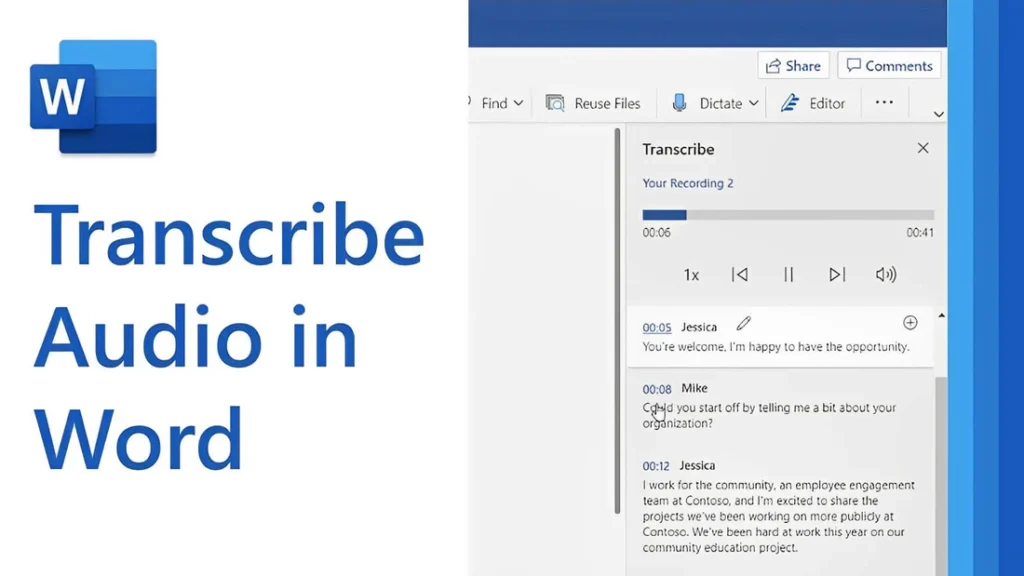
[vc_row type=”in_container” full_screen_row_position=”middle” column_margin=”default” column_direction=”default” column_direction_tablet=”default” column_direction_phone=”default” scene_position=”center” text_color=”dark” text_align=”left” row_border_radius=”none” row_border_radius_applies=”bg” overflow=”visible” overlay_strength=”0.3″ gradient_direction=”left_to_right” shape_divider_position=”bottom” bg_image_animation=”none”][vc_column column_padding=”no-extra-padding” column_padding_tablet=”inherit” column_padding_phone=”inherit” column_padding_position=”all” column_element_direction_desktop=”default” column_element_spacing=”default” desktop_text_alignment=”default” tablet_text_alignment=”default” phone_text_alignment=”default” background_color_opacity=”1″ background_hover_color_opacity=”1″ column_backdrop_filter=”none” column_shadow=”none” column_border_radius=”none” column_link_target=”_self” column_position=”default” gradient_direction=”left_to_right” overlay_strength=”0.3″ width=”1/1″ tablet_width_inherit=”default” animation_type=”default” bg_image_animation=”none” border_type=”simple” column_border_width=”none” column_border_style=”solid”][vc_column_text]Transcribing MP3 files into text is becoming increasingly essential in today’s data-driven world. Whether you’re a researcher, journalist, or business professional, converting audio recordings into text enables easy analysis, efficient documentation, and accurate reporting. While many tools exist, using Microsoft Word offers a simple, cost-effective solution for transcription. In this guide, you’ll learn how to transcribe MP3 files into text using Microsoft Word seamlessly. By the end, you’ll understand the tools required, how to avoid common transcription pitfalls, and how to get the most out of this technology for qualitative research. Understanding the Basics Before proceeding with the steps, let’s explore some foundational concepts about transcription and how Microsoft Word contributes to the process. What Is Transcription? Transcription is converting spoken words in audio or video files into written text. For qualitative researchers, transcription is crucial in analyzing interviews, focus groups, or customer calls. Accurate transcriptions provide a foundation for insights and reports. Understanding Audio Transcription in Microsoft Word Audio transcription in Microsoft Word is a feature that converts spoken words in audio files into written text. This capability is especially useful for businesses and professionals who efficiently document interactions, interviews, and meetings. Audio Transcription in Microsoft Word is revolutionizing how we convert spoken dialogue into written text. This feature allows users, such as team leads and researchers, to document and analyze interviews efficiently for actionable insights. With just a few clicks, users can upload their MP3 files into Word and witness the conversion process unfold. This powerful tool reveals not only verbatim text but also identifies speakers and key themes, such as pain points and behaviors. It is integral for those aiming to streamline their workflow and derive meaningful conclusions from their audio content, making it an invaluable asset in business and work environments. Using AI technology, Microsoft Word can identify speakers and provide a transcript that captures the nuances of conversations, enabling users to analyze and derive insights quickly. Read: Transcript Analysis AI: How It Works How Microsoft Word Transcription Works Microsoft Word now integrates with Microsoft 365’s Dictate Feature, which allows users to transcribe audio files. This feature supports MP3, WAV, and other popular formats and converts audio into editable text within minutes. To get started with audio transcription, first upload your MP3 files into the Word document library. Once uploaded, you can initiate the transcription process, during which the application will analyze the audio. The result is an editable transcript that users can review for accuracy. This transcript allows for extracting key points, such as customer pain points, desires, and behaviors—a crucial step for businesses aiming to understand their audience better. Furthermore, the functionality to add custom insights, like customer compliments, makes the transcription service adaptable to specific business needs. Preparing Your MP3 Files for Transcription Before diving into audio transcription with Microsoft Word, ensuring your MP3 files are primed and ready is crucial. Generally, files should be clear of background noise and have distinguishable speakers for the best results. Here’s a straightforward approach to preparing your recordings: Quality Check: Listen to your MP3 files. Confirm clarity and volume levels are adequate throughout the recording. If necessary, use an audio editing tool to enhance the sound quality. Unnecessarily loud sections or background buzz can hinder transcription accuracy. Format Verification: Microsoft Word supports certain audio formats for transcription. Ensure your MP3 files conform to these specifications to avoid compatibility issues during uploading. Shorten Lengths: If you have particularly long audio files, consider breaking them into shorter segments. This not only facilitates easier handling and management but can also help Microsoft Word’s transcription service process the audio more efficiently, especially if you’re dealing with limited internet bandwidth or processing power. Organize Content: For a streamlined transcription process, organize your MP3 files logically. If you’re working on several interviews or calls, label them appropriately and arrange them in the order they’ll be transcribed. This saves time and confusion later on. By preparing your MP3 files attentively, you can maximize the potential of your audio transcription efforts and gain valuable insights from your conversations. Clean and well-organized audio files are foundational for reliable transcription output, whether for business analysis or project management. Key Features of Microsoft Word’s Transcription Tool Microsoft Word’s transcription tool elevates the ease and efficiency of audio transcription, streamlining the process for businesses and professionals alike. This tool’s standout feature is its ability to distinguish between different speakers, which is highly beneficial for accurately transcribing meetings and interviews. This identification assists users in tracking the flow of conversation and attributing statements to the correct individuals, a critical aspect for clarity and organization of transcribed texts. Additionally, the transcription tool incorporates analysis capabilities, extracting key insights such as pain points, desires, and behaviors from the transcribed text. This aids in quickly identifying important themes and facilitating a deeper understanding of customer interactions or team communications. By using AI, the tool can pinpoint and extract relevant quotes as evidence of these insights, providing users with rich, contextual data for more informed decision-making. The seamless integration of transcription and analysis within Microsoft Word empowers users to unlock actionable insights from their audio files with minimal effort. How to Transcribe MP3 File to Text Using Microsoft Word If you want to convert your MP3 files into text, Microsoft Word offers a straightforward solution for audio transcription. Successfully transcribing MP3 files into text using Microsoft Word requires a clear understanding of the steps involved. Here’s how to transcribe your recordings directly within Word: Open Microsoft Word on your computer and locate the “Dictate” button, which includes the Transcribe option. Select Transcribe and then Upload the audio. Choose the MP3 file you wish to transcribe from your device. Once uploaded, Word will begin transcribing the audio file automatically. Depending on the file’s length,
Transcribe mp3 file to text with Google Docs
[vc_row type=”in_container” full_screen_row_position=”middle” column_margin=”default” column_direction=”default” column_direction_tablet=”default” column_direction_phone=”default” scene_position=”center” text_color=”dark” text_align=”left” row_border_radius=”none” row_border_radius_applies=”bg” overflow=”visible” overlay_strength=”0.3″ gradient_direction=”left_to_right” shape_divider_position=”bottom” bg_image_animation=”none”][vc_column column_padding=”no-extra-padding” column_padding_tablet=”inherit” column_padding_phone=”inherit” column_padding_position=”all” column_element_direction_desktop=”default” column_element_spacing=”default” desktop_text_alignment=”default” tablet_text_alignment=”default” phone_text_alignment=”default” background_color_opacity=”1″ background_hover_color_opacity=”1″ column_backdrop_filter=”none” column_shadow=”none” column_border_radius=”none” column_link_target=”_self” column_position=”default” gradient_direction=”left_to_right” overlay_strength=”0.3″ width=”1/1″ tablet_width_inherit=”default” animation_type=”default” bg_image_animation=”none” border_type=”simple” column_border_width=”none” column_border_style=”solid”][vc_column_text]Audio transcription is an essential tool for professionals seeking to convert spoken words into written text for analysis, archival, or accessibility. Through Google Docs, this process becomes simplified, enabling users to transform their mp3 files into editable documents. Whether you’re conducting interviews, managing customer service calls, or researching, having the ability to efficiently transcribe audio can unveil valuable insights and patterns in your data. This article is for individuals who are ready to explore how audio transcription within Google Docs can be integrated into their workflow to enhance their business operations or work productivity. Google Docs is a great starting point, but if you’re looking to take your transcription to the next level, tools like Insight7 can help. Insight7 offers free transcription with Google Drive integration, plus powerful analysis features. You can get started for free and explore these advanced capabilities. But for now, let’s focus on how to begin transcribing with Google Docs Preparing Your MP3 File Before you begin transcribing, it’s essential to prepare your MP3 file to ensure the best possible transcription results. Here are some key considerations: Quality: A high-quality audio file is paramount for accurate transcription. Ensure that the recording is clear, with minimal background noise, and that the speakers’ voices are distinct and intelligible. If the audio quality is subpar, consider using audio editing software to enhance the clarity of your recording before proceeding with transcription. This step is crucial, as even slight improvements in audio quality can lead to significantly better transcription results. Volume: Maintain steady volume levels throughout the recording to prevent any words or phrases from being lost. If the volume fluctuates too much, it might result in missed words or inaccurate transcription. File Length: Google Docs may struggle with excessively long recordings, so it’s advisable to break down your audio into manageable segments. This not only facilitates a smoother transcription process but also makes it easier to analyze the text later on. By segmenting your audio, you can focus on specific parts of the conversation without being overwhelmed by a lengthy file. Accessibility: Ensure your MP3 file is easily accessible on the device you plan to use for transcription. You’ll need to play the audio directly on your computer for Google Docs to capture and transcribe it accurately. Transcribing with Google Docs Google Docs offers a straightforward and user-friendly way to transcribe audio files, making it an excellent choice for beginners and seasoned professionals alike. Here’s how you can make the most out of this tool: Open Google Docs in Chrome: First and foremost, ensure you have a stable internet connection and open Google Chrome on your computer. Google Chrome is essential for utilizing the voice recognition feature built into Google Docs, which allows you to convert spoken words into text seamlessly. Enable Voice Typing: Once you have a new Google Doc open, go to the Tools menu and select Voice Typing. A microphone icon will appear on your screen, signaling that you’re ready to start transcribing. Click the microphone icon to activate the feature, and you’re set to begin. Play Your MP3 File: Use a media player on your computer or an external speaker to play the MP3 file you wish to transcribe. It’s crucial to ensure that the audio is clear and free from background noise, as this will significantly impact the accuracy of the transcription. If possible, use a high-quality external microphone to capture the audio more effectively. Google Docs will then transcribe the spoken words into text in real-time as the audio plays. Review and Edit: After the transcription is complete, it’s important to review the document for any errors and correct any misinterpretations that may have occurred. Due to variations in accents, speech clarity, and background noise, the voice recognition software might not always be perfect, so a manual review ensures the highest quality transcription. Use External Tools for Better Results: While Google Docs offers a convenient and cost-effective solution for basic transcription needs, more advanced requirements may benefit from specialized tools. External tools like Insight7 can provide additional features such as batch processing, detailed analysis, and enhanced accuracy, especially when dealing with complex audio data. Insight7: Advanced Transcription Solutions While Google Docs is an excellent starting point for basic transcription needs, more complex projects may require advanced tools that offer greater flexibility and features. Insight7 is one such tool that provides comprehensive transcription solutions designed for professional use. Free Transcription with Google Drive Integration: Insight7 offers free transcription services with seamless integration with Google Drive. This allows users to easily access, store, and manage their transcriptions without any hassle. By connecting directly to your Google Drive account, Insight7 ensures that your files are always accessible and backed up in the cloud. Advanced Analysis Features: Insight7 goes beyond simple transcription by offering powerful analysis features that help extract key insights, such as customer pain points, desires, and behaviors. These insights can be invaluable for businesses looking to understand their audience better and make informed decisions based on real data. By leveraging advanced machine learning algorithms, Insight7 can identify patterns and trends in your audio data, providing you with actionable intelligence. Bulk Processing: If you’re dealing with a large volume of audio files, Insight7‘s bulk processing capabilities make it easy to handle and organize multiple transcriptions simultaneously. This feature is particularly beneficial for organizations that need to process large datasets quickly and efficiently. Speed and Efficiency: One of the standout features of Insight7 is its speed in transcribing files compared to Google Docs. Where Google Docs might take time, especially with lengthy audio files, Insight7 is designed to handle large volumes of data quickly and efficiently, ensuring that you spend less time waiting and more time analyzing your transcripts Customization: With Insight7, you can