
Transcribe mp3 file to text with Microsoft word
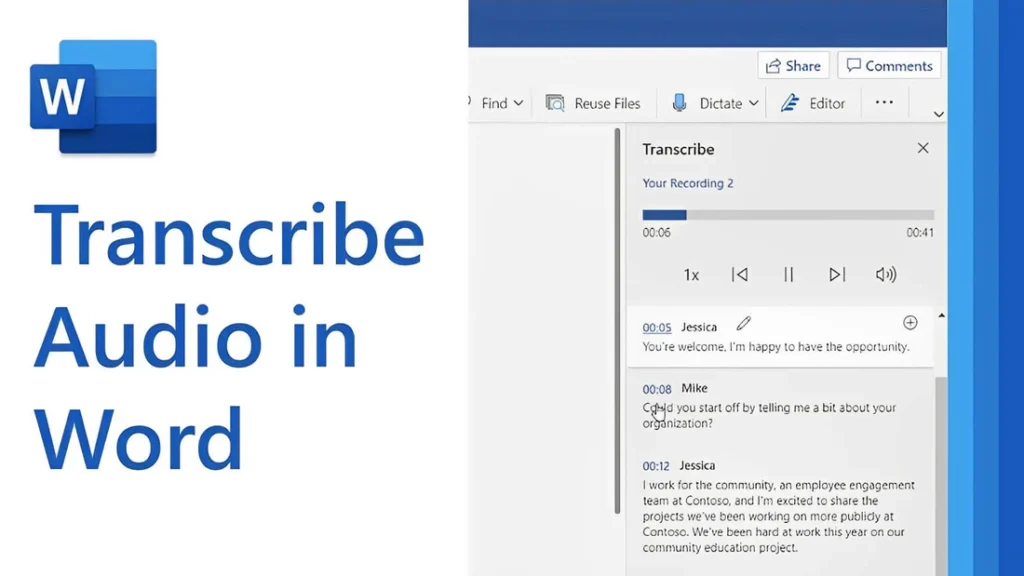
[vc_row type=”in_container” full_screen_row_position=”middle” column_margin=”default” column_direction=”default” column_direction_tablet=”default” column_direction_phone=”default” scene_position=”center” text_color=”dark” text_align=”left” row_border_radius=”none” row_border_radius_applies=”bg” overflow=”visible” overlay_strength=”0.3″ gradient_direction=”left_to_right” shape_divider_position=”bottom” bg_image_animation=”none”][vc_column column_padding=”no-extra-padding” column_padding_tablet=”inherit” column_padding_phone=”inherit” column_padding_position=”all” column_element_direction_desktop=”default” column_element_spacing=”default” desktop_text_alignment=”default” tablet_text_alignment=”default” phone_text_alignment=”default” background_color_opacity=”1″ background_hover_color_opacity=”1″ column_backdrop_filter=”none” column_shadow=”none” column_border_radius=”none” column_link_target=”_self” column_position=”default” gradient_direction=”left_to_right” overlay_strength=”0.3″ width=”1/1″ tablet_width_inherit=”default” animation_type=”default” bg_image_animation=”none” border_type=”simple” column_border_width=”none” column_border_style=”solid”][vc_column_text]Transcribing MP3 files into text is becoming increasingly essential in today’s data-driven world. Whether you’re a researcher, journalist, or business professional, converting audio recordings into text enables easy analysis, efficient documentation, and accurate reporting. While many tools exist, using Microsoft Word offers a simple, cost-effective solution for transcription. In this guide, you’ll learn how to transcribe MP3 files into text using Microsoft Word seamlessly. By the end, you’ll understand the tools required, how to avoid common transcription pitfalls, and how to get the most out of this technology for qualitative research. Understanding the Basics Before proceeding with the steps, let’s explore some foundational concepts about transcription and how Microsoft Word contributes to the process. What Is Transcription? Transcription is converting spoken words in audio or video files into written text. For qualitative researchers, transcription is crucial in analyzing interviews, focus groups, or customer calls. Accurate transcriptions provide a foundation for insights and reports. Understanding Audio Transcription in Microsoft Word Audio transcription in Microsoft Word is a feature that converts spoken words in audio files into written text. This capability is especially useful for businesses and professionals who efficiently document interactions, interviews, and meetings. Audio Transcription in Microsoft Word is revolutionizing how we convert spoken dialogue into written text. This feature allows users, such as team leads and researchers, to document and analyze interviews efficiently for actionable insights. With just a few clicks, users can upload their MP3 files into Word and witness the conversion process unfold. This powerful tool reveals not only verbatim text but also identifies speakers and key themes, such as pain points and behaviors. It is integral for those aiming to streamline their workflow and derive meaningful conclusions from their audio content, making it an invaluable asset in business and work environments. Using AI technology, Microsoft Word can identify speakers and provide a transcript that captures the nuances of conversations, enabling users to analyze and derive insights quickly. Read: Transcript Analysis AI: How It Works How Microsoft Word Transcription Works Microsoft Word now integrates with Microsoft 365’s Dictate Feature, which allows users to transcribe audio files. This feature supports MP3, WAV, and other popular formats and converts audio into editable text within minutes. To get started with audio transcription, first upload your MP3 files into the Word document library. Once uploaded, you can initiate the transcription process, during which the application will analyze the audio. The result is an editable transcript that users can review for accuracy. This transcript allows for extracting key points, such as customer pain points, desires, and behaviors—a crucial step for businesses aiming to understand their audience better. Furthermore, the functionality to add custom insights, like customer compliments, makes the transcription service adaptable to specific business needs. Preparing Your MP3 Files for Transcription Before diving into audio transcription with Microsoft Word, ensuring your MP3 files are primed and ready is crucial. Generally, files should be clear of background noise and have distinguishable speakers for the best results. Here’s a straightforward approach to preparing your recordings: Quality Check: Listen to your MP3 files. Confirm clarity and volume levels are adequate throughout the recording. If necessary, use an audio editing tool to enhance the sound quality. Unnecessarily loud sections or background buzz can hinder transcription accuracy. Format Verification: Microsoft Word supports certain audio formats for transcription. Ensure your MP3 files conform to these specifications to avoid compatibility issues during uploading. Shorten Lengths: If you have particularly long audio files, consider breaking them into shorter segments. This not only facilitates easier handling and management but can also help Microsoft Word’s transcription service process the audio more efficiently, especially if you’re dealing with limited internet bandwidth or processing power. Organize Content: For a streamlined transcription process, organize your MP3 files logically. If you’re working on several interviews or calls, label them appropriately and arrange them in the order they’ll be transcribed. This saves time and confusion later on. By preparing your MP3 files attentively, you can maximize the potential of your audio transcription efforts and gain valuable insights from your conversations. Clean and well-organized audio files are foundational for reliable transcription output, whether for business analysis or project management. Key Features of Microsoft Word’s Transcription Tool Microsoft Word’s transcription tool elevates the ease and efficiency of audio transcription, streamlining the process for businesses and professionals alike. This tool’s standout feature is its ability to distinguish between different speakers, which is highly beneficial for accurately transcribing meetings and interviews. This identification assists users in tracking the flow of conversation and attributing statements to the correct individuals, a critical aspect for clarity and organization of transcribed texts. Additionally, the transcription tool incorporates analysis capabilities, extracting key insights such as pain points, desires, and behaviors from the transcribed text. This aids in quickly identifying important themes and facilitating a deeper understanding of customer interactions or team communications. By using AI, the tool can pinpoint and extract relevant quotes as evidence of these insights, providing users with rich, contextual data for more informed decision-making. The seamless integration of transcription and analysis within Microsoft Word empowers users to unlock actionable insights from their audio files with minimal effort. How to Transcribe MP3 File to Text Using Microsoft Word If you want to convert your MP3 files into text, Microsoft Word offers a straightforward solution for audio transcription. Successfully transcribing MP3 files into text using Microsoft Word requires a clear understanding of the steps involved. Here’s how to transcribe your recordings directly within Word: Open Microsoft Word on your computer and locate the “Dictate” button, which includes the Transcribe option. Select Transcribe and then Upload the audio. Choose the MP3 file you wish to transcribe from your device. Once uploaded, Word will begin transcribing the audio file automatically. Depending on the file’s length,
Transcribe Audio File to Text with Microsoft Teams
[vc_row type=”in_container” full_screen_row_position=”middle” column_margin=”default” column_direction=”default” column_direction_tablet=”default” column_direction_phone=”default” scene_position=”center” text_color=”dark” text_align=”left” row_border_radius=”none” row_border_radius_applies=”bg” overflow=”visible” overlay_strength=”0.3″ gradient_direction=”left_to_right” shape_divider_position=”bottom” bg_image_animation=”none”][vc_column column_padding=”no-extra-padding” column_padding_tablet=”inherit” column_padding_phone=”inherit” column_padding_position=”all” column_element_direction_desktop=”default” column_element_spacing=”default” desktop_text_alignment=”default” tablet_text_alignment=”default” phone_text_alignment=”default” background_color_opacity=”1″ background_hover_color_opacity=”1″ column_backdrop_filter=”none” column_shadow=”none” column_border_radius=”none” column_link_target=”_self” column_position=”default” gradient_direction=”left_to_right” overlay_strength=”0.3″ width=”1/1″ tablet_width_inherit=”default” animation_type=”default” bg_image_animation=”none” border_type=”simple” column_border_width=”none” column_border_style=”solid”][vc_column_text] In a world increasingly reliant on virtual communication, the ability to transcribe audio files to text has become a game-changer. Whether for meetings, lectures, interviews, or team collaborations, transcription allows for accurate record-keeping and simplifies analyzing spoken content. Teams Transcription offers a robust solution for converting your Microsoft Teams audio files into written text, enabling easy analysis for actionable insights. Ideal for businesses seeking to understand customer needs and behaviors, this service automatically identifies speakers and extracts key points, such as pain points, desires, and behaviors from conversations. With the added ability to customize data extraction, your team can gain a comprehensive understanding of client interactions quickly and accurately. Teams Transcription is an indispensable tool for anyone who needs to streamline their workflow and enhance their data analysis capabilities. This guide will walk you through how to transcribe audio files to text using Microsoft Teams, highlighting its transcription capabilities, common challenges, and best practices. By the end of this article, you’ll be equipped to make the most of Teams’ AI-powered tools to boost your productivity and enhance team collaboration. Can Microsoft Teams Transcribe Audio? Yes, Microsoft Teams has transcription features designed to convert meeting audio into text automatically. This capability is part of its AI-powered toolkit, making transcription quick and accurate. However, these features are primarily available for live meetings and recordings. How Does Transcription Work in Teams? Microsoft Teams uses AI to process audio data and generate text transcriptions. Once enabled during a meeting, the platform captures audio in real time and automatically creates a text transcript. These transcripts can be accessed and shared after the meeting, making reviewing discussions or sharing summaries easier. How to Use Teams Transcription to Convert Audio Files to Text To effectively utilize Teams Transcription, first ensure that your audio files are uploaded into the app’s library section. This is where all your data—including videos and documents—is stored after upload. Once in the library, the transcription service converts your audio content into written text. This function is particularly seamless with Teams calls, enabling effortless identification of speakers and the subsequent transcription of their dialogue. After transcription, you can extract meaningful insights from the text. The default settings allow you to identify key points such as pain points, desires, and behaviors from customer interactions, which are essential for gaining customer insights. However, the system also offers customization options, allowing you to highlight additional data points such as compliments or other customer requests. Teams Transcription enables you to pull direct quotes from the transcript for each insight, providing valuable context to the identified points. Furthermore, all services are cloud-based, ensuring accessibility and secure data storage. Steps to Transcribe an Audio File in Microsoft Teams For businesses and professionals looking to optimize their workflow, transcribing audio files into text is a game-changer. Microsoft Teams offers a transcription feature that simplifies this process. Here are the necessary steps: Step 1: Enable Transcription for Your Microsoft Teams Account Before transcribing audio files, ensure transcription is enabled in your Teams settings. Key Actions: Check Admin Settings: Only administrators can enable transcription for the entire organization. Ask your IT admin to turn on the “Allow Transcription” setting in the Teams admin center. Enable Live Captions: Navigate to the meeting options in Teams and ensure live captions are turned on. Transcription relies on this feature. Verify Recording Permissions: Confirm that your account has permission to record meetings, as transcription is linked to recordings. Common Mistake to Avoid: Not checking admin permissions in advance, which can delay transcription availability. Step 2: Record the Audio in a Teams Meeting Transcription in Teams is most effective when paired with recorded meetings. Key Actions: Start the Meeting: Begin a meeting in Teams as usual. Start Recording: Click the three-dot menu (…) and select “Start Recording.” This activates both the recording and transcription features. Enable Live Transcription: Click the three-dot menu again and select “Start Transcription.” Pro Tip: Inform participants that the meeting is being recorded and transcribed for transparency and compliance. Step 3: Access the Transcription After the Meeting Once the meeting ends, Teams automatically saves the transcript alongside the recording. Key Actions: Locate the Transcript: Go to Teams’s meeting chat or recording link. The transcript is saved under the “Recordings & Transcripts” tab. Download the Transcript: Click on the transcript and select “Download” to save it as a text file or Word document. Edit for Accuracy: Review the downloaded transcript for any inaccuracies or formatting issues, especially if multiple speakers were involved. Pro Tip: Use the time-stamped transcript to locate specific sections of the recording quickly. Step 4: Transcribe Pre-Recorded Audio Files If you need to transcribe an audio file outside of a Teams meeting, use a workaround since Teams doesn’t directly support file uploads for transcription. Key Actions: Play the Audio File During a Meeting: Start a Teams meeting and share your system audio while playing the file. Enable Recording and Transcription: Follow the steps in Step 2 to record and transcribe the audio. Common Mistake to Avoid: Forgetting to optimize audio quality, which can lead to inaccurate transcriptions. Step 5: Share and Utilize the Transcript Once your transcript is ready, share it with your team or use it for further analysis. Key Actions: Share via Teams: Upload the transcript to the meeting chat or a shared channel for easy access. Analyze with Insight7: Use Insight7 to extract key themes and actionable insights from the transcript. Incorporate Findings: Summarize the transcript’s key points in presentations, reports, or meeting follow-ups. With these steps, leveraging Teams Transcription goes beyond mere text conversion; it enables users to extract key points that may help make data-driven decisions. Remember to regularly save your work and review the transcription for accuracy, ensuring the final text serves its
Transcribe video file to text with Google Docs
[vc_row type=”in_container” full_screen_row_position=”middle” column_margin=”default” column_direction=”default” column_direction_tablet=”default” column_direction_phone=”default” scene_position=”center” text_color=”dark” text_align=”left” row_border_radius=”none” row_border_radius_applies=”bg” overflow=”visible” overlay_strength=”0.3″ gradient_direction=”left_to_right” shape_divider_position=”bottom” bg_image_animation=”none”][vc_column column_padding=”no-extra-padding” column_padding_tablet=”inherit” column_padding_phone=”inherit” column_padding_position=”all” column_element_direction_desktop=”default” column_element_spacing=”default” desktop_text_alignment=”default” tablet_text_alignment=”default” phone_text_alignment=”default” background_color_opacity=”1″ background_hover_color_opacity=”1″ column_backdrop_filter=”none” column_shadow=”none” column_border_radius=”none” column_link_target=”_self” column_position=”default” gradient_direction=”left_to_right” overlay_strength=”0.3″ width=”1/1″ tablet_width_inherit=”default” animation_type=”default” bg_image_animation=”none” border_type=”simple” column_border_width=”none” column_border_style=”solid”][vc_column_text]In the age of digital transformation, videos are a dominant medium for communication, learning, and research. Video Transcription with Google Docs is a pivotal tool for professionals seeking efficient ways to convert video content into textual form. From interviews to webinars, video files often contain valuable information that needs to be converted into text for easier analysis, sharing, and documentation. It serves as a bridge, enabling users to upload video files directly from their computers or Google Drive and swiftly transcribe them into text. Whether for capturing crucial points discussed in a meeting, analyzing interview data, or enhancing content marketing strategies, the transcription feature within Docs streamlines the process. It saves time and allows easy integration of transcripts into project folders for subsequent analysis. By unlocking the potential of Video Transcription in Docs, businesses, and individuals can easily accelerate their workflow and derive actionable insights from their video files. In this guide, we’ll explain how to use Google Docs to transcribe video files to text, explain the benefits and limitations of this method, and discuss how advanced tools like Insight7 can enhance your transcription and qualitative analysis processes. By the end of this guide, you will: Understand how Google Docs Voice Typing works for video transcription. Learn step-by-step how to transcribe a video file to text. Discover how Insight7 can complement transcription workflows by turning raw transcripts into actionable insights. Understanding Video Transcription with Google Docs What Is Video Transcription? Video transcription involves converting spoken words from a video file into a written format. It’s widely used for creating subtitles, extracting insights from interviews, and documenting video content for reference or analysis. Why Use Google Docs for Video Transcription? Google Docs offers a built-in Voice Typing feature that uses speech recognition technology to capture spoken words and convert them into text. Although not specifically designed for transcription, this feature can transcribe audio from a video file played through your device’s speakers. How Does It Work? The Voice Typing tool listens to audio through your device’s microphone and transcribes it in real time. By playing the video near the microphone, the tool converts the spoken content into text within Google Docs. Limitations of Google Docs for Transcription While Google Docs Voice Typing is free and easy to use, it does have limitations: Audio Quality Dependency: Clear audio is essential for accurate transcription. Limited Features: Unlike professional transcription tools, it lacks advanced capabilities such as speaker identification or automated punctuation. Manual Editing Required: You’ll need to review and correct the text for accuracy. Read: Transcribe mp3 file to text with Microsoft word Steps to Transcribe Video Files to Text with Google Docs A streamlined process ensures efficiency and accuracy when transcribing video files to text using Google Docs. Begin by uploading your video into a transcription tool such as Insight7.io, which can automatically convert speech into a written transcript. After the transcription is complete, you can import this text directly into Google Docs for further editing and refinement. Google Docs’ Voice Typing feature offers an accessible way to transcribe video files into text. Follow these steps to complete the process effectively: Step 1: Set Up Your Workspace Before you start, create an ideal environment for transcription. Quiet Environment: Ensure there is minimal background noise to avoid interference with the transcription. Functional Microphone: Test your microphone to ensure it captures audio clearly. Tools You’ll Need: A computer or laptop. A video file you want to transcribe. Import your video file into a transcription service from your computer or Google Drive. Access to Google Docs via a browser (preferably Chrome for optimal performance). Step 2: Enable Voice Typing in Google Docs Open Google Docs and create a new blank document. Navigate to the Tools menu at the top of the screen and select Voice Typing from the dropdown. A microphone icon will appear on the left-hand side of your screen. Pro Tip: Ensure you have a stable internet connection, as Google Docs relies on cloud processing for voice recognition. Step 3: Play Your Video File Now, it’s time to prepare your video file for transcription. Open the video file on your computer using your preferred video player. Position your device’s microphone close to the speakers to capture audio effectively. Set the video volume to a moderate level to ensure clarity. Step 4: Start Transcribing Click the microphone icon in Google Docs to activate Voice Typing. Press play on your video file and allow the audio to play naturally. Watch as Google Docs begins transcribing the audio into text in real time. Common Tip: Pause the video periodically to make corrections or ensure the transcription is capturing the content accurately. Step 5: Edit and Save Your Transcript Once the video is fully transcribed: Pause the transcription by clicking the microphone icon again. Carefully review the document to fix any errors, punctuation issues, or formatting inconsistencies. Save your transcript to Google Drive or download it in your preferred format (e.g., Word or PDF). Optional Step: Route Audio Internally for Higher Accuracy If you want to improve transcription accuracy and bypass ambient noise: Use tools like VB-Audio Cable or Soundflower to route audio directly from your video player to Google Docs. These tools eliminate background noise by feeding the audio directly to the transcription software. Through this technique, you can harness AI-based transcription services to streamline the conversion of video content into text, optimizing for both time and effort. Whether for content marketing or data analysis, this transcription process allows for more accessible data extraction and deeper insights into customer behaviors, desires, and pain points. By integrating these steps, businesses can enhance their content strategy and capitalize on the rich information embedded in their video files. Read: Transcribe audio file to text with Google Docs
Transcribe audio file to text with Google Drive
[vc_row type=”in_container” full_screen_row_position=”middle” column_margin=”default” column_direction=”default” column_direction_tablet=”default” column_direction_phone=”default” scene_position=”center” text_color=”dark” text_align=”left” row_border_radius=”none” row_border_radius_applies=”bg” overflow=”visible” overlay_strength=”0.3″ gradient_direction=”left_to_right” shape_divider_position=”bottom” bg_image_animation=”none”][vc_column column_padding=”no-extra-padding” column_padding_tablet=”inherit” column_padding_phone=”inherit” column_padding_position=”all” column_element_direction_desktop=”default” column_element_spacing=”default” desktop_text_alignment=”default” tablet_text_alignment=”default” phone_text_alignment=”default” background_color_opacity=”1″ background_hover_color_opacity=”1″ column_backdrop_filter=”none” column_shadow=”none” column_border_radius=”none” column_link_target=”_self” column_position=”default” gradient_direction=”left_to_right” overlay_strength=”0.3″ width=”1/1″ tablet_width_inherit=”default” animation_type=”default” bg_image_animation=”none” border_type=”simple” column_border_width=”none” column_border_style=”solid”][vc_column_text] Audio Transcription is a vital tool for professionals aiming to harness the power of spoken word analysis, offering a seamless path from voice to text. With the right tools, such as those provided through Google Drive, users can easily convert interviews, calls, and meetings into editable text that can be sifted for insights. This process not only streamlines the documentation of discussions but also allows for the extraction of customer pain points, desires, and behaviors, thus providing invaluable data for business strategists and team leaders. Understanding how to transcribe audio files effectively with Google Drive can be a game-changer for anyone looking to enhance their workflow and derive meaningful conclusions from their interactions. Google Drive, coupled with Google Docs’ voice typing feature, offers a cost-effective way to transcribe audio files to text. This guide will walk you through the process of using Google Drive to transcribe audio, highlighting practical steps, common pitfalls, and advanced strategies to ensure accuracy and efficiency. Additionally, you’ll learn how Insight7 can complement this workflow, enhancing your transcription and analysis process with its advanced features. By the end of this guide, you’ll have a clear understanding of how to leverage Google Drive for transcription and how Insight7 can take your qualitative research to the next level. How Does Google Drive Help with Transcription? Transcription is the process of converting spoken language from an audio file into written text. It is particularly valuable for qualitative researchers who need to analyze recorded interviews, meetings, or lectures. Accurate transcriptions form the basis for extracting actionable insights. Google Drive itself doesn’t directly transcribe audio files. Instead, it acts as a storage and access platform for audio files that can be processed using Google Docs’ voice typing tool. This feature allows you to play an audio file and dictate the text in real-time, producing a transcription. Why Use Google Drive for Transcription? Accessibility: Google Drive integrates seamlessly with Google Docs, allowing you to store, share, and access files from anywhere. Cost-Effective Solution: Both Google Drive and Google Docs are free, making them an excellent choice for individuals and small teams. Ease of Use: Google’s intuitive interface simplifies the transcription process, even for beginners. Step-by-Step Guide to Transcribe Audio Files to Text When it comes to converting your audio files into accurate text documents, an audio transcription feature within Google Drive can streamline the process for your business workflow. Follow these steps to ensure smooth transcription: Step 1: Upload the Audio File to Google Drive Before diving into audio transcription, its crucial to get your audio files onto Google Drive. The first step is to store your audio file securely in Google Drive. Uploading is straightforward and here’s how to do it: Navigate to your Google Drive homepage and log in using your Google account credentials. Once there, look for the New button on the top left and select File upload from the dropdown menu. Locate the audio files on your computer and start the upload process. Wait for the file to upload. Larger files may take a few minutes depending on your internet speed. Place the audio file in a specific folder to keep your Drive organized. Rename the file for easy identification, especially if you’re transcribing multiple files. Remember, the audio files need to be in a format supported by the transcription tools you intend to use. Use supported audio formats such as MP3 or WAV to avoid compatibility issues with third-party transcription tools. After your audio files are uploaded, they will appear in My Drive, ready to be integrated into your projects. If you’re collaborating with a team, you can move the files into shared folders to ensure all team members have access. For bulk uploads, while the current process may require uploading files one by one, it still streamlines the workflow significantly. Once in place, these files can be transcribed into text, paving the way for easier data analysis, content creation, or record-keeping for your business or work. Step 2: Opeen Google Docs and Enable Voice Typing Then, access Google Docs and select “Voice typing” from the Tools menu. Click the microphone icon, and play your audio file clearly into the system. Choose your desired language from the dropdown menu. Google Docs supports multiple languages, but it works best with widely spoken ones like English, Spanish, and French. Use an external audio player, such as VLC Media Player, to play the file. Adjust the playback speed for better synchronization with the voice typing tool. Step 3: Transcribe the Audio Using Voice Typing Now that you’ve set up voice typing, the next step is to create the transcription. Play the audio file from your external audio player. Adjust the volume so the microphone captures the audio clearly. Click the microphone icon in Google Docs to start voice typing. Google’s powerful voice recognition technology will transcribe the spoken words into text in real-time. You can pause the audio playback to allow the voice typing tool to catch up, and also resume playback once the transcription is in sync. Step 4: Edit and Format the Transcription After completing the voice typing process, your transcription will appear in the Google Docs document. The next step is to refine and format it for clarity and accuracy. It’s imperative to review the transcribed text for accuracy, since nuances in speech, such as accents or jargon can result in minor errors. Voice typing tools can misinterpret words, especially if the audio quality is poor or there are multiple speakers. Edit the document as necessary to ensure the transcription reflects the original audio with complete accuracy. Correct any misheard phrases or unclear text. Bold or italicize critical statements or action points for easy reference. Save the Google Docs file and export it as
How to Analyze Focus Group Discussion with AI Tools

[vc_row type=”in_container” full_screen_row_position=”middle” column_margin=”default” column_direction=”default” column_direction_tablet=”default” column_direction_phone=”default” scene_position=”center” text_color=”dark” text_align=”left” row_border_radius=”none” row_border_radius_applies=”bg” overflow=”visible” overlay_strength=”0.3″ gradient_direction=”left_to_right” shape_divider_position=”bottom” bg_image_animation=”none”][vc_column column_padding=”no-extra-padding” column_padding_tablet=”inherit” column_padding_phone=”inherit” column_padding_position=”all” column_element_direction_desktop=”default” column_element_spacing=”default” desktop_text_alignment=”default” tablet_text_alignment=”default” phone_text_alignment=”default” background_color_opacity=”1″ background_hover_color_opacity=”1″ column_backdrop_filter=”none” column_shadow=”none” column_border_radius=”none” column_link_target=”_self” column_position=”default” gradient_direction=”left_to_right” overlay_strength=”0.3″ width=”1/1″ tablet_width_inherit=”default” animation_type=”default” bg_image_animation=”none” border_type=”simple” column_border_width=”none” column_border_style=”solid”][vc_column_text] Focus group discussions (FGDs) are a powerful way to gather qualitative insights from a group of participants. However, analyzing focus group data manually can be time-consuming and prone to errors. That’s where AI-powered analysis tools come in—automating transcription, identifying key themes, and generating actionable insights in seconds. With the rise of AI in research, analyzing focus group discussions is easier and more efficient than ever before. This article delves into the comprehensive process of FGDs and explores the potential of AI tools used to analyze focus group discussion recordings like Insight7. By the end of this guide, you’ll be able to use AI-powered tools to streamline qualitative research and generate faster, more reliable insights. What is Focus Group Discussion (FGD) Analysis? FGD analysis refers to examining recorded group discussions to extract key insights, opinions, and behavioral patterns. Researchers analyze verbal responses, emotions, and interactions to identify trends and themes. How AI Enhances Focus Group Analysis AI tools eliminate human bias and inefficiency by: Automating transcription to convert audio discussions into text. Extracting key themes & patterns using NLP (Natural Language Processing). Summarizing large datasets quickly for easy reporting. Generating sentiment analysis to understand participant emotions. Visualizing insights through interactive dashboards. These AI-powered capabilities make focus group research faster, more accurate, and scalable. The Focus Group Discussion Process Preparation Phase Defining Objectives: Clearly delineate the research goals to direct discussions effectively toward desired outcomes. Participant Selection: Identify and recruit participants representing the target demographic or possessing relevant expertise to ensure diverse perspectives. Moderator Training: Equip moderators with the necessary skills to facilitate unbiased discussions and maintain focus throughout the session. Designing the Discussion Guide Structured Questioning: Craft a discussion guide comprising open-ended questions and prompts meticulously designed to explore specific aspects of the research topic. Ensuring Relevance: Ensure that questions are pertinent to the research objectives, fostering meaningful dialogue and eliciting valuable insights from participants. Conducting the Focus Group Discussion Establishing Environment: Create a conducive setting conducive to open discourse, free from distractions, and conducive to participant engagement. Introduction and Rapport Building: To cultivate a comfortable atmosphere, kickstart the session with an introduction to the topic, setting ground rules, and fostering rapport among participants. Facilitating Dialogue: Encourage active participation and free-flowing discussions among participants while steering the conversation towards the predefined objectives. Probing for Depth: Judiciously employ probing techniques to delve deeper into responses, unraveling underlying motivations and nuances within participants’ perspectives. Recording Insights: Record the session, with participant consent, using audio or video methods to capture insights accurately for subsequent analysis. Analysis Phase Transcription: Transcribe the recorded discussions verbatim, capturing nuances, emotions, and expressions to preserve the richness of participant input. Thematic Coding: Analyze transcripts meticulously to identify recurring themes, patterns, and divergent viewpoints, facilitating structured data organization. Interpretation and Synthesis: Interpret findings in the context of research objectives, synthesizing diverse perspectives to derive meaningful conclusions and actionable insights. Reporting Findings Comprehensive Documentation: Compile a detailed report encapsulating key findings, supported by illustrative quotes and participant anecdotes to add depth and credibility. Visual Representation: Enhance understanding and retention by supplementing the report with visual aids such as charts, graphs, and diagrams to elucidate trends and insights effectively. Integration of AI Tools in FGDs Streamline Participant Recruitment AI-Driven Targeting: Leverage AI algorithms to sift through vast datasets and identify potential participants matching specific demographic criteria, expediting recruitment. Automated Screening: Implement Natural Language Processing (NLP) algorithms to screen participant responses efficiently, ensuring alignment with research prerequisites. Optimize Discussion Guide Development Sentiment Analysis: Harness AI-powered sentiment analysis to parse through extensive textual data, gauging prevalent sentiments and identifying pertinent discussion topics. Predictive Analytics: Employ machine learning algorithms to anticipate potential discussion avenues based on past FGDs or related research, enriching the discussion guide formulation process. Improve Moderator Support AI-Powered Chatbots: Integrate AI-driven chatbots equipped with NLP capabilities to assist moderators in real-time, suggesting follow-up questions and probing techniques to foster comprehensive discussions. Emotional Analysis: Employ real-time sentiment analysis tools to gauge participants’ emotional states during discussions. This will enable moderators to adapt their approach accordingly and maintain engagement. Facilitate Data Analysis Automated Transcription: Deploy AI-powered transcription tools to automatically convert audio recordings into text format accurately and expeditiously, saving time and resources. NLP-Driven Thematic Analysis: Leverage NLP algorithms to streamline thematic coding processes, identifying and categorizing recurring themes within transcripts swiftly and systematically. Generate Actionable Insights Advanced Analytics: Harness AI-driven analytics platforms to aggregate data from multiple FGDs, uncovering overarching trends and extracting deeper insights beyond human capacity. Pattern Recognition: Employ machine learning algorithms to discern subtle correlations and patterns within data, illuminating nuanced insights and effectively informing strategic decision-making processes. AI Tools for Focus Group Discussion Analysis There are several AI tools available that can assist with analyzing focus group discussions. These tools can help transcribe audio recordings, identify key themes and insights, and provide valuable data analysis. Here are some popular AI-powered tools for focus group analysis: 1. Insight7 Insight7 is a powerful platform for analyzing qualitative data designed to streamline the focus group analysis process. This tool automatically transcribes audio and video recordings in bulk, allowing researchers to handle large datasets efficiently. Its intuitive coding features enable users to identify key themes and patterns within transcripts, providing a deep understanding of participant responses. The platform also generates detailed visualizations and reports, making it easy to explore insights and present findings clearly and compellingly. Automated Transcription: Effortlessly convert bulk audio and video recordings into accurate text transcripts, saving time and reducing manual effort. Thematic Coding: Use advanced coding tools to identify themes, patterns, and trends within your qualitative data, ensuring comprehensive analysis. Visualizations & Reporting: Generate visually engaging reports and dashboards to illustrate insights, making it easier to share results with stakeholders. 2. Dedoose Dedoose is a
Best AI Tools for Generating Accurate Customer Insights

[vc_row type=”in_container” full_screen_row_position=”middle” column_margin=”default” column_direction=”default” column_direction_tablet=”default” column_direction_phone=”default” scene_position=”center” text_color=”dark” text_align=”left” row_border_radius=”none” row_border_radius_applies=”bg” overflow=”visible” overlay_strength=”0.3″ gradient_direction=”left_to_right” shape_divider_position=”bottom” bg_image_animation=”none”][vc_column column_padding=”no-extra-padding” column_padding_tablet=”inherit” column_padding_phone=”inherit” column_padding_position=”all” column_element_direction_desktop=”default” column_element_spacing=”default” desktop_text_alignment=”default” tablet_text_alignment=”default” phone_text_alignment=”default” background_color_opacity=”1″ background_hover_color_opacity=”1″ column_backdrop_filter=”none” column_shadow=”none” column_border_radius=”none” column_link_target=”_self” column_position=”default” gradient_direction=”left_to_right” overlay_strength=”0.3″ width=”1/1″ tablet_width_inherit=”default” animation_type=”default” bg_image_animation=”none” border_type=”simple” column_border_width=”none” column_border_style=”solid”][vc_column_text] Businesses are under constant pressure to understand their customers better and faster to remain competitive. From shaping product strategies to delivering personalized experiences, actionable customer data insights play a critical role. However, traditional methods of data collection and analysis—such as surveys and manual reviews—are often slow, resource-intensive, and lack the precision needed for strategic decision-making. This is where AI-powered insights tools come into play. Leveraging AI-generated insights, businesses can analyze vast amounts of data efficiently, identify patterns, and make data-driven decisions. These tools use advanced techniques such as machine learning and natural language processing (NLP) to transform raw data into actionable customer intelligence. These AI tools designed for customer insights have proven invaluable for industries like market research, e-commerce, and customer experience management by predicting trends, and uncovering hidden patterns in large datasets. In this article, we’ll explore the best insight AI tools available today, each designed to help businesses generate insights from data. You’ll discover how each tool brings unique capabilities, from advanced analytics to customizable reports, that make it easier for organizations to understand their customers and tailor their strategies effectively. Why AI Tools for Customer Insights Are Crucial AI has transformed customer data insights in recent years, evolving to address the complexities that traditional methods can’t manage. One of the main advancements is AI’s ability to process vast amounts of unstructured data, such as customer feedback, social media interactions, and online reviews. These tools have moved beyond merely collecting data—they now enable businesses to analyze and extract valuable insights that can shape marketing strategies, product development, and customer experience. In 2024, relying solely on human analysis limits the depth and speed of insight generation. AI-driven insights offer more accuracy, uncovering trends and customer behaviors that would be difficult, if not impossible, to detect manually. By automating much of the heavy lifting, AI tools empower businesses to focus on strategy rather than data wrangling. This helps predict future trends, enhance customer journeys, and improve return on investment (ROI). Additionally, AI tools help companies stay competitive by enabling real-time decision-making. With the ability to analyze current data, businesses can rapidly adapt to market changes, ensuring their customer strategies remain effective. Whether you’re in retail, finance, or tech, adopting AI tools for generating customer insights is essential to gaining a deeper understanding of your audience and staying ahead in the market. What is Customer Insight Data? Quick Overview Customer insight data refers to the information and understanding gained from analyzing customer behavior, preferences, and interactions with a business. It encompasses a wide range of data points, including purchase history, website visits, social media engagement, feedback, and demographic information. Through customer data insight, businesses can gain valuable into their customers’ needs, motivations, and pain points, enabling them to make informed decisions and tailor their products, services, and marketing strategies to better meet customer expectations. Examples of insights Examples of customer insights include: Identifying trends in purchasing behavior, such as increased demand for a specific product or service during certain times of the year. Understanding customer preferences and preferences, such as preferred communication channels or product features. Recognizing pain points or areas of dissatisfaction, such as recurring customer complaints or high rates of product returns. Discovering opportunities for cross-selling or upselling based on customers’ buying patterns and interests. Predicting future customer behavior, such as likelihood to churn or respond to a promotional offer, based on historical data and predictive analytics How AI Analyzes Customer Data Text & Sentiment Analysis – AI scans customer feedback, reviews, and social media to determine positive, negative, or neutral sentiment. Behavioral Analytics – AI monitors how customers navigate websites, engage with content, and make purchasing decisions. Predictive Modeling – AI predicts future trends based on historical customer behavior. Customer Segmentation – AI categorizes customers into specific groups based on age, location, interests, and spending habits. These insights help businesses refine marketing strategies, optimize product offerings, and enhance customer experiences. Best 7 AI Tools for Generating Accurate Customer Insights 1. Insight7 – Best for Generating Qualitative Customer Insights Overview: Insight7 is a powerful AI tool designed to generate qualitative customer insights by analyzing bulk transcripts, interview data, and focus group discussions. This tool is especially beneficial for businesses conducting market research, customer experience analysis, or innovation projects. By focusing on project-based research, Insight7 offers a comprehensive solution for extracting actionable insights quickly and efficiently. Key Features: Automated Qualitative Data Analysis: Insight7 automatically processes large amounts of qualitative data, including interviews and focus groups, saving teams time and effort by generating insights without manual intervention. Bulk Transcription Capability: Users can upload multiple audio or video files simultaneously. The platform quickly transcribes them into text, which can be analyzed for insights. Comprehensive Reporting: Insight7 generates detailed reports, offering in-depth analysis and visualization of customer insights, providing a clear path from data to action. Enterprise-Grade Data Security: Insight7 ensures all data is protected by robust security measures such as GDPR and SOC2 compliance, making it a trusted platform for large organizations. Customizable Insight Deliverables: Whether you need empathy maps, journey maps, or detailed reports, Insight7 allows for customizable insight outputs based on your project requirements. Benefits: Insight7 enables businesses to process data faster and with greater accuracy, offering deep insights into customer behaviors and preferences. For companies needing in-depth, qualitative research, it’s an excellent platform that reduces manual effort and provides valuable, customized outputs for decision-making. 2. HubSpot – Best for Customer Insights in CRM Integration Overview: HubSpot is a leading CRM tool with integrated AI features that generate actionable customer insights from data collected across multiple touchpoints. Known for its powerful customer relationship management (CRM) capabilities, HubSpot helps businesses track customer interactions, analyze behavior, and generate insights to enhance customer engagement strategies. Key Features: AI-Powered Insights: HubSpot’s
AI Tools for Jobs to be Done Analysis
[vc_row type=”in_container” full_screen_row_position=”middle” column_margin=”default” column_direction=”default” column_direction_tablet=”default” column_direction_phone=”default” scene_position=”center” text_color=”dark” text_align=”left” row_border_radius=”none” row_border_radius_applies=”bg” overflow=”visible” overlay_strength=”0.3″ gradient_direction=”left_to_right” shape_divider_position=”bottom” bg_image_animation=”none”][vc_column column_padding=”no-extra-padding” column_padding_tablet=”inherit” column_padding_phone=”inherit” column_padding_position=”all” column_element_direction_desktop=”default” column_element_spacing=”default” desktop_text_alignment=”default” tablet_text_alignment=”default” phone_text_alignment=”default” background_color_opacity=”1″ background_hover_color_opacity=”1″ column_backdrop_filter=”none” column_shadow=”none” column_border_radius=”none” column_link_target=”_self” column_position=”default” gradient_direction=”left_to_right” overlay_strength=”0.3″ width=”1/1″ tablet_width_inherit=”default” animation_type=”default” bg_image_animation=”none” border_type=”simple” column_border_width=”none” column_border_style=”solid”][vc_column_text]The power of AI in jobs to be done analysis lies in its ability to quickly aggregate and interpret vast amounts of data. For instance, by integrating customer interview recordings into an AI-powered platform, an organization can create a project folder, import files, and analyze the content with a single click. The resulting dashboard presents an overview of customer pain points and desires, alongside actionable opportunities. Each theme is detailed with sentiment analysis, supporting goals, and the potential impact of addressing the issues identified. Furthermore, evidence supporting each insight is readily available, ensuring that decision-making is based on solid data rather than assumptions. Introduction to Jobs to Be Done Framework The Jobs to Be Done framework is a theory that suggests customers “hire” products or services to accomplish specific tasks or jobs in their lives. This perspective shifts the focus from traditional demographic-based marketing to understanding the underlying motivations and needs of customers. By identifying these jobs, businesses can create solutions that better meet customer expectations and drive satisfaction. Why Use AI Tools for JTBD Analysis? AI tools can significantly enhance the efficiency and effectiveness of JTBD analysis by: Automating Data Processing: AI can quickly analyze large volumes of qualitative data, such as interview transcripts and survey responses, saving time and reducing manual effort. Identifying Patterns and Themes: AI algorithms can detect recurring themes and patterns in customer feedback, helping teams to uncover insights that may not be immediately obvious. Enhancing Accuracy: AI can minimize human bias in data interpretation, leading to more reliable insights. Facilitating Collaboration: Many AI tools offer features that allow teams to collaborate on insights and findings, ensuring that everyone is aligned on customer needs. Top AI Tools for Jobs to Be Done Analysis 1. Insight7 Insight7 is a powerful platform designed specifically for analyzing qualitative data at scale. It enables teams to synthesize customer conversations, interviews, and surveys into actionable insights. Here are some key features that make Insight7 an excellent choice for JTBD analysis: Transcription Services: Insight7 offers native transcription capabilities, allowing users to upload audio and video files for automatic transcription. This feature ensures that all customer interactions are captured accurately. Theme Extraction: The platform can automatically identify themes and patterns from transcripts, making it easier to understand customer needs and pain points. Customizable Reports: Users can generate reports that summarize key findings, insights, and recommendations based on the analysis of the data. Multi-Project Analysis: Insight7 allows users to analyze multiple projects simultaneously, making it easy to compare insights across different customer segments or time periods. Data Privacy Compliance: Insight7 takes data privacy seriously, ensuring that all customer data is handled securely and in compliance with regulations. To get started with Insight7, you can sign up here for a free trial and explore its capabilities. 2. Otter.ai Otter.ai is a popular transcription tool that uses AI to convert spoken language into written text. It is particularly useful for recording and transcribing interviews and meetings. Key features include: Real-Time Transcription: Otter.ai provides real-time transcription, allowing users to capture conversations as they happen. Speaker Identification: The tool can differentiate between speakers, making it easier to attribute quotes and insights to specific individuals. Searchable Transcripts: Users can search through transcripts for specific keywords or phrases, facilitating quick access to relevant information. 3. NVivo NVivo is a qualitative data analysis software that helps researchers analyze unstructured data. It is widely used in academic and market research settings. Key features include: Data Organization: NVivo allows users to organize data from various sources, including interviews, surveys, and social media. Coding and Tagging: Users can code and tag data to identify themes and patterns, making it easier to analyze qualitative information. Visualizations: The software offers various visualization tools, such as word clouds and charts, to help users understand their data better. 4. UserTesting UserTesting is a platform that allows businesses to conduct user research and gather feedback on their products or services. Key features include: Video Feedback: Users can watch videos of real customers interacting with their products, providing valuable insights into user behavior. Task-Based Testing: The platform allows users to set specific tasks for participants to complete, helping to identify pain points and areas for improvement. Custom Reports: Users can generate reports that summarize key findings and insights from user tests. 5. Qualtrics Qualtrics is a powerful survey tool that enables businesses to gather feedback from customers and employees. It offers features such as: Survey Design: Users can create customized surveys to gather qualitative and quantitative data. Text Analysis: Qualtrics uses AI to analyze open-ended responses and identify key themes and sentiments. Reporting and Dashboards: The platform provides robust reporting tools to visualize survey results and insights. 6. Reframer Reframer is a qualitative research tool that helps teams analyze and synthesize customer feedback. Key features include: Tagging and Coding: Users can tag and code qualitative data to identify themes and insights. Collaboration Tools: Reframer offers collaboration features that allow teams to work together on research projects. Export Options: Users can export insights and findings in various formats for easy sharing. Conclusion In today’s fast-paced business environment, understanding customer needs is more critical than ever. The Jobs to Be Done framework provides a valuable approach to analyzing customer behavior and motivations. By leveraging AI tools like Insight7 and others, businesses can streamline their analysis processes, uncover actionable insights, and ultimately drive better outcomes for their customers. Whether you’re looking to analyze interview transcripts, survey responses, or customer feedback, these tools can help you make sense of complex data and inform your decision-making. To explore the capabilities of Insight7 further, consider signing up for a free trial and see how it can transform your approach to customer insights.[/vc_column_text][/vc_column][/vc_row]
Understanding Customer Needs with B2B Examples
In the competitive landscape of B2B markets, understanding customer needs is not just a business necessity; it's the linchpin of success. Companies that excel in discerning and addressing their customers' requirements foster stronger relationships, enjoy higher customer retention, and ultimately, outpace their competition. Today, we explore how organizations can leverage technology and insights to comprehend customer needs with real-time precision and strategic acumen, using B2B examples to illustrate key points. In the past, the process of gathering customer data, analyzing it, and extracting actionable insights could stretch over weeks or even months. This traditional approach was not only time-consuming but often resulted in outdated insights that were less effective in addressing the dynamic nature of customer needs. The advent of AI and machine learning has revolutionized this process, allowing businesses to capture and analyze customer conversations and feedback in near real-time. Consider the case of a B2B organization that utilizes an AI-powered platform to transcribe customer interviews, analyze feedback, and identify patterns. This platform, equipped with features such as sentiment analysis and customer segmentation, provides a comprehensive dashboard that highlights customer pain points, desires, and opportunities. By clicking into each theme, the platform reveals insights, their sentiment, the goals they support, and the potential impact of addressing them. This level of detail is invaluable for product teams aiming to track sentiment across a portfolio of products and make informed decisions that align with customer priorities. Moreover, the ability to ask AI research assistants questions about the data further empowers teams to brainstorm solutions to customer problems. This feature not only saves time but also ensures that the solutions are grounded in solid evidence from customer interactions. For instance, if customers express a need for better visibility into insights for decision-making, the AI can provide ideas for enhancing the transparency of data analytics tools or dashboards. Segmentation is another critical aspect of understanding customer needs. By segmenting customers based on revenue, employee size, or industry, businesses can tailor their offerings to meet the specific needs of each segment. For example, a mid-market segment might prioritize different features or services than enterprise clients. This granular approach to customer insights enables organizations to deliver personalized experiences and solutions that resonate with their target audience. The integration of customer insights with CRM systems is a game-changer for B2B organizations. It allows for the seamless mapping of customer feedback to CRM attributes, facilitating targeted and effective marketing strategies. For instance, a company using Insight Seven's capabilities can mine interviews for pain points and desires, then correlate this data with CRM information to create highly relevant content for different customer segments. The process of turning insights into action is further streamlined by AI-assisted tagging and the mapping of insights to specific business goals. Whether the goal is acquisition, retention, or product development, the insights are scored and prioritized based on their impact, allowing teams to focus their efforts where it matters most. In conclusion, the integration of AI and machine learning tools in the customer insight process is a significant advancement for B2B businesses. These technologies enable a more agile, evidence-based approach to understanding and meeting customer needs. By leveraging real-time data analysis, sentiment tracking, and CRM integration, organizations can create a customer-centric strategy that drives growth and fosters long-term success. As the digital landscape continues to evolve, businesses that adopt these innovative tools will be well-positioned to thrive in a market where understanding and satisfying customer needs is paramount.
AI-powered Prospect Journey Mapping Tool
In today’s rapidly evolving business environment, organizations constantly seek innovative ways to understand their customers better and tailor their offerings to meet specific needs. One of the most groundbreaking tools to emerge in recent years is the AI-powered Prospect Journey Mapping Tool, which harnesses the power of artificial intelligence to provide real-time insights into customer behavior and preferences. This transformative technology has revolutionized the way companies approach customer data, enabling them to identify patterns, trends, and opportunities with unprecedented speed and accuracy. The AI-powered Prospect Journey Mapping Tool is not just a technological advancement; it represents a paradigm shift in customer analysis. Traditionally, organizations would spend weeks, if not months, compiling and making sense of customer data. This process was not only time-consuming but also prone to human error. The new AI tools, however, can perform this analysis in near real-time, offering a level of understanding that was previously unattainable. For instance, consider a scenario where a company has collected several customer interviews or conversations. With the AI-powered tool, they can simply create a project folder, import the files, and analyze the data with a single click. The resulting dashboard provides a comprehensive overview of customer pain points, desires, and opportunities. Marketers can delve into each theme to see insights alongside sentiment analysis, the goals supported by these insights, and the potential impact of acting upon them. Furthermore, the tool offers a tangible evidence base for each insight, bolstering the credibility of the findings. What sets this tool apart is its ability to ask an AI research assistant specific questions about the data. Marketers can request ideas for solutions to problems mentioned in the feedback, and the AI will generate actionable suggestions. This feature is invaluable for product teams, who can track product sentiment across a portfolio of products in real-time, gaining a sense of what truly matters to customers. Another critical aspect of the AI-powered tool is customer segmentation. By segmenting customers by revenue, employee size, and industry, teams can gain a deeper understanding of the top priorities within each segment. This level of detail is crucial for managing customer insights and tailoring marketing strategies to specific customer needs. The power of AI in this context cannot be overstated. It accelerates the workflow, allowing teams to quickly identify critical product opportunities, understand customer segments and personas, and leverage insights for content creation. For example, Carfax, a prominent North American automotive brand, uses the AI tool to mine interviews for pain points, desires, and behaviors, which in turn informs their marketing content and product development strategies. The AI tool’s capabilities extend to integrating with other systems, such as CRMs, to pull in additional data and enhance the quality of insights. This integration allows for a comprehensive view of the customer, including their historical interactions and feedback. The result is a shared visibility into customer conversations, enabling product teams to prioritize effectively and make informed decisions. In conclusion, the AI-powered Prospect Journey Mapping Tool is a game-changer for organizations looking to stay ahead of the curve in customer analysis. By providing real-time, accurate insights into customer behavior, the tool empowers companies to make data-driven decisions that resonate with their target audience. As the marketplace becomes increasingly competitive, tools like this will be indispensable for organizations aiming to deliver value, build trust, and establish a strong connection with their customers.
Best AI Feedback Tools for Training Programs in 2026

Customer experience managers and contact center training leaders who need to turn customer feedback into actionable training priorities face a structural problem: most feedback collection tools capture what customers say in surveys, but the most useful feedback lives in conversations that have already happened. AI tools that analyze customer feedback from calls, chat transcripts, and interviews surface training gaps that no survey would catch. This guide covers the best AI tools for customer feedback analysis in the context of training programs: what training gaps they surface, how they aggregate insights across large volumes of conversations, and how to route findings into rep development. Methodology Platforms were evaluated against four criteria relevant to training use cases: Feedback source coverage. Does the tool analyze calls, surveys, chat transcripts, or all three? Pattern extraction at volume. Can it identify themes across hundreds or thousands of interactions, not just summarize individual ones? Training signal clarity. Does the output tell training leaders what to work on, or does it produce generic sentiment scores? Integration with coaching workflows. Can insights connect directly to rep-level coaching or training assignment? Tools were assessed using G2 reviews, vendor documentation, and independent research as of Q1 2026. How do you use AI to get feedback from customers? AI collects and analyzes customer feedback through two distinct approaches. Active collection uses chatbots and surveys to prompt customers for responses at specific touchpoints (post-call, post-purchase, mid-session). Passive extraction analyzes conversations that have already happened, identifying what customers said without requiring them to answer any additional questions. For training purposes, passive extraction is often more valuable because customers speak naturally in service calls, surfacing frustrations, confusion, and unmet expectations that structured surveys would never capture. What are the best AI feedback tools for training programs? The best AI feedback tools for training programs are ones that close the loop between what customers say and what reps practice. Tools that only report on customer sentiment without connecting insights to rep behavior generate reports that training leaders read but can’t act on. The most effective tools in this category either integrate with coaching platforms directly or produce sufficiently specific behavioral findings (for example: “agents fail to address billing confusion before escalating”) that training teams can build scenarios from them. Avoid this common mistake: Treating customer satisfaction scores as training inputs. CSAT and NPS tell you whether customers are happy, not why reps are missing. Behavioral analysis of actual conversations, what agents said and didn’t say, is the training signal that drives curriculum decisions. AI Tool Comparison Tool Primary feedback source Training signal output Best for Insight7 Calls, chat, interviews Per-criteria behavioral scores, theme extraction Contact center QA + training integration Qualtrics XM Surveys + call integration Multi-channel sentiment, text analytics Enterprise CX programs with survey infrastructure Medallia Surveys, calls, digital Signal aggregation across channels Large enterprise CX programs Tethr Calls Customer effort scoring, topic analysis Teams focused on effort reduction and service quality Platform Profiles 1. Insight7 Insight7 analyzes 100% of recorded calls and chat transcripts, extracting behavioral themes, sentiment patterns, and per-criteria performance scores from every conversation. For training leaders, the key output is the agent scorecard: a per-rep view showing which criteria score consistently low across multiple calls, directly indicating where coaching is needed. The platform’s thematic analysis identifies cross-call patterns with frequency data. Training leaders see not just that customers mention billing confusion, but that 60% of calls in a given period included that theme, allowing curriculum teams to build targeted scenarios rather than generic empathy modules. Insight7 also generates AI coaching scenarios from real call transcripts, turning the hardest customer interactions from actual conversations into roleplay training. Fresh Prints, a staffing company, expanded from QA to the AI coaching module and found that reps could practice specific skills immediately rather than waiting for the next weekly coaching call (AI Coaching Demo recording, Feb 2026). Limitation: Sentiment analysis accuracy requires configuration. Returned items can be classified as negative sentiment even when the interaction resolved smoothly. Training teams should calibrate output against human-reviewed calls during initial setup. 2. Qualtrics XM Qualtrics XM covers the widest range of feedback channels in this category, combining traditional survey infrastructure (NPS, CSAT, CES) with call recording integration and digital feedback capture. For enterprise training programs that need to connect survey feedback to operational metrics, Qualtrics provides the data model to do this across channels. The limitation for training purposes is that survey responses are curated by customers, which often underrepresents the everyday friction that service calls contain. 3. Medallia Medallia aggregates customer signals from surveys, calls, and digital interactions into a unified dashboard. For training teams, the value is in trend tracking across large populations: which locations, teams, or time periods are producing the most friction, and how that changes as training programs roll out. The platform requires significant configuration investment and targets large enterprise deployments. 4. Tethr Tethr specializes in customer effort scoring from call conversations, measuring how much work customers have to do to get their issues resolved. For training programs focused on service quality and first-call resolution, Tethr’s effort-based signals are directly actionable: high-effort interactions are mapped to the agent behaviors that caused them. ICMI (International Customer Management Institute) reports that reducing customer effort is among the highest-leverage service improvements available to contact centers. Tethr’s effort scoring translates that insight into per-call and per-agent data that training teams can work from directly. 5. Avoma Avoma combines meeting intelligence with customer insight extraction. For customer success teams that need to extract training signals from account reviews and onboarding calls, Avoma captures themes across the full customer lifecycle. The platform is better suited to B2B customer success environments than high-volume contact center settings. 6. SentiSum SentiSum analyzes support tickets and conversation text to extract topic patterns and sentiment signals at scale. For training programs that include support team development, SentiSum identifies knowledge gaps where agents most frequently escalate or provide inconsistent answers, adding a channel that most call analytics platforms don’t cover. What Are 5