
Overnight, WhatsApp messages pile up while the shared phone sits in a drawer. You can add an AI agent to WhatsApp for customer service through the WhatsApp Business API, which sends each message to your webhook so software can answer.
Set up your Meta business account first
Start with a Meta Business Portfolio, because every WhatsApp asset hangs off it. Then pick your route. The WhatsApp Business app is a phone app for people. The WhatsApp Business Platform (Cloud API) lets software send and receive messages, so it is the one you need. A business solution provider (BSP) can host the setup for you, or you can go direct to Meta.
Going direct takes four moves, all in Meta's Cloud API get-started guide:
- Create a Meta app in the App Dashboard with the "Connect with customers through WhatsApp" use case. Attach your business portfolio.
- Create or select a WhatsApp Business Account on the API Setup page. Save its ID.
- Create a system user in Business Settings with full control of your app and WhatsApp account.
- Generate a token for that user with the business_management, whatsapp_business_messaging and whatsapp_business_management permissions. Keep it in a secret manager.
The temporary token on the setup page expires quickly, so use it only for your first test message. Start business verification now too. It needs legal business documents and takes time to clear, so begin it before you need it.
Now cost. Meta charges for template messages, and the rate depends on the message category and the customer's country. Replies inside the service window are free. Meta's pricing documentation says this holds for all businesses, including AI-enabled conversational experiences. Your AI model costs are separate.
Verify a phone number you can dedicate
Pick a number that your AI agent will own. Meta's get-started guide lets you select a "From" number or add a new one on the API Setup page. The test number there is only for development. For launch, add a real business number.
The number must not be active on a regular WhatsApp or WhatsApp Business app account. If it is, delete that account first. Or move it over with Embedded Signup, which Meta describes as a way for businesses already using the Business app to connect their existing account and number to the Cloud API. The old chat history stays behind.
Registration follows a set path. Confirm the current details in Meta's registration documentation in the App Dashboard:
- Enter the number and a display name that matches your brand.
- Receive a six-digit code by SMS or voice call, and enter it.
- Set a two-step verification PIN. Store it with your token, because you need it to re-register the number later.
Each number also has a quality rating, which customer blocks and reports lower. Watch it from day one.
Design around the 24-hour messaging window
Build the agent so it treats the window as a timer on every chat. Per Meta's service messages documentation, a customer service window opens when a user messages or calls your number. Each new message from the user resets the timer to 24 hours.
While the window is open, your agent can send free-form replies with no pre-approval. After it closes, the same page says you can send only pre-approved template messages. You also need the user's opt-in before you message them.
Templates fall into three categories, and Meta prices each one differently:
- Utility: order updates, appointment confirmations.
- Marketing: offers and promotions.
- Authentication: one-time codes.
Submit your fallback templates during setup so approval does not block launch.
The window changes how you design the agent:
- Store the timer. Save the time of the user's last message against their phone number. Check it before every send.
- Pick the path. If the window is open, reply free-form. If it is closed, send a template or nothing.
- Keep one "we're still on it" template. A slow human handover can run past 24 hours. This template reopens the chat.
Connect the agent through a webhook
Point Meta's webhook at an HTTPS endpoint you control, and let that endpoint pass each message to your agent. In the App Dashboard, save the callback URL and a verify token you invent. Meta sends one GET request to check them, and you echo back the challenge value. Then subscribe to the messages field. On every POST, check the X-Hub-Signature-256 header against your app secret and reject any mismatch.
Run each inbound message through this flow:
- Return 200 fast. Queue the message and do the slow work after you reply to Meta.
- Drop duplicates. Assume a webhook can arrive twice, so store each message ID and skip repeats. Key session state to the user's number.
- Show you are working. If a reply may take several seconds, mark the message as read and display a typing indicator.
- Ground the agent. Let it answer only from approved docs, and make it say "I don't know" when the docs are silent.
- Send the reply. POST to the phone number's /messages endpoint with your system user token. Per Meta, a successful response only means the request was accepted. Delivery arrives later as a status webhook, and order is not guaranteed, so wait for "delivered" before sending the next message in a sequence.
Build the human exit now. Gartner found that 87% of 3,566 customers say a company using GenAI for service must offer a way to reach a human. Decide what happens on a disputed amount or a sensitive issue, and who chases a handover nobody picked up. Give each a rule and an owner, and route to a person while enough window is left to reply free-form.
Say it is AI in the first reply. Rules exist or are coming in several regions:
- EU: Article 50 of the AI Act has applied since 2 Aug 2026, and requires AI that talks to people to say so from the first interaction.
- Colorado, US: the Chatbot Safety Act takes effect 1 Jan 2027 and requires public-facing conversational AI to disclose it.
If you would rather not build the reasoning layer, Insight7's AI Voice & Chat Agents answer inquiries and route requests, grounded in your company knowledge base, around the clock. They take routine interactions so people can handle complex ones.
Test before you let customers in
Start with Meta's test setup, then move to a real number. The get-started guide has you send a first message from the API Setup page. It also points to a sample webhook app that shows the payloads your endpoint will receive. Use it to confirm your signature check and your 200 response.
Then run this list against your own number:
- In-window reply: the agent answers free-form.
- Out-of-window send: the agent uses a template, or stays silent.
- Duplicate webhook: the same message ID is answered once.
- Voice note or image: the agent replies sensibly or hands over.
- Unknown question: it says "I don't know" and routes the chat.
- Handover: a person receives the chat with the history.
- "Are you AI?": it says yes.
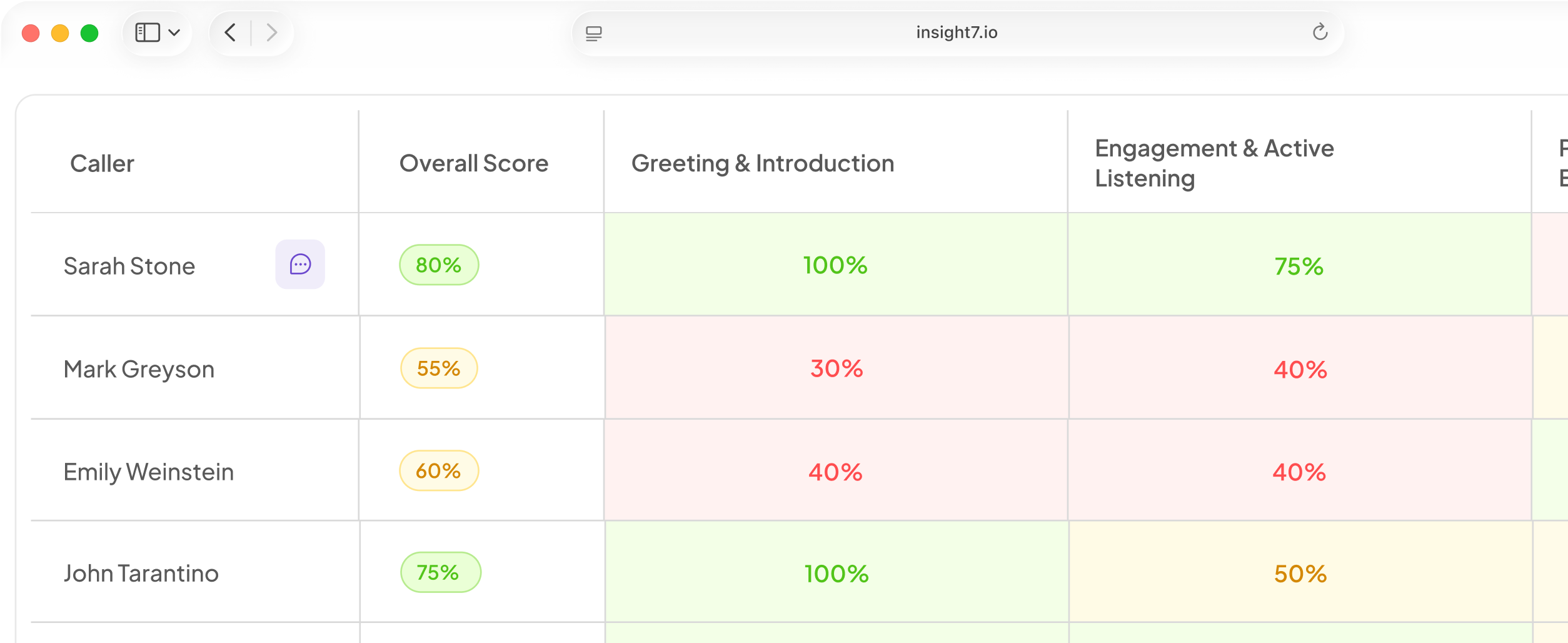
Score the saved transcripts against a weighted scorecard, then sample live chats every week. Gartner analysed 432 AI service use cases. Only a quarter showed positive ROI, and 42% could not be measured. Scored chats are how you avoid the unmeasurable 42%.
Launch with one intent, such as order status. Watch your quality rating, then add the next.
Related reading: AI Agent Change Management Checklist With Versioning, Approval and Rollback, How to Pause or Take Down an AI Voice Line Safely During an Incident and How to Update a Live AI Voice Agent Script Without Breaking Compliance.
Questions people also ask
How do I get the WhatsApp Business API?
Create a Meta Business Portfolio, then a Meta app with the WhatsApp use case and a WhatsApp Business Account. Add a system user and generate its token. Meta's get-started page covers every step.
Is the WhatsApp Business API free?
Access to the Cloud API has no fee, but sending does. Meta bills template messages by category and country. Hosting, your AI model and any provider fees come on top.
What is the difference between the WhatsApp Business app and the WhatsApp Business API?
The app is a phone app where staff type replies by hand. The API connects software to your number, so an agent, CRM or help desk can answer messages. It has no chat screen of its own.
How does the WhatsApp Business API work?
Meta posts each customer message as JSON to your webhook. Your software decides the reply and sends it through the /messages endpoint with your token. Delivery and read updates arrive as status webhooks.
How much does the WhatsApp Business API cost per message?
There is no single price. The rate depends on the template category and the customer's country. Find each rate on Meta's rate card, then multiply by your expected template volume.
Can I use the WhatsApp Business API with my existing number?
Yes, if the number is not active on a WhatsApp account. Delete that account, or move it with Embedded Signup. Chat history stays behind. Many teams buy a fresh number instead.
Do I need a provider to set up the WhatsApp Business API?
No, you can register with Meta directly. A provider helps if you want a hosted inbox, template tools or onboarding support. Ask for its fees in writing, because they sit on top of Meta's.
Close
Your AI agent can answer fast, but the 24-hour window sets the pace for everything it sends. Plan the handover before launch, not after the first angry chat. Rule of thumb: answer inside the window, say it is AI, hand over early.