
Transcribe meeting with Zoom
Zoom Transcription emerges as a pivotal solution in overcoming the challenges of analyzing recorded meetings, offering a seamless way to transcribe and extract crucial insights. This tool not only saves countless hours but also enhances the precision and speed of data analysis. Whether elucidating pain points, desires, or behaviors from customer interactions, Zoom Transcription swiftly synthesizes content for actionable insights. By addressing common inefficiencies in collaborative work environments, such as manual coding bias and fragmented data, it stands as a beacon for businesses aiming to streamline their processes and bolster meeting accessibility. How to Transcribe a Zoom Meeting To effectively transcribe a Zoom meeting, begin by ensuring that the recording feature is enabled during your session. This is a critical first step, as youll need the recorded video for transcription. Once the meeting is recorded, you have several options for transcription services. For a quick and reliable solution, consider an AI-powered tool like Insight7.io, which can handle both bulk transcriptions for large companies with extensive data and smaller projects that require more focused analysis. If youre handling fewer inputs or conducting a small number of interviews, utilizing such an AI transcription service can greatly expedite the process of finding themes and insights in your recordings. Moreover, for a seamless experience, some services allow direct integration with business tools, so you can rapidly share transcribed highlights to platforms like Salesforce or Slack. Remember to review the generated transcript for accuracy, as AI can sometimes misinterpret words, and making these corrections will ensure clearer, more precise results for your business or work. Understanding Zoom’s Built-in Transcription Features Zooms built-in transcription capabilities offer a streamlined way to convert speech from meetings into text, enhancing the efficiency of analyzing and sharing conversations. By utilizing Zoom Transcription, users can easily access verbatim records of their Zoom meetings, which aids in reviewing and extracting important points without the need to manually sift through audio or video files. The process is straightforward: once a Zoom meeting is recorded, the platforms transcribing function can be activated, providing a written transcript that can be reviewed and edited. This feature not only saves time but also helps in maintaining accurate records of discussions. For those seeking advanced analysis, tools like insight7.io go a step further. They analyze transcribed text to identify key topics and sentiments, offering a deeper understanding of the conversation and streamlining the workflow for teams. Step-by-Step Guide to Activating Transcription in Zoom Ensuring accurate transcription of your Zoom meetings can greatly enhance the productivity and effectiveness within your business or work environment. Here, we provide a simple guide to enable Zoom Transcription, which can be a game-changer for analyzing meetings for critical insights. To begin, make sure you have a Zoom account with transcription capabilities. Follow these steps to activate transcription: Start by scheduling a new meeting or opening an existing one. Under the Meeting Options, find and select the ‘Record the meeting automatically’ option. Choose In the cloud to ensure the recording and subsequent transcription are stored securely online. Host your meeting as planned, and once it starts, Zoom will automatically begin recording and transcribing the session. After the meeting concludes, Zoom will process the recording and generate a transcript. Access this feature by navigating to the Recordings section in your Zoom account. Within the Files tab, you will find the recorded video, audio, and transcription files. These files can be reviewed, shared, and analyzed to derive the pain points, desires, and behaviors discussed during the meeting. This process not only simplifies review but also enhances insight extraction by linking evidence directly from the transcript to specific discussion points. By using AI-powered technology, our transcription service ensures that the data is clean, structured, and connected seamlessly, offering a comprehensive approach to data analysis. As you collect insights from various meetings, you can easily cluster and synthesize them within our platform, using projects to organize related interviews and documents. This not only provides context but also enables efficient querying for overarching themes, ensuring that you can ask questions directly from the data to support informed decision-making. Maximizing the Benefits of Zoom Transcription To reap the full rewards of Zoom Transcription, its essential to integrate analysis tools that can swiftly sift through transcripts for actionable insights. This can vastly reduce the time otherwise spent poring over records. Three key steps can enhance this process: Utilize Insight Extraction Tools: By employing sophisticated yet straightforward tools such as Insight7.io, you can quickly isolate pain points, desires, and behavior patterns within your transcribed Zoom calls. Streamline Collaboration Efforts: As transcripts accumulate, maintaining organized and accessible records is crucial. Opt for platforms that allow seamless integration of transcribed data into your teams workflow, facilitating efficient data sharing and project management. Increase Accuracy and Accountability: Implement systems that minimize bias and errors in data interpretation, ensuring consistent and reliable insight extraction from the transcriptions. By focusing on these strategies, businesses can transform their Zoom meetings into a rich trove of information, driving informed decision-making and strategic planning. Emphasizing methodology that aligns with E-E-A-T principles enhances trust in the transcribed data and the insights derived from them. Remember, the aim is not just to gather information, but to activate it in a way that propels your business forward. Improving Accessibility and Inclusivity with Transcripts Ensuring that meeting content is accessible to everyone is a critical aspect of workplace inclusivity. Zoom Transcription facilitates this by providing written records of spoken dialogue, which is instrumental in enabling individuals with hearing disabilities to fully understand meeting contexts. Additionally, transcripts can aid those for whom English is a second language, or anyone who needs to revisit the meeting information at a slower pace, ensuring no critical details are missed. Furthermore, transcripts can be annotated with speaker names, making it easier to follow conversation threads. This is especially useful in complex discussions with multiple participants. By using AI-powered tools to convert audio to text, businesses can quickly generate transcripts. This not only supports inclusivity but also enhances the
Transcribing interviews with Microsoft Teams
Teams Transcription is revolutionizing interview processes by seamlessly converting conversations into text for in-depth analysis. Delving into the who, transcription services capture each speakers dialogue, while the how leverages advanced AI to ensure accuracy and efficiency. As for the why, this technology provides invaluable insights into pain points, desires, and behaviors—essential for businesses aiming to comprehend customer interactions fully. With practical applications such as candidate assessments, this tool distills conversations into actionable data, enabling teams to focus on what truly matters. Thus, Teams Transcription is an indispensable asset for maximizing the potential of interviews in any organizational workflow. Step-by-Step Guide to Transcribing Interviews with Microsoft Teams When preparing to transcribe interviews using Microsoft Teams, the first step is crucial: ensure that data about participants, including their consent and payment plans if any, is collected. Companies of any size, whether handling voluminous data or smaller projects, can find this guide practical for extracting meaningful insights from their interviews. Set up the transcription feature: Navigate to your Teams settings and ensure the transcription service is active. This is typically available during the meeting setup phase. Record the interview: Begin your Teams meeting and hit the record button. Ensure all participants are informed and have agreed to be recorded. Access the transcript: Once the meeting concludes, the AI-based Teams Transcription tool automatically generates the transcript, segregating text by speaker. Review and analyze: Scrutinize the transcript for accuracy, highlight key themes, and share relevant excerpts with team members or integrate them into tools like Salesforce or Slack. This process simplifies the task compared to manual transcriptions and, with the assistance of artificial intelligence, becomes more efficient with larger data sets. However, it remains equally effective for smaller projects with fewer data inputs. Whether youre looking to streamline the analysis of a handful of interviews or integrate extensive project data, Teams Transcription provides a scalable solution to suit your business needs. Preparing for Your Teams Interview Before diving into a Microsoft Teams interview, its crucial to familiarize yourself with the Teams Transcription feature. Begin by ensuring your Microsoft Teams application is updated to the latest version, as this will guarantee access to the newest transcription capabilities. Next, verify that the transcription service is enabled in your Teams settings—this is essential for the process to work smoothly. Youll also want to have a reliable internet connection to minimize disruptions during the interview. Good audio equipment, such as a high-quality microphone and speakers or headphones, is vital for clear communication and precise transcription. Additionally, consider a quiet environment to reduce background noise that could affect the accuracy of the transcription. A multitude of transcription tools are available to complement Microsoft Teams built-in functions. Insight7.io, for instance, offers AI-powered transcription services that can enhance the transcription process by providing faster and more accurate results. When preparing for your Teams interview, remember to have these tools at hand to facilitate a seamless transcribing experience. Addressing these aspects beforehand will not only save time but also ensure the transcriptions quality and usefulness for your business or research needs. Activating and Managing Teams Transcription To effectively utilize Teams Transcription for your interview processes, you first need to activate the feature in Microsoft Teams. Start your meetings with one click, ensuring you have the permissions necessary to record and transcribe conversations. Once recording, select More options followed by Start transcription. This simple activation enables live capturing of dialogue, transforming speech into text almost instantaneously. Managing your transcriptions is seamless. After your session, access the transcripts via the Teams meeting chat or directly within the meeting event in the Teams calendar. For detailed analysis, consider tools like insight7.io which provides capabilities to organize transcribed content into projects, highlighting critical insights such as pain points, desires, and behaviors. Moreover, youre empowered to ask natural language questions about themes across the data collated, simplifying the extraction of meaningful information and streamlining the insight-gathering process. Best Practices for Teams Transcription in Interviews Ensuring clear and accurate transcription of interviews via Microsoft Teams is vital for extracting meaningful insights. To start, all recordings should be uploaded to the transcription services library, allowing for the recognition of individual speakers and ensuring a seamless transcription process. During the transcription, it is crucial to have a system that identifies key elements such as pain points, desires, and behaviors, giving context to customer interactions and facilitating deeper analysis. It is also beneficial to employ AI technologies to structure the data and link related insights. This can enhance the understanding of complex patterns within interviews. Projects can be created to bundle related transcripts, providing a structured way to review and compare conversations. Moreover, interactive features like posing questions to the transcribed data can uncover recurring themes, giving a comprehensive overview of the interviews conducted. Always remember to review the extracted evidence behind insights, such as verbatim quotes, which lend credibility and depth to the analysis. Enhancing the Quality of Your Interview Transcripts To enhance the quality of your interview transcripts using Microsoft Teams, clear audio recording is paramount. Ensure all participants speak closely to the microphone and minimize background noise. Use Teams built-in noise suppression to improve audio clarity. Next, encourage speakers to articulate and pause adequately, as this will aid transcription accuracy. When integrating transcription tools, consider platforms such as insight7.io for their advanced features. These tools not only transcribe but also analyze content for key insights, such as pain points and customer desires. By uploading recordings, these intuitive systems can quickly generate transcripts and highlight significant data, streamlining your workflow. Always review transcripts for inconsistencies or errors, editing for context and clarity where needed. Thus, your transcripts will not only capture the dialogue but also the essence and nuances of your interviews. Addressing Common Teams Transcription Challenges When transcribing interviews with Microsoft Teams, several challenges may arise that can impact the accuracy and efficiency of your transcripts. Addressing these common hurdles ensures the integrity of the recorded information and the value it brings to your projects. Speaker Identification: Teams
AI Patient Healthcare meeting transcription
Medical Transcription AI represents a transformative step in how healthcare professionals capture and utilize patient conversations. This technology seamlessly converts spoken dialogue into organized, accessible text, allowing for in-depth analysis and insight extraction. Essential for businesses keen on enhancing patient care, such tools empower teams to streamline workflows and focus more on patient outcomes than administrative tasks. By using AI, medical practices can distill patient interactions, revealing critical patterns in pain points, desires, and behaviors to inform better healthcare strategies. The Role of AI in Enhancing Patient Healthcare Meetings Artificial Intelligence (AI) is reshaping patient healthcare meetings by providing tools that improve the accessibility and accuracy of information. AI-driven medical transcription AI services, for instance, alleviate the burden of manual note-taking, ensuring that every detail discussed is captured systematically and promptly. This technology not only preserves the integrity of medical discussions but also supports healthcare professionals by converting conversations into organized, searchable text. The benefits of employing AI in this context are manifold. Facilitating efficient record-keeping, medical transcription AI enhances the quality of patient care by offering clinicians the ability to revisit and revise meeting notes with ease. Furthermore, it bridges communication gaps, enabling patients to review their healthcare encounters in a digestible format. In doing so, AI ensures that vital health care decisions are clearly communicated and that both patients and healthcare providers have reliable documentation to reference. By streamlining workflows and fostering clearer communication, AI empowers healthcare professionals to focus more on patient care and less on administrative tasks. Key Benefits of Using Medical Transcription AI Medical Transcription AI significantly streamlines the process of converting patient healthcare meetings into actionable, searchable text. First, it enhances accuracy in documentation, capturing nuances of speech that manual transcription might miss. This precision is pivotal, especially when documenting patient histories and treatment plans, minimizing errors that could impact care quality. Secondly, it boosts efficiency. Medical professionals can save valuable time typically spent on paperwork, allowing them to focus more on patient care. The technology swiftly transcribes and organizes information into digestible formats, making it easier to identify key insights such as patient pain points, desires, and behaviors. This quick access to organized data aids in better decision-making and individualized care strategies. Moreover, it facilitates collaboration among healthcare teams by providing clear and comprehensive records of patient interactions that can be easily shared and referenced. Lastly, the application of AI in medical transcription ensures data security and compliance with healthcare privacy regulations. By utilizing reputable cloud services and advanced proprietary technology, patient information is kept secure, while also being readily accessible when authorized. This underscores the trustworthiness of integrating AI in medical documentation, reflecting a commitment to protecting patient data while enhancing the efficiency and effectiveness of healthcare services. How Medical Transcription AI Improves Patient-Centric Care Medical Transcription AI ensures that healthcare professionals can provide patient-centric care by streamlining the documentation process. Instead of spending hours on manual transcription, clinicians can now use AI-powered tools to accurately transcribe patient meetings and interviews. This rapid turnaround frees up time for healthcare providers to focus more on patient interaction and less on administrative tasks, leading to improved patient experiences and outcomes. Moreover, the insights generated by these AI platforms help clinicians understand patient concerns and behaviors better. For instance, identifying common pain points mentioned across several patient transcripts can guide improvements in care delivery. Medical Transcription AI tools, like insight7.io, go beyond simple transcription, extracting valuable insights from conversations quickly, allowing teams to collaborate efficiently and make data-driven decisions to enhance the overall quality of care. Implementing Medical Transcription AI in Healthcare Meetings Implementing Medical Transcription AI in healthcare meetings enhances the efficiency of capturing and analyzing discussions during patient care conferences. It does so by providing accurate, real-time transcriptions and deciphering key insights from numerous conversations. For healthcare providers, this transition can save considerable manual effort and time while ensuring all relevant points are documented for better patient outcomes. To integrate Medical Transcription AI successfully, firstly, select a transcription tool tailored to the healthcare industrys privacy and accuracy needs. Secondly, train team members on efficient usage and data input practices, since AI systems thrive on more data input, leading to finer insights. Thirdly, integrate AI outputs with existing healthcare systems to align the gathered insights with patient records. Evaluating the effectiveness of AI transcriptions in various meeting scenarios can further refine its application, making it a versatile tool even for smaller-scale projects. Remember, the goal is to utilize Medical Transcription AI effectively, allowing healthcare professionals to focus more on patient care rather than on paperwork. How to Integrate AI Transcription in Routine Healthcare Practices Integrating AI transcription technology into everyday healthcare workflows can streamline the process of documenting meetings and patient interactions. The first step is selecting a compatible and robust Medical Transcription AI platform that adheres to regulations like HIPAA for patient confidentiality. Consider services that offer features like automatic speaker identification, the capability to extract key insights—such as pain points, desires, and behaviors—and the capacity to summarize and highlight crucial parts of the transcript. Once a platform is chosen, establish a system for uploading audio and video files into the AIs library, ensuring they are securely stored and easily accessible. Educate health professionals on organizing transcripts into projects within the AI system, so related patient data and insights are synthesized effectively for pattern recognition and analysis. Ensure that your team understands how to query the AI for specific information within these documents, like themes or patient sentiments, to enhance decision-making and patient care strategies. Addressing Privacy & Accuracy in AI-Powered Transcriptions When introducing Medical Transcription AI to document healthcare meetings, two critical components demand our attention: privacy and accuracy. Privacy concerns arise due to sensitive patient information shared during meetings, which must be protected under laws such as HIPAA. Ensuring AI transcription tools are compliant with such regulations is non-negotiable for safeguarding patient confidentiality. Accuracy, on the other hand, is pivotal for maintaining the integrity of medical records and avoiding potentially
AI Patient Healthcare mp3 file to text transcription
Medical Transcription AI is revolutionizing the way healthcare providers convert patient interactions into accurate written records. By using AI, these advanced systems can efficiently transcribe audio files, such as patient interviews and consultations, into text while maintaining privacy and compliance. This technology ensures quick access to reliable documentation that captures crucial patient information, empowering practitioners to focus on care rather than paperwork. As we delve deeper, well explore how AI-powered transcription not only streamlines workflow but also enhances data analysis, pinpointing patient needs and preferences with remarkable precision. Advantages of AI-enabled Medical Transcription One significant advantage of AI-enabled medical transcription lies in the efficiency gains. Traditional transcription methods can be labor-intensive and prone to error, but with medical transcription AI, healthcare practitioners can quickly convert patient interactions from mp3 files to text with high accuracy. This automated process reduces the time medical staff spends on documentation, allowing them to focus more on patient care. Accuracy and accessibility are further enhanced through such technologies. AI-driven transcription services like insight7.io offer tools that not only transcribe but also analyze text for key information, identifying patterns such as patient pain points, desires, and behaviors, critical for valuable medical insights. The ability to structure and organize this data within digital libraries and projects makes retrieval straightforward and supports better healthcare decisions. Furthermore, the integration of AI transcription solutions into cloud-based platforms ensures that data is securely stored and accessible from anywhere, facilitating a more cooperative and informed approach to patient care. This seamless synthesis of data provided by medical transcription AI also enables healthcare businesses to better manage and utilize patient information, improving service delivery and patient outcomes. Enhancing Accuracy in Patient Care Documentation Ensuring precision in patient care documentation is central to the success of healthcare providers. By using AI in medical transcription, clinicians can enhance the accuracy of their records, leading to better patient outcomes. Detailed and correct documentation is a non-negotiable aspect of patient care, as it supports diagnostic decisions and treatment plans. Integrating Medical Transcription AI reduces the risk of human error, providing an added layer of verification to ensure that patient records are meticulously updated. This technology can recognize and correct mistakes in real-time, which fosters a more accurate exchange of information among healthcare professionals. It also allows healthcare workers to quickly review and confirm the details in transcribed reports, instilling confidence in their clinical decisions and supporting compliance with stringent medical regulations. Through this meticulous attention to detail, Medical Transcription AI aids in safeguarding the health and well-being of patients across the continuum of care. Streamlining Healthcare Workflow with Medical Transcription AI In the fast-paced environment of healthcare, streamlining administrative tasks is crucial for efficiency and patient care quality. Medical Transcription AI plays a pivotal role in this optimization, converting patient interactions captured in mp3 files into text with remarkable accuracy. By doing so, it reduces the need for manual transcription, which is not only time-consuming but also prone to human error. This technology enables healthcare professionals to easily organize and analyze patient information, leading to quicker and more informed decisions. Furthermore, with features that allow for the extraction of key insights such as pain points and behaviors from the transcribed text, medical staff can swiftly identify trends and address them effectively. Medical Transcription AI helps maintain an organized digital record system, which ultimately supports healthcare providers in delivering better patient outcomes. Medical Transcription AI Tools for MP3 to Text Healthcare organizations are continually seeking ways to enhance efficiency, and Medical Transcription AI is at the forefront in transforming how patient care is delivered. The conversion of MP3 audio files to text via AI-driven transcription services is a critical step in improving the accessibility and usability of patient health records. By using AI tools, medical practitioners can quickly transcribe interviews and patient interactions with precision, saving valuable time and resources. For businesses and professionals looking to implement these AI transcription solutions, it is important to consider the various tools available that align with their needs. These tools frequently offer features like identifying speakers, analyzing the transcript for insights such as pain points, desires, and behaviors, and providing a summary or highlights of the content. Furthermore, customization options allow for the extraction of specific data points, such as compliments, adding depth to the patient insight analysis. Utilizing such technology within a healthcare setting, professionals can expect improved documentation accuracy, streamlined workflows, and ultimately, an enhanced patient care experience. The use case extends beyond mere transcription; it involves the application of structured data for better patient outcomes and more informed healthcare decisions. Therefore, selecting the right Medical Transcription AI tool becomes an investment not just in the operational aspects of care but in the overall quality of patient engagement. Selecting the Right AI Tool for Transcription When selecting an AI tool for medical transcription, healthcare professionals should consider the tools ability to handle varying accents, medical terminologies, and the presence of background noise. Precision and ease of use are crucial; the chosen solution must deliver high-quality, actionable text with minimal errors. It is equally important for the tool to integrate seamlessly with existing healthcare systems to ensure a smooth workflow and to protect patient data, aligning with HIPAA compliance. For instance, Insight7.io can be evaluated alongside other notable transcription tools for its effectiveness in converting mp3 recordings to text. Look for tools that offer a robust set of features such as speaker identification, custom vocabulary, and efficient turnaround times. Additionally, assess if they provide support for multiple users or larger batches of data, which can be indispensable for bigger practices. Above all, the tool should enhance productivity without compromising accuracy, as reliable documentation is paramount in patient care. Overcoming Obstacles in MP3 File to Text Conversion Converting MP3 files to text can be fraught with challenges, such as poor audio quality and the accurate recognition of medical terminology. This is where advancements in Medical Transcription AI become essential, streamlining the transcription process while ensuring precision and reliability. Addressing common
Transcribe mp3 file to text with Microsoft word
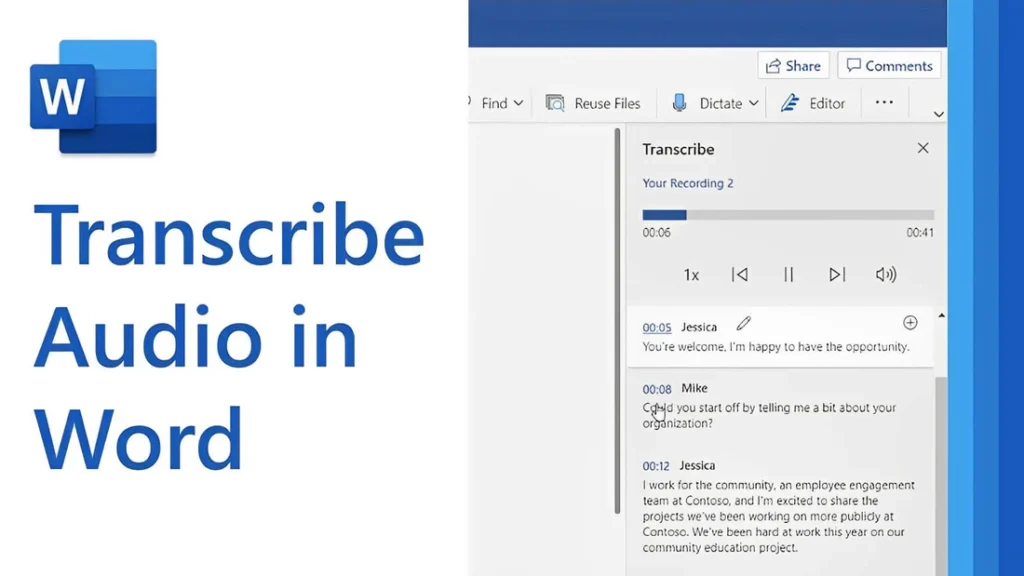
[vc_row type=”in_container” full_screen_row_position=”middle” column_margin=”default” column_direction=”default” column_direction_tablet=”default” column_direction_phone=”default” scene_position=”center” text_color=”dark” text_align=”left” row_border_radius=”none” row_border_radius_applies=”bg” overflow=”visible” overlay_strength=”0.3″ gradient_direction=”left_to_right” shape_divider_position=”bottom” bg_image_animation=”none”][vc_column column_padding=”no-extra-padding” column_padding_tablet=”inherit” column_padding_phone=”inherit” column_padding_position=”all” column_element_direction_desktop=”default” column_element_spacing=”default” desktop_text_alignment=”default” tablet_text_alignment=”default” phone_text_alignment=”default” background_color_opacity=”1″ background_hover_color_opacity=”1″ column_backdrop_filter=”none” column_shadow=”none” column_border_radius=”none” column_link_target=”_self” column_position=”default” gradient_direction=”left_to_right” overlay_strength=”0.3″ width=”1/1″ tablet_width_inherit=”default” animation_type=”default” bg_image_animation=”none” border_type=”simple” column_border_width=”none” column_border_style=”solid”][vc_column_text]Transcribing MP3 files into text is becoming increasingly essential in today’s data-driven world. Whether you’re a researcher, journalist, or business professional, converting audio recordings into text enables easy analysis, efficient documentation, and accurate reporting. While many tools exist, using Microsoft Word offers a simple, cost-effective solution for transcription. In this guide, you’ll learn how to transcribe MP3 files into text using Microsoft Word seamlessly. By the end, you’ll understand the tools required, how to avoid common transcription pitfalls, and how to get the most out of this technology for qualitative research. Understanding the Basics Before proceeding with the steps, let’s explore some foundational concepts about transcription and how Microsoft Word contributes to the process. What Is Transcription? Transcription is converting spoken words in audio or video files into written text. For qualitative researchers, transcription is crucial in analyzing interviews, focus groups, or customer calls. Accurate transcriptions provide a foundation for insights and reports. Understanding Audio Transcription in Microsoft Word Audio transcription in Microsoft Word is a feature that converts spoken words in audio files into written text. This capability is especially useful for businesses and professionals who efficiently document interactions, interviews, and meetings. Audio Transcription in Microsoft Word is revolutionizing how we convert spoken dialogue into written text. This feature allows users, such as team leads and researchers, to document and analyze interviews efficiently for actionable insights. With just a few clicks, users can upload their MP3 files into Word and witness the conversion process unfold. This powerful tool reveals not only verbatim text but also identifies speakers and key themes, such as pain points and behaviors. It is integral for those aiming to streamline their workflow and derive meaningful conclusions from their audio content, making it an invaluable asset in business and work environments. Using AI technology, Microsoft Word can identify speakers and provide a transcript that captures the nuances of conversations, enabling users to analyze and derive insights quickly. Read: Transcript Analysis AI: How It Works How Microsoft Word Transcription Works Microsoft Word now integrates with Microsoft 365’s Dictate Feature, which allows users to transcribe audio files. This feature supports MP3, WAV, and other popular formats and converts audio into editable text within minutes. To get started with audio transcription, first upload your MP3 files into the Word document library. Once uploaded, you can initiate the transcription process, during which the application will analyze the audio. The result is an editable transcript that users can review for accuracy. This transcript allows for extracting key points, such as customer pain points, desires, and behaviors—a crucial step for businesses aiming to understand their audience better. Furthermore, the functionality to add custom insights, like customer compliments, makes the transcription service adaptable to specific business needs. Preparing Your MP3 Files for Transcription Before diving into audio transcription with Microsoft Word, ensuring your MP3 files are primed and ready is crucial. Generally, files should be clear of background noise and have distinguishable speakers for the best results. Here’s a straightforward approach to preparing your recordings: Quality Check: Listen to your MP3 files. Confirm clarity and volume levels are adequate throughout the recording. If necessary, use an audio editing tool to enhance the sound quality. Unnecessarily loud sections or background buzz can hinder transcription accuracy. Format Verification: Microsoft Word supports certain audio formats for transcription. Ensure your MP3 files conform to these specifications to avoid compatibility issues during uploading. Shorten Lengths: If you have particularly long audio files, consider breaking them into shorter segments. This not only facilitates easier handling and management but can also help Microsoft Word’s transcription service process the audio more efficiently, especially if you’re dealing with limited internet bandwidth or processing power. Organize Content: For a streamlined transcription process, organize your MP3 files logically. If you’re working on several interviews or calls, label them appropriately and arrange them in the order they’ll be transcribed. This saves time and confusion later on. By preparing your MP3 files attentively, you can maximize the potential of your audio transcription efforts and gain valuable insights from your conversations. Clean and well-organized audio files are foundational for reliable transcription output, whether for business analysis or project management. Key Features of Microsoft Word’s Transcription Tool Microsoft Word’s transcription tool elevates the ease and efficiency of audio transcription, streamlining the process for businesses and professionals alike. This tool’s standout feature is its ability to distinguish between different speakers, which is highly beneficial for accurately transcribing meetings and interviews. This identification assists users in tracking the flow of conversation and attributing statements to the correct individuals, a critical aspect for clarity and organization of transcribed texts. Additionally, the transcription tool incorporates analysis capabilities, extracting key insights such as pain points, desires, and behaviors from the transcribed text. This aids in quickly identifying important themes and facilitating a deeper understanding of customer interactions or team communications. By using AI, the tool can pinpoint and extract relevant quotes as evidence of these insights, providing users with rich, contextual data for more informed decision-making. The seamless integration of transcription and analysis within Microsoft Word empowers users to unlock actionable insights from their audio files with minimal effort. How to Transcribe MP3 File to Text Using Microsoft Word If you want to convert your MP3 files into text, Microsoft Word offers a straightforward solution for audio transcription. Successfully transcribing MP3 files into text using Microsoft Word requires a clear understanding of the steps involved. Here’s how to transcribe your recordings directly within Word: Open Microsoft Word on your computer and locate the “Dictate” button, which includes the Transcribe option. Select Transcribe and then Upload the audio. Choose the MP3 file you wish to transcribe from your device. Once uploaded, Word will begin transcribing the audio file automatically. Depending on the file’s length,
Transcribe audio file to text with Google Drive
[vc_row type=”in_container” full_screen_row_position=”middle” column_margin=”default” column_direction=”default” column_direction_tablet=”default” column_direction_phone=”default” scene_position=”center” text_color=”dark” text_align=”left” row_border_radius=”none” row_border_radius_applies=”bg” overflow=”visible” overlay_strength=”0.3″ gradient_direction=”left_to_right” shape_divider_position=”bottom” bg_image_animation=”none”][vc_column column_padding=”no-extra-padding” column_padding_tablet=”inherit” column_padding_phone=”inherit” column_padding_position=”all” column_element_direction_desktop=”default” column_element_spacing=”default” desktop_text_alignment=”default” tablet_text_alignment=”default” phone_text_alignment=”default” background_color_opacity=”1″ background_hover_color_opacity=”1″ column_backdrop_filter=”none” column_shadow=”none” column_border_radius=”none” column_link_target=”_self” column_position=”default” gradient_direction=”left_to_right” overlay_strength=”0.3″ width=”1/1″ tablet_width_inherit=”default” animation_type=”default” bg_image_animation=”none” border_type=”simple” column_border_width=”none” column_border_style=”solid”][vc_column_text] Audio Transcription is a vital tool for professionals aiming to harness the power of spoken word analysis, offering a seamless path from voice to text. With the right tools, such as those provided through Google Drive, users can easily convert interviews, calls, and meetings into editable text that can be sifted for insights. This process not only streamlines the documentation of discussions but also allows for the extraction of customer pain points, desires, and behaviors, thus providing invaluable data for business strategists and team leaders. Understanding how to transcribe audio files effectively with Google Drive can be a game-changer for anyone looking to enhance their workflow and derive meaningful conclusions from their interactions. Google Drive, coupled with Google Docs’ voice typing feature, offers a cost-effective way to transcribe audio files to text. This guide will walk you through the process of using Google Drive to transcribe audio, highlighting practical steps, common pitfalls, and advanced strategies to ensure accuracy and efficiency. Additionally, you’ll learn how Insight7 can complement this workflow, enhancing your transcription and analysis process with its advanced features. By the end of this guide, you’ll have a clear understanding of how to leverage Google Drive for transcription and how Insight7 can take your qualitative research to the next level. How Does Google Drive Help with Transcription? Transcription is the process of converting spoken language from an audio file into written text. It is particularly valuable for qualitative researchers who need to analyze recorded interviews, meetings, or lectures. Accurate transcriptions form the basis for extracting actionable insights. Google Drive itself doesn’t directly transcribe audio files. Instead, it acts as a storage and access platform for audio files that can be processed using Google Docs’ voice typing tool. This feature allows you to play an audio file and dictate the text in real-time, producing a transcription. Why Use Google Drive for Transcription? Accessibility: Google Drive integrates seamlessly with Google Docs, allowing you to store, share, and access files from anywhere. Cost-Effective Solution: Both Google Drive and Google Docs are free, making them an excellent choice for individuals and small teams. Ease of Use: Google’s intuitive interface simplifies the transcription process, even for beginners. Step-by-Step Guide to Transcribe Audio Files to Text When it comes to converting your audio files into accurate text documents, an audio transcription feature within Google Drive can streamline the process for your business workflow. Follow these steps to ensure smooth transcription: Step 1: Upload the Audio File to Google Drive Before diving into audio transcription, its crucial to get your audio files onto Google Drive. The first step is to store your audio file securely in Google Drive. Uploading is straightforward and here’s how to do it: Navigate to your Google Drive homepage and log in using your Google account credentials. Once there, look for the New button on the top left and select File upload from the dropdown menu. Locate the audio files on your computer and start the upload process. Wait for the file to upload. Larger files may take a few minutes depending on your internet speed. Place the audio file in a specific folder to keep your Drive organized. Rename the file for easy identification, especially if you’re transcribing multiple files. Remember, the audio files need to be in a format supported by the transcription tools you intend to use. Use supported audio formats such as MP3 or WAV to avoid compatibility issues with third-party transcription tools. After your audio files are uploaded, they will appear in My Drive, ready to be integrated into your projects. If you’re collaborating with a team, you can move the files into shared folders to ensure all team members have access. For bulk uploads, while the current process may require uploading files one by one, it still streamlines the workflow significantly. Once in place, these files can be transcribed into text, paving the way for easier data analysis, content creation, or record-keeping for your business or work. Step 2: Opeen Google Docs and Enable Voice Typing Then, access Google Docs and select “Voice typing” from the Tools menu. Click the microphone icon, and play your audio file clearly into the system. Choose your desired language from the dropdown menu. Google Docs supports multiple languages, but it works best with widely spoken ones like English, Spanish, and French. Use an external audio player, such as VLC Media Player, to play the file. Adjust the playback speed for better synchronization with the voice typing tool. Step 3: Transcribe the Audio Using Voice Typing Now that you’ve set up voice typing, the next step is to create the transcription. Play the audio file from your external audio player. Adjust the volume so the microphone captures the audio clearly. Click the microphone icon in Google Docs to start voice typing. Google’s powerful voice recognition technology will transcribe the spoken words into text in real-time. You can pause the audio playback to allow the voice typing tool to catch up, and also resume playback once the transcription is in sync. Step 4: Edit and Format the Transcription After completing the voice typing process, your transcription will appear in the Google Docs document. The next step is to refine and format it for clarity and accuracy. It’s imperative to review the transcribed text for accuracy, since nuances in speech, such as accents or jargon can result in minor errors. Voice typing tools can misinterpret words, especially if the audio quality is poor or there are multiple speakers. Edit the document as necessary to ensure the transcription reflects the original audio with complete accuracy. Correct any misheard phrases or unclear text. Bold or italicize critical statements or action points for easy reference. Save the Google Docs file and export it as
AI Transcript Assistant: How It Helps
An AI roleplay assistant that generates generic scenarios from a job description produces practice sessions that feel nothing like your contact center's actual calls. The guidelines that make AI roleplay assistants effective for contact center and sales training are about configuration, not just deployment: what scenario data to feed the AI, how to define the persona parameters, when to use voice versus chat, and how to verify that practice scores are predicting live call improvement. This guide covers the 6-step framework for configuring and using AI assistant roleplay in contact center and sales training programs. The workflow applies to teams with recorded call libraries who want to move from generic scenario practice to practice built on their own conversation data. What you need before you start: Access to your call recording library, at least 30 days of representative calls across your key scenario types (objection handling, escalation, compliance, onboarding), and a list of the QA criteria your team already uses to score calls. Configuration takes 2 to 4 hours initially. Ongoing management is 30 minutes per week. How does an AI transcript assistant help contact center teams? An AI transcript assistant helps contact center teams by converting calls into structured data: compliance phrase detection, objection language extraction, empathy scoring, and process adherence flags. This structured output feeds both QA scoring without manual review and scenario configuration for AI roleplay, giving coaches two outputs from one recording infrastructure. Step 1 — Define Your Roleplay Scenario Types from Call Data Start with your call data, not a scenario template library. Pull your last 30 days of transcripts and identify the five most common conversation challenge types your agents face. Sort by outcome: calls that escalated, calls where compliance requirements were missed, calls where the agent lost the close, and calls where the customer sentiment dropped significantly. These are your scenario candidates. Generic scenario templates produce practice that trains agents for conversations your team does not actually have. Common mistake: Building scenarios around your best calls (what success looks like) rather than your hardest calls (what failure looks like). Success scenarios reinforce existing skills. Hard-call scenarios build the specific capabilities agents are currently missing. Decision point: Build 3 specific scenarios from real calls versus 10 generic scenarios from job description prompts. Three well-configured scenarios produce more skill transfer than 10 generic ones. Specificity beats volume for scenario realism. Step 2 — Configure AI Persona Parameters for Each Scenario Each scenario needs a persona with enough specificity to produce realistic conversation dynamics. Generic persona settings ("customer is frustrated") produce responses that feel artificial. Specific parameters produce responses that match what agents actually encounter. Configure these parameters for each persona: communication style (direct, passive-aggressive, skeptical, urgent), emotional state at the start of the conversation, the specific objection or trigger the agent must navigate, and the behavior modifier that determines how the persona responds to different handling approaches. Insight7's persona customization layer allows configuration of name, job title, gender, communication style, emotional tone, empathy level, assertiveness, confidence, and agreeableness. Scenarios can be generated from prompt (faster, less precise) or manually configured from real call data (slower, more accurate). The most effective scenarios for compliance and objection-handling training use manual configuration from actual call moments. See how persona configuration works for contact center training: insight7.io/improve-coaching-training/ Common mistake: Using the same persona parameters for all scenario types. An escalation scenario needs an emotionally triggered persona. A compliance scenario needs a skeptical but engaged persona. The dynamics are different, and blending them produces scenarios agents cannot distinguish from each other. Step 3 — Set Evaluation Criteria Before the First Session Define what the AI should score before the first practice session runs. Evaluation criteria not defined upfront produce generic scoring ("good communication") that agents cannot act on. For each scenario type, configure three to five specific criteria with behavioral anchors. Compliance scenarios: exact-match criteria for required disclosure phrases. Objection-handling scenarios: intent-based criteria for acknowledgment, reframe, and confirmation sequences. Empathy scenarios: behavioral anchors distinguishing scripted acknowledgment from genuine engagement. Decision point: Script-based evaluation (did the agent say the required phrase?) versus intent-based evaluation (did the agent accomplish the communication objective?). Use script-based criteria for legal and compliance requirements where exact language matters. Use intent-based criteria for conversational dimensions where the specific words matter less than the outcome. Manual QA teams typically review 3 to 10% of calls; AI transcript scoring enables 100% coverage, which means the same criteria you configure for live call QA can run on roleplay sessions. Agents practice and are evaluated on the same behavioral dimensions across both practice and live calls. Step 4 — Run Initial Sessions and Calibrate Persona Responses Before rolling out AI roleplay to your full team, run 5 to 10 calibration sessions yourself or with a small pilot group. The goal is to identify whether persona responses match the difficulty level of your real calls. Signs that calibration is needed: the persona responds too easily (agents can skip required steps and still advance the conversation), the persona responds too unpredictably (agents cannot identify a pattern to handle), or the scoring criteria flag correct behaviors as incorrect. Common mistake: Skipping calibration and rolling out to 50 agents before verifying that persona responses produce the intended difficulty level. A calibration failure at scale means 50 agents practice against unrealistic scenarios. The fix is a full reconfiguration after the damage is done. Run calibration sessions on voice and chat formats separately. Persona response quality can differ across modalities. Test both before deciding which format to deploy for each scenario type. Step 5 — Connect Practice Scores to Live Call Criteria Practice scores only prove that agents can perform in a practice environment. The question that matters for L&D directors is whether practice scores predict live call performance on the same criteria. Set up the connection before the first full cohort runs. The measurement framework is: define which QA criteria the practice session targets, capture baseline live call scores for those criteria in the two