
Transcribe mp3 file to text with Microsoft word
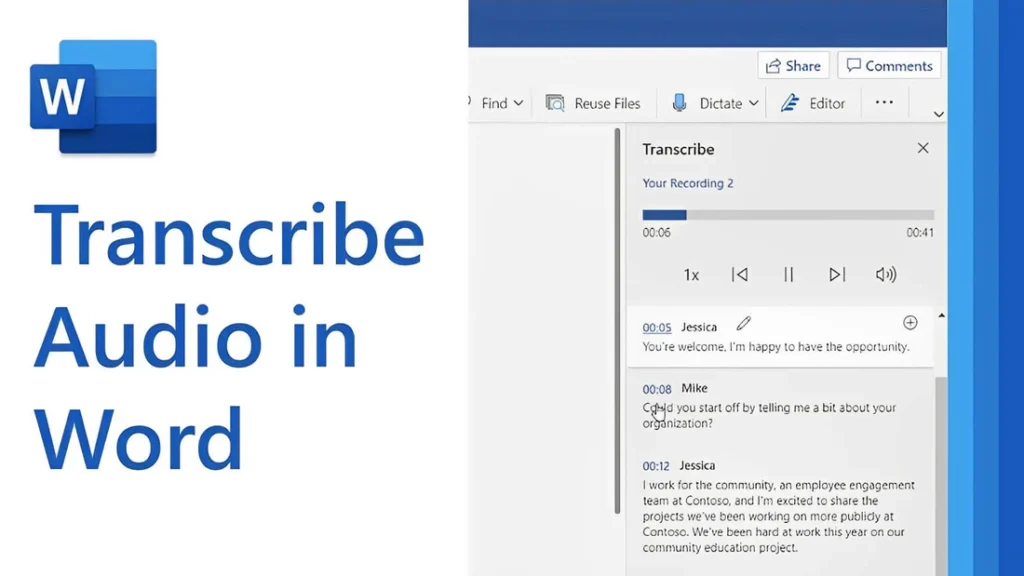
[vc_row type=”in_container” full_screen_row_position=”middle” column_margin=”default” column_direction=”default” column_direction_tablet=”default” column_direction_phone=”default” scene_position=”center” text_color=”dark” text_align=”left” row_border_radius=”none” row_border_radius_applies=”bg” overflow=”visible” overlay_strength=”0.3″ gradient_direction=”left_to_right” shape_divider_position=”bottom” bg_image_animation=”none”][vc_column column_padding=”no-extra-padding” column_padding_tablet=”inherit” column_padding_phone=”inherit” column_padding_position=”all” column_element_direction_desktop=”default” column_element_spacing=”default” desktop_text_alignment=”default” tablet_text_alignment=”default” phone_text_alignment=”default” background_color_opacity=”1″ background_hover_color_opacity=”1″ column_backdrop_filter=”none” column_shadow=”none” column_border_radius=”none” column_link_target=”_self” column_position=”default” gradient_direction=”left_to_right” overlay_strength=”0.3″ width=”1/1″ tablet_width_inherit=”default” animation_type=”default” bg_image_animation=”none” border_type=”simple” column_border_width=”none” column_border_style=”solid”][vc_column_text]Transcribing MP3 files into text is becoming increasingly essential in today’s data-driven world. Whether you’re a researcher, journalist, or business professional, converting audio recordings into text enables easy analysis, efficient documentation, and accurate reporting. While many tools exist, using Microsoft Word offers a simple, cost-effective solution for transcription. In this guide, you’ll learn how to transcribe MP3 files into text using Microsoft Word seamlessly. By the end, you’ll understand the tools required, how to avoid common transcription pitfalls, and how to get the most out of this technology for qualitative research. Understanding the Basics Before proceeding with the steps, let’s explore some foundational concepts about transcription and how Microsoft Word contributes to the process. What Is Transcription? Transcription is converting spoken words in audio or video files into written text. For qualitative researchers, transcription is crucial in analyzing interviews, focus groups, or customer calls. Accurate transcriptions provide a foundation for insights and reports. Understanding Audio Transcription in Microsoft Word Audio transcription in Microsoft Word is a feature that converts spoken words in audio files into written text. This capability is especially useful for businesses and professionals who efficiently document interactions, interviews, and meetings. Audio Transcription in Microsoft Word is revolutionizing how we convert spoken dialogue into written text. This feature allows users, such as team leads and researchers, to document and analyze interviews efficiently for actionable insights. With just a few clicks, users can upload their MP3 files into Word and witness the conversion process unfold. This powerful tool reveals not only verbatim text but also identifies speakers and key themes, such as pain points and behaviors. It is integral for those aiming to streamline their workflow and derive meaningful conclusions from their audio content, making it an invaluable asset in business and work environments. Using AI technology, Microsoft Word can identify speakers and provide a transcript that captures the nuances of conversations, enabling users to analyze and derive insights quickly. Read: Transcript Analysis AI: How It Works How Microsoft Word Transcription Works Microsoft Word now integrates with Microsoft 365’s Dictate Feature, which allows users to transcribe audio files. This feature supports MP3, WAV, and other popular formats and converts audio into editable text within minutes. To get started with audio transcription, first upload your MP3 files into the Word document library. Once uploaded, you can initiate the transcription process, during which the application will analyze the audio. The result is an editable transcript that users can review for accuracy. This transcript allows for extracting key points, such as customer pain points, desires, and behaviors—a crucial step for businesses aiming to understand their audience better. Furthermore, the functionality to add custom insights, like customer compliments, makes the transcription service adaptable to specific business needs. Preparing Your MP3 Files for Transcription Before diving into audio transcription with Microsoft Word, ensuring your MP3 files are primed and ready is crucial. Generally, files should be clear of background noise and have distinguishable speakers for the best results. Here’s a straightforward approach to preparing your recordings: Quality Check: Listen to your MP3 files. Confirm clarity and volume levels are adequate throughout the recording. If necessary, use an audio editing tool to enhance the sound quality. Unnecessarily loud sections or background buzz can hinder transcription accuracy. Format Verification: Microsoft Word supports certain audio formats for transcription. Ensure your MP3 files conform to these specifications to avoid compatibility issues during uploading. Shorten Lengths: If you have particularly long audio files, consider breaking them into shorter segments. This not only facilitates easier handling and management but can also help Microsoft Word’s transcription service process the audio more efficiently, especially if you’re dealing with limited internet bandwidth or processing power. Organize Content: For a streamlined transcription process, organize your MP3 files logically. If you’re working on several interviews or calls, label them appropriately and arrange them in the order they’ll be transcribed. This saves time and confusion later on. By preparing your MP3 files attentively, you can maximize the potential of your audio transcription efforts and gain valuable insights from your conversations. Clean and well-organized audio files are foundational for reliable transcription output, whether for business analysis or project management. Key Features of Microsoft Word’s Transcription Tool Microsoft Word’s transcription tool elevates the ease and efficiency of audio transcription, streamlining the process for businesses and professionals alike. This tool’s standout feature is its ability to distinguish between different speakers, which is highly beneficial for accurately transcribing meetings and interviews. This identification assists users in tracking the flow of conversation and attributing statements to the correct individuals, a critical aspect for clarity and organization of transcribed texts. Additionally, the transcription tool incorporates analysis capabilities, extracting key insights such as pain points, desires, and behaviors from the transcribed text. This aids in quickly identifying important themes and facilitating a deeper understanding of customer interactions or team communications. By using AI, the tool can pinpoint and extract relevant quotes as evidence of these insights, providing users with rich, contextual data for more informed decision-making. The seamless integration of transcription and analysis within Microsoft Word empowers users to unlock actionable insights from their audio files with minimal effort. How to Transcribe MP3 File to Text Using Microsoft Word If you want to convert your MP3 files into text, Microsoft Word offers a straightforward solution for audio transcription. Successfully transcribing MP3 files into text using Microsoft Word requires a clear understanding of the steps involved. Here’s how to transcribe your recordings directly within Word: Open Microsoft Word on your computer and locate the “Dictate” button, which includes the Transcribe option. Select Transcribe and then Upload the audio. Choose the MP3 file you wish to transcribe from your device. Once uploaded, Word will begin transcribing the audio file automatically. Depending on the file’s length,
Transcribe mp3 file to text with Google Docs
[vc_row type=”in_container” full_screen_row_position=”middle” column_margin=”default” column_direction=”default” column_direction_tablet=”default” column_direction_phone=”default” scene_position=”center” text_color=”dark” text_align=”left” row_border_radius=”none” row_border_radius_applies=”bg” overflow=”visible” overlay_strength=”0.3″ gradient_direction=”left_to_right” shape_divider_position=”bottom” bg_image_animation=”none”][vc_column column_padding=”no-extra-padding” column_padding_tablet=”inherit” column_padding_phone=”inherit” column_padding_position=”all” column_element_direction_desktop=”default” column_element_spacing=”default” desktop_text_alignment=”default” tablet_text_alignment=”default” phone_text_alignment=”default” background_color_opacity=”1″ background_hover_color_opacity=”1″ column_backdrop_filter=”none” column_shadow=”none” column_border_radius=”none” column_link_target=”_self” column_position=”default” gradient_direction=”left_to_right” overlay_strength=”0.3″ width=”1/1″ tablet_width_inherit=”default” animation_type=”default” bg_image_animation=”none” border_type=”simple” column_border_width=”none” column_border_style=”solid”][vc_column_text]Audio transcription is an essential tool for professionals seeking to convert spoken words into written text for analysis, archival, or accessibility. Through Google Docs, this process becomes simplified, enabling users to transform their mp3 files into editable documents. Whether you’re conducting interviews, managing customer service calls, or researching, having the ability to efficiently transcribe audio can unveil valuable insights and patterns in your data. This article is for individuals who are ready to explore how audio transcription within Google Docs can be integrated into their workflow to enhance their business operations or work productivity. Google Docs is a great starting point, but if you’re looking to take your transcription to the next level, tools like Insight7 can help. Insight7 offers free transcription with Google Drive integration, plus powerful analysis features. You can get started for free and explore these advanced capabilities. But for now, let’s focus on how to begin transcribing with Google Docs Preparing Your MP3 File Before you begin transcribing, it’s essential to prepare your MP3 file to ensure the best possible transcription results. Here are some key considerations: Quality: A high-quality audio file is paramount for accurate transcription. Ensure that the recording is clear, with minimal background noise, and that the speakers’ voices are distinct and intelligible. If the audio quality is subpar, consider using audio editing software to enhance the clarity of your recording before proceeding with transcription. This step is crucial, as even slight improvements in audio quality can lead to significantly better transcription results. Volume: Maintain steady volume levels throughout the recording to prevent any words or phrases from being lost. If the volume fluctuates too much, it might result in missed words or inaccurate transcription. File Length: Google Docs may struggle with excessively long recordings, so it’s advisable to break down your audio into manageable segments. This not only facilitates a smoother transcription process but also makes it easier to analyze the text later on. By segmenting your audio, you can focus on specific parts of the conversation without being overwhelmed by a lengthy file. Accessibility: Ensure your MP3 file is easily accessible on the device you plan to use for transcription. You’ll need to play the audio directly on your computer for Google Docs to capture and transcribe it accurately. Transcribing with Google Docs Google Docs offers a straightforward and user-friendly way to transcribe audio files, making it an excellent choice for beginners and seasoned professionals alike. Here’s how you can make the most out of this tool: Open Google Docs in Chrome: First and foremost, ensure you have a stable internet connection and open Google Chrome on your computer. Google Chrome is essential for utilizing the voice recognition feature built into Google Docs, which allows you to convert spoken words into text seamlessly. Enable Voice Typing: Once you have a new Google Doc open, go to the Tools menu and select Voice Typing. A microphone icon will appear on your screen, signaling that you’re ready to start transcribing. Click the microphone icon to activate the feature, and you’re set to begin. Play Your MP3 File: Use a media player on your computer or an external speaker to play the MP3 file you wish to transcribe. It’s crucial to ensure that the audio is clear and free from background noise, as this will significantly impact the accuracy of the transcription. If possible, use a high-quality external microphone to capture the audio more effectively. Google Docs will then transcribe the spoken words into text in real-time as the audio plays. Review and Edit: After the transcription is complete, it’s important to review the document for any errors and correct any misinterpretations that may have occurred. Due to variations in accents, speech clarity, and background noise, the voice recognition software might not always be perfect, so a manual review ensures the highest quality transcription. Use External Tools for Better Results: While Google Docs offers a convenient and cost-effective solution for basic transcription needs, more advanced requirements may benefit from specialized tools. External tools like Insight7 can provide additional features such as batch processing, detailed analysis, and enhanced accuracy, especially when dealing with complex audio data. Insight7: Advanced Transcription Solutions While Google Docs is an excellent starting point for basic transcription needs, more complex projects may require advanced tools that offer greater flexibility and features. Insight7 is one such tool that provides comprehensive transcription solutions designed for professional use. Free Transcription with Google Drive Integration: Insight7 offers free transcription services with seamless integration with Google Drive. This allows users to easily access, store, and manage their transcriptions without any hassle. By connecting directly to your Google Drive account, Insight7 ensures that your files are always accessible and backed up in the cloud. Advanced Analysis Features: Insight7 goes beyond simple transcription by offering powerful analysis features that help extract key insights, such as customer pain points, desires, and behaviors. These insights can be invaluable for businesses looking to understand their audience better and make informed decisions based on real data. By leveraging advanced machine learning algorithms, Insight7 can identify patterns and trends in your audio data, providing you with actionable intelligence. Bulk Processing: If you’re dealing with a large volume of audio files, Insight7‘s bulk processing capabilities make it easy to handle and organize multiple transcriptions simultaneously. This feature is particularly beneficial for organizations that need to process large datasets quickly and efficiently. Speed and Efficiency: One of the standout features of Insight7 is its speed in transcribing files compared to Google Docs. Where Google Docs might take time, especially with lengthy audio files, Insight7 is designed to handle large volumes of data quickly and efficiently, ensuring that you spend less time waiting and more time analyzing your transcripts Customization: With Insight7, you can
Transcribe mp3 file to text with Google Drive
[vc_row type=”in_container” full_screen_row_position=”middle” column_margin=”default” column_direction=”default” column_direction_tablet=”default” column_direction_phone=”default” scene_position=”center” text_color=”dark” text_align=”left” row_border_radius=”none” row_border_radius_applies=”bg” overflow=”visible” overlay_strength=”0.3″ gradient_direction=”left_to_right” shape_divider_position=”bottom” bg_image_animation=”none”][vc_column column_padding=”no-extra-padding” column_padding_tablet=”inherit” column_padding_phone=”inherit” column_padding_position=”all” column_element_direction_desktop=”default” column_element_spacing=”default” desktop_text_alignment=”default” tablet_text_alignment=”default” phone_text_alignment=”default” background_color_opacity=”1″ background_hover_color_opacity=”1″ column_backdrop_filter=”none” column_shadow=”none” column_border_radius=”none” column_link_target=”_self” column_position=”default” gradient_direction=”left_to_right” overlay_strength=”0.3″ width=”1/1″ tablet_width_inherit=”default” animation_type=”default” bg_image_animation=”none” border_type=”simple” column_border_width=”none” column_border_style=”solid”][vc_column_text] Audio transcription tools have become invaluable for professionals looking to convert spoken words into written text. Whether you’re conducting interviews, analyzing customer calls, or collecting qualitative data, transcription transforms raw audio recordings into actionable insights. Some wonder “Can you use Google to transcribe audio files to text?” Yes you can. Although Google Drive does not have a built-in audio transcription feature, it offers several workarounds through integrations with tools like Insight7, Google Docs, Marketplace add-ons, etc. These solutions enable you to transcribe MP3 files into text, providing accessibility, analysis, and strategic decision-making opportunities. Understanding how to leverage these tools can be a game-changer for professionals aiming to refine their content strategies, derive insights from their transcripts or enhance market research efforts. Tools to Transcribe Audio (mp3) File to Text with Google Google provides several methods to transcribe audio content, often requiring creativity and the use of additional tools: Insight7: This is an AI-driven platform that integrates effortlessly with Google Drive. Insight7 offers not only transcription capabilities but also advanced analysis, making it a go-to tool for businesses that need to extract actionable insights from their video and audio content. Google Docs Voice Typing: This provides a practical workaround for those looking for a simple transcription method. By playing the audio file aloud, Google Docs’ Voice Typing converts the speech into text in real-time. This method is ideal for straightforward use cases with clear audio, though it may require manual editing to improve accuracy. Google Marketplace Add-Ons: Add-ons such as Transcripto and TranscribeKit can be integrated with Google Drive for smooth transcription processes. They’re particularly useful for teams that frequently handle audio files and need a reliable transcription tool directly in Google Docs. Google Cloud Speech-to-Text API: For more technically inclined users, Google’s API can be employed alongside a Python script to deliver precise audio transcription. Although it requires some coding knowledge, the results can be highly customizable and scalable. By utilizing these tools, you can ensure that the essential details from customer interactions, meetings, or interviews are not lost but preserved and easily accessible for future analysis. Steps for Transcribing MP3 Files Using Google Tools Here’s how to use Google tools and integrations effectively for MP3 transcription: 1. Prepare Your MP3 File for Transcription Before diving into transcription, ensure your MP3 file is in optimal condition. The quality of the audio file directly influences the accuracy of the transcription. Steps to Enhance Audio Quality: Minimize Background Noise: Record in a quiet setting or use noise-reduction software such as Audacity or Adobe Audition. Adjust Microphone Levels: Perform a sound check to avoid distortion and ensure clarity. Amplify Audio: Use tools like Audacity to enhance voice clarity. Test Transcription: Conduct a brief test transcription to gauge audio quality. By following these steps, you can improve transcription accuracy, ensuring the text reflects the audio content accurately. 2. Upload Your MP3 File to Google Drive Uploading your MP3 file to Google Drive is a necessary step before using Google tools for transcription. This centralization makes integration with add-ons and APIs seamless. Steps to Upload Audio: Navigate to Google Drive and click the New button in the top left corner. Select File upload or Folder upload if you’re managing multiple files. Choose the MP3 file from your local drive, and it will start uploading to your Drive. Organize your audio files within My Drive or specific folders and share them with your team if needed. 3. Transcribe mp3 to text: Which Tools Should I Use? Here are the tools to use to transcribe Google audio files to text: a) Use AI Tools like Insight7 While Google tools provide a basic starting point, platforms like Insight7 offer advanced transcription and analysis capabilities. Key Benefits of Insight7: Seamless Integration: Insight7 effortlessly integrates with Google Drive and other major platforms, allowing you to streamline your workflow without any disruptions. Advanced Analytics: Unlock deeper insights into customer interactions and market trends, going beyond basic transcription to uncover actionable data that drives better decisions. User-Friendly Interface: With an intuitive design, Insight7 makes transcription and analysis processes simple and efficient, even for users with minimal technical expertise. Free to Start: Begin exploring Insight7’s powerful features without any upfront cost, offering a low-risk way to enhance your transcription and analysis capabilities. High-Level Accuracy and Multi-Language Support: Insight7 provides precise transcriptions in over 100 languages, making it ideal for global teams working with diverse video content. Automatic Speaker Recognition and Timestamps: Insight7 automatically identifies speakers and adds timestamps, making it easy to follow conversations and highlight key moments. Comprehensive File Format Support: Compatible with MP3, WAV, MP4, and MOV, Insight7 simplifies transcription across various media formats. Custom Export Options: Effortlessly export transcriptions for team sharing, perfect for content creation and collaboration. Beyond transcription, Insight7 offers a comprehensive suite for analyzing video content. From highlighting key themes and extracting actionable insights to categorizing feedback and trends, it’s more than just a transcription tool – it’s a complete solution for decision-making and strategy building b) Google Docs Voice Typing You can use Google Docs to convert voice to text with Google Docs’ Voice Typing. It serves as a practical workaround for simple transcriptions. How to Use Google Docs Voice Typing: Open Google Docs and create a new document. Click on Tools > Voice Typing. A microphone icon will appear. Play your audio file aloud in a quiet environment. Click the microphone icon on Google Docs to start transcribing. The spoken words will be converted into text in real-time. This method is best for audio files with clear sound and minimal background noise. It offers a quick way to convert audio to text but may require manual editing for accuracy. c) Explore Google Marketplace Add-Ons For those seeking a more automated approach, Google Marketplace offers
Transcribe video file to text with Google Docs
[vc_row type=”in_container” full_screen_row_position=”middle” column_margin=”default” column_direction=”default” column_direction_tablet=”default” column_direction_phone=”default” scene_position=”center” text_color=”dark” text_align=”left” row_border_radius=”none” row_border_radius_applies=”bg” overflow=”visible” overlay_strength=”0.3″ gradient_direction=”left_to_right” shape_divider_position=”bottom” bg_image_animation=”none”][vc_column column_padding=”no-extra-padding” column_padding_tablet=”inherit” column_padding_phone=”inherit” column_padding_position=”all” column_element_direction_desktop=”default” column_element_spacing=”default” desktop_text_alignment=”default” tablet_text_alignment=”default” phone_text_alignment=”default” background_color_opacity=”1″ background_hover_color_opacity=”1″ column_backdrop_filter=”none” column_shadow=”none” column_border_radius=”none” column_link_target=”_self” column_position=”default” gradient_direction=”left_to_right” overlay_strength=”0.3″ width=”1/1″ tablet_width_inherit=”default” animation_type=”default” bg_image_animation=”none” border_type=”simple” column_border_width=”none” column_border_style=”solid”][vc_column_text]In the age of digital transformation, videos are a dominant medium for communication, learning, and research. Video Transcription with Google Docs is a pivotal tool for professionals seeking efficient ways to convert video content into textual form. From interviews to webinars, video files often contain valuable information that needs to be converted into text for easier analysis, sharing, and documentation. It serves as a bridge, enabling users to upload video files directly from their computers or Google Drive and swiftly transcribe them into text. Whether for capturing crucial points discussed in a meeting, analyzing interview data, or enhancing content marketing strategies, the transcription feature within Docs streamlines the process. It saves time and allows easy integration of transcripts into project folders for subsequent analysis. By unlocking the potential of Video Transcription in Docs, businesses, and individuals can easily accelerate their workflow and derive actionable insights from their video files. In this guide, we’ll explain how to use Google Docs to transcribe video files to text, explain the benefits and limitations of this method, and discuss how advanced tools like Insight7 can enhance your transcription and qualitative analysis processes. By the end of this guide, you will: Understand how Google Docs Voice Typing works for video transcription. Learn step-by-step how to transcribe a video file to text. Discover how Insight7 can complement transcription workflows by turning raw transcripts into actionable insights. Understanding Video Transcription with Google Docs What Is Video Transcription? Video transcription involves converting spoken words from a video file into a written format. It’s widely used for creating subtitles, extracting insights from interviews, and documenting video content for reference or analysis. Why Use Google Docs for Video Transcription? Google Docs offers a built-in Voice Typing feature that uses speech recognition technology to capture spoken words and convert them into text. Although not specifically designed for transcription, this feature can transcribe audio from a video file played through your device’s speakers. How Does It Work? The Voice Typing tool listens to audio through your device’s microphone and transcribes it in real time. By playing the video near the microphone, the tool converts the spoken content into text within Google Docs. Limitations of Google Docs for Transcription While Google Docs Voice Typing is free and easy to use, it does have limitations: Audio Quality Dependency: Clear audio is essential for accurate transcription. Limited Features: Unlike professional transcription tools, it lacks advanced capabilities such as speaker identification or automated punctuation. Manual Editing Required: You’ll need to review and correct the text for accuracy. Read: Transcribe mp3 file to text with Microsoft word Steps to Transcribe Video Files to Text with Google Docs A streamlined process ensures efficiency and accuracy when transcribing video files to text using Google Docs. Begin by uploading your video into a transcription tool such as Insight7.io, which can automatically convert speech into a written transcript. After the transcription is complete, you can import this text directly into Google Docs for further editing and refinement. Google Docs’ Voice Typing feature offers an accessible way to transcribe video files into text. Follow these steps to complete the process effectively: Step 1: Set Up Your Workspace Before you start, create an ideal environment for transcription. Quiet Environment: Ensure there is minimal background noise to avoid interference with the transcription. Functional Microphone: Test your microphone to ensure it captures audio clearly. Tools You’ll Need: A computer or laptop. A video file you want to transcribe. Import your video file into a transcription service from your computer or Google Drive. Access to Google Docs via a browser (preferably Chrome for optimal performance). Step 2: Enable Voice Typing in Google Docs Open Google Docs and create a new blank document. Navigate to the Tools menu at the top of the screen and select Voice Typing from the dropdown. A microphone icon will appear on the left-hand side of your screen. Pro Tip: Ensure you have a stable internet connection, as Google Docs relies on cloud processing for voice recognition. Step 3: Play Your Video File Now, it’s time to prepare your video file for transcription. Open the video file on your computer using your preferred video player. Position your device’s microphone close to the speakers to capture audio effectively. Set the video volume to a moderate level to ensure clarity. Step 4: Start Transcribing Click the microphone icon in Google Docs to activate Voice Typing. Press play on your video file and allow the audio to play naturally. Watch as Google Docs begins transcribing the audio into text in real time. Common Tip: Pause the video periodically to make corrections or ensure the transcription is capturing the content accurately. Step 5: Edit and Save Your Transcript Once the video is fully transcribed: Pause the transcription by clicking the microphone icon again. Carefully review the document to fix any errors, punctuation issues, or formatting inconsistencies. Save your transcript to Google Drive or download it in your preferred format (e.g., Word or PDF). Optional Step: Route Audio Internally for Higher Accuracy If you want to improve transcription accuracy and bypass ambient noise: Use tools like VB-Audio Cable or Soundflower to route audio directly from your video player to Google Docs. These tools eliminate background noise by feeding the audio directly to the transcription software. Through this technique, you can harness AI-based transcription services to streamline the conversion of video content into text, optimizing for both time and effort. Whether for content marketing or data analysis, this transcription process allows for more accessible data extraction and deeper insights into customer behaviors, desires, and pain points. By integrating these steps, businesses can enhance their content strategy and capitalize on the rich information embedded in their video files. Read: Transcribe audio file to text with Google Docs
Transcribe Video File to Text With Google Drive
Transcribing video content manually can be a tedious and time-consuming process. Whether you’re a student, content creator, or business professional, manually typing out what’s spoken in a video file can feel overwhelming. Yet, transcribing videos is critical for accessibility, creating accurate records, and repurposing content into articles, reports, or presentations. Whether it’s for accessibility, enhanced searchability, or extracting deeper insights, having a video-to-text transcription saves time and increases productivity. While Google Drive itself doesn’t directly transcribe video files, there are effective workarounds and integrations with tools like Google Docs, add-ons, Cloud speech-to-text and AI-powered platforms like Insight7. These solutions convert audible content into text, nurturing the potential for deeper analysis and insight extraction. This capability ensures that insights from customer interactions, such as interviews or meetings, are not lost in translation but preserved and made searchable, enabling a more efficient workflow for professionals and other stakeholders. Understanding these tools and methods can be a game-changer for those looking to refine their content strategies or enhance market research efforts. Understanding the Basics: Google Transcribe Video to Text Video transcription refers to converting spoken words in a video into written text. This is particularly important in fields such as education, content creation, and business, where accurate records of discussions, interviews, or presentations are necessary. For videos stored in Google Drive, transcription enhances accessibility by providing text formats that are easy to search and analyze. With tools like Insight7, video transcription becomes an effortless process, especially if you want Google Drive video to text transcription that integrates seamlessly and provides accurate, detailed transcriptions. It is designed for cloud-based video transcription, making it an ideal solution for Google Drive video transcription. Google-related Tools for Video Transcription Google offers several ways to transcribe video content, though it may require some creativity and additional tools: Google Docs Voice Typing Insight7 Google Marketplace Add-Ons Google Cloud-Speech-to-Text API Google Docs Voice Typing: Google Docs comes with a built-in voice typing feature, which can be used to transcribe video files by playing the audio into the microphone. Use Google Docs’ Voice Typing feature as a workaround to transcribe video content. Play the video aloud while the tool converts speech to text in real-time or consider using Free AI transcription platforms like Insight7 that integrate with Google Drive to offer a comprehensive transcription and analysis solution. Insight7 helps simplify Google Drive video transcription, allowing you to extract insights and use video content more effectively. Google Marketplace Add-Ons: Add-ons like Transcripto or TranscribeKit can be integrated with Google Drive to facilitate transcription. Google Cloud Speech-to-Text API: For more technical users, Google Cloud’s API can be used with a Python script to achieve accurate video transcription. Steps for Transcribing Video Files Using Google Tools Here’s how you can leverage Google tools and integrations to transcribe video files effectively: 1. Enhance Audio Quality Before Transcription Before transcribing your videos, it’s vital to ensure the audio quality is at its best. Clear audio translates to higher accuracy in video transcription, which is paramount for professional settings where precise documentation is essential. Steps to Enhance Audio Quality: Eliminate Background Noise: Record in a quiet environment or utilize noise-cancellation software like Audacity or Adobe Audition. Adjust Microphone Levels: Avoid distortion by performing a sound check prior to recording. Amplify Audio: Use tools like Audacity to ensure voices are audible and distinct. Test Transcription: Conduct a test transcription of a short segment to gauge audio quality. By following these guidelines, you can optimize the transcription process, saving time and ensuring the text reflects the video content accurately. 2. Upload Your Video to Google Drive The first step in the process is to upload your video file to Google Drive. Google Drive supports various video file formats, including MP4, AVI, and MOV, making it compatible with most video types. Log in to Google Drive: Start by logging into your Google Drive account. If you don’t have an account, you can easily create one for free. Upload your video file: Click the “New” button on the left-hand side, then select “File Upload.” Locate the video file on your computer that you want to transcribe and upload it to Google Drive. Wait for the upload to finish: Depending on your file size and internet speed, the upload might take a few minutes. Google Drive offers up to 15GB of free storage, so ensure your video file fits within that limit. For larger files, consider upgrading to a Google One plan. Organize your video files within My Drive or specific folders, and share them with your team if needed. Ensure that your video formats are supported by Google Drive for seamless uploading and subsequent transcription processes. 3. Transcribe: What tools should I use? a) Using Google Docs Voice Typing While Google Drive doesn’t directly transcribe videos, Google Docs’ Voice Typing feature can serve as a practical workaround for simple transcriptions. Steps to Use Voice Typing: Open Google Docs and create a new document. Click on Tools > Voice Typing. A microphone icon will appear. Play your video aloud in a quiet environment. Click the microphone icon to start transcribing. The spoken words from the video will be converted into text in real-time. This method works best for videos with clear audio and minimal background noise. It’s a quick way to convert audio into text but may require some manual editing for accuracy. b) Use AI Tools like Insight7 While Google tools provide a starting point for video transcription, platforms like Insight7 offer advanced solutions that provides quality transcription and analysis capabilities. With Insight7, you can connect your Google Drive directly, eliminating the need to download and re-upload video files. This integration makes the entire transcription process more efficient, especially for projects requiring large or multiple files. Going beyond simple transcription, Insight7 enables you to unlock deeper insights from your video content through features like theme extraction, sentiment analysis, and data visualization. This is perfect for users looking to analyze interviews, focus group discussions, or other qualitative content. Key Benefits of
Top 10 AI Interview Analysis Tools in 2025

[vc_row type=”in_container” full_screen_row_position=”middle” column_margin=”default” column_direction=”default” column_direction_tablet=”default” column_direction_phone=”default” scene_position=”center” text_color=”dark” text_align=”left” row_border_radius=”none” row_border_radius_applies=”bg” overflow=”visible” overlay_strength=”0.3″ gradient_direction=”left_to_right” shape_divider_position=”bottom” bg_image_animation=”none”][vc_column column_padding=”no-extra-padding” column_padding_tablet=”inherit” column_padding_phone=”inherit” column_padding_position=”all” column_element_direction_desktop=”default” column_element_spacing=”default” desktop_text_alignment=”default” tablet_text_alignment=”default” phone_text_alignment=”default” background_color_opacity=”1″ background_hover_color_opacity=”1″ column_backdrop_filter=”none” column_shadow=”none” column_border_radius=”none” column_link_target=”_self” column_position=”default” gradient_direction=”left_to_right” overlay_strength=”0.3″ width=”1/1″ tablet_width_inherit=”default” animation_type=”default” bg_image_animation=”none” border_type=”simple” column_border_width=”none” column_border_style=”solid”][vc_column_text] Drowning in interview data? You’re not alone. As researchers, we know the struggle of sifting through hours of interviews to find those golden nuggets of insight. But here’s some good news: AI interview analysis tools are changing that narrative. These smart assistants are making our lives easier, helping us uncover insights faster and more accurately than ever before. In this article, we’ll dive into the top 10 AI interview analysis tools that are revolutionizing market research in 2025. We’ll explore how these tools can supercharge your interview analysis process, saving you time and uncovering insights you might have missed. And guess what? Insight7 stands out among these tools with its user-friendly interface and comprehensive feature set. But let’s not get ahead of ourselves – we’ll explore each tool’s unique strengths. Let’s dive in and see what each has to offer! Why AI Interview Analysis Matters Before we get to the tools, let’s talk about why AI interview analysis is such a big deal. Think about your last big research project. How many hours did you spend transcribing interviews, coding responses, and trying to spot patterns? It’s exhausting work, right? AI interview analysis tools take a lot of that grunt work off your plate. They can transcribe interviews automatically, identify key themes without manual coding, and even pick up on emotional nuances that might slip past a human analyst. This means you can spend less time on tedious tasks and more time on what really matters – understanding your data and crafting compelling insights for your clients. Benefits of AI Interview Analysis: Automated Transcription: AI tools save hours of manual labor by automatically converting audio and video files into accurate text formats. This step alone significantly reduces the workload and allows researchers to focus on analyzing the content instead of preparing it. Theme Identification: Advanced algorithms detect patterns and recurring themes within the text, offering an organized view of the data. This makes it easier to understand underlying trends and opinions across multiple interviews without manually sifting through the text. Emotional Insights: Many AI tools are equipped with sentiment analysis capabilities that capture the emotional tone of participants. This feature helps researchers identify subtle cues that may indicate satisfaction, frustration, or other emotions that are essential for understanding the depth of respondents’ perspectives. Focus on Analysis: By handling transcription and preliminary data sorting, AI tools allow researchers to spend more time on interpretation and decision-making. This focus enables a deeper understanding of the data, leading to more meaningful insights and strategic decisions. Top AI Interview Analysis Tools 1. Insight7: Your All-in-One AI Interview Analysis Powerhouse This tool is a game-changer for interview analysis in market research. It uses cutting-edge AI to analyze your interview transcripts, picking up on things that even the most experienced researcher might miss. Features: User-Friendly Interface: Insight7 offers an intuitive interface that allows users of all experience levels to navigate the platform easily. You don’t need to be a tech wizard to use it. Just upload your interview transcripts, and Insight7 gets to work. This accessibility makes it an excellent choice for market researchers who may not have a technical background. Automated Analysis: The platform’s AI capabilities automatically identify key themes and sentiments, giving researchers an organized overview of the main insights drawn from interviews. Visualization Tools: Insight7 provides powerful visualization tools that help researchers present their findings through charts, graphs, and mind maps. These visual representations make it easier to communicate insights to stakeholders. Comprehensive Tools: With features that include generating customer journey maps, reports, and slides, Insight7 provides a complete package for market researchers looking to deliver impactful presentations and reports. It can even help create compelling brand messages, offering a comprehensive suite of tools for your research needs. Integration: Seamlessly integrates with Google Meet, Google Drive, Microsoft Teams, SharePoint, Gong, and more, making data access effortless. This compatibility ensures that users can work efficiently across different platforms without switching between applications. 2. NVivo It’s widely used in academic and market research for analyzing interviews, focus groups, and other forms of unstructured data. Features: Automated Transcription: NVivo offers robust transcription capabilities, turning hours of audio into text quickly and accurately. This feature significantly reduces the time researchers spend preparing data. Coding Tools: The platform supports both manual and automated coding, allowing researchers to apply codes to data points, facilitating the identification of themes and patterns. Visualization Options: With NVivo, researchers can create word clouds, charts, and mind maps to represent data visually, making it easier to spot trends and present findings effectively. Sentiment Analysis: NVivo’s sentiment analysis tools detect emotional tones in responses, providing insights into participants’ attitudes and feelings toward specific topics. Team Collaboration: The platform supports multiple users, enabling researchers to collaborate on projects in real-time, which is ideal for large-scale studies involving multiple analysts. Pros: Feature-Rich: NVivo offers an extensive array of tools for in-depth qualitative analysis, making it a preferred choice for complex research projects. Established: With a long-standing reputation in the field, NVivo is trusted by researchers worldwide for its reliability and effectiveness. Cons: Steep Learning Curve: The platform’s extensive features can be overwhelming for new users, particularly those who are not familiar with qualitative research software. Complexity: For smaller teams or projects requiring more straightforward solutions, NVivo’s comprehensive capabilities might be more than necessary. NVivo is ideal for those who require advanced analysis tools and are willing to invest time in learning the platform. Otherwise, exploring more user-friendly options like Insight7 may be beneficial 3. Cogito Cogito stands out for its real-time analysis capabilities. It can give you insights during live interviews, which is pretty impressive. However, it’s worth noting that Cogito was primarily designed for call centers and customer service interactions. While it can be adapted
7 B2B Research Matrix Templates Generated With AI
In the dynamic world of B2B marketing, understanding the customer is paramount to success. As organizations strive to tailor their offerings and strategies to meet the unique needs of their business clients, the role of research matrices becomes increasingly important. These matrices are not just tools for organizing data; they are the compasses that guide companies through the complex terrain of customer behavior, preferences, and pain points. In this exploration, we delve into the value of research matrices and introduce seven innovative B2B research matrix templates that have been generated with the help of artificial intelligence (AI), offering a fresh perspective on customer data analysis. The Value of Research Matrices in B2B Research matrices are versatile tools that allow organizations to categorize and analyze various data points related to their customers. By systematically arranging information, businesses can identify patterns, trends, and correlations that might otherwise go unnoticed. In the B2B context, where transactions are often characterized by longer sales cycles and higher stakes, the insights gleaned from research matrices can be crucial in developing effective strategies. For product managers, marketers, and sales teams, research matrices provide a structured approach to understanding the market, competition, and customer needs. They enable the creation of detailed user and buyer personas, help in visualizing product opportunities through opportunity solution trees, and facilitate the extraction of customer insights that drive decision-making. When combined with the power of AI, these matrices transform into even more potent instruments, capable of handling vast amounts of qualitative and quantitative data with precision and speed. AI-Enhanced B2B Research Matrix Templates The integration of AI into research matrix tools has revolutionized the way organizations approach data analysis. AI algorithms can sift through data, recognize patterns, and even predict future trends, providing a level of insight that is invaluable in the B2B sector. Below are seven AI-generated research matrix templates that can help organizations elevate their research capabilities: Customer Segmentation Matrix: This template leverages AI to segment customers based on various criteria such as industry, company size, and purchasing behavior. It helps businesses tailor their marketing efforts and product development to specific segments. Competitive Analysis Matrix: Utilizing AI, this matrix compares an organization’s offerings with those of its competitors, highlighting strengths, weaknesses, and potential areas for improvement. Product-Market Fit Matrix: AI analyses market data and customer feedback to assess the alignment between a product and its target market, guiding product managers in refining their product strategies. Buyer Journey Mapping Matrix: This template uses AI to map out the typical journey of a B2B buyer, from awareness to decision, allowing companies to optimize touchpoints along the way. Feature Prioritization Matrix: By evaluating customer needs and market demand, AI helps prioritize product features and development efforts, ensuring that the most impactful features are delivered first. Risk Assessment Matrix: AI assesses potential risks associated with market trends, customer behavior, and competitive moves, enabling businesses to proactively address challenges. Innovation Opportunity Matrix: This matrix identifies new market opportunities and niches by analyzing emerging trends and unmet customer needs with the help of AI. Implementing AI-Generated Research Matrices Adopting these AI-generated research matrix templates is not just about having the right tools; it’s about embracing a mindset that values data-driven decision-making. Organizations must be willing to invest in AI technology and train their teams to interpret and utilize the insights effectively. Moreover, aligning with the principles of E-E-A-T (Experience, Expertise, Authoritativeness, Trustworthiness) ensures that the data analysis is not only comprehensive but also credible and reliable. In essence, to implement these templates, product managers and marketers should start by identifying the specific objectives of their research. They must then select the appropriate matrix template that aligns with those objectives. Once the template is in place, data can be inputted, and the AI can begin its work of analysis and interpretation. The resulting insights should be used to inform strategic decisions, from product development to marketing campaigns. Get a glimpse of Insight7 in action: Watch a couple of our 1-minute demos below. Get Started for free today or Book a demo Conclusion In conclusion, the intersection of AI and research matrices offers B2B organizations a powerful avenue to deepen their understanding of customers and the marketplace. Lastly, by leveraging these AI-generated templates, businesses can gain a competitive edge through sophisticated data analysis and strategic insight. Finally, as the B2B landscape continues to evolve, those who harness the potential of AI-enhanced research matrices will be well-positioned to thrive in an increasingly data-driven world.
Best 5 AI Opportunity Solution Tree Generator for B2B
In the rapidly evolving world of business-to-business (B2B) commerce, the ability to identify and capitalize on emerging opportunities is paramount. A critical tool in the arsenal of product managers and strategists is the Opportunity Solution Tree (OST), a framework that helps teams systematically explore and prioritize potential solutions to business challenges. With the advent of artificial intelligence (AI), the potential for OSTs has been magnified, offering more sophisticated insights and streamlined processes. In this article, we will delve into the best five AI Opportunity Solution Tree generators that B2B organizations can leverage to enhance their strategic planning and decision-making processes. Understanding the Opportunity Solution Tree Before we explore the AI tools, it’s essential to understand what an OST is and why it’s invaluable for B2B entities. An OST is a visual representation that maps out an organization’s goals, opportunities, solutions, and experiments. It starts with a clear objective and branches out into opportunities that could lead to that goal, followed by specific solutions for each opportunity, and finally, experiments or tests to validate those solutions. The OST framework encourages a systematic and structured approach to problem-solving, ensuring that all potential avenues are explored before committing resources. It also fosters collaboration among team members, as it provides a shared understanding of the objectives and the path to achieve them. AI-Enhanced Opportunity Solution Trees AI has the power to transform the traditional OST by automating data analysis, uncovering hidden insights, and predicting outcomes with greater accuracy. AI-powered OST generators can process vast amounts of data, recognize patterns, and suggest opportunities that might not be immediately apparent to human analysts. This level of automation and insight can significantly accelerate the strategic planning process and lead to more innovative solutions. Top 5 AI Opportunity Solution Tree Generators for B2B Insight7 – This tool is renowned for its advanced data processing capabilities and intuitive interface. Insight7 can integrate with various data sources, providing a comprehensive overview of potential opportunities and solutions. Its predictive analytics feature helps to forecast the success of different solutions, enabling product managers to make data-driven decisions. SolutionTree AI – Designed with collaboration in mind, SolutionTree AI allows teams to work together in real-time to build and refine their OSTs. The platform’s AI algorithms offer suggestions for opportunities and solutions, streamlining the brainstorming process and ensuring that no stone is left unturned. InnoTree AI – InnoTree AI stands out for its focus on innovation. It not only generates OSTs but also provides insights into emerging market trends and customer needs. This tool is particularly useful for organizations looking to stay ahead of the curve in their industry. Strategizer AI – With its robust template library and customization options, Strategizer AI makes it easy to create OSTs tailored to specific business challenges. Its machine learning algorithms adapt to the organization’s unique context, continuously improving the quality of the generated solutions. OpportunityAI – This generator is celebrated for its simplicity and effectiveness. OpportunityAI is ideal for small to medium-sized businesses that require a straightforward approach to opportunity analysis. It offers a user-friendly platform with essential features to construct an OST without overwhelming users with complexity. Implementing AI Opportunity Solution Trees in B2B Organizations Adopting an AI-powered OST generator can be a game-changer for B2B companies. However, successful implementation requires a clear strategy and buy-in from all stakeholders. Organizations should start by defining their primary goals and aligning them with the capabilities of the chosen AI OST tool. Training and support are also crucial to ensure that teams can fully leverage the technology. Conclusion The integration of AI into the Opportunity Solution Tree framework offers B2B organizations a powerful means to navigate the complexities of modern business landscapes. By selecting the right AI OST generator, companies can enhance their strategic planning, foster innovation, and ultimately achieve their business objectives more efficiently. As we move further into the era of AI, embracing such tools will become increasingly essential for maintaining a competitive edge. Remember, the key to leveraging AI in creating OSTs is not to replace human judgment but to augment it with data-driven insights. The synergy between AI capabilities and human expertise can lead to more comprehensive and effective strategies. As you consider incorporating an AI OST generator into your processes, keep in mind the importance of aligning the tool with your organization’s specific needs and goals. With the right approach, AI can unlock new horizons for opportunity analysis and solution generation in the B2B sector.
5 Best AI Buyer Persona Generator with Templates & Examples
In the dynamic world of B2B marketing, understanding your customer is the linchpin of success. As organizations strive to tailor their products and services to meet the specific needs of their clients, the creation of buyer personas has become a crucial step in the process. Buyer personas are fictional representations of your ideal customers based on real data and some select educated speculation. They help in shaping product development, marketing strategies, and sales approaches. With the emergence of AI, the process of creating these personas has been revolutionized, offering a level of depth and precision that was previously unattainable. Today, we delve into the 5 best AI buyer persona generators that come with templates and examples to streamline your marketing efforts. HubSpot’s Make My Persona HubSpot’s Make My Persona tool stands out for its user-friendly interface and comprehensive template that guides you through the persona creation process. By answering a series of questions about your ideal customer, the tool generates a detailed persona that includes demographics, behavior patterns, motivations, and goals. The tool also allows you to download a personalized, shareable document that you can use across your team. Crystal Knows Crystal Knows takes a unique approach by using AI to analyze LinkedIn profiles and provide insights into the personality traits and communication styles of potential buyers. This information is incredibly valuable for tailoring your messaging and sales approach to match the preferences of your target audience. The platform offers a range of templates that can be customized to reflect the findings, making it a powerful tool for creating buyer personas. Akoonu Furthermore, Akoonu is a robust platform that excels in strategic content planning and buyer persona development. It uses AI to gather and analyze data from various sources, helping you to create detailed personas based on real customer insights. Akoonu’s templates are designed to help you visualize your buyer’s journey and identify key touchpoints, making it easier to align your marketing strategies with your customer’s needs. Persona by Delve Next up, Persona by Delve is an AI-driven tool that provides a deep dive into customer data to craft personas. It uses machine learning algorithms to sift through data and recognize patterns that human analysts might overlook. Moreover, the tool offers a variety of templates that can be used to document and present personas, complete with psychographic and behavioral insights that can inform your product and marketing decisions. Cintell Lastly, Cintell is another AI-powered tool that helps businesses understand their buyers better. It allows users to input their own research data or integrate with other platforms to collect information automatically. Furthermore, Cintell then uses AI to analyze the data and create detailed personas, complete with narrative descriptions, pain points, and buying triggers. The platform also provides templates and examples to help you put your personas to work immediately. Conclusion In conclusion, AI buyer persona generators are transforming the way organizations approach their marketing strategies. These tools not only save time but also provide a level of depth and personalization that can significantly improve your understanding of your customers. Finally, by utilizing these AI tools, paired with templates and examples, you can create more effective buyer personas that will ultimately lead to more successful product management and marketing campaigns.
5 Best Examples of AI-Generated Buyer Personas in B2B
In the world of B2B marketing, understanding your customer is paramount to success. One of the most effective ways to gain this understanding is through the creation of buyer personas. With the advent of artificial intelligence (AI), the process of generating these personas has become more precise and data-driven. In this post, we will explore five exemplary cases where AI has been used to create buyer personas in the B2B sector, showcasing how technology can enhance our insights into customer behavior and preferences. AI-Generated Buyer Personas: A Game Changer for B2B Marketing The integration of AI into marketing strategies has revolutionized the way organizations approach their target audience. By leveraging machine learning and data analytics, AI tools can process vast amounts of information to identify patterns and characteristics that define the ideal customer. This capability is particularly advantageous in the B2B realm, where the buying process is often more complex and involves multiple stakeholders. Example 1: Tech Solutions Inc. Tech Solutions Inc., a leading software provider for businesses, utilized an AI buyer persona generator to redefine their marketing strategy. The AI analyzed customer data from various touchpoints and identified four distinct personas that represented their client base. These personas included the ‘Innovative IT Manager,’ the ‘Cost-Conscious CFO,’ the ‘Risk-Averse CEO,’ and the ‘Tech-Savvy CTO.’ Each persona was equipped with detailed descriptions of their motivations, pain points, and preferred communication channels, enabling Tech Solutions Inc. to tailor their messaging and product development accordingly. Example 2: MedEquip Corp. In the healthcare equipment industry, MedEquip Corp. faced the challenge of understanding the diverse needs of their clients. By employing an AI-generated buyer persona tool, they were able to segment their market into specific personas such as the ‘Patient-Centric Hospital Administrator’ and the ‘Efficiency-Focused Clinic Manager.’ This segmentation allowed for more targeted marketing campaigns and product features that catered to the unique requirements of each group. Example 3: EduTech Innovations EduTech Innovations, a provider of educational technology solutions, implemented AI to create buyer personas for their K-12 and higher education markets. The AI’s deep learning algorithms processed data from school administrators, teachers, and IT staff to form personas like the ‘Curriculum Developer’ and the ‘Digital Learning Advocate.’ These personas helped EduTech Innovations to understand the specific needs of their end-users and to design products that enhanced the educational experience. Example 4: GreenBuild Materials In the sustainable building materials sector, GreenBuild Materials used AI to craft buyer personas that reflected the growing trend towards environmentally friendly construction. The AI tool identified personas such as the ‘Eco-Conscious Architect’ and the ‘Green Project Manager,’ both of whom prioritize sustainability in their projects. With this information, GreenBuild Materials was able to focus their R&D efforts on creating eco-friendly products that appealed to their target personas. Example 5: FinTech Global Lastly, FinTech Global, a financial technology firm, turned to AI to understand the different stakeholders involved in the decision-making process of their corporate clients. The AI-generated personas included the ‘Data-Driven Financial Analyst’ and the ‘Strategic Business Developer.’ These insights allowed FinTech Global to develop solutions that addressed the specific challenges and opportunities within the financial sector. Conclusion The examples provided demonstrate the power of AI in creating detailed and actionable buyer personas for B2B companies. By harnessing the capabilities of AI, businesses can gain a deeper understanding of their customers, leading to more effective marketing strategies and product offerings. As AI technology continues to advance, we can expect even more sophisticated persona generation, further bridging the gap between businesses and their clients. For organizations looking to implement AI in their marketing efforts, these examples serve as a testament to the value that AI-generated buyer personas can bring to the table. By prioritizing the creation of accurate and insightful personas, B2B marketers can ensure that their products and services resonate with the right audience, ultimately driving growth and success in an increasingly competitive marketplace.