
10 Sales Call Report Examples to Improve Your Sales Strategy
A sales call report documents what happened on a call, what was learned, and what should happen next. Done well, it converts conversation data into actionable insights that improve the next call, support coaching, and help managers identify patterns across the team. Done poorly, it documents activity without producing anything useful. The ten report formats below range from simple per-call summaries to aggregated performance dashboards. Each is matched to a specific use case and sales workflow. 1. The Single-Call Summary Report Best for: Individual rep review after a prospect or customer call. What it covers: Contact name, company, call date and duration, key discussion points, objections raised, rep responses, agreed next steps, and open questions. What makes it actionable: The "agreed next steps" field must contain a specific action with a named owner and date. "Follow up with pricing" is not an action. "Send pricing deck to John by Friday, include insurance add-on based on call discussion" is. Common mistake: Turning this into a transcript summary. The report captures what matters for the deal, not everything that was said. 2. The Objection Tracker Report Best for: Sales managers tracking objection frequency across a team. What it covers: Objection type, frequency across a defined period, which reps encounter it most, what responses were used, and which responses led to advancement or loss. What makes it actionable: When objection frequency spikes above a threshold, it signals a messaging problem, not a rep problem. If 60% of calls in a week surface the same price objection, that is a positioning issue the manager can address with the full team. Insight7's call analytics platform extracts objection patterns automatically across all calls in a period, surfacing frequency percentages and rep response comparisons without requiring manual logging. 3. The Rep Performance Scorecard Report Best for: Managers reviewing individual rep behavioral metrics over a period. What it covers: Scores across defined behavioral criteria (objection handling, closing language, product knowledge, next-step commitment), trend by criterion over time, and comparison to team average. What makes it actionable: Per-criterion scoring rather than aggregate scores. A rep with a 75% overall score and a 40% score on "next-step commitment" has a specific coaching target. An aggregate score alone does not. The Insight7 QA engine generates these scorecards automatically by scoring 100% of calls against weighted behavioral criteria, clustering scores per rep per period with evidence-linked score breakdowns. 4. The Deal Review Report Best for: Sales managers reviewing why specific deals advanced or stalled. What it covers: Deal stage at call, key discussion points, questions asked by the prospect, objections raised, rep's response strategy, and why the deal moved or did not. What makes it actionable: The behavioral question: what did the rep do or not do on this call that correlated with the deal outcome? This requires connecting call behavior data to CRM deal stage records. 5. The Team Pipeline Report Best for: Sales leaders reviewing aggregate pipeline health across a team. What it covers: Number of active deals by stage, activity metrics by rep (calls completed, demos booked, proposals sent), pipeline velocity, and stall rates by stage. What makes it actionable: Stall rate by stage identifies where deals consistently stop advancing. If 40% of deals stall after the demo stage, the problem is at proposal, not at the earlier stages with lower stall rates. How to write a sales call report that actually improves performance? Write a sales call report that focuses on three elements: what the rep did on the call (behavioral evidence, not impressions), what the customer's actual objections or questions were, and what specific action will happen next with an owner and date. Reports that capture activity without these three elements inform nothing. The behavioral evidence section is what makes the report useful for coaching. 6. The Training Effectiveness Report Best for: L&D managers measuring whether a training program changed behavior on calls. What it covers: Pre-training average scores on target behavioral criteria, post-training scores on the same criteria, timeline of score change, and cohort pass rate against proficiency threshold. What makes it actionable: Comparing pre- and post-training scores on the specific behaviors the training targeted. Generic performance improvement does not validate training; criterion-specific improvement does. Insight7's coaching analytics tracks score improvement trajectories automatically, showing how individual reps and full cohorts trend on specific criteria over multiple sessions. 7. The Compliance Monitoring Report Best for: QA managers tracking compliance language adherence across a call population. What it covers: Compliance criterion pass rates by rep, by team, and by period; alerts for critical compliance events; trend over time against thresholds. What makes it actionable: Tier-based severity classification. Not every compliance miss carries the same risk. A missing required disclosure is a different severity than a suboptimal empathy response. Reports that flag everything at the same priority level require too much manual triage to be useful. 8. The Close Rate Driver Report Best for: Revenue leaders identifying which behaviors correlate with won deals. What it covers: Behavioral signals in calls from won deals versus lost deals: questions asked, language patterns, empathy usage, objection handling approaches, call duration by outcome. What makes it actionable: Specific behavioral comparisons. "Reps who acknowledge the spouse's role in decisions closed 23% more deals" is actionable. "Reps who communicate better close more" is not. Insight7's revenue intelligence dashboard generates this report automatically by analyzing call patterns across won and lost deals, surfacing the specific behaviors that differentiate top performers. 9. The Conversation Trend Report Best for: Marketing and product teams identifying recurring customer themes across calls. What it covers: Top customer questions by frequency, product objections mentioned, feature requests surfaced, competitor names mentioned, and sentiment trends over a period. What makes it actionable: Frequency data with quote examples. Knowing that 45% of calls mention a specific feature gap in the last 30 days gives product teams concrete prioritization data without requiring individual call review. 10. The Coaching Assignment Completion Report Best for: Managers tracking whether assigned practice was completed and whether it improved performance.
Leveraging Surveys: AI-Assisted Qualitative Analysis of Open-Ended Feedback
Imagine a scenario where a company receives thousands of open-ended responses from a recent customer survey, each teeming with nuanced feedback. Traditional methods of sifting through this data are not only labor-intensive but also prone to human error and bias. Enter AI-powered feedback analysis: a transformative approach that uses artificial intelligence to streamline the aggregation, interpretation, and utilization of survey responses. This advanced method ensures results are delivered quickly and with striking accuracy, making it easier for organizations to extract meaningful insights. By adopting AI-powered feedback analysis, businesses can make informed decisions that enhance customer experience and foster improved employee engagement. This introduction emphasizes the invaluable role of surveys in capturing detailed feedback, and how AI is revolutionizing the way we understand and act on that data. Benefits of AI-Powered Feedback Analysis in Surveys AI-powered feedback analysis offers several advantages for survey analysis, transforming how we comprehend and utilize open-ended responses. One significant benefit is the enhanced speed of processing large volumes of data. Traditional methods of manually reviewing and coding qualitative responses are time-consuming and prone to errors. AI technologies expedite this process, providing quick and accurate insights while significantly reducing the time required for analysis. Another benefit is the reduction of human biases and omissions. Human analysts might unknowingly inject personal biases or overlook key aspects during manual analysis. AI algorithms consistently apply predefined criteria across all data, ensuring uniformity and minimizing the risk of bias. This leads to more reliable and actionable insights. Furthermore, AI-powered systems can uncover hidden patterns and sentiments in feedback, which might be difficult for humans to detect, thereby enriching the depth of the analysis and driving better decision-making. Enhancing Data Accuracy and Efficiency Accurately analyzing open-ended feedback from surveys can be a daunting task. The process is often time-consuming, and manual efforts are prone to bias and human error. Therefore, AI-powered feedback analysis becomes essential in enhancing data accuracy and operational efficiency. By utilizing AI in the analysis of open-ended feedback, several advantages emerge: Reduction of Bias: Manual coding is subject to personal biases, which AI can mitigate by applying consistent criteria across all responses. Scalability: Traditional methods struggle with large datasets, while AI can process vast amounts of data quickly and accurately, providing valuable insights without delay. Consistency and Reliability: AI ensures that data analysis is consistent and repeatable, reducing variability that human analysts might introduce. Incorporating AI-powered feedback analysis helps streamline workflows, saves time, and ultimately provides more precise insights, fostering better decision-making and improving overall operational efficiency. Unlocking Deep Insights from Open-Ended Responses Understanding open-ended responses in surveys is crucial for gaining deep insights into respondents' thoughts, emotions, and experiences. Traditional methods of analyzing these responses can be time-consuming and subjective. This is where AI-Powered Feedback Analysis comes in, offering a more efficient and unbiased approach to understanding qualitative feedback. With advanced natural language processing, AI can automatically tag and detect sentiments in open-ended responses, identifying key themes and patterns. For instance, AI can pinpoint risks, challenges, opinions, and trends within large volumes of text, ensuring that valuable insights are not missed. This automation not only saves time but also enhances the accuracy of the analysis, allowing for a deeper and more comprehensive understanding of the data collected. Deploying AI to analyze open-ended feedback transforms raw data into actionable insights, helping stakeholders make informed decisions. It can highlight the most relevant portions of transcripts and answer specific questions about recurring themes. This approach fosters a more nuanced understanding of the feedback, encouraging a more responsive and adaptive strategy in addressing issues and improving experiences. Methodologies for Implementing AI-Powered Survey Analysis Implementing AI-powered survey analysis involves several critical methodologies to ensure accuracy, efficiency, and actionable insights. An effective approach integrates data preprocessing, natural language processing (NLP), sentiment analysis, and topic modeling. Data preprocessing involves cleaning and organizing survey responses to remove inconsistencies and noise, thus ensuring reliable analysis. Data Preprocessing Cleaning and organizing responses to remove inconsistencies and noise ensures reliable analysis. This step is crucial for enhancing data quality before applying advanced analytical techniques. Natural Language Processing (NLP) NLP transforms unstructured textual data into structured information, making it easier to analyze. Techniques like tokenization, stemming, and lemmatization help extract meaningful patterns from the text. Sentiment Analysis This approach identifies the overall sentiment expressed in open-ended feedback, determining whether responses are positive, negative, or neutral. Sentiment analysis helps organizations quickly gauge customer satisfaction and areas for improvement. Topic Modeling This method uncovers prevalent themes and topics in the feedback, providing a comprehensive understanding of common concerns and praises. Techniques like LDA (Latent Dirichlet Allocation) are often employed to reveal hidden structures in the data. These methodologies, when combined, create a robust framework for AI-powered feedback analysis, ensuring that insights derived from survey responses are both comprehensive and actionable. Natural Language Processing (NLP) Techniques Natural Language Processing (NLP) is transforming the way qualitative data from surveys is analyzed, especially open-ended feedback. NLP allows automated categorization and sentiment analysis, which speeds up the evaluation process and assists in delivering actionable insights. Specific NLP techniques such as tokenization, named entity recognition, and topic modeling prove invaluable. Tokenization breaks down text into manageable units like words or phrases. Named entity recognition identifies and categorizes entities like names, dates, and organizations within the feedback. Topic modeling, such as Latent Dirichlet Allocation, uncovers hidden themes in large sets of data. These methods ensure a more systematic and unbiased analysis of qualitative feedback. By utilizing these advanced techniques, one can improve the accuracy and reliability of insights, thus empowering organizations to make data-driven decisions with greater confidence. Sentiment Analysis and Topic Modeling Sentiment analysis and topic modeling are pivotal in dissecting open-ended survey feedback, providing a comprehensive understanding of participant perspectives. By utilizing sophisticated algorithms, sentiment analysis classifies participant remarks into positive, negative, or neutral categories, giving a clear picture of overall satisfaction or discontent. This process uncovers deeper emotional nuances within feedback, allowing organizations to identify prevalent sentiments accurately. Complementarily, topic modeling pinpoints recurring themes
How to convert video file to text recording to text
Video Transcription is a transformative process that converts spoken words in video files into written text. This practice allows businesses to analyze content for valuable insights, identifying pain points, desires, and behaviors within customer interactions. It employs AI technology to accurately transcribe and structure conversations, making it possible to search and extract thematic data. For professionals seeking to better understand their clientele or improve content accessibility, mastering video transcription is essential. It stands as a critical tool for content organization and data synthesis in todays digital workplace. Unveiling the simplicity of transforming video content into accessible and editable text. The task of transforming video content into text is far simpler than it might initially appear. By utilizing video transcription tools, individuals and businesses can make their multimedia content readily accessible and editable. This enhances the versatility of the content for things like content marketing and insight analysis. Firstly, to get started, choose a transcription tool – insight7.io for instance, offers an intuitive platform to upload your video files directly from your computer or cloud storage. Once uploaded, the automatic transcription process begins, converting your spoken words into written form with impressive accuracy. After the transcription is complete, the resulting text document is ready for you to review and edit. Additionally, these tools often include features like theme identification and insight extraction, pinpointing key points such as customer pain points, desires, and behaviors within the text. This allows for deeper content analysis and is particularly useful for marketers and researchers who wish to gain a comprehensive understanding of their audience. With just one click, an insights dashboard can be generated, providing a visual representation of core themes that emerged from the transcription. Video transcription not only simplifies the conversion of video to text but also unlocks a wealth of data-driven opportunities for engaging with and understanding your target audience. Essential Steps for Video Transcription For those aiming to enhance their business or work efficiency, converting video files to text is becoming increasingly vital. The first essential step in video transcription includes selecting an appropriate transcription tool. An example of such a tool is insight7.io, known for its ability to transcribe accurately and generate valuable insights from your videos. Once you choose your tool, upload your video file directly from your computer or via cloud storage like Google Drive. After uploading, the transcription process begins, converting spoken words into written text. Its crucial to review the transcript for accuracy and edit any discrepancies to ensure the text accurately reflects the content of the video. This review phase is where expertise plays a significant role. Finally, organize the transcribed text into your project folder, allowing for easy access to analyze data and extract themes like pain points, desires, and user behaviors. Remember, a reliable transcription not only saves time but can unlock deeper understanding and streamline workflows. Choosing the Right Video Transcription Method When embarking on video transcription, selecting the appropriate method is crucial for efficiency and accuracy. Your transcription approach should align with your specific needs, whether thats capturing nuanced customer insights or condensing information into actionable data points. Here are key things to consider: Manual vs. Automated Transcription: Decide between a human transcribers meticulous attention or the speed of automated software. While manual transcription can offer a higher level of accuracy, especially in recognizing context and speaker idiosyncrasies, it is typically more time-consuming and costly. Automated transcription services, on the other hand, provide quick turnarounds, often at a lower cost, but may require additional editing for accuracy. Software Tools: There are various software options available for automated video transcription. Prominent tools include: Rev: Known for high quality with the option of human reviewers. Otter.ai: Combines automatic transcription with AI-powered insights. Sonix: Offers transcription with a focus on searchability within transcripts. Trint: Integrates AI-driven transcription services with editing tools. Customization: For more specialized needs such as identifying particular insights like pain points, desires, and behaviors, opt for services that allow customization. These services should enable you to configure the transcription to highlight or extract specific information relevant to your project. By considering these key points, you can choose a transcription method that best suits your projects requirements, helping you sift through content effectively to extract the necessary insights and evidence from your video files. Remember that regardless of the choice made, evaluating the outcome for clarity and context is always vital. Explore the various techniques to transcribe your video recordings efficiently. When looking to transcribe video recordings efficiently, considering the available techniques enhances productivity and quality. Automated transcription services, like insight7.io, utilize advanced speech recognition technology to convert audio into text swiftly. These AI-driven platforms can not only transcribe but also distinguish between speakers and even detect specific language elements, such as pain points and behaviors, within the conversations. For those seeking nuanced control over their transcripts or dealing with highly technical material, manual transcription might be necessary. Direct transcription ensures accuracy where automatic services may falter, especially when content contains industry-specific jargon. Regardless of the method chosen, the key to efficient video transcription lies in the balance between speed, cost, and the level of detail required. Centralizing the transcribed content in a library system and analyzing it for insights, as done in structured projects, further streamlines the workflow and provides valuable context. Executing the Video to Text Conversion Process Executing the video to text conversion process is critical for businesses to enhance accessibility, and content repurposing, and gain valuable insights from video recordings. Below are key steps to ensure an effective transcription: File Upload: Begin by importing the video files directly from your computer or Google Drive into the project library of the transcription tool. Transcription: Use a reliable video transcription service, such as insight7.io, to convert your video into a readable text transcript. This step is indispensable for analyzing and repurposing your content. Analysis: Once your video is transcribed, you can analyze the text to identify pain points, desires, and customer behaviors. This helps to extract actionable insights for
How to convert audio file to text recording to text
Audio transcription presents a fundamental solution for converting spoken language into written format, offering vast applications in business and professional work. It enables the efficient analysis of interviews, meetings, and customer interactions by transforming audio files into texts. This process captures essential details, such as pain points, desires, and behaviors, allowing for a deeper understanding and insight extraction. Through transcription, participants may better synthesize information, facilitating data-driven decisions that align closely with customer needs and organizational goals. Methods to Convert Audio File to Text When looking to convert audio files to text, several reliable methods can prove beneficial in enhancing the productivity and efficiency of your work. Automated audio transcription services stand out due to their speed and ease of use. Heres a concise list of noteworthy tools: Speech-to-Text Software: This technology employs advanced algorithms to interpret and transcribe spoken words into written text. Examples include Googles Speech-to-Text, IBM Watson Speech to Text, and Amazon Transcribe. Users simply upload their audio files, and the AI-powered software generates a corresponding text transcript. Manual Transcription Services: For those requiring high accuracy and detail, professional transcriptionists provide manual services that can handle complex audio with multiple speakers or background noise. Integrated Platform Solutions: Tools like Nook or NOS ai offer a more holistic approach, where apart from converting audio to text, they provide additional features such as analytics and insights into the transcribed content. When employing these methods, consider the context of use. For businesses and work environments, prioritizing accuracy and the potential to handle large volumes of audio files in bulk is crucial. Transcription services may also offer capabilities to clean up transcripts from formats such as HTML, ensuring only the relevant text is retained. Opt for a service that aligns with your specific needs, whether it may be real-time transcription or post-event transcription of recorded audio. Manual Transcription vs. Automated Transcription When deciding between manual and automated transcription services, its essential to consider accuracy, turnaround time, and cost-effectiveness for your audio transcription needs. Manual transcription involves a person listening to the audio file and typing out the content word-for-word. This method can be highly accurate if done by a skilled transcriber but usually comes with a higher cost and longer processing time. On the other hand, automated transcription utilizes advanced algorithms and speech recognition technology to convert speech into text rapidly. While this can be more cost-effective and provide faster results, it may not always match the precision of a human transcriber, especially with complex audio files that contain technical language, multiple speakers, or background noise. For businesses seeking insights from their audio recordings, consider the following transcription tools: OpenAIs GPT models offer robust automated capabilities for understanding and transcribing speech, making them suitable for generating quick transcripts. Google Cloud speech-to-text services are known for their advanced AI processing, supporting various languages and accents. AWS provides cloud-based automated transcription solutions, often used for large-scale and time-sensitive projects. Proprietary technology can tailor the transcription process to suit specific business needs, configuration for extracting key points, and providing context within the transcript. Choosing the right approach – manual, automated, or a combination of both, will depend on your transcription accuracy requirements and how critical it is to analyze the resulting text for actionable business insights. Best Practices in Audio Transcription When embarking on audio transcription, its essential to prioritize accuracy and clarity in the output text. Begin by ensuring your recordings are of high quality, with minimal background noise and clear, audible speech. If possible, use noise-cancellation tools or software to filter out any distracting sounds. Its also helpful to familiarize yourself with the subject matter to anticipate terminology and context, which can greatly enhance the transcription precision. For a seamless transcription process, its beneficial to leverage reliable transcription software or services. Notable tools include: Dragon NaturallySpeaking: Exceptionally accurate speech recognition for individual users. Google Speech-to-Text: Offers powerful real-time transcription capabilities using Googles advanced AI. Rev: Provides professional transcription services with a quick turnaround. Otter.ai: Ideal for collaborative work with its in-built AI for live transcription and note-taking. By utilizing these tools, you can convert audio files into text more efficiently. However, remember to review and edit the resulting transcriptions. Even with advanced technology, manual verification ensures the highest level of accuracy and captures the nuances of speech that AI might miss. Lastly, secure storage and organization, whether in a project management system or a dedicated library space, allow for easy retrieval and cross-referencing of transcribed materials for further insights and analysis. Tools for Converting Audio Recordings to Text When it comes to converting audio files to text, there are a number of efficient tools that offer solutions to streamline this process. Heres a quick rundown of the top software tools that can significantly aid in audio transcription, tailored for the convenience of businesses of all sizes. Speech-to-Text Services: These are online platforms like Google Speech-to-Text and IBM Watson that use advanced AI to convert spoken words into written text. Theyre ideal for handling large volumes of audio data with high accuracy. Transcription Software: Tools such as Otter.ai and Transcribe provide user-friendly interfaces and features, including automatic transcriptions, editing capabilities, and integrations with popular services, such as video conferencing apps. Desktop Software: For those who prefer offline tools, software like Dragon NaturallySpeaking offers powerful dictation and transcription capabilities directly on your computer without the need for an internet connection. Specialized Services: Services designed for specific fields, such as Rev for legal or medical transcriptions, ensure that terminology and context are accurately captured, a crucial aspect for specialized industries. For businesses looking for a seamless integration with their existing workflows, many of these tools offer APIs and plug-ins that synchronize with commonly used business applications. Whether youre dealing with customer service calls, interviews, or company meetings, utilizing these transcription tools can save time and provide valuable textual insights. Top AI Tools for Audio to Text Conversion In the bustling world of business, the ability to convert audio recordings into textual transcripts swiftly and
Transcribing interviews with Google Docs
Voice Typing Transcription simplifies the task of converting interviews into readable text, offering professionals the ability to effortlessly transcribe recordings directly within Google Docs. As the need to analyze conversations grows, particularly for those in content marketing and data analysis, the ability to accurately capture spoken words is invaluable. This introduction guides you through harnessing Google Docs for transcribing interviews, providing a streamlined method to import, transcribe, and analyze spoken content, and transforming it into actionable insights without cumbersome processes. Learn how to enhance your workflow and enrich your projects by utilizing the convenience of Voice Typing Transcription. The Essentials of Voice Typing Transcription in Google Docs Voice typing transcription in Google Docs has become a game-changer for businesses and professionals aiming to streamline their workflows and accurately document interviews. As a starting point, ensure you have a reliable microphone setup and a quiet environment to minimize errors during transcription. Then, familiarize yourself with the voice typing feature available in Google Docs, which allows for real-time speech-to-text conversion as you conduct your interviews. When transcribing, clarity and context are paramount. Remember to speak distinctly, and consider pausing slightly between sentences to give the transcription service a moment to catch up. To enhance accuracy, periodically review the transcribed text and make necessary corrections. Its important to note that while Google Docs provides a solid foundation for transcription, it may not capture every nuance, especially in technical discussions or interviews with multiple speakers. For more advanced needs or when confidentiality is a concern, third-party tools like insight7.io offer specialized services that may provide higher accuracy and additional features. Whichever tool you choose, make certain it aligns with your objectives, and dont overlook the importance of reviewing the transcript for errors or omissions. Effective transcription not only saves time but also ensures that the insights from your interviews are preserved and can be leveraged for further analysis and decision-making. Setting Up Your Device for Voice Typing Transcription Before diving into the transcription of your interviews with Google Docs, preparing your device for the voice typing transcription feature is essential for a seamless experience. First, ensure your microphone is set up and functioning correctly – this is the primary tool Google Docs will use to capture your voice. Next, check your internet connection stability, as voice typing transcription requires an online connection to Googles servers. The third step involves opening a Google Docs document and enabling the voice typing feature from the Tools menu. Finally, familiarize yourself with the voice commands that control punctuation and formatting to maximize efficiency as you transcribe. During the transcription process, it’s crucial to speak clearly and at a moderate pace. Background noise can interfere with the accuracy of voice typing transcription, so selecting a quiet environment is advisable. Remember also to periodically save your document to avoid data loss. Google Docs allows the option to upload and transcribe audio from videos. If you have pre-recorded interviews, simply import these files into your Google Docs project folder and let the software analyze and transcribe the spoken content into text, ready for your assessment and utilization. Practical Tips for Effective Voice Typing To harness the power of voice typing transcription for transcribing interviews in Google Docs, begin by ensuring a quiet environment to minimize errors in transcription. Position your microphone close enough to capture clear audio, as this will significantly improve the accuracy of the transcription. Before starting, its worthwhile to do a quick test to check that Google Docs is correctly registering your voice and punctuation commands. When youre ready to proceed with voice typing transcription, remember to speak clearly and at a moderate pace. Articulate your words and pause naturally at commas and full stops to aid in the correct formatting of the transcript. If mistakes do occur, make use of Google Docs easy editing tools to make corrections as you go. Additionally, tools like insight7.io offer enhanced features for diving into the transcribed data, allowing you to analyze themes, pain points, and behaviors within the text, streamlining the process of extracting valuable insights from your interviews. By adopting these practices, you can improve the efficiency and accuracy of voice-typed transcripts, making it an invaluable asset for any business or work-related activities. Optimizing Interviews with Google Docs Transcription To enhance the productivity and accuracy of your interview process, integrating Google Docs Voice Typing Transcription is a pragmatic approach. Firstly, ensure that your recording environment is quiet and that your microphone is properly set up to capture clear audio. This minimizes errors and omissions in the transcription. During the transcription, use the speaker identification feature selectively to distinguish between different speakers, ensuring that the conversation is accurately captured and attributed. Periodically review and correct any discrepancies in the transcription to maintain the integrity of the data. Keep focused on structuring content that is clear, concise, and valuable to the people relying on the insights derived from these interviews. It’s essential to understand that Google Docs transcription isnt foolproof. For critical interviews, consider a follow-up with professional transcription services to ensure high-quality, verbatim records. Acknowledge the limitations of automated systems, and use manual verification for complex terminology or sections with overlapping dialogue. This meticulous approach will not only save time in the long run but also contribute to more reliable, insightful data for your business. Overcoming Common Transcription Challenges in Interviews Overcoming the hurdles of transcribing interviews involves understanding the nuances of human conversation and adapting to the varied quality of audio recordings. The interview setting, whether offline or digital, can impact the transcription process significantly. In offline scenarios, the presence of note-takers may reduce the need for transcription, while digital interviews, especially across different time zones, might necessitate a more detailed transcript to ensure that no critical information is lost. To address these challenges, consider the following strategies: Utilize Noise-Cancelling Tools: Background noise can severely affect transcription accuracy. Employing noise-cancelling software helps in isolating the speakers voices and enhancing the clarity of the audio. Choose Advanced Transcription Services:
Transcribe mp3 file to text with Microsoft word
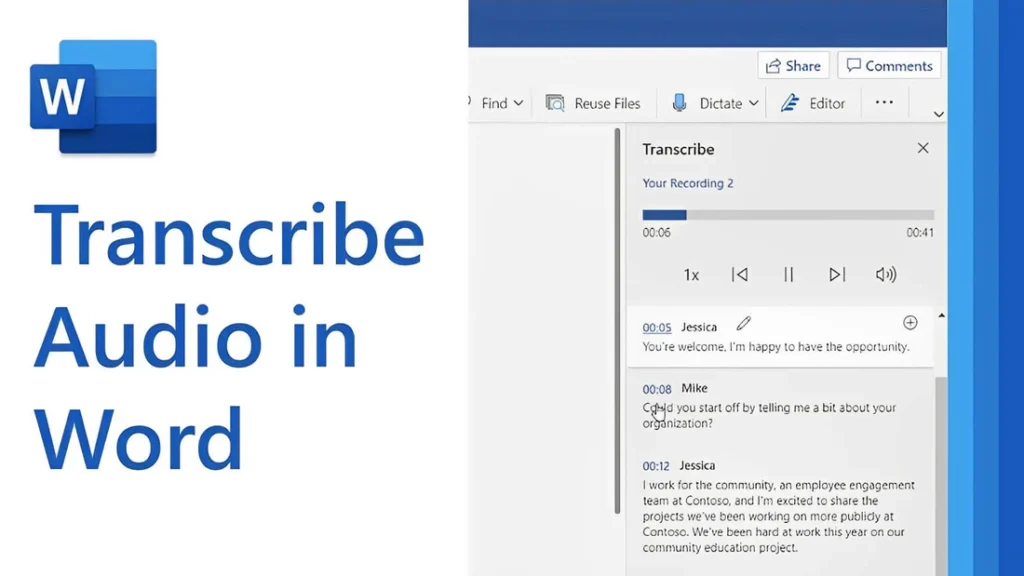
[vc_row type=”in_container” full_screen_row_position=”middle” column_margin=”default” column_direction=”default” column_direction_tablet=”default” column_direction_phone=”default” scene_position=”center” text_color=”dark” text_align=”left” row_border_radius=”none” row_border_radius_applies=”bg” overflow=”visible” overlay_strength=”0.3″ gradient_direction=”left_to_right” shape_divider_position=”bottom” bg_image_animation=”none”][vc_column column_padding=”no-extra-padding” column_padding_tablet=”inherit” column_padding_phone=”inherit” column_padding_position=”all” column_element_direction_desktop=”default” column_element_spacing=”default” desktop_text_alignment=”default” tablet_text_alignment=”default” phone_text_alignment=”default” background_color_opacity=”1″ background_hover_color_opacity=”1″ column_backdrop_filter=”none” column_shadow=”none” column_border_radius=”none” column_link_target=”_self” column_position=”default” gradient_direction=”left_to_right” overlay_strength=”0.3″ width=”1/1″ tablet_width_inherit=”default” animation_type=”default” bg_image_animation=”none” border_type=”simple” column_border_width=”none” column_border_style=”solid”][vc_column_text]Transcribing MP3 files into text is becoming increasingly essential in today’s data-driven world. Whether you’re a researcher, journalist, or business professional, converting audio recordings into text enables easy analysis, efficient documentation, and accurate reporting. While many tools exist, using Microsoft Word offers a simple, cost-effective solution for transcription. In this guide, you’ll learn how to transcribe MP3 files into text using Microsoft Word seamlessly. By the end, you’ll understand the tools required, how to avoid common transcription pitfalls, and how to get the most out of this technology for qualitative research. Understanding the Basics Before proceeding with the steps, let’s explore some foundational concepts about transcription and how Microsoft Word contributes to the process. What Is Transcription? Transcription is converting spoken words in audio or video files into written text. For qualitative researchers, transcription is crucial in analyzing interviews, focus groups, or customer calls. Accurate transcriptions provide a foundation for insights and reports. Understanding Audio Transcription in Microsoft Word Audio transcription in Microsoft Word is a feature that converts spoken words in audio files into written text. This capability is especially useful for businesses and professionals who efficiently document interactions, interviews, and meetings. Audio Transcription in Microsoft Word is revolutionizing how we convert spoken dialogue into written text. This feature allows users, such as team leads and researchers, to document and analyze interviews efficiently for actionable insights. With just a few clicks, users can upload their MP3 files into Word and witness the conversion process unfold. This powerful tool reveals not only verbatim text but also identifies speakers and key themes, such as pain points and behaviors. It is integral for those aiming to streamline their workflow and derive meaningful conclusions from their audio content, making it an invaluable asset in business and work environments. Using AI technology, Microsoft Word can identify speakers and provide a transcript that captures the nuances of conversations, enabling users to analyze and derive insights quickly. Read: Transcript Analysis AI: How It Works How Microsoft Word Transcription Works Microsoft Word now integrates with Microsoft 365’s Dictate Feature, which allows users to transcribe audio files. This feature supports MP3, WAV, and other popular formats and converts audio into editable text within minutes. To get started with audio transcription, first upload your MP3 files into the Word document library. Once uploaded, you can initiate the transcription process, during which the application will analyze the audio. The result is an editable transcript that users can review for accuracy. This transcript allows for extracting key points, such as customer pain points, desires, and behaviors—a crucial step for businesses aiming to understand their audience better. Furthermore, the functionality to add custom insights, like customer compliments, makes the transcription service adaptable to specific business needs. Preparing Your MP3 Files for Transcription Before diving into audio transcription with Microsoft Word, ensuring your MP3 files are primed and ready is crucial. Generally, files should be clear of background noise and have distinguishable speakers for the best results. Here’s a straightforward approach to preparing your recordings: Quality Check: Listen to your MP3 files. Confirm clarity and volume levels are adequate throughout the recording. If necessary, use an audio editing tool to enhance the sound quality. Unnecessarily loud sections or background buzz can hinder transcription accuracy. Format Verification: Microsoft Word supports certain audio formats for transcription. Ensure your MP3 files conform to these specifications to avoid compatibility issues during uploading. Shorten Lengths: If you have particularly long audio files, consider breaking them into shorter segments. This not only facilitates easier handling and management but can also help Microsoft Word’s transcription service process the audio more efficiently, especially if you’re dealing with limited internet bandwidth or processing power. Organize Content: For a streamlined transcription process, organize your MP3 files logically. If you’re working on several interviews or calls, label them appropriately and arrange them in the order they’ll be transcribed. This saves time and confusion later on. By preparing your MP3 files attentively, you can maximize the potential of your audio transcription efforts and gain valuable insights from your conversations. Clean and well-organized audio files are foundational for reliable transcription output, whether for business analysis or project management. Key Features of Microsoft Word’s Transcription Tool Microsoft Word’s transcription tool elevates the ease and efficiency of audio transcription, streamlining the process for businesses and professionals alike. This tool’s standout feature is its ability to distinguish between different speakers, which is highly beneficial for accurately transcribing meetings and interviews. This identification assists users in tracking the flow of conversation and attributing statements to the correct individuals, a critical aspect for clarity and organization of transcribed texts. Additionally, the transcription tool incorporates analysis capabilities, extracting key insights such as pain points, desires, and behaviors from the transcribed text. This aids in quickly identifying important themes and facilitating a deeper understanding of customer interactions or team communications. By using AI, the tool can pinpoint and extract relevant quotes as evidence of these insights, providing users with rich, contextual data for more informed decision-making. The seamless integration of transcription and analysis within Microsoft Word empowers users to unlock actionable insights from their audio files with minimal effort. How to Transcribe MP3 File to Text Using Microsoft Word If you want to convert your MP3 files into text, Microsoft Word offers a straightforward solution for audio transcription. Successfully transcribing MP3 files into text using Microsoft Word requires a clear understanding of the steps involved. Here’s how to transcribe your recordings directly within Word: Open Microsoft Word on your computer and locate the “Dictate” button, which includes the Transcribe option. Select Transcribe and then Upload the audio. Choose the MP3 file you wish to transcribe from your device. Once uploaded, Word will begin transcribing the audio file automatically. Depending on the file’s length,
Transcribe audio file to text with Google Drive
[vc_row type=”in_container” full_screen_row_position=”middle” column_margin=”default” column_direction=”default” column_direction_tablet=”default” column_direction_phone=”default” scene_position=”center” text_color=”dark” text_align=”left” row_border_radius=”none” row_border_radius_applies=”bg” overflow=”visible” overlay_strength=”0.3″ gradient_direction=”left_to_right” shape_divider_position=”bottom” bg_image_animation=”none”][vc_column column_padding=”no-extra-padding” column_padding_tablet=”inherit” column_padding_phone=”inherit” column_padding_position=”all” column_element_direction_desktop=”default” column_element_spacing=”default” desktop_text_alignment=”default” tablet_text_alignment=”default” phone_text_alignment=”default” background_color_opacity=”1″ background_hover_color_opacity=”1″ column_backdrop_filter=”none” column_shadow=”none” column_border_radius=”none” column_link_target=”_self” column_position=”default” gradient_direction=”left_to_right” overlay_strength=”0.3″ width=”1/1″ tablet_width_inherit=”default” animation_type=”default” bg_image_animation=”none” border_type=”simple” column_border_width=”none” column_border_style=”solid”][vc_column_text] Audio Transcription is a vital tool for professionals aiming to harness the power of spoken word analysis, offering a seamless path from voice to text. With the right tools, such as those provided through Google Drive, users can easily convert interviews, calls, and meetings into editable text that can be sifted for insights. This process not only streamlines the documentation of discussions but also allows for the extraction of customer pain points, desires, and behaviors, thus providing invaluable data for business strategists and team leaders. Understanding how to transcribe audio files effectively with Google Drive can be a game-changer for anyone looking to enhance their workflow and derive meaningful conclusions from their interactions. Google Drive, coupled with Google Docs’ voice typing feature, offers a cost-effective way to transcribe audio files to text. This guide will walk you through the process of using Google Drive to transcribe audio, highlighting practical steps, common pitfalls, and advanced strategies to ensure accuracy and efficiency. Additionally, you’ll learn how Insight7 can complement this workflow, enhancing your transcription and analysis process with its advanced features. By the end of this guide, you’ll have a clear understanding of how to leverage Google Drive for transcription and how Insight7 can take your qualitative research to the next level. How Does Google Drive Help with Transcription? Transcription is the process of converting spoken language from an audio file into written text. It is particularly valuable for qualitative researchers who need to analyze recorded interviews, meetings, or lectures. Accurate transcriptions form the basis for extracting actionable insights. Google Drive itself doesn’t directly transcribe audio files. Instead, it acts as a storage and access platform for audio files that can be processed using Google Docs’ voice typing tool. This feature allows you to play an audio file and dictate the text in real-time, producing a transcription. Why Use Google Drive for Transcription? Accessibility: Google Drive integrates seamlessly with Google Docs, allowing you to store, share, and access files from anywhere. Cost-Effective Solution: Both Google Drive and Google Docs are free, making them an excellent choice for individuals and small teams. Ease of Use: Google’s intuitive interface simplifies the transcription process, even for beginners. Step-by-Step Guide to Transcribe Audio Files to Text When it comes to converting your audio files into accurate text documents, an audio transcription feature within Google Drive can streamline the process for your business workflow. Follow these steps to ensure smooth transcription: Step 1: Upload the Audio File to Google Drive Before diving into audio transcription, its crucial to get your audio files onto Google Drive. The first step is to store your audio file securely in Google Drive. Uploading is straightforward and here’s how to do it: Navigate to your Google Drive homepage and log in using your Google account credentials. Once there, look for the New button on the top left and select File upload from the dropdown menu. Locate the audio files on your computer and start the upload process. Wait for the file to upload. Larger files may take a few minutes depending on your internet speed. Place the audio file in a specific folder to keep your Drive organized. Rename the file for easy identification, especially if you’re transcribing multiple files. Remember, the audio files need to be in a format supported by the transcription tools you intend to use. Use supported audio formats such as MP3 or WAV to avoid compatibility issues with third-party transcription tools. After your audio files are uploaded, they will appear in My Drive, ready to be integrated into your projects. If you’re collaborating with a team, you can move the files into shared folders to ensure all team members have access. For bulk uploads, while the current process may require uploading files one by one, it still streamlines the workflow significantly. Once in place, these files can be transcribed into text, paving the way for easier data analysis, content creation, or record-keeping for your business or work. Step 2: Opeen Google Docs and Enable Voice Typing Then, access Google Docs and select “Voice typing” from the Tools menu. Click the microphone icon, and play your audio file clearly into the system. Choose your desired language from the dropdown menu. Google Docs supports multiple languages, but it works best with widely spoken ones like English, Spanish, and French. Use an external audio player, such as VLC Media Player, to play the file. Adjust the playback speed for better synchronization with the voice typing tool. Step 3: Transcribe the Audio Using Voice Typing Now that you’ve set up voice typing, the next step is to create the transcription. Play the audio file from your external audio player. Adjust the volume so the microphone captures the audio clearly. Click the microphone icon in Google Docs to start voice typing. Google’s powerful voice recognition technology will transcribe the spoken words into text in real-time. You can pause the audio playback to allow the voice typing tool to catch up, and also resume playback once the transcription is in sync. Step 4: Edit and Format the Transcription After completing the voice typing process, your transcription will appear in the Google Docs document. The next step is to refine and format it for clarity and accuracy. It’s imperative to review the transcribed text for accuracy, since nuances in speech, such as accents or jargon can result in minor errors. Voice typing tools can misinterpret words, especially if the audio quality is poor or there are multiple speakers. Edit the document as necessary to ensure the transcription reflects the original audio with complete accuracy. Correct any misheard phrases or unclear text. Bold or italicize critical statements or action points for easy reference. Save the Google Docs file and export it as
AI Transcript Assistant: How It Helps
An AI roleplay assistant that generates generic scenarios from a job description produces practice sessions that feel nothing like your contact center's actual calls. The guidelines that make AI roleplay assistants effective for contact center and sales training are about configuration, not just deployment: what scenario data to feed the AI, how to define the persona parameters, when to use voice versus chat, and how to verify that practice scores are predicting live call improvement. This guide covers the 6-step framework for configuring and using AI assistant roleplay in contact center and sales training programs. The workflow applies to teams with recorded call libraries who want to move from generic scenario practice to practice built on their own conversation data. What you need before you start: Access to your call recording library, at least 30 days of representative calls across your key scenario types (objection handling, escalation, compliance, onboarding), and a list of the QA criteria your team already uses to score calls. Configuration takes 2 to 4 hours initially. Ongoing management is 30 minutes per week. How does an AI transcript assistant help contact center teams? An AI transcript assistant helps contact center teams by converting calls into structured data: compliance phrase detection, objection language extraction, empathy scoring, and process adherence flags. This structured output feeds both QA scoring without manual review and scenario configuration for AI roleplay, giving coaches two outputs from one recording infrastructure. Step 1 — Define Your Roleplay Scenario Types from Call Data Start with your call data, not a scenario template library. Pull your last 30 days of transcripts and identify the five most common conversation challenge types your agents face. Sort by outcome: calls that escalated, calls where compliance requirements were missed, calls where the agent lost the close, and calls where the customer sentiment dropped significantly. These are your scenario candidates. Generic scenario templates produce practice that trains agents for conversations your team does not actually have. Common mistake: Building scenarios around your best calls (what success looks like) rather than your hardest calls (what failure looks like). Success scenarios reinforce existing skills. Hard-call scenarios build the specific capabilities agents are currently missing. Decision point: Build 3 specific scenarios from real calls versus 10 generic scenarios from job description prompts. Three well-configured scenarios produce more skill transfer than 10 generic ones. Specificity beats volume for scenario realism. Step 2 — Configure AI Persona Parameters for Each Scenario Each scenario needs a persona with enough specificity to produce realistic conversation dynamics. Generic persona settings ("customer is frustrated") produce responses that feel artificial. Specific parameters produce responses that match what agents actually encounter. Configure these parameters for each persona: communication style (direct, passive-aggressive, skeptical, urgent), emotional state at the start of the conversation, the specific objection or trigger the agent must navigate, and the behavior modifier that determines how the persona responds to different handling approaches. Insight7's persona customization layer allows configuration of name, job title, gender, communication style, emotional tone, empathy level, assertiveness, confidence, and agreeableness. Scenarios can be generated from prompt (faster, less precise) or manually configured from real call data (slower, more accurate). The most effective scenarios for compliance and objection-handling training use manual configuration from actual call moments. See how persona configuration works for contact center training: insight7.io/improve-coaching-training/ Common mistake: Using the same persona parameters for all scenario types. An escalation scenario needs an emotionally triggered persona. A compliance scenario needs a skeptical but engaged persona. The dynamics are different, and blending them produces scenarios agents cannot distinguish from each other. Step 3 — Set Evaluation Criteria Before the First Session Define what the AI should score before the first practice session runs. Evaluation criteria not defined upfront produce generic scoring ("good communication") that agents cannot act on. For each scenario type, configure three to five specific criteria with behavioral anchors. Compliance scenarios: exact-match criteria for required disclosure phrases. Objection-handling scenarios: intent-based criteria for acknowledgment, reframe, and confirmation sequences. Empathy scenarios: behavioral anchors distinguishing scripted acknowledgment from genuine engagement. Decision point: Script-based evaluation (did the agent say the required phrase?) versus intent-based evaluation (did the agent accomplish the communication objective?). Use script-based criteria for legal and compliance requirements where exact language matters. Use intent-based criteria for conversational dimensions where the specific words matter less than the outcome. Manual QA teams typically review 3 to 10% of calls; AI transcript scoring enables 100% coverage, which means the same criteria you configure for live call QA can run on roleplay sessions. Agents practice and are evaluated on the same behavioral dimensions across both practice and live calls. Step 4 — Run Initial Sessions and Calibrate Persona Responses Before rolling out AI roleplay to your full team, run 5 to 10 calibration sessions yourself or with a small pilot group. The goal is to identify whether persona responses match the difficulty level of your real calls. Signs that calibration is needed: the persona responds too easily (agents can skip required steps and still advance the conversation), the persona responds too unpredictably (agents cannot identify a pattern to handle), or the scoring criteria flag correct behaviors as incorrect. Common mistake: Skipping calibration and rolling out to 50 agents before verifying that persona responses produce the intended difficulty level. A calibration failure at scale means 50 agents practice against unrealistic scenarios. The fix is a full reconfiguration after the damage is done. Run calibration sessions on voice and chat formats separately. Persona response quality can differ across modalities. Test both before deciding which format to deploy for each scenario type. Step 5 — Connect Practice Scores to Live Call Criteria Practice scores only prove that agents can perform in a practice environment. The question that matters for L&D directors is whether practice scores predict live call performance on the same criteria. Set up the connection before the first full cohort runs. The measurement framework is: define which QA criteria the practice session targets, capture baseline live call scores for those criteria in the two