
Transcribe mp3 file to text with Microsoft word
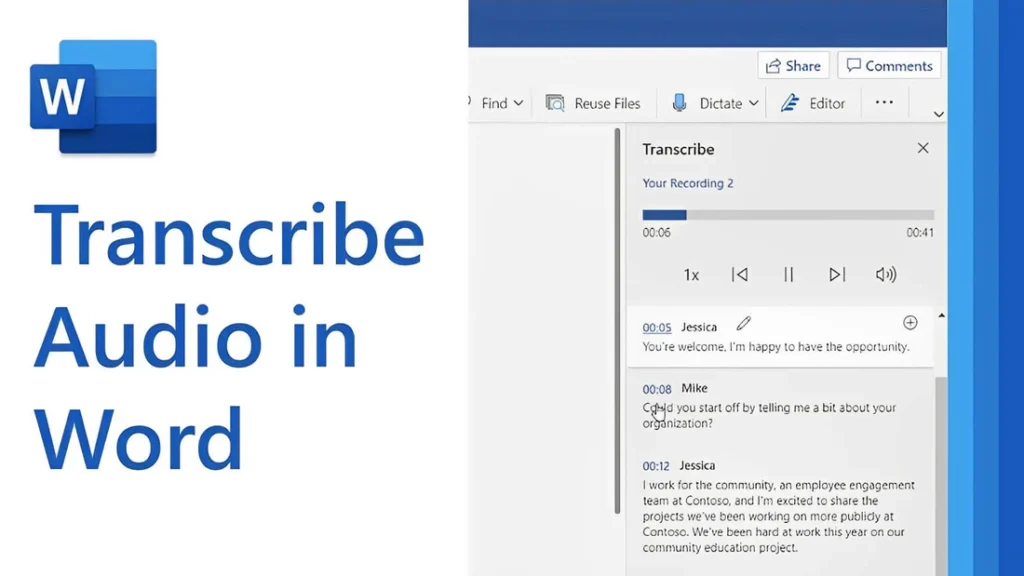
[vc_row type=”in_container” full_screen_row_position=”middle” column_margin=”default” column_direction=”default” column_direction_tablet=”default” column_direction_phone=”default” scene_position=”center” text_color=”dark” text_align=”left” row_border_radius=”none” row_border_radius_applies=”bg” overflow=”visible” overlay_strength=”0.3″ gradient_direction=”left_to_right” shape_divider_position=”bottom” bg_image_animation=”none”][vc_column column_padding=”no-extra-padding” column_padding_tablet=”inherit” column_padding_phone=”inherit” column_padding_position=”all” column_element_direction_desktop=”default” column_element_spacing=”default” desktop_text_alignment=”default” tablet_text_alignment=”default” phone_text_alignment=”default” background_color_opacity=”1″ background_hover_color_opacity=”1″ column_backdrop_filter=”none” column_shadow=”none” column_border_radius=”none” column_link_target=”_self” column_position=”default” gradient_direction=”left_to_right” overlay_strength=”0.3″ width=”1/1″ tablet_width_inherit=”default” animation_type=”default” bg_image_animation=”none” border_type=”simple” column_border_width=”none” column_border_style=”solid”][vc_column_text]Transcribing MP3 files into text is becoming increasingly essential in today’s data-driven world. Whether you’re a researcher, journalist, or business professional, converting audio recordings into text enables easy analysis, efficient documentation, and accurate reporting. While many tools exist, using Microsoft Word offers a simple, cost-effective solution for transcription. In this guide, you’ll learn how to transcribe MP3 files into text using Microsoft Word seamlessly. By the end, you’ll understand the tools required, how to avoid common transcription pitfalls, and how to get the most out of this technology for qualitative research. Understanding the Basics Before proceeding with the steps, let’s explore some foundational concepts about transcription and how Microsoft Word contributes to the process. What Is Transcription? Transcription is converting spoken words in audio or video files into written text. For qualitative researchers, transcription is crucial in analyzing interviews, focus groups, or customer calls. Accurate transcriptions provide a foundation for insights and reports. Understanding Audio Transcription in Microsoft Word Audio transcription in Microsoft Word is a feature that converts spoken words in audio files into written text. This capability is especially useful for businesses and professionals who efficiently document interactions, interviews, and meetings. Audio Transcription in Microsoft Word is revolutionizing how we convert spoken dialogue into written text. This feature allows users, such as team leads and researchers, to document and analyze interviews efficiently for actionable insights. With just a few clicks, users can upload their MP3 files into Word and witness the conversion process unfold. This powerful tool reveals not only verbatim text but also identifies speakers and key themes, such as pain points and behaviors. It is integral for those aiming to streamline their workflow and derive meaningful conclusions from their audio content, making it an invaluable asset in business and work environments. Using AI technology, Microsoft Word can identify speakers and provide a transcript that captures the nuances of conversations, enabling users to analyze and derive insights quickly. Read: Transcript Analysis AI: How It Works How Microsoft Word Transcription Works Microsoft Word now integrates with Microsoft 365’s Dictate Feature, which allows users to transcribe audio files. This feature supports MP3, WAV, and other popular formats and converts audio into editable text within minutes. To get started with audio transcription, first upload your MP3 files into the Word document library. Once uploaded, you can initiate the transcription process, during which the application will analyze the audio. The result is an editable transcript that users can review for accuracy. This transcript allows for extracting key points, such as customer pain points, desires, and behaviors—a crucial step for businesses aiming to understand their audience better. Furthermore, the functionality to add custom insights, like customer compliments, makes the transcription service adaptable to specific business needs. Preparing Your MP3 Files for Transcription Before diving into audio transcription with Microsoft Word, ensuring your MP3 files are primed and ready is crucial. Generally, files should be clear of background noise and have distinguishable speakers for the best results. Here’s a straightforward approach to preparing your recordings: Quality Check: Listen to your MP3 files. Confirm clarity and volume levels are adequate throughout the recording. If necessary, use an audio editing tool to enhance the sound quality. Unnecessarily loud sections or background buzz can hinder transcription accuracy. Format Verification: Microsoft Word supports certain audio formats for transcription. Ensure your MP3 files conform to these specifications to avoid compatibility issues during uploading. Shorten Lengths: If you have particularly long audio files, consider breaking them into shorter segments. This not only facilitates easier handling and management but can also help Microsoft Word’s transcription service process the audio more efficiently, especially if you’re dealing with limited internet bandwidth or processing power. Organize Content: For a streamlined transcription process, organize your MP3 files logically. If you’re working on several interviews or calls, label them appropriately and arrange them in the order they’ll be transcribed. This saves time and confusion later on. By preparing your MP3 files attentively, you can maximize the potential of your audio transcription efforts and gain valuable insights from your conversations. Clean and well-organized audio files are foundational for reliable transcription output, whether for business analysis or project management. Key Features of Microsoft Word’s Transcription Tool Microsoft Word’s transcription tool elevates the ease and efficiency of audio transcription, streamlining the process for businesses and professionals alike. This tool’s standout feature is its ability to distinguish between different speakers, which is highly beneficial for accurately transcribing meetings and interviews. This identification assists users in tracking the flow of conversation and attributing statements to the correct individuals, a critical aspect for clarity and organization of transcribed texts. Additionally, the transcription tool incorporates analysis capabilities, extracting key insights such as pain points, desires, and behaviors from the transcribed text. This aids in quickly identifying important themes and facilitating a deeper understanding of customer interactions or team communications. By using AI, the tool can pinpoint and extract relevant quotes as evidence of these insights, providing users with rich, contextual data for more informed decision-making. The seamless integration of transcription and analysis within Microsoft Word empowers users to unlock actionable insights from their audio files with minimal effort. How to Transcribe MP3 File to Text Using Microsoft Word If you want to convert your MP3 files into text, Microsoft Word offers a straightforward solution for audio transcription. Successfully transcribing MP3 files into text using Microsoft Word requires a clear understanding of the steps involved. Here’s how to transcribe your recordings directly within Word: Open Microsoft Word on your computer and locate the “Dictate” button, which includes the Transcribe option. Select Transcribe and then Upload the audio. Choose the MP3 file you wish to transcribe from your device. Once uploaded, Word will begin transcribing the audio file automatically. Depending on the file’s length,
Transcribe Audio File to Text with Microsoft Teams
[vc_row type=”in_container” full_screen_row_position=”middle” column_margin=”default” column_direction=”default” column_direction_tablet=”default” column_direction_phone=”default” scene_position=”center” text_color=”dark” text_align=”left” row_border_radius=”none” row_border_radius_applies=”bg” overflow=”visible” overlay_strength=”0.3″ gradient_direction=”left_to_right” shape_divider_position=”bottom” bg_image_animation=”none”][vc_column column_padding=”no-extra-padding” column_padding_tablet=”inherit” column_padding_phone=”inherit” column_padding_position=”all” column_element_direction_desktop=”default” column_element_spacing=”default” desktop_text_alignment=”default” tablet_text_alignment=”default” phone_text_alignment=”default” background_color_opacity=”1″ background_hover_color_opacity=”1″ column_backdrop_filter=”none” column_shadow=”none” column_border_radius=”none” column_link_target=”_self” column_position=”default” gradient_direction=”left_to_right” overlay_strength=”0.3″ width=”1/1″ tablet_width_inherit=”default” animation_type=”default” bg_image_animation=”none” border_type=”simple” column_border_width=”none” column_border_style=”solid”][vc_column_text] In a world increasingly reliant on virtual communication, the ability to transcribe audio files to text has become a game-changer. Whether for meetings, lectures, interviews, or team collaborations, transcription allows for accurate record-keeping and simplifies analyzing spoken content. Teams Transcription offers a robust solution for converting your Microsoft Teams audio files into written text, enabling easy analysis for actionable insights. Ideal for businesses seeking to understand customer needs and behaviors, this service automatically identifies speakers and extracts key points, such as pain points, desires, and behaviors from conversations. With the added ability to customize data extraction, your team can gain a comprehensive understanding of client interactions quickly and accurately. Teams Transcription is an indispensable tool for anyone who needs to streamline their workflow and enhance their data analysis capabilities. This guide will walk you through how to transcribe audio files to text using Microsoft Teams, highlighting its transcription capabilities, common challenges, and best practices. By the end of this article, you’ll be equipped to make the most of Teams’ AI-powered tools to boost your productivity and enhance team collaboration. Can Microsoft Teams Transcribe Audio? Yes, Microsoft Teams has transcription features designed to convert meeting audio into text automatically. This capability is part of its AI-powered toolkit, making transcription quick and accurate. However, these features are primarily available for live meetings and recordings. How Does Transcription Work in Teams? Microsoft Teams uses AI to process audio data and generate text transcriptions. Once enabled during a meeting, the platform captures audio in real time and automatically creates a text transcript. These transcripts can be accessed and shared after the meeting, making reviewing discussions or sharing summaries easier. How to Use Teams Transcription to Convert Audio Files to Text To effectively utilize Teams Transcription, first ensure that your audio files are uploaded into the app’s library section. This is where all your data—including videos and documents—is stored after upload. Once in the library, the transcription service converts your audio content into written text. This function is particularly seamless with Teams calls, enabling effortless identification of speakers and the subsequent transcription of their dialogue. After transcription, you can extract meaningful insights from the text. The default settings allow you to identify key points such as pain points, desires, and behaviors from customer interactions, which are essential for gaining customer insights. However, the system also offers customization options, allowing you to highlight additional data points such as compliments or other customer requests. Teams Transcription enables you to pull direct quotes from the transcript for each insight, providing valuable context to the identified points. Furthermore, all services are cloud-based, ensuring accessibility and secure data storage. Steps to Transcribe an Audio File in Microsoft Teams For businesses and professionals looking to optimize their workflow, transcribing audio files into text is a game-changer. Microsoft Teams offers a transcription feature that simplifies this process. Here are the necessary steps: Step 1: Enable Transcription for Your Microsoft Teams Account Before transcribing audio files, ensure transcription is enabled in your Teams settings. Key Actions: Check Admin Settings: Only administrators can enable transcription for the entire organization. Ask your IT admin to turn on the “Allow Transcription” setting in the Teams admin center. Enable Live Captions: Navigate to the meeting options in Teams and ensure live captions are turned on. Transcription relies on this feature. Verify Recording Permissions: Confirm that your account has permission to record meetings, as transcription is linked to recordings. Common Mistake to Avoid: Not checking admin permissions in advance, which can delay transcription availability. Step 2: Record the Audio in a Teams Meeting Transcription in Teams is most effective when paired with recorded meetings. Key Actions: Start the Meeting: Begin a meeting in Teams as usual. Start Recording: Click the three-dot menu (…) and select “Start Recording.” This activates both the recording and transcription features. Enable Live Transcription: Click the three-dot menu again and select “Start Transcription.” Pro Tip: Inform participants that the meeting is being recorded and transcribed for transparency and compliance. Step 3: Access the Transcription After the Meeting Once the meeting ends, Teams automatically saves the transcript alongside the recording. Key Actions: Locate the Transcript: Go to Teams’s meeting chat or recording link. The transcript is saved under the “Recordings & Transcripts” tab. Download the Transcript: Click on the transcript and select “Download” to save it as a text file or Word document. Edit for Accuracy: Review the downloaded transcript for any inaccuracies or formatting issues, especially if multiple speakers were involved. Pro Tip: Use the time-stamped transcript to locate specific sections of the recording quickly. Step 4: Transcribe Pre-Recorded Audio Files If you need to transcribe an audio file outside of a Teams meeting, use a workaround since Teams doesn’t directly support file uploads for transcription. Key Actions: Play the Audio File During a Meeting: Start a Teams meeting and share your system audio while playing the file. Enable Recording and Transcription: Follow the steps in Step 2 to record and transcribe the audio. Common Mistake to Avoid: Forgetting to optimize audio quality, which can lead to inaccurate transcriptions. Step 5: Share and Utilize the Transcript Once your transcript is ready, share it with your team or use it for further analysis. Key Actions: Share via Teams: Upload the transcript to the meeting chat or a shared channel for easy access. Analyze with Insight7: Use Insight7 to extract key themes and actionable insights from the transcript. Incorporate Findings: Summarize the transcript’s key points in presentations, reports, or meeting follow-ups. With these steps, leveraging Teams Transcription goes beyond mere text conversion; it enables users to extract key points that may help make data-driven decisions. Remember to regularly save your work and review the transcription for accuracy, ensuring the final text serves its
Transcribe video file to text with Google Docs
[vc_row type=”in_container” full_screen_row_position=”middle” column_margin=”default” column_direction=”default” column_direction_tablet=”default” column_direction_phone=”default” scene_position=”center” text_color=”dark” text_align=”left” row_border_radius=”none” row_border_radius_applies=”bg” overflow=”visible” overlay_strength=”0.3″ gradient_direction=”left_to_right” shape_divider_position=”bottom” bg_image_animation=”none”][vc_column column_padding=”no-extra-padding” column_padding_tablet=”inherit” column_padding_phone=”inherit” column_padding_position=”all” column_element_direction_desktop=”default” column_element_spacing=”default” desktop_text_alignment=”default” tablet_text_alignment=”default” phone_text_alignment=”default” background_color_opacity=”1″ background_hover_color_opacity=”1″ column_backdrop_filter=”none” column_shadow=”none” column_border_radius=”none” column_link_target=”_self” column_position=”default” gradient_direction=”left_to_right” overlay_strength=”0.3″ width=”1/1″ tablet_width_inherit=”default” animation_type=”default” bg_image_animation=”none” border_type=”simple” column_border_width=”none” column_border_style=”solid”][vc_column_text]In the age of digital transformation, videos are a dominant medium for communication, learning, and research. Video Transcription with Google Docs is a pivotal tool for professionals seeking efficient ways to convert video content into textual form. From interviews to webinars, video files often contain valuable information that needs to be converted into text for easier analysis, sharing, and documentation. It serves as a bridge, enabling users to upload video files directly from their computers or Google Drive and swiftly transcribe them into text. Whether for capturing crucial points discussed in a meeting, analyzing interview data, or enhancing content marketing strategies, the transcription feature within Docs streamlines the process. It saves time and allows easy integration of transcripts into project folders for subsequent analysis. By unlocking the potential of Video Transcription in Docs, businesses, and individuals can easily accelerate their workflow and derive actionable insights from their video files. In this guide, we’ll explain how to use Google Docs to transcribe video files to text, explain the benefits and limitations of this method, and discuss how advanced tools like Insight7 can enhance your transcription and qualitative analysis processes. By the end of this guide, you will: Understand how Google Docs Voice Typing works for video transcription. Learn step-by-step how to transcribe a video file to text. Discover how Insight7 can complement transcription workflows by turning raw transcripts into actionable insights. Understanding Video Transcription with Google Docs What Is Video Transcription? Video transcription involves converting spoken words from a video file into a written format. It’s widely used for creating subtitles, extracting insights from interviews, and documenting video content for reference or analysis. Why Use Google Docs for Video Transcription? Google Docs offers a built-in Voice Typing feature that uses speech recognition technology to capture spoken words and convert them into text. Although not specifically designed for transcription, this feature can transcribe audio from a video file played through your device’s speakers. How Does It Work? The Voice Typing tool listens to audio through your device’s microphone and transcribes it in real time. By playing the video near the microphone, the tool converts the spoken content into text within Google Docs. Limitations of Google Docs for Transcription While Google Docs Voice Typing is free and easy to use, it does have limitations: Audio Quality Dependency: Clear audio is essential for accurate transcription. Limited Features: Unlike professional transcription tools, it lacks advanced capabilities such as speaker identification or automated punctuation. Manual Editing Required: You’ll need to review and correct the text for accuracy. Read: Transcribe mp3 file to text with Microsoft word Steps to Transcribe Video Files to Text with Google Docs A streamlined process ensures efficiency and accuracy when transcribing video files to text using Google Docs. Begin by uploading your video into a transcription tool such as Insight7.io, which can automatically convert speech into a written transcript. After the transcription is complete, you can import this text directly into Google Docs for further editing and refinement. Google Docs’ Voice Typing feature offers an accessible way to transcribe video files into text. Follow these steps to complete the process effectively: Step 1: Set Up Your Workspace Before you start, create an ideal environment for transcription. Quiet Environment: Ensure there is minimal background noise to avoid interference with the transcription. Functional Microphone: Test your microphone to ensure it captures audio clearly. Tools You’ll Need: A computer or laptop. A video file you want to transcribe. Import your video file into a transcription service from your computer or Google Drive. Access to Google Docs via a browser (preferably Chrome for optimal performance). Step 2: Enable Voice Typing in Google Docs Open Google Docs and create a new blank document. Navigate to the Tools menu at the top of the screen and select Voice Typing from the dropdown. A microphone icon will appear on the left-hand side of your screen. Pro Tip: Ensure you have a stable internet connection, as Google Docs relies on cloud processing for voice recognition. Step 3: Play Your Video File Now, it’s time to prepare your video file for transcription. Open the video file on your computer using your preferred video player. Position your device’s microphone close to the speakers to capture audio effectively. Set the video volume to a moderate level to ensure clarity. Step 4: Start Transcribing Click the microphone icon in Google Docs to activate Voice Typing. Press play on your video file and allow the audio to play naturally. Watch as Google Docs begins transcribing the audio into text in real time. Common Tip: Pause the video periodically to make corrections or ensure the transcription is capturing the content accurately. Step 5: Edit and Save Your Transcript Once the video is fully transcribed: Pause the transcription by clicking the microphone icon again. Carefully review the document to fix any errors, punctuation issues, or formatting inconsistencies. Save your transcript to Google Drive or download it in your preferred format (e.g., Word or PDF). Optional Step: Route Audio Internally for Higher Accuracy If you want to improve transcription accuracy and bypass ambient noise: Use tools like VB-Audio Cable or Soundflower to route audio directly from your video player to Google Docs. These tools eliminate background noise by feeding the audio directly to the transcription software. Through this technique, you can harness AI-based transcription services to streamline the conversion of video content into text, optimizing for both time and effort. Whether for content marketing or data analysis, this transcription process allows for more accessible data extraction and deeper insights into customer behaviors, desires, and pain points. By integrating these steps, businesses can enhance their content strategy and capitalize on the rich information embedded in their video files. Read: Transcribe audio file to text with Google Docs
Transcribe audio file to text with Google Drive
[vc_row type=”in_container” full_screen_row_position=”middle” column_margin=”default” column_direction=”default” column_direction_tablet=”default” column_direction_phone=”default” scene_position=”center” text_color=”dark” text_align=”left” row_border_radius=”none” row_border_radius_applies=”bg” overflow=”visible” overlay_strength=”0.3″ gradient_direction=”left_to_right” shape_divider_position=”bottom” bg_image_animation=”none”][vc_column column_padding=”no-extra-padding” column_padding_tablet=”inherit” column_padding_phone=”inherit” column_padding_position=”all” column_element_direction_desktop=”default” column_element_spacing=”default” desktop_text_alignment=”default” tablet_text_alignment=”default” phone_text_alignment=”default” background_color_opacity=”1″ background_hover_color_opacity=”1″ column_backdrop_filter=”none” column_shadow=”none” column_border_radius=”none” column_link_target=”_self” column_position=”default” gradient_direction=”left_to_right” overlay_strength=”0.3″ width=”1/1″ tablet_width_inherit=”default” animation_type=”default” bg_image_animation=”none” border_type=”simple” column_border_width=”none” column_border_style=”solid”][vc_column_text] Audio Transcription is a vital tool for professionals aiming to harness the power of spoken word analysis, offering a seamless path from voice to text. With the right tools, such as those provided through Google Drive, users can easily convert interviews, calls, and meetings into editable text that can be sifted for insights. This process not only streamlines the documentation of discussions but also allows for the extraction of customer pain points, desires, and behaviors, thus providing invaluable data for business strategists and team leaders. Understanding how to transcribe audio files effectively with Google Drive can be a game-changer for anyone looking to enhance their workflow and derive meaningful conclusions from their interactions. Google Drive, coupled with Google Docs’ voice typing feature, offers a cost-effective way to transcribe audio files to text. This guide will walk you through the process of using Google Drive to transcribe audio, highlighting practical steps, common pitfalls, and advanced strategies to ensure accuracy and efficiency. Additionally, you’ll learn how Insight7 can complement this workflow, enhancing your transcription and analysis process with its advanced features. By the end of this guide, you’ll have a clear understanding of how to leverage Google Drive for transcription and how Insight7 can take your qualitative research to the next level. How Does Google Drive Help with Transcription? Transcription is the process of converting spoken language from an audio file into written text. It is particularly valuable for qualitative researchers who need to analyze recorded interviews, meetings, or lectures. Accurate transcriptions form the basis for extracting actionable insights. Google Drive itself doesn’t directly transcribe audio files. Instead, it acts as a storage and access platform for audio files that can be processed using Google Docs’ voice typing tool. This feature allows you to play an audio file and dictate the text in real-time, producing a transcription. Why Use Google Drive for Transcription? Accessibility: Google Drive integrates seamlessly with Google Docs, allowing you to store, share, and access files from anywhere. Cost-Effective Solution: Both Google Drive and Google Docs are free, making them an excellent choice for individuals and small teams. Ease of Use: Google’s intuitive interface simplifies the transcription process, even for beginners. Step-by-Step Guide to Transcribe Audio Files to Text When it comes to converting your audio files into accurate text documents, an audio transcription feature within Google Drive can streamline the process for your business workflow. Follow these steps to ensure smooth transcription: Step 1: Upload the Audio File to Google Drive Before diving into audio transcription, its crucial to get your audio files onto Google Drive. The first step is to store your audio file securely in Google Drive. Uploading is straightforward and here’s how to do it: Navigate to your Google Drive homepage and log in using your Google account credentials. Once there, look for the New button on the top left and select File upload from the dropdown menu. Locate the audio files on your computer and start the upload process. Wait for the file to upload. Larger files may take a few minutes depending on your internet speed. Place the audio file in a specific folder to keep your Drive organized. Rename the file for easy identification, especially if you’re transcribing multiple files. Remember, the audio files need to be in a format supported by the transcription tools you intend to use. Use supported audio formats such as MP3 or WAV to avoid compatibility issues with third-party transcription tools. After your audio files are uploaded, they will appear in My Drive, ready to be integrated into your projects. If you’re collaborating with a team, you can move the files into shared folders to ensure all team members have access. For bulk uploads, while the current process may require uploading files one by one, it still streamlines the workflow significantly. Once in place, these files can be transcribed into text, paving the way for easier data analysis, content creation, or record-keeping for your business or work. Step 2: Opeen Google Docs and Enable Voice Typing Then, access Google Docs and select “Voice typing” from the Tools menu. Click the microphone icon, and play your audio file clearly into the system. Choose your desired language from the dropdown menu. Google Docs supports multiple languages, but it works best with widely spoken ones like English, Spanish, and French. Use an external audio player, such as VLC Media Player, to play the file. Adjust the playback speed for better synchronization with the voice typing tool. Step 3: Transcribe the Audio Using Voice Typing Now that you’ve set up voice typing, the next step is to create the transcription. Play the audio file from your external audio player. Adjust the volume so the microphone captures the audio clearly. Click the microphone icon in Google Docs to start voice typing. Google’s powerful voice recognition technology will transcribe the spoken words into text in real-time. You can pause the audio playback to allow the voice typing tool to catch up, and also resume playback once the transcription is in sync. Step 4: Edit and Format the Transcription After completing the voice typing process, your transcription will appear in the Google Docs document. The next step is to refine and format it for clarity and accuracy. It’s imperative to review the transcribed text for accuracy, since nuances in speech, such as accents or jargon can result in minor errors. Voice typing tools can misinterpret words, especially if the audio quality is poor or there are multiple speakers. Edit the document as necessary to ensure the transcription reflects the original audio with complete accuracy. Correct any misheard phrases or unclear text. Bold or italicize critical statements or action points for easy reference. Save the Google Docs file and export it as
How To Analyze Focus Group Data And Get Actionable Insights

[vc_row type=”in_container” full_screen_row_position=”middle” column_margin=”default” column_direction=”default” column_direction_tablet=”default” column_direction_phone=”default” scene_position=”center” text_color=”dark” text_align=”left” row_border_radius=”none” row_border_radius_applies=”bg” overflow=”visible” overlay_strength=”0.3″ gradient_direction=”left_to_right” shape_divider_position=”bottom” bg_image_animation=”none”][vc_column column_padding=”no-extra-padding” column_padding_tablet=”inherit” column_padding_phone=”inherit” column_padding_position=”all” column_element_direction_desktop=”default” column_element_spacing=”default” desktop_text_alignment=”default” tablet_text_alignment=”default” phone_text_alignment=”default” background_color_opacity=”1″ background_hover_color_opacity=”1″ column_backdrop_filter=”none” column_shadow=”none” column_border_radius=”none” column_link_target=”_self” column_position=”default” gradient_direction=”left_to_right” overlay_strength=”0.3″ width=”1/1″ tablet_width_inherit=”default” animation_type=”default” bg_image_animation=”none” border_type=”simple” column_border_width=”none” column_border_style=”solid”][vc_column_text] A Step-by-Step Guide on How to Analyze Focus Group Data and Extracting Powerful Customer Insights Learning how to analyze focus group data with AI tools can supercharge your research endeavors. You’ve just wrapped up a series of highly engaging focus group discussions filled with rich commentary and candid exchanges around your core topics of interest. The hard work of meticulously planning, recruiting participants, and facilitating the live sessions is now complete. But now comes one of the most critical and often overwhelming parts of the process – analyzing all of that raw, unstructured focus group data and synthesizing it into clear, actionable insights that can drive real business impact. Whether your focus groups aimed to pressure test new product concepts, dive into customer pain points and unmet needs, evaluate marketing messaging, or anything in between, sifting through hours of video recordings and transcripts to identify overarching themes and key takeaways can feel like an insurmountable task. That’s where having a proven framework for qualitative data analysis becomes invaluable. Relying on an ad-hoc approach risks missing crucial details or forcing insights that may not be fully grounded in the data. However, a systematic, best-practice methodology allows you to extract maximum value and confidently uncover the most meaningful learnings from your focus group investment. What You Will Learn in This Guide In this step-by-step guide, I’ll outline a practical approach for analyzing focus group recordings, videos, transcripts, and other materials to pinpoint high-impact customer insights. This article covers: • Essential first steps to prep and organize your focus group data • Qualitative coding techniques to identify patterns and critical themes • How to elevate verbatim customer quotes and “aha” moments • Methods for clustering themes into prioritized key insights • Best practices for crafting narrative-driven shareable reports • Tools for performing focus group data analysis By following a systematic process like the one outlined here, you will learn how to analyze you can transform those raw customer discussions into a crystal-clear roadmap for innovating successful new products and experiences tailored to what your target market truly needs and values. Steps on How to Analyze Focus Group Data Like a Pro Step 1: Prepare and Digest the Raw Data Before you can jump into analysis, the first essential step is to collect and prepare all discussion recordings, videos, transcripts, notes, worksheets, and any other outputs and stimuli from your focus group sessions. You want to centralize all of this raw data into a shared repository for your analysis team. It’s critical to have verbatim transcripts covering all focus group dialogue, as these text documents will make it far easier to code and analyze versus trying to analyze audio/video directly. Most focus group consultants and facilities can generate detailed transcripts along with the raw video recordings. If you don’t have your transcripts already, you can upload your recordings here to generate accurate transcripts. Once you have the data compiled and transcripts ready, the next step is for each analyst to review and digest all of the raw focus group materials thoroughly. This includes reading through transcripts, watching video snippets of key moments, and reviewing any notes taken by the moderator and supporting staff. The goal is to immerse yourself in the actual voice of the customer, rereading commentary and analyzing both the actual words and nonverbal cues. It’s about developing a solid comprehension of the sessions before you start looking for overarching trends and extracting insights. Taking the time for this tedious preparatory work upfront helps tune your team’s mindset and bring the focus group environment back to life before diving into coding. Step 2: Code the Transcript Data into Themes and Topics With everyone well-versed in the raw focus group content, the next major phase is a systematic coding process to objectively identify and organize all relevant commentary into distinct themes and topics that emerge. Most qualitative researchers leverage coding software like Insight7 to streamline this iterative process. Within each full transcript, you’ll code each quote, sentence or partipant response into one or more designated themes using the tools. This could start with pre-defined topics based on your original study goals/questions, but will quickly expand into an inductive approach as you discover new themes surfacing directly from the data. For example, imagine you’re analyzing focus groups conducted to better understand consumer perceptions around a new category of fitness wearables. You may have pre-defined codes for themes like “Pricing Attitudes,” “Form Factor Preferences,” or “Motivation for Using a Fitness Tracker.” But through the real discussions, you may inductively create new codes and sub-codes for themes like: • “Social Sharing Needs” • “Integration with Health Apps” • “Wearable Fatigue and Lapsing Usage” – Sub-code: “Novelty Quickly Wears Off” The software makes it easy to assign multiple codes to the same quote when relevant, which preserves the original rich context. You can also bundle individual codes into hierarchical code categories as appropriate. At this stage, it’s fine to be liberal in creating codes – you can always consolidate them later as higher-level patterns surface. Step 3: Examine Code Frequencies and Co-Occurrences Once your team has thoroughly coded the entire focus group transcript corpus, the next step is using those codes and software capabilities to surface potential insights hiding within the data. One simple but powerful way to do so is looking at code frequencies – both at overall levels, but also frequencies broken down by particular sessions, participant demographics, or any other criteria from your screening data. For example, you may find that while “Integration with Health Apps” didn’t get discussed extensively overall, it ranked as a top theme for millennial participants compared to boomers. Or the theme “Social Sharing Needs” dominated discussions in Session 4 compared to other sessions for unknown reasons.
How to Generate Accurate Focus Group Summary with AI Tools

[vc_row type=”in_container” full_screen_row_position=”middle” column_margin=”default” column_direction=”default” column_direction_tablet=”default” column_direction_phone=”default” scene_position=”center” text_color=”dark” text_align=”left” row_border_radius=”none” row_border_radius_applies=”bg” overflow=”visible” overlay_strength=”0.3″ gradient_direction=”left_to_right” shape_divider_position=”bottom” bg_image_animation=”none”][vc_column column_padding=”no-extra-padding” column_padding_tablet=”inherit” column_padding_phone=”inherit” column_padding_position=”all” column_element_direction_desktop=”default” column_element_spacing=”default” desktop_text_alignment=”default” tablet_text_alignment=”default” phone_text_alignment=”default” background_color_opacity=”1″ background_hover_color_opacity=”1″ column_backdrop_filter=”none” column_shadow=”none” column_border_radius=”none” column_link_target=”_self” column_position=”default” gradient_direction=”left_to_right” overlay_strength=”0.3″ width=”1/1″ tablet_width_inherit=”default” animation_type=”default” bg_image_animation=”none” border_type=”simple” column_border_width=”none” column_border_style=”solid”][vc_column_text] There many benefits of generating a focus group summary. If you’ve ever run a series of focus groups, you know that the most time-consuming part of the process is analyzing and summarizing all of the raw recordings and notes into a polished report. Getting an accurate distillation of the key takeaways and insights from hours of unstructured conversations is tedious work requiring meticulous review. It’s easy for important details and nuances to get lost in the manual process of writing a focus group summary. Fortunately, rapidly advancing AI technology can now automate this painstaking analysis and report writing. Using the latest AI tools like advanced language models, you can generate comprehensive, well-structured focus group summaries highlighting all the major findings, direct quotes, and recommendations in a matter of minutes. While you still need to play a role in reviewing and finalizing the AI-generated summary, the AI handles the heavy lifting of poring over transcripts and recordings to pull out the most relevant insights. In this post, I’ll walk through a simple 4-step process for quickly and accurately summarizing your focus group research using AI as your co-pilot. We’ll cover how to set up the AI tool for this task, which specific prompts and instructions to provide, best practices for verifying the accuracy, and examples of highly effective focus group summary outputs. In the meantime, click here to analyze and summarize your focus group transcripts. The 4-Step AI Process for Generating Flawless Focus Group Summary 1. Record and Transcribe Your Focus Group Sessions The first step is ensuring you have quality source materials for the AI to analyze. Use a reliable recording app and transcription service to capture and convert your focus group audio/video into text transcripts and notes. Cloud-based transcription services like Insight7 offer affordable options to automatically generate transcripts from your files. 2. Load Transcripts and Notes Into an AI Writing Assistant Next, you’ll need advanced AI with strong language understanding and summarization capabilities to process those raw transcripts and notes. I recommend using an enterprise-grade AI writing solution like Anthropic or AI21 Studio, which offers tailored language models optimized for this type of qualitative data analysis and report generation task. Simply upload or paste all of your focus group transcripts directly into the interface, which will ingest and analyze the full context of those conversations in seconds. The AI model has the ability to synthesize transcripts from multiple sessions to identify overarching themes, pull relevant supporting quotes, and distill it all into a cohesive summary. 3. Provide Clear Instructions and Context While these AI models are highly capable out-of-the-box, they still require some guidance and context for this specific use case. In the text input area, start by providing a direct instruction like: “Please analyze the provided focus group transcripts and generate a detailed summary report covering the key themes, major takeaways, supporting examples/quotes, and recommendations that emerged from the discussions.” Optionally, you can give additional context about: – The topics, products or services being discussed in the focus groups – Any particular areas of interest you want the summary to focus on highlighting – The backgrounds and demographics of the focus group participants – Any specifications for report structure, length, etc. Having this context will enable the AI to tailor its analysis and summary accordingly. If you have a hard time creating contexts, AI tools like Insight7 come with pre-programmed and customizable context to help speed up the process. 4. Review, Refine and Finalize the Summary Within 60 seconds or so, the AI tool will present you with an initial draft focus group summary hitting on all the major components you requested. This first pass will aggregate all of the key points, participant quotes, outstanding questions, and potential recommendations in a logically structured report. From this baseline, you can then refine and finalize the summary by: – Scanning for any gaps, inaccuracies, or redundant sections – Moving content into a preferred structure or reorganized order – Prompting the AI to elaborate on certain sections for more detail – Asking the AI to reframe or clarify any vague or unclear portions – Trimming the summary to hit an ideal length – Updating stylistic elements like voice, tone, and formatting By leveraging the AI’s comprehensive distillation of the transcripts as a starting point and applying your own light review and refinement, you’ll end up with a polished, accurate, and focused summary report in a fraction of the typical time. An Example of an Effective AI-Generated Summary To illustrate the quality output you can achieve using an AI writing assistant for this process, let’s walk through a simple example. Let’s assume you conducted a series of focus groups with pet owners to explore the launch of a new dog food brand targeting health-conscious consumers. After providing the AI with the full set of focus group transcript files and some context about the core topics discussed, here is the type of insightful summary it may generate: [Summary] New Dog Food Brand Focus Group Insights From our focus groups with 32 dog owners across 4 sessions, several clear themes emerged around the key attributes desired in a new healthy dog food brand: 1. High nutritional value and wholesome ingredients were the top priorities mentioned across every single session. There was vocal opposition to things like fillers, by-products, artificial preservatives, and ingredients that are hard to pronounce or understand. “I don’t want to see any of those numbers or aisochpfjakiccid-whatever artificial junk in my dog’s food. If you can’t tell me exactly what it is and why it’s there, I’m not buying it.” – Mary, Poodle owner “Whatever is in there needs to be real, whole, recognizable ingredients, with no shady chemicals, dyes, or fillers…just good, simple nutrition.” – Jacob,
How to Prepare Focus Group Discussion Reports in Seconds

[vc_row type=”in_container” full_screen_row_position=”middle” column_margin=”default” column_direction=”default” column_direction_tablet=”default” column_direction_phone=”default” scene_position=”center” text_color=”dark” text_align=”left” row_border_radius=”none” row_border_radius_applies=”bg” overflow=”visible” overlay_strength=”0.3″ gradient_direction=”left_to_right” shape_divider_position=”bottom” bg_image_animation=”none”][vc_column column_padding=”no-extra-padding” column_padding_tablet=”inherit” column_padding_phone=”inherit” column_padding_position=”all” column_element_direction_desktop=”default” column_element_spacing=”default” desktop_text_alignment=”default” tablet_text_alignment=”default” phone_text_alignment=”default” background_color_opacity=”1″ background_hover_color_opacity=”1″ column_backdrop_filter=”none” column_shadow=”none” column_border_radius=”none” column_link_target=”_self” column_position=”default” gradient_direction=”left_to_right” overlay_strength=”0.3″ width=”1/1″ tablet_width_inherit=”default” animation_type=”default” bg_image_animation=”none” border_type=”simple” column_border_width=”none” column_border_style=”solid”][vc_column_text] Focus groups are an invaluable research method for gaining in-depth insights directly from your target audience or customers. By bringing together a small group of carefully selected participants, you can dive deep into their thoughts, feelings, experiences and motivations in a way that surveys alone cannot capture. However, the process of transcribing hours of conversation, identifying key themes, analyzing sentiments, and synthesizing insights into a coherent document is a complex and time-consuming task. It’s doubtful that anyone could truly prepare a comprehensive report “in seconds” without the help of artificial intelligence. However, AI has emerged as a game-changing tool in the realm of focus group discussions, revolutionizing every stage from transcription to analysis to report generation. With the right AI tools, what once took days can now be accomplished in a fraction of the time, allowing researchers and marketers to move from raw data to actionable insights at unprecedented speeds. Understanding Focus Group Discussions Focus group discussions typically involve a moderator guiding a conversation with a group of participants to gather opinions on a specific subject. These discussions provide rich qualitative data characterized by: Diverse Perspectives: Participants share varied insights, often uncovering unexpected viewpoints. In-depth Dialogue: The interactive nature encourages deeper exploration of topics. Emotional Context: Non-verbal cues and emotions provide additional layers of meaning. Steps to Generate Focus Group Discussion Reports Here is a step-by-step guide to generating focus group reports quickly using AI tools. Step 1: Record and Transcribe the Discussion The first step in creating a focus group report is to record and transcribe the session. High-quality audio or video recordings are essential for accurate transcription. Tools for Transcription: Insight7: Provides automatic transcription with speaker identification, timestamps, and support for multiple languages, offering seamless integration with platforms like SharePoint and Google Drive for easy data import and export. Otter.ai: Offers real-time transcription and integration with various conferencing tools. It provides straightforward transcription services suitable for capturing meeting notes. Rev: Offers human-assisted transcription for higher accuracy, which is ideal for those who prioritize precision over speed, though it may come at a higher cost. Sonix: Provides automated transcription with basic editing features, making it a straightforward solution for quick transcriptions. Step 2: Analyze the Transcripts Once the discussion is transcribed, the next step is analyzing the text to extract meaningful insights, such as identifying themes, patterns, and sentiments expressed by participants. AI-Powered Analysis Features: Insight7: Automatically identifies themes and sentiments with keyword extraction, offering a no-code solution for detailed analysis. It enables users to see trends and patterns quickly and efficiently without manual effort. MAXQDA: Provides comprehensive qualitative analysis with robust coding and categorization features, suitable for detailed examination but requires a learning curve. Atlas.ti: Offers text analytics focused on deep, detailed analysis, but the setup is more complex, making it less accessible for immediate use. NVivo: Known for its detailed coding and categorization, this tool demands significant user input and can be more labor-intensive compared to automated solutions. Step 3: Generate Visualizations and Reports After analyzing the data, the final step is to generate visualizations and compile a report that presents the findings effectively. Visualization and Reporting Features: Insight7: Offers customizable reports with charts and graphs allowing users to communicate complex data clearly and interactively, with real-time collaboration features for team productivity. MAXQDA: Provides detailed reporting features with customizable visuals but can be overwhelming for new users due to its complexity. Atlas.ti: Includes a variety of visualization options but requires manual setup and lacks the seamless integration found in more intuitive tools. NVivo: Strong in visualization tools, it still demands a significant learning curve and manual configuration, which may slow down quick reporting. Popular AI Tools for Focus Group Reporting Insight7 Insight7 offers a comprehensive, end-to-end solution for focus group reporting. It stands out with its automatic transcription, thematic and sentiment analysis, and real-time collaboration capabilities. Insight7 supports seamless integration with platforms like Google Drive and SharePoint, allowing for efficient data handling and analysis. MAXQDA MAXQDA is renowned for its detailed qualitative analysis features, offering powerful tools for coding and categorization. It’s particularly suited for researchers who require in-depth examination of complex data sets, though it may require additional training to fully utilize its capabilities. Atlas.ti Atlas.ti provides robust text analytics with a focus on detailed analysis and visualization. It offers a wide range of tools for deep exploration of qualitative data, making it a good choice for detailed research projects. NVivo NVivo is a powerful tool known for its detailed coding and categorization features, allowing for extensive qualitative data analysis. However, it requires significant user input and can be more labor-intensive, which may not be ideal for those seeking quick insights. Advantages of Using AI for Focus Group Reporting 1. Speed and Efficiency AI tools streamline the process of generating reports, enabling rapid production without compromising quality. Insight7, for instance, automates the workflow, saving time and resources. 2. Accuracy and Consistency AI ensures consistent and accurate results by minimizing human error. Insight7’s automated capabilities capture and analyze data with precision, ensuring high-quality outputs. 3. Cost-Effectiveness By automating transcription and analysis, AI tools reduce the need for additional personnel, lowering overall costs. Insight7 offers competitive pricing that caters to businesses of all sizes. 4. Enhanced Insights AI tools can uncover hidden insights that may be overlooked during manual analysis. Insight7’s advanced sentiment and thematic analysis provide a deeper understanding and context. 5. Scalability AI solutions can handle large datasets, making it easy to manage multiple focus groups simultaneously. Insight7 is built to scale, accommodating extensive research projects with ease. Challenges and Considerations While AI tools offer numerous benefits, there are challenges to be aware of: 1. Handling Noisy Environments Transcription accuracy can be affected by background noise or poor audio quality. Ensure that recordings
Focus Group Analysis: Best AI Analysis Tools for Market Researchers
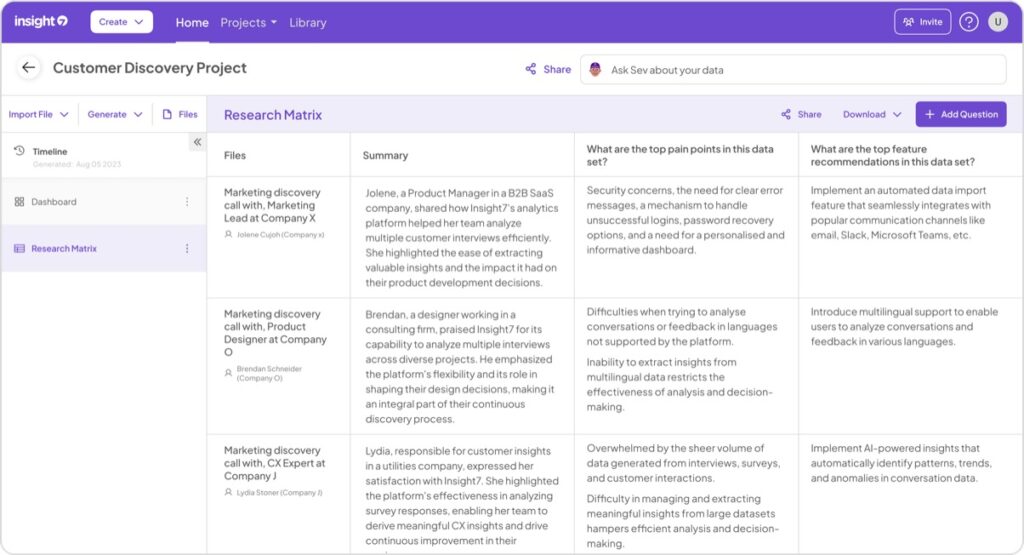
[vc_row type=”in_container” full_screen_row_position=”middle” column_margin=”default” column_direction=”default” column_direction_tablet=”default” column_direction_phone=”default” scene_position=”center” text_color=”dark” text_align=”left” row_border_radius=”none” row_border_radius_applies=”bg” overflow=”visible” overlay_strength=”0.3″ gradient_direction=”left_to_right” shape_divider_position=”bottom” bg_image_animation=”none”][vc_column column_padding=”no-extra-padding” column_padding_tablet=”inherit” column_padding_phone=”inherit” column_padding_position=”all” column_element_direction_desktop=”default” column_element_spacing=”default” desktop_text_alignment=”default” tablet_text_alignment=”default” phone_text_alignment=”default” background_color_opacity=”1″ background_hover_color_opacity=”1″ column_backdrop_filter=”none” column_shadow=”none” column_border_radius=”none” column_link_target=”_self” column_position=”default” gradient_direction=”left_to_right” overlay_strength=”0.3″ width=”1/1″ tablet_width_inherit=”default” animation_type=”default” bg_image_animation=”none” border_type=”simple” column_border_width=”none” column_border_style=”solid”][vc_column_text] Focus group analysis is a crucial component of market research, providing valuable insights into consumer opinions and behaviors. It is essential for result-oriented marketing. Focus groups offer valuable qualitative insights into consumer behaviors, preferences, and perceptions. The introduction of AI tools has transformed this process by offering greater efficiency, accuracy, and depth of insight. This article explores how AI is enhancing focus group analysis and provides a detailed overview of the top AI tools for market researchers in 2024. But before moving on, we should outline the process to give a better understanding of Focus group analysis: Data Collection and Preparation: Begin by collecting and preparing your data. This includes transcribing audio and video recordings and organizing notes accurately. Proper preparation ensures a smooth analysis process. Analysis: This stage involves multiple techniques to extract insights. You start by coding transcripts, assigning labels to relevant text. Then, you identify overarching themes. You might conduct sentiment analysis to gauge emotional responses., or content analysis to quantify specific topics. It is purely dependent on the type of analysis you want to do. Many researchers also do comparative analysis across groups and demographics. Advanced tools can even offer predictive analysis based on patterns in the data. Visualization: Once the analysis is complete, the next step is to visualize the findings. Effective visualization helps in conveying insights clearly and compellingly. Use charts, graphs, and infographics to represent data patterns and themes. Word clouds can highlight frequently mentioned terms, while bar charts or pie charts can illustrate the distribution of coded themes or sentiment scores. The Impact of AI on Focus Group Analysis AI tools address several key challenges in traditional focus group analysis: 1. Enhanced Speed and Efficiency: AI automates transcription, coding, and thematic analysis, allowing researchers to obtain insights more quickly and focus on strategic decisions. 2. Improved Accuracy: AI minimizes human errors in transcription and data coding, ensuring more reliable and consistent results. 3. Deeper Insights: AI algorithms identify patterns and themes that may not be immediately evident, offering richer and more actionable insights. 4. Scalability: AI efficiently handles large datasets, enabling comprehensive analysis without sacrificing quality. Essential AI Tools for Focus Group Analysis Here’s a detailed look at some of the most effective AI tools for focus group analysis, including their features, benefits, and potential drawbacks: 1. Insight7 Insight7 is a no-code SaaS platform designed for qualitative data analysis. It is designed to streamline the analysis of qualitative data with features like automated transcription, sentiment analysis, and theme identification. It offers powerful visualization tools, such as automated charts and graphs, which help in quickly visualizing trends and patterns. The sentiment analysis visuals provide a clear display of sentiment trends across data sets. Insight7’s user-friendly interface ensures that businesses can efficiently extract actionable insights from customer feedback and focus group data, making the analysis process both comprehensive, easy and straightforward. Key Features: Automated Transcription: Converts audio and video recordings into accurate text transcripts. Thematic Analysis: Identifies and extracts key themes and patterns from qualitative data. Customizable Reporting: Generates detailed and tailored reports based on focus group findings. Integration with Other Platforms: Seamlessly integrates with OneDrive, SharePoint, Gong, Google Drive, and more. Multi-Language Support: Analyzes data in various languages by translating it to English for processing and then back to the original language. Pros: User-friendly with a straightforward learning curve. Cost-effective compared to many competitors. Comprehensive end-to-end solution with flexible reporting and multi-language capabilities. Generates insights quickly Cons: Not suited for manual coding. 2. Delve Delve is a user-friendly qualitative data analysis tool that simplifies the process of coding and finding patterns in qualitative data, including focus group transcripts. It offers collaborative features for team analysis, making it easy for multiple researchers to work together. Delve’s intuitive coding process and visualization tools help teams quickly identify and communicate key insights from their data. Key Features: Advanced Coding: Offers dynamic coding and categorization options for detailed analysis. Thematic Visualization: Provides tools for mapping and analyzing themes effectively. Data Integration: Supports the integration of data from multiple sources. Collaborative Features: Enables multiple users to work on projects simultaneously. Pros: Strong coding and visualization features. Effective for team-based research projects. Good for detailed thematic analysis. Cons: Limited advanced analytical tools, Uses manual coding. 3. QuestionPro QuestionPro is a comprehensive survey and research tool that includes capabilities for conducting and analyzing focus groups. It offers features like automated transcription, qualitative data coding, and robust analytics. QuestionPro’s all-in-one platform allows for easy integration of survey and focus group data, and its powerful analytics tools help in generating comprehensive insights. Key Features: AI-Powered Insights: Utilizes advanced analytics to uncover insights from qualitative data. Survey Integration: Combines qualitative and quantitative data through seamless survey integration. Real-Time Reporting: Provides real-time updates and visualizations for immediate analysis. Customizable Dashboards: Tailors dashboards to specific research needs. Pros: Comprehensive tools for both survey and qualitative analysis. Real-time reporting enhances data visibility. AI-driven analytics offer actionable insights. Cons: Can be expensive, Some features may be more suited for survey data than in-depth qualitative analysis and advanced features may require additional training. 4. Taguette Taguette is a free, open-source tool for qualitative research. It allows researchers to code, annotate, and analyze text data, making it suitable for focus group analysis. While it has a basic interface, it is easy to use and provides the essential tools needed for basic qualitative analysis. Taguette’s open-source nature makes it an excellent choice for researchers on a budget or those looking for a customizable solution. Key Features: Tagging and Coding: Intuitive tagging and coding features for qualitative data. Customizable Categories: Allows for the creation of custom coding categories. Data Organization: Manages and organizes large volumes of data efficiently. Open-Source Flexibility: Offers customization options due to its open-source nature. Pros:
How to Analyze Focus Group Discussion with AI Tools

[vc_row type=”in_container” full_screen_row_position=”middle” column_margin=”default” column_direction=”default” column_direction_tablet=”default” column_direction_phone=”default” scene_position=”center” text_color=”dark” text_align=”left” row_border_radius=”none” row_border_radius_applies=”bg” overflow=”visible” overlay_strength=”0.3″ gradient_direction=”left_to_right” shape_divider_position=”bottom” bg_image_animation=”none”][vc_column column_padding=”no-extra-padding” column_padding_tablet=”inherit” column_padding_phone=”inherit” column_padding_position=”all” column_element_direction_desktop=”default” column_element_spacing=”default” desktop_text_alignment=”default” tablet_text_alignment=”default” phone_text_alignment=”default” background_color_opacity=”1″ background_hover_color_opacity=”1″ column_backdrop_filter=”none” column_shadow=”none” column_border_radius=”none” column_link_target=”_self” column_position=”default” gradient_direction=”left_to_right” overlay_strength=”0.3″ width=”1/1″ tablet_width_inherit=”default” animation_type=”default” bg_image_animation=”none” border_type=”simple” column_border_width=”none” column_border_style=”solid”][vc_column_text] Focus group discussions (FGDs) are a powerful way to gather qualitative insights from a group of participants. However, analyzing focus group data manually can be time-consuming and prone to errors. That’s where AI-powered analysis tools come in—automating transcription, identifying key themes, and generating actionable insights in seconds. With the rise of AI in research, analyzing focus group discussions is easier and more efficient than ever before. This article delves into the comprehensive process of FGDs and explores the potential of AI tools used to analyze focus group discussion recordings like Insight7. By the end of this guide, you’ll be able to use AI-powered tools to streamline qualitative research and generate faster, more reliable insights. What is Focus Group Discussion (FGD) Analysis? FGD analysis refers to examining recorded group discussions to extract key insights, opinions, and behavioral patterns. Researchers analyze verbal responses, emotions, and interactions to identify trends and themes. How AI Enhances Focus Group Analysis AI tools eliminate human bias and inefficiency by: Automating transcription to convert audio discussions into text. Extracting key themes & patterns using NLP (Natural Language Processing). Summarizing large datasets quickly for easy reporting. Generating sentiment analysis to understand participant emotions. Visualizing insights through interactive dashboards. These AI-powered capabilities make focus group research faster, more accurate, and scalable. The Focus Group Discussion Process Preparation Phase Defining Objectives: Clearly delineate the research goals to direct discussions effectively toward desired outcomes. Participant Selection: Identify and recruit participants representing the target demographic or possessing relevant expertise to ensure diverse perspectives. Moderator Training: Equip moderators with the necessary skills to facilitate unbiased discussions and maintain focus throughout the session. Designing the Discussion Guide Structured Questioning: Craft a discussion guide comprising open-ended questions and prompts meticulously designed to explore specific aspects of the research topic. Ensuring Relevance: Ensure that questions are pertinent to the research objectives, fostering meaningful dialogue and eliciting valuable insights from participants. Conducting the Focus Group Discussion Establishing Environment: Create a conducive setting conducive to open discourse, free from distractions, and conducive to participant engagement. Introduction and Rapport Building: To cultivate a comfortable atmosphere, kickstart the session with an introduction to the topic, setting ground rules, and fostering rapport among participants. Facilitating Dialogue: Encourage active participation and free-flowing discussions among participants while steering the conversation towards the predefined objectives. Probing for Depth: Judiciously employ probing techniques to delve deeper into responses, unraveling underlying motivations and nuances within participants’ perspectives. Recording Insights: Record the session, with participant consent, using audio or video methods to capture insights accurately for subsequent analysis. Analysis Phase Transcription: Transcribe the recorded discussions verbatim, capturing nuances, emotions, and expressions to preserve the richness of participant input. Thematic Coding: Analyze transcripts meticulously to identify recurring themes, patterns, and divergent viewpoints, facilitating structured data organization. Interpretation and Synthesis: Interpret findings in the context of research objectives, synthesizing diverse perspectives to derive meaningful conclusions and actionable insights. Reporting Findings Comprehensive Documentation: Compile a detailed report encapsulating key findings, supported by illustrative quotes and participant anecdotes to add depth and credibility. Visual Representation: Enhance understanding and retention by supplementing the report with visual aids such as charts, graphs, and diagrams to elucidate trends and insights effectively. Integration of AI Tools in FGDs Streamline Participant Recruitment AI-Driven Targeting: Leverage AI algorithms to sift through vast datasets and identify potential participants matching specific demographic criteria, expediting recruitment. Automated Screening: Implement Natural Language Processing (NLP) algorithms to screen participant responses efficiently, ensuring alignment with research prerequisites. Optimize Discussion Guide Development Sentiment Analysis: Harness AI-powered sentiment analysis to parse through extensive textual data, gauging prevalent sentiments and identifying pertinent discussion topics. Predictive Analytics: Employ machine learning algorithms to anticipate potential discussion avenues based on past FGDs or related research, enriching the discussion guide formulation process. Improve Moderator Support AI-Powered Chatbots: Integrate AI-driven chatbots equipped with NLP capabilities to assist moderators in real-time, suggesting follow-up questions and probing techniques to foster comprehensive discussions. Emotional Analysis: Employ real-time sentiment analysis tools to gauge participants’ emotional states during discussions. This will enable moderators to adapt their approach accordingly and maintain engagement. Facilitate Data Analysis Automated Transcription: Deploy AI-powered transcription tools to automatically convert audio recordings into text format accurately and expeditiously, saving time and resources. NLP-Driven Thematic Analysis: Leverage NLP algorithms to streamline thematic coding processes, identifying and categorizing recurring themes within transcripts swiftly and systematically. Generate Actionable Insights Advanced Analytics: Harness AI-driven analytics platforms to aggregate data from multiple FGDs, uncovering overarching trends and extracting deeper insights beyond human capacity. Pattern Recognition: Employ machine learning algorithms to discern subtle correlations and patterns within data, illuminating nuanced insights and effectively informing strategic decision-making processes. AI Tools for Focus Group Discussion Analysis There are several AI tools available that can assist with analyzing focus group discussions. These tools can help transcribe audio recordings, identify key themes and insights, and provide valuable data analysis. Here are some popular AI-powered tools for focus group analysis: 1. Insight7 Insight7 is a powerful platform for analyzing qualitative data designed to streamline the focus group analysis process. This tool automatically transcribes audio and video recordings in bulk, allowing researchers to handle large datasets efficiently. Its intuitive coding features enable users to identify key themes and patterns within transcripts, providing a deep understanding of participant responses. The platform also generates detailed visualizations and reports, making it easy to explore insights and present findings clearly and compellingly. Automated Transcription: Effortlessly convert bulk audio and video recordings into accurate text transcripts, saving time and reducing manual effort. Thematic Coding: Use advanced coding tools to identify themes, patterns, and trends within your qualitative data, ensuring comprehensive analysis. Visualizations & Reporting: Generate visually engaging reports and dashboards to illustrate insights, making it easier to share results with stakeholders. 2. Dedoose Dedoose is a
What is a Focus Group in Research: Focus Group Data Analysis

What is a Focus Group in Research? If you work in marketing, product development, user experience, or any other customer-facing role, you’ve likely heard or asked “what is focus group in research” before. So what exactly is a focus group? How do they work? And what value do they provide for research? A focus group is a carefully planned discussion involving a small group of people whose beliefs, attitudes, experiences, and insights are relevant to the research topic at hand. The discussion is led by a trained moderator in an informal setting that is designed to spark insightful feedback and foster an open exchange of ideas. Focus groups are a type of qualitative market research technique used across many industries to gain an in-depth understanding of a target audience’s opinions, motivations, preferences, and pain points. They fill a critical role in customer/user research. This is done by uncovering the “why” behind people’s behaviors, needs, and decision-making processes – something that can’t be fully captured through quantitative methods like surveys alone. In this article, we will examine the place of focus group in research and how to analyze focus group data. However, in the meantime, click here to analyze transcripts from your research. The use of Focus Groups • Testing new product concepts, designs, marketing campaigns, etc. prior to launch • Understanding attitudes and perceptions around an existing product/service • Exploring customer experiences, unmet needs, and points of friction • Generating new ideas from engaged consumers/users • Assessing reactions to things like pricing, branding, and messaging At their core, focus groups provide businesses and organizations with a direct line of communication to their target customers or end-users. This first-hand feedback is invaluable for making more informed, customer-centric decisions during product development, marketing campaigns, user experience design, and beyond. How Does a Focus Group Work? The specific process can vary based on research objectives, however, most focus groups follow a similar basic format: 1. Recruiting Participants who match pre-determined screening criteria (e.g. demographics, behaviors, experiences, etc.) are recruited through various channels. This ensures the participants are relevant to the research topic. Typical group size is 6-10 people. 2. Logistics A facility is selected that has an observation room with a one-way mirror, as well as audio/video recording capabilities. The participants are brought into a controlled discussion room with a trained moderator. 3. Discussion Guide The moderator follows a pre-set discussion guide covering specific topics and questions, but allowing for a natural flow of dialog. Guides are carefully structured to create an open environment for sharing thoughts and opinions. 4. Group Dynamics One of the key strengths of focus groups is the ability for diverse individuals to share perspectives, build off each other’s comments, and spark new insights through triggered memories and associations. Skilled moderators facilitate these rich interactions. 5. Activities To further promote engagement, moderators will often incorporate exercises, product samples, visuals, and other activities into the session. This could involve evaluating mock-ups, sampling products, or role-playing scenarios. 6. Observation There is typically a one-way mirror or video stream where clients/stakeholders can observe the sessions live. This allows them to experience first-hand reactions and catch important non-verbal cues. 7. Analysis After a focus group, recordings are reviewed and key insights are comprehensively analyzed using AI tools like Insight7. Reports summarize major themes, significant quotes, and strategic recommendations. While there are many variables to conducting effective focus groups, some guiding best practices include: • No more than 10 participants to ensure everyone can actively participate • A skilled moderator experienced in managing group dynamics • Comfortable, casual setting to facilitate open discussion • Incentives for participants in exchange for their feedback • A mix of question types (e.g. open-ended, projective, etc.) • Incorporating interactive exercises beyond just verbal Q&A The Role of Focus Groups in Research Within the field of market research, focus groups occupy an important space in the qualitative research realm. They complement and enhance quantitative data gathered through methods such as surveys by capturing the much-needed context behind the “what” and revealing the “why.” For example, let’s say a software company is preparing to launch a new enterprise product. They’ve surveyed hundreds of target customers to measure demand, assess feature prioritization, and gauge pricing sensitivity. This quantitative data reveals important statistics like what percentage of people are interested in the product, which features rank as most valuable, and what the acceptable price range is. But what those rating scales and multiple-choice questions can’t uncover is the reasoning and motivations behind why customers made those selections. That’s where focus groups play a critical role –allowing the researchers to explore the underlying beliefs, experiences, hesitations, and use cases that inform those decisions. What is Focus Group in Research? Why do customers value certain features more than others? What problems are they really trying to solve? What objections exist that could prevent them from adopting the product? Whose opinions and perspectives influence their choices? The live, dynamic nature of a focus group allows researchers to peel back the layers and uncover the rich personal context and stories behind people’s behaviors and preferences. These real-world anecdotes and revelations not only provide strategic direction for developing better solutions, but also cultivate deeper empathy and understanding of the customer mindset. At the end of the day, businesses are creating products and services for human beings – not just data points on a spreadsheet. Success hinges on being able to connect with target audiences on a deeper, emotional level. Through their unique ability to facilitate open-ended dialog, focus groups play an instrumental role in humanizing the research findings and crystallizing a customer-centric point of view. When used properly as part of a mixed-methods research approach, they serve as a powerful complement to quantitative data by capturing the authentic voices and personal perspectives that numbers alone cannot convey. However, it’s important to note that focus groups do have some inherent limitations. Compared to many quantitative methods, focus groups: • Involve small sample sizes that may not be