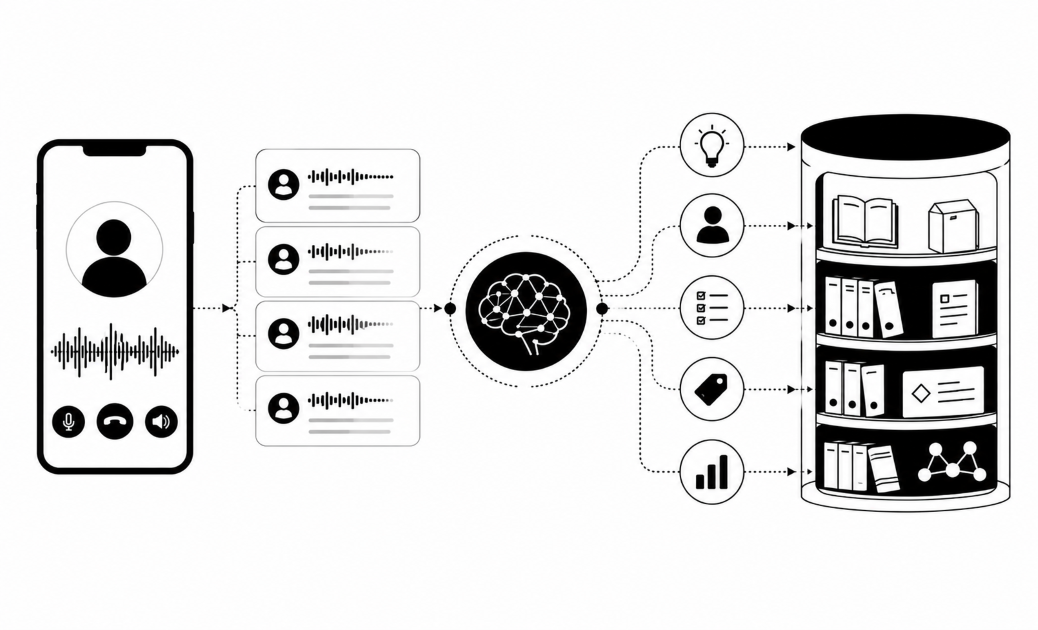
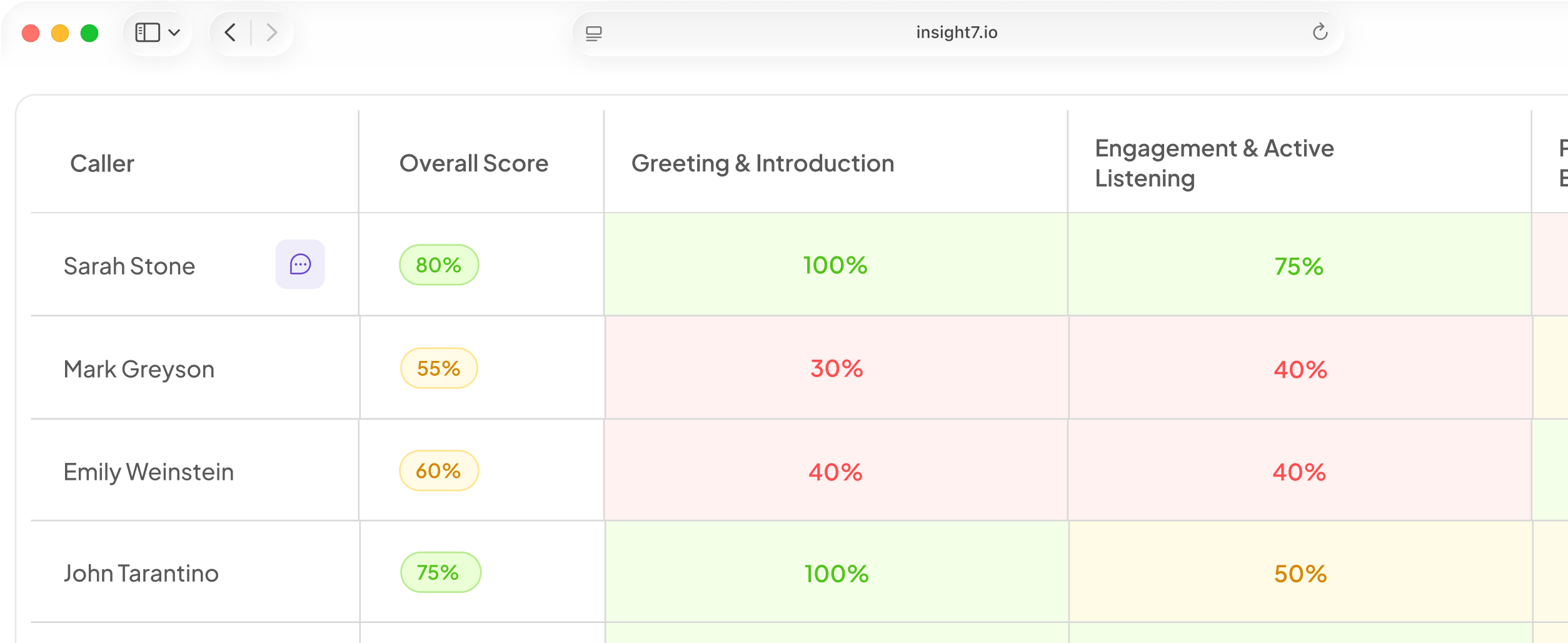

Sales operations managers and contact center technology leads lose significant value from their QA investments when call evaluation scores never reach the CRM. This six-step guide covers exactly how to connect call evaluation tools with Salesforce, HubSpot, or any CRM so that coaching data, QA scores, and call outcomes flow where decisions get made.
What are CRM tools in call centers?
Call center CRM tools are software systems that store customer account information, contact history, and interaction records. Agents use them during and after calls to log outcomes, update opportunities, and trigger follow-up workflows. When integrated with a call evaluation platform, the CRM also receives QA scores, coaching assignments, and behavioral flags tied to each interaction.
What are the 4 types of CRM?
The four core CRM types are operational (automating sales, marketing, and service workflows), analytical (surfacing customer data for decisions), collaborative (sharing customer context across departments), and strategic (long-term relationship planning). Contact centers primarily use operational CRMs like Salesforce and HubSpot. When a call evaluation tool feeds scores into an operational CRM, it turns QA data into a visible part of every rep's activity record.
Step 1: Map What Data Needs to Flow
Before touching any settings, document exactly which data fields need to move between your evaluation tool and CRM. A clean data map prevents field-mapping errors later and forces stakeholders to agree on what "integration" actually means.
The most valuable fields to sync are QA scores per call, agent or rep identity, call outcome (sale, no-sale, transfer, escalation), coaching assignment status, and compliance flags. On the CRM side, identify which object receives this data: the Contact record, the Activity log, a custom Call object, or the Opportunity.
Avoid this common mistake: Mapping QA scores to a free-text Notes field rather than a structured numeric field. Free-text scores cannot be filtered, aggregated, or used in CRM automation rules.
Step 2: Choose Your Integration Method
Three integration paths are available, each with different complexity and maintenance costs.
Native connectors are pre-built integrations maintained by the evaluation tool vendor. Insight7 has native connectors for Salesforce and HubSpot, which means field mapping, authentication, and object routing are handled through a configuration UI rather than custom code. This is the correct choice for most teams.
API integration gives full control over which fields sync, when, and to which objects. It requires engineering time to build and maintain. Use this path when your CRM is highly customized or when the native connector does not support a specific object or workflow you need.
Middleware platforms like Zapier or Make sit between the two systems and trigger syncs based on events (a call is scored, a coaching session is assigned). This path is useful for smaller teams that lack engineering resources but need more flexibility than a native connector provides. Latency is higher and reliability depends on the middleware vendor.
Step 3: Configure Field Mapping
Field mapping tells the integration exactly where each data point lands in the CRM. This step requires input from both the QA team (who owns evaluation data) and the CRM admin (who owns the object schema).
Create a custom numeric field in your CRM for QA score. Do not reuse an existing field with a different semantic meaning. Name it something explicit, such as "QA Score" or "Call Evaluation Score," and set the field type to number or percentage depending on your scoring scale. Map agent ID from the evaluation tool to the CRM user record using a shared identifier, typically email address or employee ID. If the evaluation tool generates a call outcome category, map it to a CRM picklist field with the same values.
Insight7 generates agent scorecards and per-call scores that export via API in structured JSON, making field mapping straightforward for both Salesforce and HubSpot configurations.
Step 4: Sync Agent and Rep Identity
Identity resolution is where most integrations break silently. The evaluation tool knows the agent by one identifier (a Zoom display name, a phone extension, an email from a recording platform). The CRM knows the rep by another. If these do not match, scores get dropped or misrouted.
The most reliable approach is to use email address as the shared key across both systems. Require that agents use the same email in their recording platform, evaluation tool, and CRM user profile. For telephony systems that do not capture email, build a lookup table mapping phone extensions or agent IDs to CRM user records, and apply it in the integration layer.
Test identity sync before going live by running ten calls through the evaluation tool and confirming that scores appear on the correct CRM user records. A misattribution at this stage means weeks of bad data before anyone notices.
Step 5: Set Up Bi-Directional Triggers
A one-way sync pushes evaluation data into the CRM. A bi-directional integration also lets CRM events influence what happens in the evaluation tool. This is where the integration creates genuine operational value.
Useful triggers from evaluation tool to CRM include posting a QA score as a completed Activity on the Contact or Opportunity record when a call is evaluated, creating a CRM task for the rep's manager when a score falls below a defined threshold, and updating a custom "Coaching Assigned" field when a practice session is pushed to a rep.
Useful triggers from CRM to evaluation tool include prioritizing QA review for calls tied to opportunities in late pipeline stages, and flagging calls on accounts marked as at-risk for compliance-sensitive review. Insight7 supports alert routing via email and Slack when scores drop below threshold, which can be triggered in parallel with CRM task creation.
Step 6: Validate Data Integrity and Set Monitoring Alerts
Integration setup is not complete until data integrity is confirmed under real operating conditions. Run a two-week validation period before treating integrated data as reliable.
During validation, spot-check ten calls per week: confirm the QA score in the evaluation tool matches the value in the CRM field, confirm agent attribution is correct on each record, and confirm that coaching assignment tasks appear on the correct manager's CRM dashboard. Document any discrepancies and trace them to their source in the field mapping or identity resolution layer.
After validation, set monitoring alerts for two conditions: zero calls synced in a 24-hour window (indicating a broken connection) and a sudden spike in null or zero-value QA score fields (indicating a field mapping failure). Most CRM platforms support workflow-based alerts for custom field conditions. Treat these alerts the same way you treat uptime monitoring for any other production system.
Once the integration is stable, QA data becomes a native part of your CRM workflow. Managers see scores on activity records without switching tools. Coaching assignments appear as CRM tasks. Pipeline reviews can filter by rep QA trend. The evaluation program stops being a separate QA function and becomes part of how the revenue team operates.
Teams using Insight7 for call evaluation can request CRM integration configuration support as part of onboarding. The platform covers 100% of calls automatically rather than the 3-10% a manual QA team can review, which means the CRM receives a complete behavioral record for every rep, not a sample.
FAQ
How long does it take to integrate a call evaluation tool with a CRM?
A native connector integration with a platform like Salesforce or HubSpot typically takes one to two weeks from configuration start to validated data flowing in production. API integrations requiring custom development take four to eight weeks depending on engineering availability and CRM complexity.
Can call evaluation scores be used in CRM reporting and dashboards?
Yes, once QA scores are stored in structured CRM fields (numeric or picklist), they can be included in any CRM report or dashboard. You can build rep performance views that combine opportunity stage, win rate, and QA score trend in a single dashboard without leaving the CRM.
What happens when a call evaluation tool cannot identify the agent automatically?
When automatic agent attribution fails, most evaluation platforms fall back to a manual review queue or apply a default "unknown agent" label. The safest prevention is using email as the shared identity key across all systems. If your telephony system does not capture agent email, build a lookup table in the integration layer and validate it monthly as agent rosters change.