
How AI-Powered Analysis of Customer Service Calls Can Improve Support Quality
In a bustling call center filled with representatives, an agent named Jane faces an overwhelming task: managing the needs of countless customers. The volume of conversations makes it next to impossible for Jane to identify common issues or feedback trends manually. AI-enhanced support comes into the picture as a transformative solution to this daunting challenge. AI-powered tools can analyze vast amounts of audio files swiftly, providing deeper insights and highlighting recurring themes. This technology not only improves efficiency but also helps organizations understand customer concerns better. With these insights, businesses can refine their strategies, enhancing customer satisfaction and support quality. By focusing on experience, expertise, authoritativeness, and trustworthiness, AI-enhanced support paves the way for more meaningful and personalized customer service. Leveraging AI to Understand Customer Needs Understanding customer needs through AI involves analyzing vast amounts of data generated from customer service calls. By identifying key themes, sentiments, and actionable insights, businesses can take informed actions tailored to their customers' needs. For example, if a customer frequently mentions price concerns, AI can flag this, allowing the support team to address pricing strategies more effectively. With AI-enhanced support, businesses can also map customer journeys and create detailed customer personas. This empowers the team to craft a more personalized and efficient support experience. Ultimately, leveraging AI in this manner not only aims at improving support quality but also increases the share of business by understanding and acting on customer feedback, thereby fostering stronger customer relationships. Analyzing Call Data for Insights Analyzing call data for insights is crucial in understanding and improving customer service experiences. By examining transcribed calls, we gain valuable information on common issues, customer sentiment, and agent performance. This in-depth analysis assists in identifying recurring problems and patterns that may not be immediately apparent. Understanding these insights allows for targeted improvements in support quality. Each call offers a rich source of data; consolidating this information helps craft more effective training programs and customer interaction strategies. Moreover, regular analysis of call data fosters continuous improvement by highlighting areas needing attention, ensuring a higher standard of customer service. Personalizing Customer Interactions Personalizing customer interactions transforms the way businesses engage with their clients, aiming for a more tailored and meaningful connection. By focusing on individual preferences, previous interactions, and specific needs, customer service can shift from a generic approach to a more bespoke experience. This ensures that every interaction feels unique and directly relevant to the customer. The power of AI-enhanced support lies in its ability to analyze vast amounts of data from customer service calls swiftly and accurately. AI can identify patterns in customer behavior, sentiment, and preferences, providing actionable insights that drive personalization. For instance, if a customer frequently inquires about pricing, the AI can flag this for the support team, enabling them to proactively address the concern. By harnessing AI-driven customer journey mapping and persona insights, businesses can craft interactions that resonate more deeply with their customers, ultimately fostering loyalty and improving support quality. Increasing Efficiency with AI-Enhanced Support Efficient customer service support is crucial for improving customer satisfaction and reducing operational costs. By integrating AI-enhanced support, businesses can analyze customer service calls more effectively, providing deeper insights into customer behaviors and needs. This allows support teams to resolve issues swiftly and accurately, fostering a seamless customer experience. AI-enhanced support streamlines the analysis of customer interactions through the automation of transcription, analysis, and reporting. Here are key benefits: Automated Transcription: AI can transcribe calls in real-time, eliminating manual transcription errors and saving valuable time for support teams. Insightful Analysis: By identifying patterns in customer conversations, AI helps in understanding common issues and customer sentiments, facilitating better decision-making. Consistent Reporting: With AI, reports are generated consistently, ensuring that all data is accurate and up-to-date, which aids in maintaining high-quality support standards. Trusting AI to handle these tasks reduces human error, enhances productivity, and ensures that customer service teams can focus more on resolving complex issues. This combination of automation and insight fundamentally elevates customer service quality and efficiency. Automating Routine Inquiries Automating routine inquiries using AI technology can significantly enhance customer support efficiency, resulting in a more streamlined experience for both agents and customers. By employing automated systems, businesses can handle high volumes of repetitive questions without human intervention, thus freeing up support staff to focus on more complex and meaningful customer interactions. Implementing AI-powered tools to manage frequent queries ensures that responses are consistent and timely, thus improving overall support quality. This approach not only reduces response times but also ensures that customers receive accurate and relevant information promptly. Furthermore, AI-enhanced support can analyze customer interactions to identify common issues, allowing for proactive adjustments to service protocols and enhancing the customer experience overall. In this way, routine inquiries are managed efficiently, and human agents can dedicate more time to addressing unique or complicated customer needs. The overall support process becomes more effective, building trust and satisfaction among clients. Proactive Issue Resolution Proactive Issue Resolution involves anticipating and addressing potential problems before they escalate into major concerns. AI-powered analysis of customer service calls can play a pivotal role in this approach by identifying early signs of dissatisfaction or recurring issues. With AI-Enhanced Support, patterns and trends can be continuously monitored, enabling customer service teams to intervene promptly and effectively. To achieve proactive issue resolution, customer support processes should incorporate the following steps: Early Detection of Issues: AI systems analyze call transcripts in real-time to detect keywords and sentiments that indicate potential problems. This early detection allows support teams to address concerns before they escalate. Pattern Recognition: By examining historical data, AI can identify recurring issues that may affect a broader customer base. Recognizing these patterns helps in addressing root causes systematically rather than repeatedly solving individual cases. Automated Alerts: AI tools can automate the notification process, alerting support agents to emerging issues. This ensures that significant problems are flagged immediately and can be attended to swiftly. Implementing these measures not only improves the accuracy of call analysis but also enhances overall
How to convert video file to text recording to text
Video Transcription is a transformative process that converts spoken words in video files into written text. This practice allows businesses to analyze content for valuable insights, identifying pain points, desires, and behaviors within customer interactions. It employs AI technology to accurately transcribe and structure conversations, making it possible to search and extract thematic data. For professionals seeking to better understand their clientele or improve content accessibility, mastering video transcription is essential. It stands as a critical tool for content organization and data synthesis in todays digital workplace. Unveiling the simplicity of transforming video content into accessible and editable text. The task of transforming video content into text is far simpler than it might initially appear. By utilizing video transcription tools, individuals and businesses can make their multimedia content readily accessible and editable. This enhances the versatility of the content for things like content marketing and insight analysis. Firstly, to get started, choose a transcription tool – insight7.io for instance, offers an intuitive platform to upload your video files directly from your computer or cloud storage. Once uploaded, the automatic transcription process begins, converting your spoken words into written form with impressive accuracy. After the transcription is complete, the resulting text document is ready for you to review and edit. Additionally, these tools often include features like theme identification and insight extraction, pinpointing key points such as customer pain points, desires, and behaviors within the text. This allows for deeper content analysis and is particularly useful for marketers and researchers who wish to gain a comprehensive understanding of their audience. With just one click, an insights dashboard can be generated, providing a visual representation of core themes that emerged from the transcription. Video transcription not only simplifies the conversion of video to text but also unlocks a wealth of data-driven opportunities for engaging with and understanding your target audience. Essential Steps for Video Transcription For those aiming to enhance their business or work efficiency, converting video files to text is becoming increasingly vital. The first essential step in video transcription includes selecting an appropriate transcription tool. An example of such a tool is insight7.io, known for its ability to transcribe accurately and generate valuable insights from your videos. Once you choose your tool, upload your video file directly from your computer or via cloud storage like Google Drive. After uploading, the transcription process begins, converting spoken words into written text. Its crucial to review the transcript for accuracy and edit any discrepancies to ensure the text accurately reflects the content of the video. This review phase is where expertise plays a significant role. Finally, organize the transcribed text into your project folder, allowing for easy access to analyze data and extract themes like pain points, desires, and user behaviors. Remember, a reliable transcription not only saves time but can unlock deeper understanding and streamline workflows. Choosing the Right Video Transcription Method When embarking on video transcription, selecting the appropriate method is crucial for efficiency and accuracy. Your transcription approach should align with your specific needs, whether thats capturing nuanced customer insights or condensing information into actionable data points. Here are key things to consider: Manual vs. Automated Transcription: Decide between a human transcribers meticulous attention or the speed of automated software. While manual transcription can offer a higher level of accuracy, especially in recognizing context and speaker idiosyncrasies, it is typically more time-consuming and costly. Automated transcription services, on the other hand, provide quick turnarounds, often at a lower cost, but may require additional editing for accuracy. Software Tools: There are various software options available for automated video transcription. Prominent tools include: Rev: Known for high quality with the option of human reviewers. Otter.ai: Combines automatic transcription with AI-powered insights. Sonix: Offers transcription with a focus on searchability within transcripts. Trint: Integrates AI-driven transcription services with editing tools. Customization: For more specialized needs such as identifying particular insights like pain points, desires, and behaviors, opt for services that allow customization. These services should enable you to configure the transcription to highlight or extract specific information relevant to your project. By considering these key points, you can choose a transcription method that best suits your projects requirements, helping you sift through content effectively to extract the necessary insights and evidence from your video files. Remember that regardless of the choice made, evaluating the outcome for clarity and context is always vital. Explore the various techniques to transcribe your video recordings efficiently. When looking to transcribe video recordings efficiently, considering the available techniques enhances productivity and quality. Automated transcription services, like insight7.io, utilize advanced speech recognition technology to convert audio into text swiftly. These AI-driven platforms can not only transcribe but also distinguish between speakers and even detect specific language elements, such as pain points and behaviors, within the conversations. For those seeking nuanced control over their transcripts or dealing with highly technical material, manual transcription might be necessary. Direct transcription ensures accuracy where automatic services may falter, especially when content contains industry-specific jargon. Regardless of the method chosen, the key to efficient video transcription lies in the balance between speed, cost, and the level of detail required. Centralizing the transcribed content in a library system and analyzing it for insights, as done in structured projects, further streamlines the workflow and provides valuable context. Executing the Video to Text Conversion Process Executing the video to text conversion process is critical for businesses to enhance accessibility, and content repurposing, and gain valuable insights from video recordings. Below are key steps to ensure an effective transcription: File Upload: Begin by importing the video files directly from your computer or Google Drive into the project library of the transcription tool. Transcription: Use a reliable video transcription service, such as insight7.io, to convert your video into a readable text transcript. This step is indispensable for analyzing and repurposing your content. Analysis: Once your video is transcribed, you can analyze the text to identify pain points, desires, and customer behaviors. This helps to extract actionable insights for
How to convert audio file to text recording to text
Audio transcription presents a fundamental solution for converting spoken language into written format, offering vast applications in business and professional work. It enables the efficient analysis of interviews, meetings, and customer interactions by transforming audio files into texts. This process captures essential details, such as pain points, desires, and behaviors, allowing for a deeper understanding and insight extraction. Through transcription, participants may better synthesize information, facilitating data-driven decisions that align closely with customer needs and organizational goals. Methods to Convert Audio File to Text When looking to convert audio files to text, several reliable methods can prove beneficial in enhancing the productivity and efficiency of your work. Automated audio transcription services stand out due to their speed and ease of use. Heres a concise list of noteworthy tools: Speech-to-Text Software: This technology employs advanced algorithms to interpret and transcribe spoken words into written text. Examples include Googles Speech-to-Text, IBM Watson Speech to Text, and Amazon Transcribe. Users simply upload their audio files, and the AI-powered software generates a corresponding text transcript. Manual Transcription Services: For those requiring high accuracy and detail, professional transcriptionists provide manual services that can handle complex audio with multiple speakers or background noise. Integrated Platform Solutions: Tools like Nook or NOS ai offer a more holistic approach, where apart from converting audio to text, they provide additional features such as analytics and insights into the transcribed content. When employing these methods, consider the context of use. For businesses and work environments, prioritizing accuracy and the potential to handle large volumes of audio files in bulk is crucial. Transcription services may also offer capabilities to clean up transcripts from formats such as HTML, ensuring only the relevant text is retained. Opt for a service that aligns with your specific needs, whether it may be real-time transcription or post-event transcription of recorded audio. Manual Transcription vs. Automated Transcription When deciding between manual and automated transcription services, its essential to consider accuracy, turnaround time, and cost-effectiveness for your audio transcription needs. Manual transcription involves a person listening to the audio file and typing out the content word-for-word. This method can be highly accurate if done by a skilled transcriber but usually comes with a higher cost and longer processing time. On the other hand, automated transcription utilizes advanced algorithms and speech recognition technology to convert speech into text rapidly. While this can be more cost-effective and provide faster results, it may not always match the precision of a human transcriber, especially with complex audio files that contain technical language, multiple speakers, or background noise. For businesses seeking insights from their audio recordings, consider the following transcription tools: OpenAIs GPT models offer robust automated capabilities for understanding and transcribing speech, making them suitable for generating quick transcripts. Google Cloud speech-to-text services are known for their advanced AI processing, supporting various languages and accents. AWS provides cloud-based automated transcription solutions, often used for large-scale and time-sensitive projects. Proprietary technology can tailor the transcription process to suit specific business needs, configuration for extracting key points, and providing context within the transcript. Choosing the right approach – manual, automated, or a combination of both, will depend on your transcription accuracy requirements and how critical it is to analyze the resulting text for actionable business insights. Best Practices in Audio Transcription When embarking on audio transcription, its essential to prioritize accuracy and clarity in the output text. Begin by ensuring your recordings are of high quality, with minimal background noise and clear, audible speech. If possible, use noise-cancellation tools or software to filter out any distracting sounds. Its also helpful to familiarize yourself with the subject matter to anticipate terminology and context, which can greatly enhance the transcription precision. For a seamless transcription process, its beneficial to leverage reliable transcription software or services. Notable tools include: Dragon NaturallySpeaking: Exceptionally accurate speech recognition for individual users. Google Speech-to-Text: Offers powerful real-time transcription capabilities using Googles advanced AI. Rev: Provides professional transcription services with a quick turnaround. Otter.ai: Ideal for collaborative work with its in-built AI for live transcription and note-taking. By utilizing these tools, you can convert audio files into text more efficiently. However, remember to review and edit the resulting transcriptions. Even with advanced technology, manual verification ensures the highest level of accuracy and captures the nuances of speech that AI might miss. Lastly, secure storage and organization, whether in a project management system or a dedicated library space, allow for easy retrieval and cross-referencing of transcribed materials for further insights and analysis. Tools for Converting Audio Recordings to Text When it comes to converting audio files to text, there are a number of efficient tools that offer solutions to streamline this process. Heres a quick rundown of the top software tools that can significantly aid in audio transcription, tailored for the convenience of businesses of all sizes. Speech-to-Text Services: These are online platforms like Google Speech-to-Text and IBM Watson that use advanced AI to convert spoken words into written text. Theyre ideal for handling large volumes of audio data with high accuracy. Transcription Software: Tools such as Otter.ai and Transcribe provide user-friendly interfaces and features, including automatic transcriptions, editing capabilities, and integrations with popular services, such as video conferencing apps. Desktop Software: For those who prefer offline tools, software like Dragon NaturallySpeaking offers powerful dictation and transcription capabilities directly on your computer without the need for an internet connection. Specialized Services: Services designed for specific fields, such as Rev for legal or medical transcriptions, ensure that terminology and context are accurately captured, a crucial aspect for specialized industries. For businesses looking for a seamless integration with their existing workflows, many of these tools offer APIs and plug-ins that synchronize with commonly used business applications. Whether youre dealing with customer service calls, interviews, or company meetings, utilizing these transcription tools can save time and provide valuable textual insights. Top AI Tools for Audio to Text Conversion In the bustling world of business, the ability to convert audio recordings into textual transcripts swiftly and
Transcribing interviews with Google Docs
Voice Typing Transcription simplifies the task of converting interviews into readable text, offering professionals the ability to effortlessly transcribe recordings directly within Google Docs. As the need to analyze conversations grows, particularly for those in content marketing and data analysis, the ability to accurately capture spoken words is invaluable. This introduction guides you through harnessing Google Docs for transcribing interviews, providing a streamlined method to import, transcribe, and analyze spoken content, and transforming it into actionable insights without cumbersome processes. Learn how to enhance your workflow and enrich your projects by utilizing the convenience of Voice Typing Transcription. The Essentials of Voice Typing Transcription in Google Docs Voice typing transcription in Google Docs has become a game-changer for businesses and professionals aiming to streamline their workflows and accurately document interviews. As a starting point, ensure you have a reliable microphone setup and a quiet environment to minimize errors during transcription. Then, familiarize yourself with the voice typing feature available in Google Docs, which allows for real-time speech-to-text conversion as you conduct your interviews. When transcribing, clarity and context are paramount. Remember to speak distinctly, and consider pausing slightly between sentences to give the transcription service a moment to catch up. To enhance accuracy, periodically review the transcribed text and make necessary corrections. Its important to note that while Google Docs provides a solid foundation for transcription, it may not capture every nuance, especially in technical discussions or interviews with multiple speakers. For more advanced needs or when confidentiality is a concern, third-party tools like insight7.io offer specialized services that may provide higher accuracy and additional features. Whichever tool you choose, make certain it aligns with your objectives, and dont overlook the importance of reviewing the transcript for errors or omissions. Effective transcription not only saves time but also ensures that the insights from your interviews are preserved and can be leveraged for further analysis and decision-making. Setting Up Your Device for Voice Typing Transcription Before diving into the transcription of your interviews with Google Docs, preparing your device for the voice typing transcription feature is essential for a seamless experience. First, ensure your microphone is set up and functioning correctly – this is the primary tool Google Docs will use to capture your voice. Next, check your internet connection stability, as voice typing transcription requires an online connection to Googles servers. The third step involves opening a Google Docs document and enabling the voice typing feature from the Tools menu. Finally, familiarize yourself with the voice commands that control punctuation and formatting to maximize efficiency as you transcribe. During the transcription process, it’s crucial to speak clearly and at a moderate pace. Background noise can interfere with the accuracy of voice typing transcription, so selecting a quiet environment is advisable. Remember also to periodically save your document to avoid data loss. Google Docs allows the option to upload and transcribe audio from videos. If you have pre-recorded interviews, simply import these files into your Google Docs project folder and let the software analyze and transcribe the spoken content into text, ready for your assessment and utilization. Practical Tips for Effective Voice Typing To harness the power of voice typing transcription for transcribing interviews in Google Docs, begin by ensuring a quiet environment to minimize errors in transcription. Position your microphone close enough to capture clear audio, as this will significantly improve the accuracy of the transcription. Before starting, its worthwhile to do a quick test to check that Google Docs is correctly registering your voice and punctuation commands. When youre ready to proceed with voice typing transcription, remember to speak clearly and at a moderate pace. Articulate your words and pause naturally at commas and full stops to aid in the correct formatting of the transcript. If mistakes do occur, make use of Google Docs easy editing tools to make corrections as you go. Additionally, tools like insight7.io offer enhanced features for diving into the transcribed data, allowing you to analyze themes, pain points, and behaviors within the text, streamlining the process of extracting valuable insights from your interviews. By adopting these practices, you can improve the efficiency and accuracy of voice-typed transcripts, making it an invaluable asset for any business or work-related activities. Optimizing Interviews with Google Docs Transcription To enhance the productivity and accuracy of your interview process, integrating Google Docs Voice Typing Transcription is a pragmatic approach. Firstly, ensure that your recording environment is quiet and that your microphone is properly set up to capture clear audio. This minimizes errors and omissions in the transcription. During the transcription, use the speaker identification feature selectively to distinguish between different speakers, ensuring that the conversation is accurately captured and attributed. Periodically review and correct any discrepancies in the transcription to maintain the integrity of the data. Keep focused on structuring content that is clear, concise, and valuable to the people relying on the insights derived from these interviews. It’s essential to understand that Google Docs transcription isnt foolproof. For critical interviews, consider a follow-up with professional transcription services to ensure high-quality, verbatim records. Acknowledge the limitations of automated systems, and use manual verification for complex terminology or sections with overlapping dialogue. This meticulous approach will not only save time in the long run but also contribute to more reliable, insightful data for your business. Overcoming Common Transcription Challenges in Interviews Overcoming the hurdles of transcribing interviews involves understanding the nuances of human conversation and adapting to the varied quality of audio recordings. The interview setting, whether offline or digital, can impact the transcription process significantly. In offline scenarios, the presence of note-takers may reduce the need for transcription, while digital interviews, especially across different time zones, might necessitate a more detailed transcript to ensure that no critical information is lost. To address these challenges, consider the following strategies: Utilize Noise-Cancelling Tools: Background noise can severely affect transcription accuracy. Employing noise-cancelling software helps in isolating the speakers voices and enhancing the clarity of the audio. Choose Advanced Transcription Services:
Transcribe mp3 file to text with Microsoft word
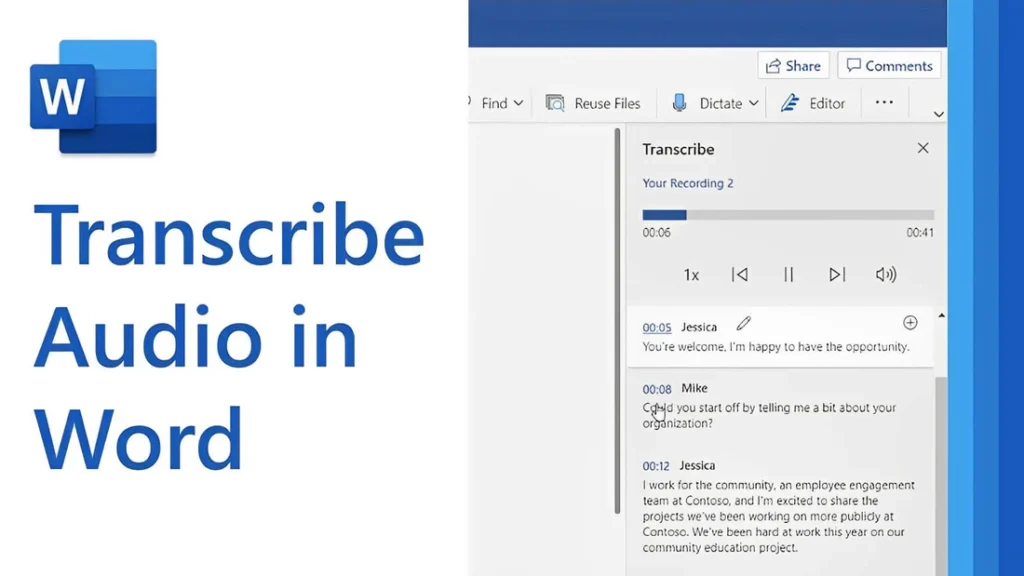
[vc_row type=”in_container” full_screen_row_position=”middle” column_margin=”default” column_direction=”default” column_direction_tablet=”default” column_direction_phone=”default” scene_position=”center” text_color=”dark” text_align=”left” row_border_radius=”none” row_border_radius_applies=”bg” overflow=”visible” overlay_strength=”0.3″ gradient_direction=”left_to_right” shape_divider_position=”bottom” bg_image_animation=”none”][vc_column column_padding=”no-extra-padding” column_padding_tablet=”inherit” column_padding_phone=”inherit” column_padding_position=”all” column_element_direction_desktop=”default” column_element_spacing=”default” desktop_text_alignment=”default” tablet_text_alignment=”default” phone_text_alignment=”default” background_color_opacity=”1″ background_hover_color_opacity=”1″ column_backdrop_filter=”none” column_shadow=”none” column_border_radius=”none” column_link_target=”_self” column_position=”default” gradient_direction=”left_to_right” overlay_strength=”0.3″ width=”1/1″ tablet_width_inherit=”default” animation_type=”default” bg_image_animation=”none” border_type=”simple” column_border_width=”none” column_border_style=”solid”][vc_column_text]Transcribing MP3 files into text is becoming increasingly essential in today’s data-driven world. Whether you’re a researcher, journalist, or business professional, converting audio recordings into text enables easy analysis, efficient documentation, and accurate reporting. While many tools exist, using Microsoft Word offers a simple, cost-effective solution for transcription. In this guide, you’ll learn how to transcribe MP3 files into text using Microsoft Word seamlessly. By the end, you’ll understand the tools required, how to avoid common transcription pitfalls, and how to get the most out of this technology for qualitative research. Understanding the Basics Before proceeding with the steps, let’s explore some foundational concepts about transcription and how Microsoft Word contributes to the process. What Is Transcription? Transcription is converting spoken words in audio or video files into written text. For qualitative researchers, transcription is crucial in analyzing interviews, focus groups, or customer calls. Accurate transcriptions provide a foundation for insights and reports. Understanding Audio Transcription in Microsoft Word Audio transcription in Microsoft Word is a feature that converts spoken words in audio files into written text. This capability is especially useful for businesses and professionals who efficiently document interactions, interviews, and meetings. Audio Transcription in Microsoft Word is revolutionizing how we convert spoken dialogue into written text. This feature allows users, such as team leads and researchers, to document and analyze interviews efficiently for actionable insights. With just a few clicks, users can upload their MP3 files into Word and witness the conversion process unfold. This powerful tool reveals not only verbatim text but also identifies speakers and key themes, such as pain points and behaviors. It is integral for those aiming to streamline their workflow and derive meaningful conclusions from their audio content, making it an invaluable asset in business and work environments. Using AI technology, Microsoft Word can identify speakers and provide a transcript that captures the nuances of conversations, enabling users to analyze and derive insights quickly. Read: Transcript Analysis AI: How It Works How Microsoft Word Transcription Works Microsoft Word now integrates with Microsoft 365’s Dictate Feature, which allows users to transcribe audio files. This feature supports MP3, WAV, and other popular formats and converts audio into editable text within minutes. To get started with audio transcription, first upload your MP3 files into the Word document library. Once uploaded, you can initiate the transcription process, during which the application will analyze the audio. The result is an editable transcript that users can review for accuracy. This transcript allows for extracting key points, such as customer pain points, desires, and behaviors—a crucial step for businesses aiming to understand their audience better. Furthermore, the functionality to add custom insights, like customer compliments, makes the transcription service adaptable to specific business needs. Preparing Your MP3 Files for Transcription Before diving into audio transcription with Microsoft Word, ensuring your MP3 files are primed and ready is crucial. Generally, files should be clear of background noise and have distinguishable speakers for the best results. Here’s a straightforward approach to preparing your recordings: Quality Check: Listen to your MP3 files. Confirm clarity and volume levels are adequate throughout the recording. If necessary, use an audio editing tool to enhance the sound quality. Unnecessarily loud sections or background buzz can hinder transcription accuracy. Format Verification: Microsoft Word supports certain audio formats for transcription. Ensure your MP3 files conform to these specifications to avoid compatibility issues during uploading. Shorten Lengths: If you have particularly long audio files, consider breaking them into shorter segments. This not only facilitates easier handling and management but can also help Microsoft Word’s transcription service process the audio more efficiently, especially if you’re dealing with limited internet bandwidth or processing power. Organize Content: For a streamlined transcription process, organize your MP3 files logically. If you’re working on several interviews or calls, label them appropriately and arrange them in the order they’ll be transcribed. This saves time and confusion later on. By preparing your MP3 files attentively, you can maximize the potential of your audio transcription efforts and gain valuable insights from your conversations. Clean and well-organized audio files are foundational for reliable transcription output, whether for business analysis or project management. Key Features of Microsoft Word’s Transcription Tool Microsoft Word’s transcription tool elevates the ease and efficiency of audio transcription, streamlining the process for businesses and professionals alike. This tool’s standout feature is its ability to distinguish between different speakers, which is highly beneficial for accurately transcribing meetings and interviews. This identification assists users in tracking the flow of conversation and attributing statements to the correct individuals, a critical aspect for clarity and organization of transcribed texts. Additionally, the transcription tool incorporates analysis capabilities, extracting key insights such as pain points, desires, and behaviors from the transcribed text. This aids in quickly identifying important themes and facilitating a deeper understanding of customer interactions or team communications. By using AI, the tool can pinpoint and extract relevant quotes as evidence of these insights, providing users with rich, contextual data for more informed decision-making. The seamless integration of transcription and analysis within Microsoft Word empowers users to unlock actionable insights from their audio files with minimal effort. How to Transcribe MP3 File to Text Using Microsoft Word If you want to convert your MP3 files into text, Microsoft Word offers a straightforward solution for audio transcription. Successfully transcribing MP3 files into text using Microsoft Word requires a clear understanding of the steps involved. Here’s how to transcribe your recordings directly within Word: Open Microsoft Word on your computer and locate the “Dictate” button, which includes the Transcribe option. Select Transcribe and then Upload the audio. Choose the MP3 file you wish to transcribe from your device. Once uploaded, Word will begin transcribing the audio file automatically. Depending on the file’s length,
Transcribe mp3 file to text with Google Drive
[vc_row type=”in_container” full_screen_row_position=”middle” column_margin=”default” column_direction=”default” column_direction_tablet=”default” column_direction_phone=”default” scene_position=”center” text_color=”dark” text_align=”left” row_border_radius=”none” row_border_radius_applies=”bg” overflow=”visible” overlay_strength=”0.3″ gradient_direction=”left_to_right” shape_divider_position=”bottom” bg_image_animation=”none”][vc_column column_padding=”no-extra-padding” column_padding_tablet=”inherit” column_padding_phone=”inherit” column_padding_position=”all” column_element_direction_desktop=”default” column_element_spacing=”default” desktop_text_alignment=”default” tablet_text_alignment=”default” phone_text_alignment=”default” background_color_opacity=”1″ background_hover_color_opacity=”1″ column_backdrop_filter=”none” column_shadow=”none” column_border_radius=”none” column_link_target=”_self” column_position=”default” gradient_direction=”left_to_right” overlay_strength=”0.3″ width=”1/1″ tablet_width_inherit=”default” animation_type=”default” bg_image_animation=”none” border_type=”simple” column_border_width=”none” column_border_style=”solid”][vc_column_text] Audio transcription tools have become invaluable for professionals looking to convert spoken words into written text. Whether you’re conducting interviews, analyzing customer calls, or collecting qualitative data, transcription transforms raw audio recordings into actionable insights. Some wonder “Can you use Google to transcribe audio files to text?” Yes you can. Although Google Drive does not have a built-in audio transcription feature, it offers several workarounds through integrations with tools like Insight7, Google Docs, Marketplace add-ons, etc. These solutions enable you to transcribe MP3 files into text, providing accessibility, analysis, and strategic decision-making opportunities. Understanding how to leverage these tools can be a game-changer for professionals aiming to refine their content strategies, derive insights from their transcripts or enhance market research efforts. Tools to Transcribe Audio (mp3) File to Text with Google Google provides several methods to transcribe audio content, often requiring creativity and the use of additional tools: Insight7: This is an AI-driven platform that integrates effortlessly with Google Drive. Insight7 offers not only transcription capabilities but also advanced analysis, making it a go-to tool for businesses that need to extract actionable insights from their video and audio content. Google Docs Voice Typing: This provides a practical workaround for those looking for a simple transcription method. By playing the audio file aloud, Google Docs’ Voice Typing converts the speech into text in real-time. This method is ideal for straightforward use cases with clear audio, though it may require manual editing to improve accuracy. Google Marketplace Add-Ons: Add-ons such as Transcripto and TranscribeKit can be integrated with Google Drive for smooth transcription processes. They’re particularly useful for teams that frequently handle audio files and need a reliable transcription tool directly in Google Docs. Google Cloud Speech-to-Text API: For more technically inclined users, Google’s API can be employed alongside a Python script to deliver precise audio transcription. Although it requires some coding knowledge, the results can be highly customizable and scalable. By utilizing these tools, you can ensure that the essential details from customer interactions, meetings, or interviews are not lost but preserved and easily accessible for future analysis. Steps for Transcribing MP3 Files Using Google Tools Here’s how to use Google tools and integrations effectively for MP3 transcription: 1. Prepare Your MP3 File for Transcription Before diving into transcription, ensure your MP3 file is in optimal condition. The quality of the audio file directly influences the accuracy of the transcription. Steps to Enhance Audio Quality: Minimize Background Noise: Record in a quiet setting or use noise-reduction software such as Audacity or Adobe Audition. Adjust Microphone Levels: Perform a sound check to avoid distortion and ensure clarity. Amplify Audio: Use tools like Audacity to enhance voice clarity. Test Transcription: Conduct a brief test transcription to gauge audio quality. By following these steps, you can improve transcription accuracy, ensuring the text reflects the audio content accurately. 2. Upload Your MP3 File to Google Drive Uploading your MP3 file to Google Drive is a necessary step before using Google tools for transcription. This centralization makes integration with add-ons and APIs seamless. Steps to Upload Audio: Navigate to Google Drive and click the New button in the top left corner. Select File upload or Folder upload if you’re managing multiple files. Choose the MP3 file from your local drive, and it will start uploading to your Drive. Organize your audio files within My Drive or specific folders and share them with your team if needed. 3. Transcribe mp3 to text: Which Tools Should I Use? Here are the tools to use to transcribe Google audio files to text: a) Use AI Tools like Insight7 While Google tools provide a basic starting point, platforms like Insight7 offer advanced transcription and analysis capabilities. Key Benefits of Insight7: Seamless Integration: Insight7 effortlessly integrates with Google Drive and other major platforms, allowing you to streamline your workflow without any disruptions. Advanced Analytics: Unlock deeper insights into customer interactions and market trends, going beyond basic transcription to uncover actionable data that drives better decisions. User-Friendly Interface: With an intuitive design, Insight7 makes transcription and analysis processes simple and efficient, even for users with minimal technical expertise. Free to Start: Begin exploring Insight7’s powerful features without any upfront cost, offering a low-risk way to enhance your transcription and analysis capabilities. High-Level Accuracy and Multi-Language Support: Insight7 provides precise transcriptions in over 100 languages, making it ideal for global teams working with diverse video content. Automatic Speaker Recognition and Timestamps: Insight7 automatically identifies speakers and adds timestamps, making it easy to follow conversations and highlight key moments. Comprehensive File Format Support: Compatible with MP3, WAV, MP4, and MOV, Insight7 simplifies transcription across various media formats. Custom Export Options: Effortlessly export transcriptions for team sharing, perfect for content creation and collaboration. Beyond transcription, Insight7 offers a comprehensive suite for analyzing video content. From highlighting key themes and extracting actionable insights to categorizing feedback and trends, it’s more than just a transcription tool – it’s a complete solution for decision-making and strategy building b) Google Docs Voice Typing You can use Google Docs to convert voice to text with Google Docs’ Voice Typing. It serves as a practical workaround for simple transcriptions. How to Use Google Docs Voice Typing: Open Google Docs and create a new document. Click on Tools > Voice Typing. A microphone icon will appear. Play your audio file aloud in a quiet environment. Click the microphone icon on Google Docs to start transcribing. The spoken words will be converted into text in real-time. This method is best for audio files with clear sound and minimal background noise. It offers a quick way to convert audio to text but may require manual editing for accuracy. c) Explore Google Marketplace Add-Ons For those seeking a more automated approach, Google Marketplace offers
Transcribe video file to text with Google Docs
[vc_row type=”in_container” full_screen_row_position=”middle” column_margin=”default” column_direction=”default” column_direction_tablet=”default” column_direction_phone=”default” scene_position=”center” text_color=”dark” text_align=”left” row_border_radius=”none” row_border_radius_applies=”bg” overflow=”visible” overlay_strength=”0.3″ gradient_direction=”left_to_right” shape_divider_position=”bottom” bg_image_animation=”none”][vc_column column_padding=”no-extra-padding” column_padding_tablet=”inherit” column_padding_phone=”inherit” column_padding_position=”all” column_element_direction_desktop=”default” column_element_spacing=”default” desktop_text_alignment=”default” tablet_text_alignment=”default” phone_text_alignment=”default” background_color_opacity=”1″ background_hover_color_opacity=”1″ column_backdrop_filter=”none” column_shadow=”none” column_border_radius=”none” column_link_target=”_self” column_position=”default” gradient_direction=”left_to_right” overlay_strength=”0.3″ width=”1/1″ tablet_width_inherit=”default” animation_type=”default” bg_image_animation=”none” border_type=”simple” column_border_width=”none” column_border_style=”solid”][vc_column_text]In the age of digital transformation, videos are a dominant medium for communication, learning, and research. Video Transcription with Google Docs is a pivotal tool for professionals seeking efficient ways to convert video content into textual form. From interviews to webinars, video files often contain valuable information that needs to be converted into text for easier analysis, sharing, and documentation. It serves as a bridge, enabling users to upload video files directly from their computers or Google Drive and swiftly transcribe them into text. Whether for capturing crucial points discussed in a meeting, analyzing interview data, or enhancing content marketing strategies, the transcription feature within Docs streamlines the process. It saves time and allows easy integration of transcripts into project folders for subsequent analysis. By unlocking the potential of Video Transcription in Docs, businesses, and individuals can easily accelerate their workflow and derive actionable insights from their video files. In this guide, we’ll explain how to use Google Docs to transcribe video files to text, explain the benefits and limitations of this method, and discuss how advanced tools like Insight7 can enhance your transcription and qualitative analysis processes. By the end of this guide, you will: Understand how Google Docs Voice Typing works for video transcription. Learn step-by-step how to transcribe a video file to text. Discover how Insight7 can complement transcription workflows by turning raw transcripts into actionable insights. Understanding Video Transcription with Google Docs What Is Video Transcription? Video transcription involves converting spoken words from a video file into a written format. It’s widely used for creating subtitles, extracting insights from interviews, and documenting video content for reference or analysis. Why Use Google Docs for Video Transcription? Google Docs offers a built-in Voice Typing feature that uses speech recognition technology to capture spoken words and convert them into text. Although not specifically designed for transcription, this feature can transcribe audio from a video file played through your device’s speakers. How Does It Work? The Voice Typing tool listens to audio through your device’s microphone and transcribes it in real time. By playing the video near the microphone, the tool converts the spoken content into text within Google Docs. Limitations of Google Docs for Transcription While Google Docs Voice Typing is free and easy to use, it does have limitations: Audio Quality Dependency: Clear audio is essential for accurate transcription. Limited Features: Unlike professional transcription tools, it lacks advanced capabilities such as speaker identification or automated punctuation. Manual Editing Required: You’ll need to review and correct the text for accuracy. Read: Transcribe mp3 file to text with Microsoft word Steps to Transcribe Video Files to Text with Google Docs A streamlined process ensures efficiency and accuracy when transcribing video files to text using Google Docs. Begin by uploading your video into a transcription tool such as Insight7.io, which can automatically convert speech into a written transcript. After the transcription is complete, you can import this text directly into Google Docs for further editing and refinement. Google Docs’ Voice Typing feature offers an accessible way to transcribe video files into text. Follow these steps to complete the process effectively: Step 1: Set Up Your Workspace Before you start, create an ideal environment for transcription. Quiet Environment: Ensure there is minimal background noise to avoid interference with the transcription. Functional Microphone: Test your microphone to ensure it captures audio clearly. Tools You’ll Need: A computer or laptop. A video file you want to transcribe. Import your video file into a transcription service from your computer or Google Drive. Access to Google Docs via a browser (preferably Chrome for optimal performance). Step 2: Enable Voice Typing in Google Docs Open Google Docs and create a new blank document. Navigate to the Tools menu at the top of the screen and select Voice Typing from the dropdown. A microphone icon will appear on the left-hand side of your screen. Pro Tip: Ensure you have a stable internet connection, as Google Docs relies on cloud processing for voice recognition. Step 3: Play Your Video File Now, it’s time to prepare your video file for transcription. Open the video file on your computer using your preferred video player. Position your device’s microphone close to the speakers to capture audio effectively. Set the video volume to a moderate level to ensure clarity. Step 4: Start Transcribing Click the microphone icon in Google Docs to activate Voice Typing. Press play on your video file and allow the audio to play naturally. Watch as Google Docs begins transcribing the audio into text in real time. Common Tip: Pause the video periodically to make corrections or ensure the transcription is capturing the content accurately. Step 5: Edit and Save Your Transcript Once the video is fully transcribed: Pause the transcription by clicking the microphone icon again. Carefully review the document to fix any errors, punctuation issues, or formatting inconsistencies. Save your transcript to Google Drive or download it in your preferred format (e.g., Word or PDF). Optional Step: Route Audio Internally for Higher Accuracy If you want to improve transcription accuracy and bypass ambient noise: Use tools like VB-Audio Cable or Soundflower to route audio directly from your video player to Google Docs. These tools eliminate background noise by feeding the audio directly to the transcription software. Through this technique, you can harness AI-based transcription services to streamline the conversion of video content into text, optimizing for both time and effort. Whether for content marketing or data analysis, this transcription process allows for more accessible data extraction and deeper insights into customer behaviors, desires, and pain points. By integrating these steps, businesses can enhance their content strategy and capitalize on the rich information embedded in their video files. Read: Transcribe audio file to text with Google Docs
Transcribe Video File to Text With Google Drive
Transcribing video content manually can be a tedious and time-consuming process. Whether you’re a student, content creator, or business professional, manually typing out what’s spoken in a video file can feel overwhelming. Yet, transcribing videos is critical for accessibility, creating accurate records, and repurposing content into articles, reports, or presentations. Whether it’s for accessibility, enhanced searchability, or extracting deeper insights, having a video-to-text transcription saves time and increases productivity. While Google Drive itself doesn’t directly transcribe video files, there are effective workarounds and integrations with tools like Google Docs, add-ons, Cloud speech-to-text and AI-powered platforms like Insight7. These solutions convert audible content into text, nurturing the potential for deeper analysis and insight extraction. This capability ensures that insights from customer interactions, such as interviews or meetings, are not lost in translation but preserved and made searchable, enabling a more efficient workflow for professionals and other stakeholders. Understanding these tools and methods can be a game-changer for those looking to refine their content strategies or enhance market research efforts. Understanding the Basics: Google Transcribe Video to Text Video transcription refers to converting spoken words in a video into written text. This is particularly important in fields such as education, content creation, and business, where accurate records of discussions, interviews, or presentations are necessary. For videos stored in Google Drive, transcription enhances accessibility by providing text formats that are easy to search and analyze. With tools like Insight7, video transcription becomes an effortless process, especially if you want Google Drive video to text transcription that integrates seamlessly and provides accurate, detailed transcriptions. It is designed for cloud-based video transcription, making it an ideal solution for Google Drive video transcription. Google-related Tools for Video Transcription Google offers several ways to transcribe video content, though it may require some creativity and additional tools: Google Docs Voice Typing Insight7 Google Marketplace Add-Ons Google Cloud-Speech-to-Text API Google Docs Voice Typing: Google Docs comes with a built-in voice typing feature, which can be used to transcribe video files by playing the audio into the microphone. Use Google Docs’ Voice Typing feature as a workaround to transcribe video content. Play the video aloud while the tool converts speech to text in real-time or consider using Free AI transcription platforms like Insight7 that integrate with Google Drive to offer a comprehensive transcription and analysis solution. Insight7 helps simplify Google Drive video transcription, allowing you to extract insights and use video content more effectively. Google Marketplace Add-Ons: Add-ons like Transcripto or TranscribeKit can be integrated with Google Drive to facilitate transcription. Google Cloud Speech-to-Text API: For more technical users, Google Cloud’s API can be used with a Python script to achieve accurate video transcription. Steps for Transcribing Video Files Using Google Tools Here’s how you can leverage Google tools and integrations to transcribe video files effectively: 1. Enhance Audio Quality Before Transcription Before transcribing your videos, it’s vital to ensure the audio quality is at its best. Clear audio translates to higher accuracy in video transcription, which is paramount for professional settings where precise documentation is essential. Steps to Enhance Audio Quality: Eliminate Background Noise: Record in a quiet environment or utilize noise-cancellation software like Audacity or Adobe Audition. Adjust Microphone Levels: Avoid distortion by performing a sound check prior to recording. Amplify Audio: Use tools like Audacity to ensure voices are audible and distinct. Test Transcription: Conduct a test transcription of a short segment to gauge audio quality. By following these guidelines, you can optimize the transcription process, saving time and ensuring the text reflects the video content accurately. 2. Upload Your Video to Google Drive The first step in the process is to upload your video file to Google Drive. Google Drive supports various video file formats, including MP4, AVI, and MOV, making it compatible with most video types. Log in to Google Drive: Start by logging into your Google Drive account. If you don’t have an account, you can easily create one for free. Upload your video file: Click the “New” button on the left-hand side, then select “File Upload.” Locate the video file on your computer that you want to transcribe and upload it to Google Drive. Wait for the upload to finish: Depending on your file size and internet speed, the upload might take a few minutes. Google Drive offers up to 15GB of free storage, so ensure your video file fits within that limit. For larger files, consider upgrading to a Google One plan. Organize your video files within My Drive or specific folders, and share them with your team if needed. Ensure that your video formats are supported by Google Drive for seamless uploading and subsequent transcription processes. 3. Transcribe: What tools should I use? a) Using Google Docs Voice Typing While Google Drive doesn’t directly transcribe videos, Google Docs’ Voice Typing feature can serve as a practical workaround for simple transcriptions. Steps to Use Voice Typing: Open Google Docs and create a new document. Click on Tools > Voice Typing. A microphone icon will appear. Play your video aloud in a quiet environment. Click the microphone icon to start transcribing. The spoken words from the video will be converted into text in real-time. This method works best for videos with clear audio and minimal background noise. It’s a quick way to convert audio into text but may require some manual editing for accuracy. b) Use AI Tools like Insight7 While Google tools provide a starting point for video transcription, platforms like Insight7 offer advanced solutions that provides quality transcription and analysis capabilities. With Insight7, you can connect your Google Drive directly, eliminating the need to download and re-upload video files. This integration makes the entire transcription process more efficient, especially for projects requiring large or multiple files. Going beyond simple transcription, Insight7 enables you to unlock deeper insights from your video content through features like theme extraction, sentiment analysis, and data visualization. This is perfect for users looking to analyze interviews, focus group discussions, or other qualitative content. Key Benefits of
5 Best AI Buyer Persona Generator with Templates & Examples
In the dynamic world of B2B marketing, understanding your customer is the linchpin of success. As organizations strive to tailor their products and services to meet the specific needs of their clients, the creation of buyer personas has become a crucial step in the process. Buyer personas are fictional representations of your ideal customers based on real data and some select educated speculation. They help in shaping product development, marketing strategies, and sales approaches. With the emergence of AI, the process of creating these personas has been revolutionized, offering a level of depth and precision that was previously unattainable. Today, we delve into the 5 best AI buyer persona generators that come with templates and examples to streamline your marketing efforts. HubSpot’s Make My Persona HubSpot’s Make My Persona tool stands out for its user-friendly interface and comprehensive template that guides you through the persona creation process. By answering a series of questions about your ideal customer, the tool generates a detailed persona that includes demographics, behavior patterns, motivations, and goals. The tool also allows you to download a personalized, shareable document that you can use across your team. Crystal Knows Crystal Knows takes a unique approach by using AI to analyze LinkedIn profiles and provide insights into the personality traits and communication styles of potential buyers. This information is incredibly valuable for tailoring your messaging and sales approach to match the preferences of your target audience. The platform offers a range of templates that can be customized to reflect the findings, making it a powerful tool for creating buyer personas. Akoonu Furthermore, Akoonu is a robust platform that excels in strategic content planning and buyer persona development. It uses AI to gather and analyze data from various sources, helping you to create detailed personas based on real customer insights. Akoonu’s templates are designed to help you visualize your buyer’s journey and identify key touchpoints, making it easier to align your marketing strategies with your customer’s needs. Persona by Delve Next up, Persona by Delve is an AI-driven tool that provides a deep dive into customer data to craft personas. It uses machine learning algorithms to sift through data and recognize patterns that human analysts might overlook. Moreover, the tool offers a variety of templates that can be used to document and present personas, complete with psychographic and behavioral insights that can inform your product and marketing decisions. Cintell Lastly, Cintell is another AI-powered tool that helps businesses understand their buyers better. It allows users to input their own research data or integrate with other platforms to collect information automatically. Furthermore, Cintell then uses AI to analyze the data and create detailed personas, complete with narrative descriptions, pain points, and buying triggers. The platform also provides templates and examples to help you put your personas to work immediately. Conclusion In conclusion, AI buyer persona generators are transforming the way organizations approach their marketing strategies. These tools not only save time but also provide a level of depth and personalization that can significantly improve your understanding of your customers. Finally, by utilizing these AI tools, paired with templates and examples, you can create more effective buyer personas that will ultimately lead to more successful product management and marketing campaigns.
Top 5 AI User Persona Generator with Templates
In the rapidly evolving landscape of digital marketing and product management, understanding your audience is more crucial than ever. With the rise of artificial intelligence (AI), the creation of user personas has become a sophisticated process that can yield highly accurate and actionable insights. In this exploration, we delve into the top 5 AI user persona generators that come with templates, providing marketers and product managers with the tools they need to craft detailed profiles of their target customers. Furthermore, AI has revolutionized the way we approach market research and customer analysis. By leveraging machine learning algorithms and vast amounts of data, AI user persona generators can identify patterns and predict behaviors, giving businesses a competitive edge. These tools not only streamline the persona creation process but also enhance the accuracy of the personas, making them invaluable for strategic planning and tailored marketing campaigns. PersonaGen AI: This powerful tool utilizes advanced analytics to create comprehensive user personas. With a rich library of templates, PersonaGen AI allows users to quickly generate personas that include demographic information, behavioral traits, and psychographic insights. Its intuitive interface and customization options make it a favorite among product managers. AI Persona Creator: Known for its precision and depth, AI Persona Creator harnesses the power of big data to construct detailed user profiles. It offers a variety of templates that cater to different industries and user types, ensuring that every persona is relevant and specific to the business’s needs. InsightBot: InsightBot stands out with its ability to integrate with various data sources, including CRM systems and social media platforms. It generates dynamic user personas that reflect real-time customer interactions, providing a constantly updated view of the target audience. PersonaAI: This generator emphasizes the user experience, offering an easy-to-use platform with customizable templates. PersonaAI’s strength lies in its ability to translate complex data into clear, visual personas that can be easily understood and applied by marketing teams. DataPersona Suite: With a focus on B2B markets, DataPersona Suite offers specialized templates that address the unique challenges of B2B persona creation. Its AI-driven insights help identify key decision-makers and influencers within target organizations, making it an essential tool for B2B marketing strategies. Moreover, each of these AI user persona generators provides a unique set of features and benefits, but they all share a common goal: to create user personas that are not only data-driven but also human-centric. In essence, by understanding the motivations, needs, and behaviors of their target audience, businesses can design products and campaigns that truly resonate. Conclusion Ultimately, the use of AI in creating user personas is about more than just efficiency; it’s about crafting a deep, empathetic understanding of the people you aim to serve. Finally, with the right AI user persona generator, organizations can achieve a level of insight that informs every aspect of their product development and marketing efforts, setting the stage for success in an increasingly competitive marketplace.