
Introduction to FCR AI Simulation: Enable/Disable Feature
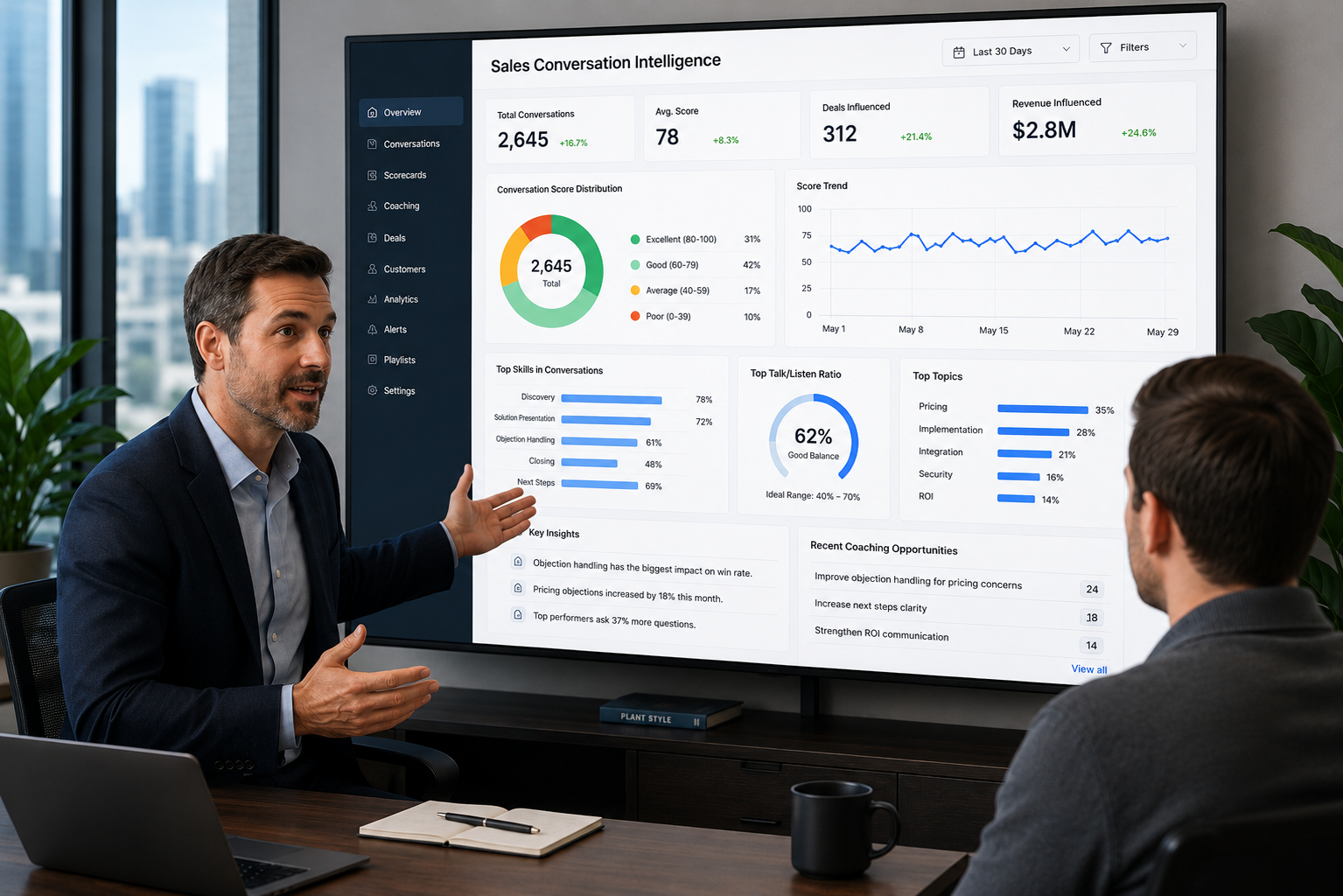
The FCR AI Simulation: Enable/Disable Feature is a pivotal tool in the realm of AI-powered coaching and roleplay. This feature allows organizations to customize their training environments by toggling specific functionalities on or off, thereby tailoring the simulation experience to meet the unique needs of their teams. By enabling or disabling certain aspects of the AI's responses or scenarios, trainers can create a more focused learning environment that aligns with specific training objectives, whether that be improving sales techniques, enhancing customer service skills, or refining leadership communication.
In a landscape where effective communication is paramount, the ability to adapt training simulations in real-time is invaluable. This feature not only enhances the relevance of practice sessions but also empowers learners to engage with the material in a way that resonates with their current challenges. As organizations strive for continuous improvement in performance metrics, the FCR AI Simulation's flexibility in feature management becomes a strategic asset, ensuring that training remains both effective and aligned with organizational goals.
Scenario: Managing the Enable/Disable Feature in FCR AI Simulation
Scenario: Managing the Enable/Disable Feature in FCR AI Simulation
Setting:
In a corporate training room equipped with the latest technology, a team of customer service representatives is preparing for a simulation session using the FCR AI Simulation platform. The training manager is tasked with customizing the simulation to address specific skill gaps identified in recent performance reviews.
Participants / Components:
- Training Manager: Responsible for configuring the simulation settings to meet training objectives.
- Customer Service Representatives: Engaged in the roleplay scenarios to practice their communication skills.
- FCR AI Simulation Platform: The tool used to create and manage the training environment.
Process / Flow / Response:
Step 1: Session Configuration
The training manager logs into the FCR AI Simulation platform and navigates to the session configuration settings. Here, they define the learning objectives, such as improving objection handling and enhancing empathy in customer interactions. They also select AI personas that reflect the types of customers the representatives will encounter.
Step 2: Enabling/Disabling Features
The training manager reviews the available features and decides to enable the empathy feedback mechanism while disabling the advanced negotiation scenarios for this session. This decision is based on the team's recent struggles with empathy during customer interactions. By tailoring the simulation, the manager ensures that the representatives can focus on developing the specific skills needed.
Step 3: Dynamic Roleplay Execution
As the representatives engage with the AI personas, they experience real-time feedback based on their responses. The AI adjusts its tone and emotional cues to challenge the representatives, providing a realistic practice environment. The training manager monitors the session, ready to make further adjustments if necessary.
Outcome:
The expected outcome is a more focused training session that enhances the representatives' empathy skills, leading to improved customer interactions. By managing the enable/disable feature effectively, the training manager ensures that the simulation aligns with the team's immediate learning needs, ultimately driving better performance in real-world scenarios.
Frequently Asked Questions about FCR AI Simulation Features
Q: What is the FCR AI Simulation Enable/Disable Feature?
A: The Enable/Disable Feature allows training managers to customize the AI simulation by toggling specific functionalities on or off, tailoring the training experience to meet the unique needs of their teams.
Q: How does enabling or disabling features impact training outcomes?
A: By customizing the simulation environment, trainers can focus on specific skills, such as empathy or negotiation, leading to more effective practice sessions and improved performance in real-world scenarios.
Q: Can the Enable/Disable Feature be adjusted in real-time during a session?
A: Yes, trainers can make adjustments during a session to better align the simulation with the learners' immediate needs, ensuring a responsive training experience.
Q: What types of features can be enabled or disabled?
A: Features may include empathy feedback mechanisms, scenario difficulty levels, and specific AI persona behaviors, allowing for a tailored approach to skill development.
Q: Is the Enable/Disable Feature suitable for all training contexts?
A: Yes, this feature is versatile and can be applied across various training contexts, including sales, customer service, and leadership development, enhancing the relevance of practice sessions.
Q: How quickly can improvements be seen after using the FCR AI Simulation?
A: Organizations often see measurable improvements within 2–4 weeks of implementing tailored training sessions using the Enable/Disable Feature, depending on the training focus and participant engagement.